
MSBA-174 · Lesson 6 of 12 · 22 min
Custom styles and style sets
▶ Video coming soon A video version of this lesson is on the way.
Maple & Pine's brand had been settled in 2025: deep forest green, warm brass gold, a single clean body font and a display font for headings. In Word, though, the brand existed mostly as habit. Teo's proposal template from the Associate course had three custom styles (MP Package Name, MP Price Line and MP Fine Print). The run sheet template had its own versions with the same names but different settings, and the vendor letters used built-in Heading 1 in Word's default blue. On the second Friday of November Dagny set out to make the brand a real Word design: a custom color set, a custom font set, a theme, a style set and a family of custom styles, copied into every template. This lesson covers the objectives create and modify paragraph, character and table styles, copy styles to other documents or templates, and create custom color sets, font sets, themes and style sets.
Four kinds of style
Word has four style types, plus a fifth for lists. Each controls a different level of the document.
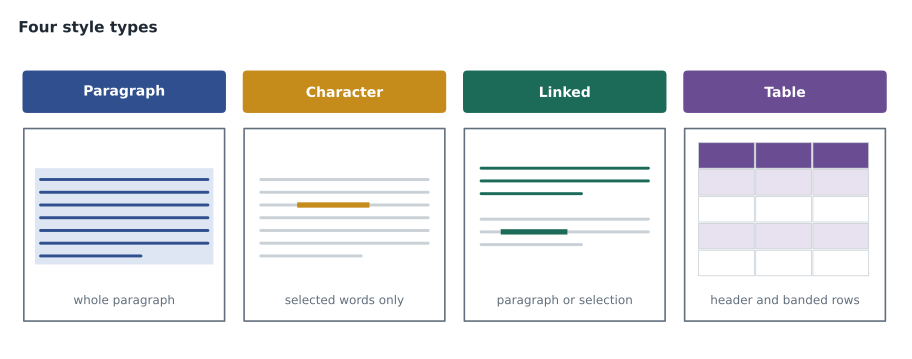
| Type | Applies to | Can contain | Example |
|---|---|---|---|
| Paragraph | Whole paragraphs | Font, paragraph, tabs, border, language, frame, numbering, text effects | Normal, Heading 1, MP Price Line |
| Character | Selected text only | Font, border, language, text effects | Emphasis, MP Venue Name |
| Linked (paragraph and character) | A paragraph when nothing is selected; selected text otherwise | Everything a paragraph style can, applied as character formatting to selections | Heading 1 to Heading 9, Title |
| Table | Tables | Formatting for the whole table and for parts such as header row, first column and banded rows | Grid Table 4 - Accent 1, MP Price Table |
| List | Numbered and bulleted lists | Number formats and indents for up to nine levels | MP Checklist |
The style type is chosen when a style is created and cannot be changed afterwards except between paragraph and linked. A style can also be based on another style, inheriting everything it does not set itself, and can name a style for following paragraph, the style Word switches to when you press Enter at the end of a paragraph.
Creating a style
There are two ways to create a style. The quick way is to format some text, open the Styles gallery's More arrow and choose Create a Style; Word bases the new style on the formatting of the selection. The full way, which the exam expects, is the New Style button at the bottom of the Styles pane (Ctrl+Alt+Shift+S, or the Styles group launcher). It opens Create New Style from Formatting.
| Setting | Meaning |
|---|---|
| Name | A unique name; Maple & Pine uses the prefix MP |
| Style type | Paragraph, Character, Linked (paragraph and character), Table or List |
| Style based on | The parent style whose settings are inherited |
| Style for following paragraph | The style for the next paragraph after Enter |
| Formatting | Quick font, size, color, alignment and spacing settings |
| Add to the Styles gallery | Shows the style in the gallery on the Home tab |
| Automatically update | Changes the style when direct formatting is applied to a paragraph in it (use with care) |
| Only in this document / New documents based on this template | Where the style is saved |
| Format button | Full dialogs: Font, Paragraph, Tabs, Border, Language, Frame, Numbering, Shortcut key, Text Effects |
Dagny built the brand styles as a hierarchy. MP Body was based on Normal with the brand font at 11 point and 6 points after. MP Heading 1 was a linked style based on Heading 1, so it kept Heading 1's outline level and stayed in the Navigation pane and tables of contents, and she set its font color to the theme's Accent 1 rather than a fixed color. MP Fine Print was based on MP Body at 9 point. Because each child is based on a parent, changing MP Body's font later changes everything built on it.
Worked problem
A heading style that still feeds the table of contents
Rosalind wants headings in the brand font, forest green, with a gold rule underneath, and they must still appear in the Navigation pane and the table of contents. Should Dagny create a brand-new paragraph style or modify Heading 1?
Show solution
- Either works if the outline level is right, but the simplest is to modify Heading 1 itself (right-click Heading 1 > Modify).
- Set the font and size, choose the theme color Accent 1 for the font color.
- Format > Border: bottom border, Accent 2 color (brass gold), 1 1/2 point.
- Choose New documents based on this template and click OK.
Answer: Modifying Heading 1 keeps the built-in outline level, the TOC behavior and the keyboard shortcut Ctrl+Alt+1. A brand-new style would need its outline level set to Level 1 in the Paragraph dialog to behave the same way.
Modifying a style
Right-click a style in the gallery or pane and choose Modify to open the same dialog with the style's current settings. A faster way is Update [style] to Match Selection: format one paragraph exactly as you want, then right-click the style and choose that command. Every paragraph in the style changes at once.
Two settings in the Styles pane help when a document is full of styles. Options at the bottom of the pane chooses which styles to show (Recommended, In use, In current document or All styles) and how to sort them. Style Inspector shows the paragraph and character style of the selected text and any direct formatting on top, with buttons to clear each level. Reveal Formatting (Shift+F1) shows the full formatting of the selection and where each setting comes from.
Character and table styles
A character style is the right tool for repeated formatting inside paragraphs: venue names, package names, warnings. Create it the same way with Style type: Character; the Format button then offers only Font, Border, Language and Text Effects. In lesson 4 Dagny turned every hand-bolded venue name into the character style MP Venue Name; now she defined that style properly: brand font, bold, Accent 1 color.
A table style controls a table's overall look and the special formatting of its parts. Create one with Style type: Table, or right-click a table style in Table Design > Table Styles and choose New Table Style or Modify Table Style. The dialog has an Apply formatting to list: Whole table, Header row, Total row, First column, Last column, Odd banded rows, Even banded rows and corner cells. Each part can have its own font, fill and borders. The Table Style Options check boxes on the Table Design tab then switch those parts on or off for each table.
Worked problem
The price table style
Every proposal has a price table. Rosalind wants a green header row with white bold text, light gold banding, no vertical borders and right-aligned prices in the last column. How does Dagny make this reusable?
Show solution
- Table Design > Table Styles > More > New Table Style. Name: MP Price Table; based on Table Normal.
- Apply formatting to: Whole table. Set the body font, a thin bottom border on each row, no inside vertical borders.
- Apply formatting to: Header row. White bold text, Accent 1 fill.
- Apply formatting to: Odd banded rows. A light tint of Accent 2. Apply formatting to: Last column. Format > Table Properties: right alignment for cells.
- Choose New documents based on this template and click OK. Apply it to each price table and tick Header Row and Banded Rows in Table Style Options.
Answer: A table style keeps every price table consistent and can be changed in one place. Fill colors set from theme colors will follow the theme.
Custom color sets, font sets and themes
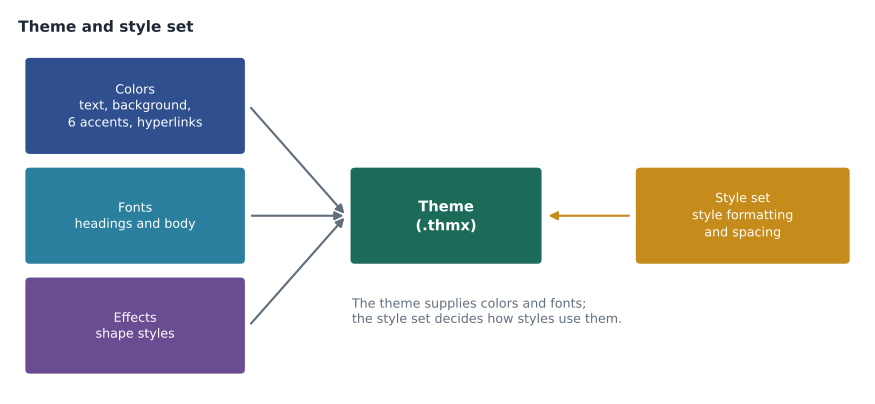
A theme in Word is a set of three things: colors (two text/background pairs, six accent colors and two hyperlink colors), fonts (one for headings and one for body text) and effects (shape styles such as shadows and bevels). Themes are on the Design tab. Styles that use theme colors and theme fonts, such as the built-in headings, change when the theme changes.
To create a custom color set, choose Design > Colors > Customize Colors. The Create New Theme Colors dialog has a picker for each of the twelve slots and a preview. Give the set a name and click Save. Dagny set Text/Background Dark 2 to a charcoal, Accent 1 to forest green and Accent 2 to brass gold, chose lighter accent colors that still met contrast guidelines against white for Accents 3 to 6, and named the set Maple & Pine.
To create a custom font set, choose Design > Fonts > Customize Fonts. Choose a Heading font and a Body font, name the set and save. Styles that use the theme fonts (shown as "+Headings" and "+Body" in the font list) then use these fonts. Dagny chose the brand's display font for headings and its body font for body text, and set MP Body's font to +Body rather than the font's name, so that the partner edition, which uses a different body font, could change it through the theme alone.
To save a custom theme, set the colors, fonts and effects you want and choose Design > Themes > Save Current Theme. Word saves a .thmx file, by default in the Document Themes folder, and the theme appears under Custom in the Themes gallery. Themes can also be shared with Excel and PowerPoint, which use the same file format; Dagny gave the .thmx file to Teo for the PowerPoint template he had built in the Associate course.
Style sets
A style set stores the formatting of the main styles in a document: Normal, the headings, Title, Subtitle, Quote and others, including their spacing. Style sets are the gallery in the Document Formatting group on the Design tab. Applying one reformats the document by redefining those styles. To create a custom style set, set up the styles you want in a document, then open the Document Formatting gallery's More arrow and choose Save as a New Style Set. Word saves a .dotx in the QuickStyles folder, and the set appears under Custom in the gallery.
The difference between a theme and a style set causes confusion on the exam. A theme supplies colors, fonts and effects; a style set supplies the formatting of the styles, such as size, spacing and which theme color each style uses. Changing the theme to Office while keeping the Maple & Pine style set keeps the layout but changes the colors and fonts. Changing the style set while keeping the Maple & Pine theme keeps the colors and fonts but changes the layout. The Paragraph Spacing button beside the gallery also changes Normal's spacing for the whole document.
Copying styles between documents and templates
Styles live in documents and templates. To make the run sheet template use the same MP styles as the proposal template, you can copy them with the Organizer. Open the Styles pane, click Manage Styles, then Import/Export (or Developer > Document Template > Organizer). The Organizer has two lists side by side: the current document or template on the left and, by default, Normal.dotm on the right. Close File and then Open File on either side to choose any document or template.
Select styles in one list and click Copy to copy them to the other. If a style with the same name already exists, Word asks whether to overwrite it. The Delete and Rename buttons manage styles on either side. Dagny opened the proposal template on the left and the run sheet template on the right, copied every MP style across, overwriting the run sheet's old versions, and repeated for the vendor letter and checklist templates. Then she saved each template.
The Manage Styles dialog has its own useful tabs. Edit lists every style with its preview and lets you modify or delete one. Recommend chooses which styles appear in the Recommended list and in what order. Restrict marks styles as restricted for use when Restrict Editing limits formatting (lesson 3). Set Defaults sets the default font and paragraph spacing for the document or template, the same effect as Set As Default.
Style shortcuts worth knowing
A few keyboard shortcuts make style work faster on the exam and in daily work: Ctrl+Alt+1, Ctrl+Alt+2 and Ctrl+Alt+3 apply Heading 1 to 3; Ctrl+Shift+N applies Normal; Ctrl+Shift+S opens the Apply Styles pane, where you can type a style name; Ctrl+Space removes direct character formatting and Ctrl+Q removes direct paragraph formatting, leaving only what the style supplies. You can give any style its own shortcut with Format > Shortcut key in the Modify Style dialog.
Common mistakes
MistakeCreating a new heading style without an outline level.
InsteadBase it on a built-in heading or set Outline level in the Paragraph dialog, so it appears in the Navigation pane and TOC.
MistakeSetting style colors to fixed colors.
InsteadUse theme colors so the theme can change them.
MistakeConfusing a theme with a style set.
InsteadThemes supply colors, fonts and effects; style sets supply style formatting.
MistakeCopying styles with Format Painter between templates.
InsteadUse the Organizer to copy style definitions.
MistakeSaving a custom style only in the current document when every new document needs it.
InsteadChoose New documents based on this template, or save it in the template.
Summary and key terms
- Word has paragraph, character, linked, table and list styles; create them in the Styles pane with New Style.
- Base styles on parents and set the style for the following paragraph to build consistent hierarchies.
- Table styles format the whole table and its parts; Table Style Options switch parts on or off.
- Custom color sets and font sets are created on the Design tab and saved into a theme (.thmx) with Save Current Theme.
- Save as a New Style Set stores the document's style formatting; the Organizer copies styles between documents and templates.
- Linked style
- A style that acts as a paragraph style or a character style depending on the selection.
- Style based on
- The parent style whose formatting a style inherits.
- Table style
- A style that formats a table and its header row, banded rows and other parts.
- Theme
- A set of theme colors, theme fonts and theme effects.
- Style set
- A saved set of style definitions applied from the Design tab.
- Organizer
- A dialog that copies, deletes and renames styles and macros between files.
Practice problems
Work each problem on paper first, then reveal the answer to check.
Which style type should venue names use?
Show answer
A character style, because they appear inside paragraphs.
Where do you create a custom font set?
Show answer
Design > Fonts > Customize Fonts.
How do you copy styles from one template to another?
Show answer
Styles pane > Manage Styles > Import/Export (the Organizer), then Copy.
What file type is a saved theme?
Show answer
.thmx.
Lesson quiz · 5 questions
Score 60% or more to complete this lesson.
Create a free account to save your progress, take quizzes and earn a certificate.