
MSBA-174 · Lesson 12 of 12 · 24 min
Practice project: a long technical manual
▶ Video coming soon A video version of this lesson is on the way.
On Friday, November 20, 2026, Dagny sat the practice project she and Rosalind had been building toward: a timed, exam-style run through the Maple & Pine Venue Operations Manual, the 70-page document she had been assembling for new event coordinators. Rosalind set the rules from the Associate course: 50 minutes, no help, tasks read from a printed sheet in the order given, and a file she had prepared that morning with its own problems hidden in it. This lesson walks through the project as a model of what MO-111 tasks feel like, then covers how to prepare for the exam itself and what Dagny planned next.
How MO-111 projects are built
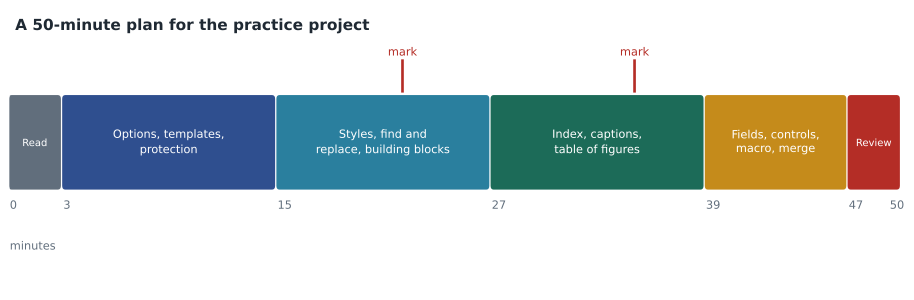
Like the Associate exams, MO-111 presents several projects, each a document with a list of numbered tasks. Each task states a result you must produce, usually without telling you which command to use: "Create a paragraph style named Procedure Step based on List Paragraph" rather than "open the New Style dialog". You can move between tasks and projects, mark tasks for review and, in most delivery versions, reset a project to start it again (which loses your work in that project). Scoring checks the result in the file, not the clicks you used, so any correct method counts. Microsoft does not publish the number of projects or tasks, and they vary; the important constant is 50 minutes.
The practice project
Rosalind's sheet had 20 tasks across the four domains, roughly in proportion to the exam weights. Dagny's notes on each task, written the following day, are below.
| # | Task | Domain | Result |
|---|---|---|---|
| 1 | Show the Developer tab and add Building Blocks Organizer to the Quick Access Toolbar | 1 | Done |
| 2 | Change the Normal template default font to the brand body font, 11 point, for all new documents | 1 | Done |
| 3 | Compare the manual with "Manual_vendor_edits.docx" and show the result in a new document with changes labeled Vendor | 1 | Done |
| 4 | Restrict editing to comments only, except section 5, and enforce protection without a password | 1 | Done, after unprotecting for task 3 first |
| 5 | Set the proofing language of the French glossary to French (Canada) | 1 | Done |
| 6 | Replace every phone number in the form 902.555.0147 with 902-555-0147 using wildcards | 2 | Done |
| 7 | Replace all text formatted as Bold, Accent 1 with the character style MP Venue Name | 2 | Done |
| 8 | Turn on automatic hyphenation and limit consecutive hyphens to 2 | 2 | Done |
| 9 | Add line numbers to section 3 only, restarting on each page | 2 | Done |
| 10 | Create a paragraph style named Procedure Step based on List Paragraph, with 3 pt after | 2 | Done |
| 11 | Save the selected rain plan box as a Quick Part named MP Rain Plan in the category Maple & Pine | 3 | Done |
| 12 | Create a color set named Maple & Pine Light with Accent 1 set to the given green | 3 | Done |
| 13 | Mark all occurrences of "generator" as index entries and insert an index at the end | 3 | Marked for review, then done |
| 14 | Add a caption label Floor Plan and caption the four floor plans below the images | 3 | Done |
| 15 | Insert a table of figures for Floor Plan captions on page iii | 3 | Done |
| 16 | Create a custom property EventSeason with the value 2027 and insert it in the footer | 4 | Done |
| 17 | Add a drop-down list content control titled Venue with three given entries | 4 | Done |
| 18 | Record a macro named UpdateAll stored in this document that updates all fields; save as .docm | 4 | Saved as .docx by mistake (missed) |
| 19 | Copy the module NewMacros from "MP Tools.dotm" into this document | 4 | Not reached |
| 20 | Using "Venues.xlsx", create a directory of venues with name and capacity, filtered to capacity over 150 | 4 | Marked for review, then done |
She completed 18 of the 20 tasks in 49 minutes. The misses are instructive. On task 18 she recorded the macro correctly but saved with Ctrl+S, accepted Word's warning without reading it, and the file stayed a .docx, so the macro was discarded. On task 19 she simply ran out of time, because task 13 had cost six minutes: she had marked "generator" with Show/Hide on, then inserted the index, and the page numbers were wrong until she turned Show/Hide off and updated the index.
Three tasks in detail
Worked problem
Task 4: comments only, except section 5
After task 3, the manual must allow only comments, except in section 5 (Vendor rules), which must stay editable. Protection must be enforced with no password.
Show solution
- Review > Restrict Editing. Tick Allow only this type of editing; choose Comments.
- Click in section 5 and select it from its heading to the end of the section (Ctrl+Shift+Down repeatedly, or click at the start and Shift+click at the end).
- Under Exceptions, tick Everyone.
- Click Yes, Start Enforcing Protection; leave both password boxes empty; click OK.
Answer: Comments with an exception for section 5. Leaving the password empty is a deliberate requirement of the task, not an omission.
Worked problem
Task 13: indexing "generator"
Mark every occurrence of "generator" as an index entry and insert an index on the last page using the default format.
Show solution
- Ctrl+F, search for generator to find the first occurrence; select it.
- Alt+Shift+X; check Main entry shows generator; click Mark All; close the dialog.
- Press Ctrl+Shift+8 to turn off Show/Hide.
- Ctrl+End, References > Insert Index > OK. Check the page numbers against two occurrences.
Answer: Turning off Show/Hide before inserting the index keeps hidden XE field text out of the pagination. Checking two page numbers catches the problem in seconds.
Worked problem
Task 20: a filtered directory
Create a directory listing each venue's name and capacity, one per line, for venues with capacity over 150, from the Venues sheet of Venues.xlsx. Merge it to a new document.
Show solution
- Mailings > Start Mail Merge > Directory. Select Recipients > Use an Existing List > Venues.xlsx > Venues sheet.
- Edit Recipient List > Filter: Capacity, Greater than, 150.
- Insert Merge Field Venue, press Tab, Insert Merge Field Capacity, then press Enter so each record ends with a paragraph mark.
- Finish & Merge > Edit Individual Documents > All > OK.
Answer: A directory merge puts every record in one document. The paragraph mark after the last field is what puts each venue on its own line.
Dagny's exam-day strategy
From the practice project and the Associate experience, Dagny wrote a one-page strategy and pinned it above her desk.
| Habit | Why |
|---|---|
| Read the whole task, including names and values, twice | Most lost marks are a wrong name, wrong value or wrong location |
| Do quick tasks first; mark long ones for review | Every task is worth the same; a six-minute task should not block three one-minute tasks |
| Check what is selected before acting | Many tasks apply to a section, table or paragraph only |
| Read every Word prompt before clicking | Save-format warnings, overwrite prompts and Apply to boxes decide the result |
| Turn Show/Hide on to inspect and off before indexes and tables | Hidden text and field codes change pagination |
| Prefer dialogs over drags when a value is given | Exact values are checked exactly |
| Do not reset a project unless it is truly broken | Resetting loses every completed task in it |
| Leave three minutes for marked tasks | Marked tasks are easy marks once the clock pressure is off |
Two tactical points from Rosalind. First, the exam is a test of results, so use the fastest route you trust: right-click menus, keyboard shortcuts, the Tell Me search box at the top of the window ("Search" in current Word), which finds any command by name. Typing "line numbers" in Search and pressing Enter is often faster than remembering the Layout tab. Second, if a task refers to something you cannot see, such as a style that is not in the gallery, open the full list (the Styles pane with Options set to All styles, or the Building Blocks Organizer) rather than assuming it is missing.
A review plan by domain
The week after the practice project, Dagny built a review plan that mapped each exam domain back to the lessons in this course and to a real Maple & Pine file to practice on.
| Domain | Weight | Lessons | Practice file |
|---|---|---|---|
| Manage document options and settings | 20–25 percent | 1, 2, 3 | The venue agreement: compare, link, restrict, protect, language |
| Use advanced editing and formatting features | 20–25 percent | 4, 5, 6, 7 | The vendor handbook: wildcards, styles, hyphenation, line numbers, pagination |
| Create custom document elements | 20–25 percent | 5, 6, 8 | The operations manual: building blocks, theme, index, captions, bibliography |
| Use advanced Word features | 25–30 percent | 9, 10, 11 | The proposal template and year-end letters: fields, controls, macros, merges |
Her weak spots from the project were macros and the Organizer, so she practiced task 18 and task 19 five times each in a week, saving as .docm deliberately every time, and rehearsed copying a NewMacros module with the Organizer until it took under a minute. She also practiced mail merge directories and labels, because the fourth domain carries the most weight and those tasks take the longest.
After MO-111
Dagny booked MO-111 for the second week of January 2027 through Certiport, with MO-211 to follow in spring 2027 as planned. Passing both, with her existing Associate certification, earns Microsoft Office Specialist: Expert (Microsoft 365 Apps). The Excel Expert course in this program, Excel Expert for the MOS Exam (MO-211), covers MO-211 in the same way this course covered MO-111.
The manual itself went into service on November 23. Its final form used everything in this course: a template-based structure with custom styles in the Maple & Pine theme, a style set, building blocks for repeated boxes, wildcards to standardize the pasted vendor pages, hyphenated two-column directories, line-numbered contract clauses, an index, three tables of figures, a bibliography of safety sources, a front page of content controls for the venue details, a custom property for the season in every footer, and a small macro that updated all fields before printing. Rosalind's verdict: "The first document in this company that looks after itself."
One more task in detail
Worked problem
Task 10: the Procedure Step style
Create a paragraph style named Procedure Step, based on List Paragraph, with 3 points of space after, and apply it to the numbered steps in section 4.
Show solution
- Open the Styles pane (Ctrl+Alt+Shift+S) and click New Style.
- Name: Procedure Step; Style type: Paragraph; Style based on: List Paragraph.
- Format > Paragraph: Spacing After 3 pt. OK, then OK.
- Select the steps in section 4 and click Procedure Step in the Styles pane.
Answer: Every part of the task (name, type, parent, spacing and where to apply it) is checked. Using the Format button guarantees the exact value.
The final week
Dagny's plan for the week before her exam, agreed with Rosalind, kept practice short and focused.
| Day | Practice |
|---|---|
| Monday | Domain 1 tasks on the venue agreement: compare, restrict, protect, links |
| Tuesday | Domain 2 on the handbook: wildcards, style replacements, hyphenation, line numbers |
| Wednesday | Domain 3 on the manual: building blocks, theme parts, index, captions |
| Thursday | Domain 4: one letter merge, one label merge, one directory; fields, controls, one macro saved as .docm |
| Friday | A full 50-minute mock project, then rest |
What the Expert exam does not repeat
The Expert outline does not list Associate skills such as basic character formatting, inserting pictures or creating tables, but it assumes them: you cannot build a table style without knowing tables, or caption floor plans without inserting pictures. If an Associate skill feels rusty, revise it in Microsoft Word for the MOS Exam (MO-110) before the Expert exam rather than hoping it will not come up.
Common mistakes
MistakeAccepting a save-format warning without reading it.
InsteadRead every prompt; saving a macro document as .docx discards the macro.
MistakeSpending six minutes on one stubborn task.
InsteadMark it for review and move on.
MistakeResetting a project to fix one task.
InsteadUndo or fix the task directly; resetting loses all completed tasks in that project.
MistakeLooking only in the Styles gallery for a named style.
InsteadOpen the Styles pane with all styles shown.
MistakeForgetting that the fourth domain carries the most weight.
InsteadPractice merges, controls and macros until they are fast.
Summary and key terms
- MO-111 presents projects of result-based tasks in 50 minutes; any correct method scores.
- Plan time by domain, do quick tasks first, mark long ones and leave time for review.
- Read names, values, locations and every Word prompt; most errors are details.
- Turn Show/Hide off before building indexes and tables; save macro files in macro-enabled formats.
- MOS Expert (Microsoft 365 Apps) needs the Associate certification plus MO-111 and MO-211.
- Project
- One document in a MOS exam, with a list of tasks to complete.
- Task
- A single required result within a project.
- Mark for review
- An exam feature for flagging a task to return to.
- Reset project
- Restoring a project to its starting state, losing work done in it.
- MOS Expert
- The certification earned with the MOS Associate plus two Expert exams.
Practice problems
Work each problem on paper first, then reveal the answer to check.
Why did task 18 fail in Dagny's practice project?
Show answer
The macro document was saved as .docx, which discarded the macro.
What makes each record in a directory merge appear on its own line?
Show answer
A paragraph mark after the last merge field.
When should you leave password boxes empty when enforcing protection?
Show answer
When the task says to enforce protection without a password.
Which two exams complete MOS Expert for Microsoft 365 Apps alongside the Associate?
Show answer
MO-111 (Word Expert) and MO-211 (Excel Expert).
Lesson quiz · 5 questions
Score 60% or more to complete this lesson.
Create a free account to save your progress, take quizzes and earn a certificate.