
MSBA-174 · Lesson 5 of 12 · 24 min
Paste options and building blocks
▶ Video coming soon A video version of this lesson is on the way.
Maple & Pine writes the same paragraphs again and again. Every proposal ends with the same cancellation terms. Every run sheet has a rain plan box. Every vendor letter closes with the same signature block, which Rosalind updates whenever the company's phone number or license wording changes. In November Dagny counted eleven slightly different versions of the cancellation terms across the year's proposals, three of which quoted a deposit rule the company had dropped in 2025. The fix is building blocks, and the exam objectives are create QuickParts and manage building blocks. Because so much reused content arrives by copying and pasting, this lesson begins with the related objective apply paste options.
Paste options
When you paste, Word chooses a default treatment and shows the Paste Options button (Ctrl) near the pasted content. The same choices are on Home > Paste and in the right-click menu. The choices depend on what you copied, but the common ones are:
| Option | Result | Use when |
|---|---|---|
| Keep Source Formatting | The pasted text keeps the fonts, colors and styles from where it came from | The appearance must be preserved exactly, for example a quote from a supplier |
| Merge Formatting | Takes on the formatting of the surrounding text but keeps emphasis such as bold and italic | Pasting text from email or the web into a styled document |
| Use Destination Styles | Applies the destination document's definition of the same style names | Pasting between documents that share style names, such as two Maple & Pine documents |
| Keep Text Only | Plain text; all formatting, pictures and tables are removed (tables become tabbed text) | You want to start clean |
| Picture | Pastes the content as an image | The content must not be edited, such as a signed table |
| Link & Keep Source Formatting / Link & Use Destination Styles | For content from Excel or another Word document, pastes a link (lesson 2) | The content must update from its source |
Paste Special (Ctrl+Alt+V) gives finer control: paste as Unformatted Text, Unformatted Unicode Text, Formatted Text (RTF), HTML Format, Picture or a specific object type, with Paste or Paste link as the method. Paste Special is also where you paste an Excel range as an embedded worksheet object.
The defaults themselves can be changed. File > Options > Advanced > Cut, copy, and paste has four lists: Pasting within the same document, Pasting between documents, Pasting between documents when style definitions conflict and Pasting from other programs. Each can be set to Keep Source Formatting, Merge Formatting or Keep Text Only, and the conflicting-styles box also offers Use Destination Styles. The Set Default Paste command at the bottom of the Paste menu opens the same page. Dagny set Pasting from other programs to Keep Text Only on her own computer, because she almost never wants web or email formatting in a Maple & Pine document.
Worked problem
Pasting the cancellation terms from an email
Rosalind emails Dagny revised cancellation terms in a different font and color. Dagny wants to paste them into the proposal template so they take on the template's body style but keep the two bold phrases. Which paste option does she choose?
Show solution
- Copy the text in Outlook.
- Place the insertion point in the template where the terms belong.
- Paste, click the Paste Options button and choose Merge Formatting.
- Check that the text uses the Normal style and that the bold phrases remain bold.
Answer: Merge Formatting takes on the destination formatting while keeping bold and italic. Keep Text Only would lose the bold; Keep Source Formatting would bring Rosalind's email font along.
What building blocks are
A building block is a reusable piece of content stored in a template: text, a table, a picture, a header, a footer, a text box or anything else you can select. Word ships with hundreds of them: every cover page in Insert > Cover Page, every header in Insert > Header and every built-in text box is a building block. Each building block belongs to a gallery (such as Quick Parts, AutoText, Headers, Footers, Cover Pages, Text Boxes or Tables), a category within that gallery, and a template where it is saved.
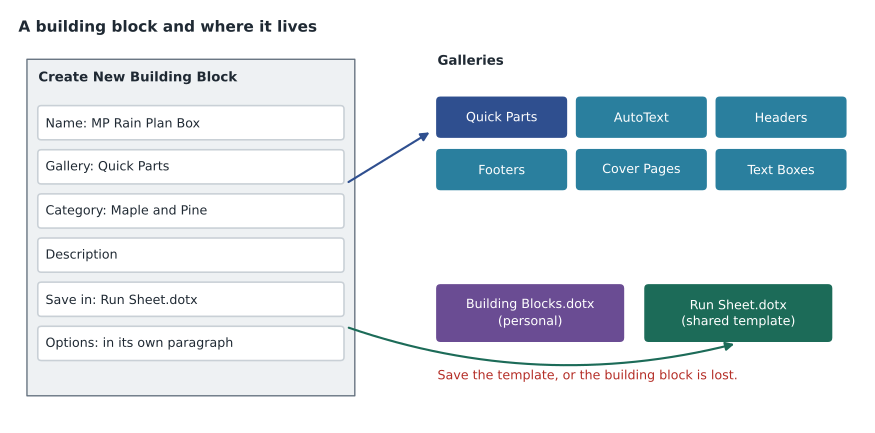
Building blocks you create are saved by default in Building Blocks.dotx, a template Word keeps in your profile and loads every time it starts. You can instead save them in Normal.dotm or in any other template, such as Maple & Pine's proposal template. Where you save a building block decides who can use it: Building Blocks.dotx and Normal.dotm are personal, while a building block saved in a shared template is available to everyone who creates documents from that template.
Creating Quick Parts
The Quick Parts gallery is the general-purpose gallery for your own building blocks. To create one, select the content (include the final paragraph mark if you want the paragraph formatting), then choose Insert > Text > Quick Parts > Save Selection to Quick Part Gallery. The Create New Building Block dialog opens.
| Field | What to choose |
|---|---|
| Name | A short, unique name; typing it and pressing F3 inserts the building block |
| Gallery | Quick Parts for general content; AutoText, Headers, Footers, Cover Pages, Text Boxes, Equations and others put it in that gallery instead |
| Category | General by default; create new categories to group your entries |
| Description | Shown as a ScreenTip in the gallery |
| Save in | Building Blocks.dotx, Normal.dotm or another open template |
| Options | Insert content only, Insert content in its own paragraph, or Insert content in its own page |
Dagny created four Quick Parts that afternoon: MP Cancellation Terms, MP Rain Plan Box, MP Signature Block and MP Deposit Schedule, all in a new category called Maple & Pine and all saved in the proposal template. She chose Insert content in its own paragraph for the terms and the signature, so they would never land in the middle of someone else's sentence.
To insert a Quick Part, choose Insert > Quick Parts and click it in the gallery, or type its name and press F3. Right-clicking an entry in the gallery offers placement options such as Insert at Current Document Position, Insert at Page Header or Insert at Beginning of Section, plus Edit Properties, Organize and Delete and Add Gallery to Quick Access Toolbar.
AutoText
The AutoText gallery works the same way but has its own menu at Insert > Quick Parts > AutoText. A useful feature of AutoText is AutoComplete: when you type the first few letters of an AutoText entry's name, Word may show a ScreenTip and insert the entry when you press Enter. AutoText entries are traditionally saved in Normal.dotm. For the exam, know that Quick Parts and AutoText are both building block galleries and both are created with the same dialog.
Worked problem
Saving the rain plan box
Every run sheet needs the same shaded "Rain plan" box with three blank lines. Dagny wants it available to everyone who creates a run sheet, in a category called Maple & Pine, and inserted on its own line. How does she save it?
Show solution
- Open the run sheet template (.dotx) itself, select the shaded box including its paragraph mark.
- Choose Insert > Quick Parts > Save Selection to Quick Part Gallery.
- Name: MP Rain Plan Box; Gallery: Quick Parts; Category: Create New Category > Maple & Pine; Save in: the run sheet template; Options: Insert content in its own paragraph.
- Click OK, then save the template so the building block is stored in it.
Answer: Saving the building block in the shared template, and then saving the template, makes it available to everyone who creates run sheets.
The last step is the one people forget. A building block saved in a template exists only in memory until the template itself is saved. If you close Word and answer Don't Save when asked about changes to the template, the building block is gone. Word asks about Building Blocks.dotx too when you close it after creating building blocks there.
Managing building blocks
The Building Blocks Organizer (Insert > Quick Parts > Building Blocks Organizer) lists every building block available to the current document, with columns for Name, Gallery, Category and Template, and a preview. Click a column heading to sort by it. From here you can:
| Action | How |
|---|---|
| Insert a building block | Select it and click Insert |
| Change its name, gallery, category, description, template or insertion option | Select it and click Edit Properties |
| Delete it | Select it and click Delete |
| Move it to another template | Edit Properties > Save in |
| Replace its content | Insert it, change it, select it and save it again with the same name and gallery; confirm Redefine |
To update the cancellation terms, Dagny inserted MP Cancellation Terms into a blank document, edited the deposit wording, selected the result and saved it again with exactly the same name, gallery and category. Word asked whether to redefine the building block, and she chose Yes. Documents that already contain the old terms are not changed; a building block is copied into a document when inserted, not linked. That is why Maple & Pine also keeps a checklist item to review open proposals when the terms change.
Building blocks in other templates
A building block is available only when its template is loaded. Building Blocks.dotx and Normal.dotm are always loaded. A document template is loaded for documents based on it. Other templates can be loaded as global templates with Developer > Templates > Document Template (the Templates and Add-ins dialog): under Global templates and add-ins, click Add and choose the template. Its building blocks, AutoText and macros then become available in every document until Word closes, or permanently if the template is placed in Word's Startup folder.
The same dialog can attach a different template to a document: type or browse to a template in the Document template box and click Attach. Tick Automatically update document styles to bring the attached template's style definitions into the document. Dagny used this to rescue a proposal that had been started from an old copy: she attached the current proposal template, ticked Automatically update document styles, clicked OK, and the document's styles and building blocks switched to the current ones.
Building blocks and fields
Building blocks often include fields. Insert > Quick Parts also offers Document Property (inserts a content control linked to a property such as Company or Title) and Field (lesson 10). A signature block that includes the Company property and the Publish Date property updates automatically when the document's properties change. Dagny's signature block used the Company property, so the partner edition of the template could show the partner company's name without editing the building block.
Building blocks inside content controls
Building blocks pair well with the Building Block Gallery content control from lesson 10. Placed in a template, it shows a drop-down of building blocks from one gallery and category, so a coordinator can choose, for example, one of three approved cancellation clauses without hunting through Quick Parts. In its Content Control Properties, choose the Gallery (such as Quick Parts) and the Category (Maple & Pine). The choice inserts the building block inside the control.
Sharing building blocks across a team comes down to sharing the template that contains them. Dagny gathered every Maple & Pine building block into one file, Maple and Pine Building Blocks.dotx, kept it in the shared templates folder, and loaded it as a global template on each computer with Templates and Add-ins. When she updated a building block, the next time each person started Word they had the new version. That is more reliable than emailing documents full of paragraphs and asking people to save them as Quick Parts themselves.
Worked problem
A choice of three cancellation clauses
Rosalind wants proposals to offer exactly three approved cancellation clauses: Standard, Flexible and Peak Season. Coordinators should choose one from a list in the right place in the proposal. How does Dagny build it?
Show solution
- Save each clause as a Quick Part in the category Cancellation, saved in the proposal template.
- In the template, place the insertion point where the clause belongs and insert a Building Block Gallery content control from the Developer tab.
- In Properties, set Gallery: Quick Parts, Category: Cancellation, and Title: Cancellation clause.
- Save the template and test the drop-down in a new proposal.
Answer: The control limits the choice to the approved clauses and inserts the chosen one in place.
Common mistakes
MistakeCreating a building block in a template and closing without saving the template.
InsteadSave the template, or answer Save when Word asks about changes to it.
MistakeExpecting documents to update when a building block changes.
InsteadBuilding blocks are copied when inserted; existing documents keep the old content.
MistakeSaving team content in Building Blocks.dotx.
InsteadSave it in a shared template so others can use it.
MistakeUsing Keep Source Formatting for every paste.
InsteadUse Merge Formatting or Keep Text Only so pasted text matches the document.
MistakeLeaving out the paragraph mark when saving a formatted paragraph as a building block.
InsteadInclude the paragraph mark so the paragraph formatting is saved.
Summary and key terms
- Paste options control formatting: Keep Source Formatting, Merge Formatting, Use Destination Styles, Keep Text Only, Picture and Link.
- Default paste behavior is set in File > Options > Advanced > Cut, copy, and paste.
- Building blocks are reusable content with a name, gallery, category, template and insertion option.
- Create Quick Parts with Save Selection to Quick Part Gallery; insert them from the gallery or with the name and F3.
- The Building Blocks Organizer inserts, edits, moves and deletes building blocks; redefine one by saving again with the same name.
- Templates and Add-ins attaches templates and loads global templates whose building blocks become available.
- Merge Formatting
- A paste option that adopts surrounding formatting but keeps emphasis.
- Building block
- Reusable content stored in a template and inserted from a gallery.
- Quick Parts
- The general gallery for user-created building blocks.
- Building Blocks.dotx
- The personal template where new building blocks are saved by default.
- Building Blocks Organizer
- The dialog that lists and manages all available building blocks.
- Global template
- A template loaded for all documents so its building blocks and macros are available.
Practice problems
Work each problem on paper first, then reveal the answer to check.
Which key inserts a building block after you type its name?
Show answer
F3.
Where do you change the default for pasting from other programs?
Show answer
File > Options > Advanced > Cut, copy, and paste.
How do you move a building block to another template?
Show answer
Building Blocks Organizer > Edit Properties > Save in.
What happens to existing documents when you redefine a building block?
Show answer
Nothing; they keep the content inserted earlier.
Lesson quiz · 5 questions
Score 60% or more to complete this lesson.
Create a free account to save your progress, take quizzes and earn a certificate.