
MSBA-174 · Lesson 2 of 12 · 24 min
Preparing documents for collaboration
▶ Video coming soon A video version of this lesson is on the way.
In October, Maple & Pine negotiated its biggest contract of the year: the venue partnership agreement with a waterfront hotel that would host eleven of the company's 2027 weddings. The agreement went back and forth for three weeks. Rosalind edited it on her laptop, the hotel's events director sent back his own copy with changes that were not tracked, Teo pasted in a seating capacity table from Excel, and at one point there were four files called some version of "Venue Agreement FINAL". Dagny's Friday session on October 30 was spent untangling it, and the tools she used are the collaboration skills in the exam's first domain: managing versions, comparing and combining documents, and linking to external content.
Where versions come from
Word keeps several kinds of earlier copies, and it helps to know which one you are looking at.
| Kind of copy | Created when | Where to find it |
|---|---|---|
| Version history | Automatically, as you save a file stored in OneDrive or SharePoint | File > Info > Version History, or the file name in the title bar > Version History |
| AutoRecover information | Every few minutes while you work, at the interval set in File > Options > Save | Document Recovery pane after a crash; File > Info > Manage Document |
| Unsaved documents | When you close a new, never-saved document without saving (if AutoRecover keeps it) | File > Info > Manage Document > Recover Unsaved Documents |
| Your own copies | When you use Save As with a new name | Wherever you saved them |
The exam objective manage document versions covers the first three. For files in OneDrive or SharePoint, Version History is the most useful: it lists every saved version with the date and the person who saved it. Selecting a version opens it read-only in a separate window, where you can compare it with the current file or choose Restore to make it the current version again. Nothing is lost by restoring: the version you replaced is kept in the history too.
For files saved on a local drive, Word does not keep a version list. It does keep AutoRecover information. File > Options > Save has Save AutoRecover information every n minutes and Keep the last AutoRecovered version if I close without saving. If Word closes unexpectedly, the Document Recovery pane appears the next time it starts. If you close a document and click Don't Save by mistake, File > Info > Manage Document offers Recover Unsaved Documents (for a document that was never saved) or a list of the AutoRecover versions of the current file. In Microsoft 365, AutoSave replaces much of this for cloud files: it saves every few seconds, and Version History becomes the safety net.
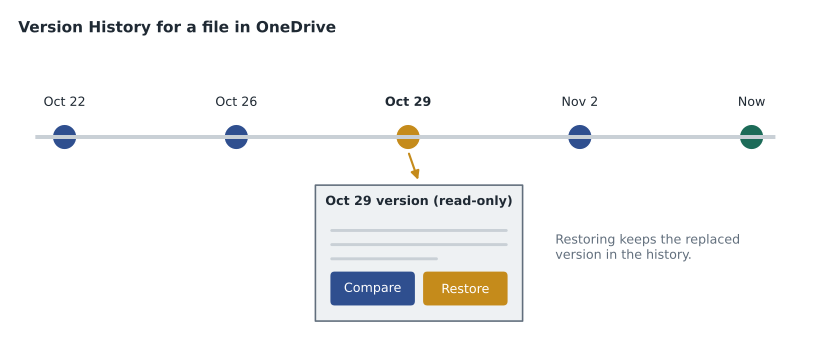
Dagny moved the agreement into the shared OneDrive folder that Maple & Pine uses for client contracts, turned on AutoSave, and deleted the three loose copies after checking each one. From then on the file had one name and one history.
Compare and Combine
The hotel's events director had made his changes without Track Changes. Dagny needed to see exactly what he had altered. That is the job of Review > Compare, which offers two commands.
Compare (labeled "Compare two versions of a document (legal blackline)") takes an original document and a revised document and produces a third document in which every difference is shown as a tracked change. Neither source file is altered. Combine ("Combine revisions from multiple authors into a single document") takes an original and a revised document that both may already contain tracked changes, and merges everyone's revisions into one document, keeping each reviewer's name. Use Compare when one person edited without tracking; use Combine when several reviewers each returned a tracked copy.
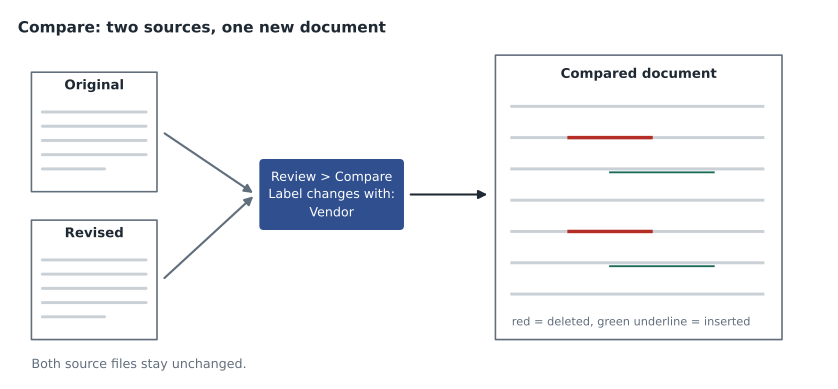
The Compare dialog has a More button with options worth knowing. Comparison settings choose which kinds of change to detect: moves, comments, formatting, case changes, white space, tables, headers and footers, footnotes and endnotes, text boxes and fields. Show changes at chooses character level or word level; word level is the default and easier to read. Show changes in chooses whether the result goes into the original document, the revised document or a new document. The Label changes with box beside the revised document sets the author name shown on the differences, which is useful when the other party's copy has no meaningful author information.
After a compare, Word can show four panes at once: the compared document in the middle, a Revisions pane listing every change, and small panes of the original and revised documents. Compare > Show Source Documents switches those small panes between hiding them, showing one or showing both. The result is an ordinary document with tracked changes, so all of lesson 3's tools apply: accept or reject each change, or all at once.
Worked problem
Finding the hotel's untracked changes
Dagny has Maple & Pine's last sent version of the agreement and the hotel's returned copy, which has no tracked changes. She wants a document showing only what the hotel changed, labeled with the hotel's name, without altering either file. What does she do?
Show solution
- Choose Review > Compare > Compare.
- Under Original document, browse to Maple & Pine's sent version. Under Revised document, choose the hotel's copy.
- In Label changes with, type the hotel's name. Click More and check that Show changes in is set to New document.
- Click OK, then use the Revisions pane to read each change.
Answer: Compare creates a new document of tracked changes attributed to the hotel. The two source files stay as they were. There were 14 changes, two of which altered the cancellation terms that Rosalind had not agreed to.
Two common surprises: if either document has tracked changes that have not been accepted, Word warns that it will treat them as accepted for the comparison; and Compare cannot open protected documents until the protection is removed. Combine, by contrast, is built for documents that already contain tracked changes, and it keeps them.
Linking to external content
The seating capacity table in the agreement came from Maple & Pine's venue workbook in Excel, which Dagny's colleague maintains. Teo had copied and pasted it, so when the capacities changed after a fire inspection, the agreement still showed the old numbers. The exam objective link to external document content is about avoiding that problem.
Word can bring in content from another file in three ways. Embedding places a full copy inside the Word document; it no longer connects to the source. Linking places a view of the source in Word and stores the path to the source file, so the content can be updated when the source changes. Inserting text from a file (Insert > Object > Text from File) copies the contents of another document into the current one at the insertion point, with an option to insert it as a link field.
| Method | How | Updates when source changes? |
|---|---|---|
| Paste link from Excel | Copy the range in Excel; in Word, Paste Special > Paste link (or Paste Options > Link & Keep Source Formatting) | Yes, by updating the link |
| Linked object | Insert > Object > Create from File > tick Link to file | Yes |
| Embedded object | Insert > Object > Create from File, without Link to file | No, the copy is inside the document |
| Text from another document | Insert > Object > Text from File (Insert > Range for a bookmark) | Only if inserted as a link field (Insert as Link) |
| Ordinary paste | Ctrl+V | No |
Dagny deleted the pasted table, copied the range in Excel, and used Home > Paste > Paste Special. In the dialog she chose Paste link and Microsoft Excel Worksheet Object. Choosing Formatted Text (RTF) or HTML Format with Paste link instead gives you a linked table that looks like a normal Word table, which is easier to format but less faithful to Excel. Either way, the link is stored as a LINK field; you can see it with Alt+F9.
Managing links
Links are managed in the Links dialog. Open it with File > Info > Edit Links to Files (the command appears only when the document contains links) or by right-clicking a linked object and choosing Linked Worksheet Object > Links. The dialog lists each link with its source file and item, and has buttons to Update Now, Open Source, Change Source (for example after the workbook moves) and Break Link (which turns the linked content into ordinary content and removes the connection). Each link can be set to Automatic update (Word updates it whenever you open the document, after asking permission) or Manual update (only when you choose Update Now or press F9 on the link). Locked prevents updating altogether.
Dagny chose Manual update for the agreement. An automatically updating contract is a bad idea: you want to know exactly when its numbers change, and you want to update deliberately before sending it. Before sending the final copy to the hotel she pressed Update Now, checked the table against the current inspection certificate and then used Break Link, so the hotel's copy contained the agreed numbers rather than a link to a file on Maple & Pine's drive that the hotel could not open.
Worked problem
The workbook moved
The venue workbook is moved to a new folder. Now the agreement shows an error when Dagny tries to update the capacity table. How does she repair the link without pasting the table again?
Show solution
- Choose File > Info > Edit Links to Files.
- Select the link to the venue workbook.
- Click Change Source, browse to the workbook in its new folder, and click Open.
- Click Update Now to confirm the table refreshes, then OK.
Answer: Change Source points the existing link at the file's new location. Re-pasting would work too, but it loses the table's formatting and size.
Co-authoring and the rest of collaboration
For files in OneDrive and SharePoint, several people can edit at once. Each person's cursor and name appear in the document, and changes merge as AutoSave runs. Share (top right of the window) sends a link with view or edit permissions. Modern comments support @mentions, which email the person mentioned, and replies in threads. These features belong to the Associate level, but Expert work leans on them: Rosalind and the hotel's events director co-authored the final schedule annex live, while Dagny worked on the main agreement in the same file.
Co-authoring has limits worth knowing. It does not work for documents saved in the older .doc format, for documents with certain kinds of protection, or for files opened from a local folder rather than from the cloud. A macro-enabled document can be co-authored in recent versions, but macros do not run in Word for the web. And a document that someone opened in an old version of Word may lock sections. When co-authoring is unavailable, use tracked changes, Compare and Combine instead.
Checking a document before it leaves
Rosalind's "outbox routine", which Teo learned in the Associate course, still applies at Expert level: delete comments, resolve changes, run Document Inspector, run the Accessibility Checker, fill in properties, update fields and save a PDF. At Expert level two more checks matter for collaborative documents. First, File > Info > Check for Issues > Check Compatibility shows what will be lost if someone opens the file in an older version of Word. Second, Inspect Document finds hidden content that compare-and-combine work often leaves behind: hidden text, document versions, custom XML data and collapsed headings. Dagny ran both before the agreement went to the hotel for signature.
Combining several reviewers' copies
Compare handles one untracked revision. When three people each return their own tracked copy, Combine brings their work together. Choose Review > Compare > Combine, pick the original document and the first reviewer's copy, and click OK. Word produces a combined document in which each reviewer's changes keep that reviewer's name and color. To add the second reviewer, run Combine again with the combined result as the original and the second copy as the revised document, and so on. If two reviewers changed the same passage differently, Word shows both sets of changes so you can choose.
Worked problem
Three reviewers on the vendor handbook
Rosalind, Teo and the venue coordinator each reviewed the vendor handbook in their own copy with Track Changes on. Dagny wants one document with all three sets of changes, each attributed to its author. What does she do?
Show solution
- Review > Compare > Combine. Original: the handbook as sent; Revised: Rosalind's copy. Show changes in: New document. OK.
- Save the result as "Handbook combined".
- Combine again: Original: Handbook combined; Revised: Teo's copy. Repeat with the coordinator's copy.
- Use Show Markup > Specific People to review one person's changes at a time.
Answer: Combine run once per reviewer builds a single document in which every change is still attributed to the person who made it.
Common mistakes
MistakeKeeping several copies with names like "FINAL v3".
InsteadStore one file in OneDrive or SharePoint and use Version History.
MistakeUsing Combine to find the changes in an untracked copy.
InsteadUse Compare for one untracked revision; use Combine to merge several tracked copies.
MistakeExpecting a pasted Excel table to update.
InsteadUse Paste Special > Paste link, or Insert > Object with Link to file.
MistakeSending a document that links to files on your own drive.
InsteadUpdate the links, then Break Link before sending.
MistakeRestoring an old version and worrying that the newer one is gone.
InsteadRestoring adds the replaced version to the history; nothing is lost.
Summary and key terms
- Version History keeps saved versions of cloud files; AutoRecover and Manage Document recover local work.
- Compare shows the differences between two versions as tracked changes in a new document; Combine merges several reviewers' tracked changes.
- Linking keeps a connection to the source; embedding and ordinary pasting do not.
- Manage links in File > Info > Edit Links to Files: Update Now, Change Source, Break Link, and automatic or manual updating.
- Co-authoring needs a cloud file in a current format; check compatibility and inspect documents before they leave.
- Version History
- The list of saved versions of a file stored in OneDrive or SharePoint.
- AutoRecover
- Periodic background saving that lets Word recover work after a crash.
- Compare
- A command that shows the differences between two documents as tracked changes.
- Combine
- A command that merges tracked changes from several reviewers into one document.
- Linked object
- Content shown in Word that stays connected to its source file.
- Break Link
- A command that converts linked content to ordinary content.
Practice problems
Work each problem on paper first, then reveal the answer to check.
Which command finds the changes in a copy that was edited without Track Changes?
Show answer
Review > Compare > Compare.
Where do you change the source of a linked Excel range?
Show answer
File > Info > Edit Links to Files > Change Source.
How do you recover a new document you closed without saving?
Show answer
File > Info > Manage Document > Recover Unsaved Documents.
Why set a contract's links to manual update?
Show answer
So numbers change only when you deliberately update them, not every time the file opens.
Lesson quiz · 5 questions
Score 60% or more to complete this lesson.
Create a free account to save your progress, take quizzes and earn a certificate.