
MSBA-174 · Lesson 4 of 12 · 25 min
Advanced find and replace
▶ Video coming soon A video version of this lesson is on the way.
The vendor handbook that Teo cleaned up during the Associate course had grown again by November: new venues, a new section on rain plans, and 40 pages pasted in from the old vendor binder. Dagny opened it on the first Friday of November and found the kind of mess that Find and Replace at Associate level cannot fix. Phone numbers appeared in five formats. Dates were written as "Oct. 3", "3 Oct" and "October 3rd". Some venue names had been bolded by hand and others used a character style. And every one of the 40 pasted pages had two spaces after each full stop. This lesson covers the exam objectives find and replace text by using wildcards and special characters and find and replace formatting and styles.
The Find and Replace dialog, expanded
Press Ctrl+H to open the Replace tab of the Find and Replace dialog (Ctrl+F opens the Navigation pane instead; Home > Editing > Replace also works). Click More >> to see the search options and the Format and Special buttons that Expert work depends on.
| Option | Effect |
|---|---|
| Match case | Finds text only with the same capitals |
| Find whole words only | Ignores matches inside longer words |
| Use wildcards | Treats certain characters as pattern codes (turns off some other options) |
| Sounds like (English) | Finds words that sound similar |
| Find all word forms (English) | Finds and replaces forms such as plan, plans, planned |
| Match prefix / Match suffix | Matches only at the start or end of words |
| Ignore punctuation characters / Ignore white-space characters | Treats "event-planning" and "event planning" as matches |
| Search: All, Down, Up | Direction of the search |
Two buttons at the bottom matter most. Format adds formatting to the search or the replacement: Font, Paragraph, Tabs, Language, Frame, Style and Highlight. Special inserts codes for characters you cannot type, such as a paragraph mark or a tab. Use No Formatting to clear formatting from whichever box has the insertion point; forgetting this is the commonest reason a replacement does nothing.
Special characters
Special characters are entered as a caret (^) followed by a letter or number. You can type the code yourself or choose it from the Special list. The codes differ slightly depending on whether Use wildcards is on.
| To find | Code (wildcards off) | Notes |
|---|---|---|
| Paragraph mark | ^p | With wildcards on, use ^13 in the Find box |
| Tab | ^t | Same with wildcards |
| Manual line break | ^l | Shift+Enter breaks |
| Manual page break | ^m | Also finds section breaks when wildcards are on |
| Section break | ^b | Wildcards off only |
| Any character | ^? | With wildcards on, use ? |
| Any digit | ^# | With wildcards on, use [0-9] |
| Any letter | ^$ | With wildcards on, use [A-Za-z] |
| White space | ^w | Any mix of spaces and tabs |
| Nonbreaking space | ^s | |
| Em dash / en dash | ^+ / ^= | |
| Caret character itself | ^^ | |
| Field | ^d | Find only |
| Footnote / endnote mark | ^f / ^e | Find only |
| Graphic | ^g | Find only |
| Contents of the Find box | ^& | Replace box only |
| Clipboard contents | ^c | Replace box only |
Dagny started with the easy problem. The pasted pages had two spaces after each sentence. Find " " (two spaces) and Replace with " " (one space), then Replace All, fixed most of it, and running it a second time caught the places with three spaces. Next she found ^p^p, double paragraph marks that had been used instead of paragraph spacing, and replaced them with ^p. Because lesson 6 would set spacing in the styles, the extra empty paragraphs had to go first.
Worked problem
Tabs used for indenting
In the old binder pages, each paragraph begins with a tab character instead of a first-line indent. Dagny wants to remove the tab at the start of each paragraph but keep tabs that appear elsewhere, such as in the price lists. What does she search for?
Show solution
- With Use wildcards off, Find what: ^p^t (a paragraph mark followed by a tab).
- Replace with: ^p (the paragraph mark only).
- Click Find Next a few times to check the matches, then Replace All.
- Handle the very first paragraph of the document separately, because it has no paragraph mark before it.
Answer: Searching for ^p^t matches only tabs that start a paragraph. The tabs inside price-list lines are untouched.
Wildcards
Tick Use wildcards and the Find box becomes a small pattern language. Wildcard searches are always case-sensitive, and some options (such as Find whole words only and Match case) are grayed out because the pattern itself controls them.
| Wildcard | Matches | Example |
|---|---|---|
| ? | Any single character | s?t finds sat, set, sit |
| * | Any string of characters | s*d finds sad, started |
| [ ] | One of the characters listed | w[io]n finds win, won |
| [a-z] | One character in a range | [0-9] finds any digit |
| [!x] | Any character except those listed | m[!a]st finds mist, must but not mast |
| {n} | Exactly n of the previous character | fe{2}d finds feed |
| {n,} | At least n | 10{1,} finds 10, 100, 1000 |
| {n,m} | Between n and m | [0-9]{1,3} finds 1 to 3 digits |
| @ | One or more of the previous character | lo@t finds lot, loot |
| < | Start of a word | <inter finds interest but not winter |
| > | End of a word | in> finds in, within but not interest |
| ( ) | Groups part of a pattern for reuse | (Maple) (Pine) replaced by \2 \1 gives Pine Maple |
| \ | Treats the next character literally | \? finds a question mark |
The characters that have special meaning in a wildcard search are ( ) [ ] { } < > ? * @ ! and the backslash. To find any of them literally, put a backslash in front of the character: \? finds a question mark and \* finds an asterisk.
Reusing groups in the replacement
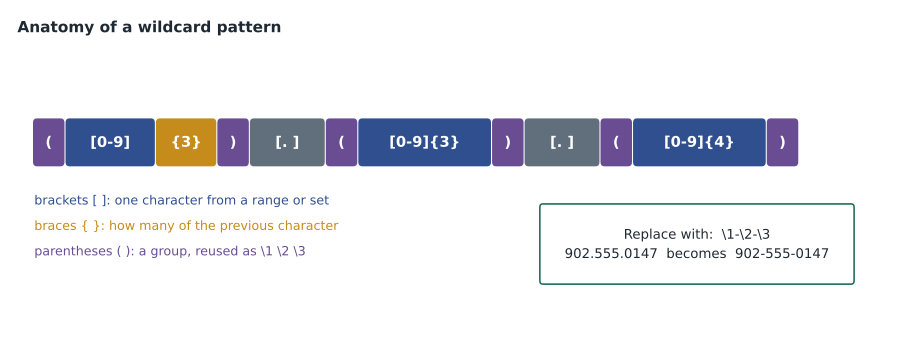
The real power of wildcards comes from groups. Anything inside parentheses in the Find box is a group, numbered from left to right, and can be placed in the Replace box with \1, \2 and so on. That lets you rearrange text rather than simply replace it.
Worked problem
One format for phone numbers
The handbook has phone numbers written as 902.555.0147 and 902 555 0147, but Maple & Pine's style is 902-555-0147. Dagny wants to fix every number in one pass without touching other numbers such as prices or dates.
Show solution
- Tick Use wildcards.
- Find what: ([0-9]{3})[. ]([0-9]{3})[. ]([0-9]{4})
- Replace with: \1-\2-\3
- Click Find Next to check the first few matches, then Replace All.
Answer: The pattern matches three digits, a dot or space, three digits, a dot or space, and four digits, and rebuilds them with hyphens. Prices such as "1,250" and dates do not match the pattern, so they are untouched. Word reported 68 replacements.
Find what:     ([0-9]{3})[. ]([0-9]{3})[. ]([0-9]{4})
Replace with:  \1-\2-\3

Find what:     <([A-Z][a-z]@) ([0-9]{1,2}),
Replace with:  \2 \1,

Find what:     ^13{2,}
Replace with:  ^p
Dagny used the second pattern for the Canadian edition of the handbook, where Rosalind prefers day-month order, and left the US partner edition alone. She also learned the rule that trips everyone up at least once: in a wildcard search, ^p does not work in the Find box. Use ^13 instead. In the Replace box, ^p still works and is safer than ^13, which can produce a character Word does not treat as a full paragraph mark.
Finding and replacing formatting
The Format button can search for formatting with or without text. Leave the Find what box empty, click Format > Font, and choose Bold: Word now finds any bold text. Put the insertion point in the Replace with box, click Format > Style and choose a character style: Word will apply that style to every match. That is exactly what the venue names needed.
Worked problem
Hand-bolded venue names
Venue names in the handbook are sometimes bolded by hand and sometimes formatted with the character style MP Venue Name. Dagny wants every venue name to use the style so that it can be changed in one place later. Bold is used for nothing else in the body text except a few warnings that start with "Note".
Show solution
- Clear both boxes and click No Formatting in each.
- With the insertion point in Find what, click Format > Font and choose Bold. "Format: Font: Bold" appears under the box.
- Click in Replace with, click Format > Style and choose MP Venue Name.
- Use Find Next and Replace one at a time for the first few, skipping the warning labels, then Replace All once she is confident the only remaining bold text is venue names.
Answer: Searching for formatting rather than text lets one replacement fix every instance. A character style keeps the venue names consistent, and the bold now comes from the style.
Finding and replacing styles
Styles can be replaced the same way. Find what: nothing, Format > Style: Body Text Indent; Replace with: nothing, Format > Style: Body Text. Every paragraph using the old style changes to the new one. This is how you consolidate styles imported from other documents, a job lesson 6 returns to. The Styles pane offers a faster route for one style: hover over it, open its menu and choose Select All n Instances, then click another style to apply it to all of them.
You can also combine text and formatting. Searching for "Rain plan" with the style Heading 3 finds only headings with those words. Replacing "Rain plan" with the same text and the style MP Callout turns every heading that mentions a rain plan into a callout instead.
Highlighting and reading matches
The Find tab has two buttons that help before a big replacement. Reading Highlight > Highlight All shows every match in yellow so you can scroll and inspect them. Find In lets you find all matches in the main document, headers and footers or a selection, and then select every match at once, so you can apply formatting by hand. For example, Dagny found every instance of "Maple & Pine" with Find In > Main Document, which selected all 212 of them, and checked none was split across a line by adding nonbreaking spaces where needed.
Practicing safely
Replace All in a long document can do a great deal of damage quickly. Three habits keep it safe. Save before a large replacement so you can close without saving if it goes wrong (Undo also reverses a whole Replace All in one step). Test the pattern with Find Next before replacing. And narrow the search by selecting part of the document first: Word then asks whether to continue with the rest of the document when it reaches the end of the selection, and you can answer No.
A library of useful patterns
Dagny kept a short list of wildcard patterns she found herself reusing. Each was tested with Find Next before any Replace All.
| Purpose | Find what (wildcards on) | Replace with |
|---|---|---|
| Repeated word ("the the") | (<[A-Za-z]@) \1> | \1 |
| Space before a punctuation mark | ([,.;:]) | \1 |
| Two or more spaces | [ ]{2,} | a single space |
| Swap "Last, First" to "First Last" | ([A-Za-z]@), ([A-Za-z]@) | \2 \1 |
| Prices written as 1250.00 | ([0-9]@).00> | \1 |
| Any word in capitals of four or more letters | <[A-Z]{4,}> | (use with Format to apply a style) |
Worked problem
Doubled words after a paste
The pasted vendor pages contain doubled words such as "the the" and "and and" where lines were rejoined. Dagny wants to remove the duplicates without touching legitimate repeats like "had had" in a quoted sentence. How does she proceed?
Show solution
- Tick Use wildcards. Find what: (<[A-Za-z]@) \1> and Replace with: \1.
- Click Find Next and inspect each match; click Replace for true duplicates and Find Next to skip the quotation.
- When the remaining matches are all errors, use Replace All.
Answer: The group captures a whole word and \1 in the Find box matches the same word again, so the pattern finds doubled words. Stepping through the first matches protects the one legitimate repeat.
A group number can appear in the Find box too, as in the doubled-word pattern; that is one of the less obvious features of Word wildcards, and it occasionally appears on the exam as a task to remove repeated words.
Common mistakes
MistakeLeaving formatting from an earlier search in the Find or Replace box.
InsteadClick No Formatting in each box before a new search.
MistakeUsing ^p in the Find box with wildcards on.
InsteadUse ^13 in the Find box; keep ^p in the Replace box.
MistakeExpecting wildcard searches to ignore case.
InsteadWildcard searches are always case-sensitive; use [Aa] for either case.
MistakeSearching for a literal parenthesis or question mark with wildcards on.
InsteadPut a backslash in front of the character, such as \? for a question mark.
MistakeRunning Replace All without testing.
InsteadUse Find Next first, and save before large replacements.
Summary and key terms
- More >> in the Find and Replace dialog reveals search options, Format and Special.
- Special characters such as ^p, ^t, ^m, ^# and ^w find marks and characters you cannot type.
- Wildcards (? * [ ] { } < > @ and groups) find patterns; groups can be reused as \1, \2 in the replacement.
- With wildcards on, use ^13 for paragraph marks in the Find box.
- Format > Font, Paragraph or Style finds and replaces formatting and styles, with or without text.
- Wildcard
- A character that stands for other characters in a pattern search.
- Group
- Part of a wildcard pattern in parentheses that can be reused in the replacement.
- Special character code
- A caret code such as ^p or ^t that finds a nonprinting or special character.
- No Formatting
- The button that clears formatting from a Find or Replace box.
- Highlight All
- A Find option that shows every match in yellow.
Practice problems
Work each problem on paper first, then reveal the answer to check.
Which code finds any digit when wildcards are off?
Show answer
^#.
How do you swap "Smith, Jane" to "Jane Smith" with wildcards?
Show answer
Find ([A-Za-z]@), ([A-Za-z]@) and replace with \2 \1.
How do you change every paragraph in one style to another style?
Show answer
Leave both boxes empty, use Format > Style in each, and Replace All.
Why might a replacement report zero changes when you expected many?
Show answer
Often because formatting from an earlier search is still set; click No Formatting.
Lesson quiz · 5 questions
Score 60% or more to complete this lesson.
Create a free account to save your progress, take quizzes and earn a certificate.