
MSBA-150 · Lesson 9 of 12 · 18 min
Approvals and workflows
▶ Video coming soon A video version of this lesson is on the way.
In the old system, approvals at Corbel & Finch happened in the hallway. The purchasing lead, Imogen, would hold up a green-coffee contract and say "Bettina, this is the Guji lot we talked about," and Bettina would nod. Nobody could later prove who approved what or when. When the auditors asked about it in their management letter, Bettina put approvals on the must-have list for Business Central. This lesson covers native workflows in Business Central: the templates, the approval user setup, approver types and limits, notifications, and how users request, approve, reject and delegate.
Workflows in Business Central
A workflow in Business Central is a set of steps that automates a business process. Each step has an event (something that happens, such as "approval of a purchase invoice is requested"), optional conditions (such as "amount greater than 5,000") and one or more responses (what Business Central does, such as "create an approval request for the record" or "send an approval request"). Workflows are built on the Workflows page.
Most companies start from workflow templates, which Microsoft provides for common processes. Creating a workflow from a template copies its steps so they can be adjusted. Templates include:
| Template | What it controls |
|---|---|
| Purchase invoice approval workflow | Purchase invoices must be approved before posting |
| Purchase order approval workflow | Purchase orders must be approved before release |
| Sales order credit limit approval | Sales orders that exceed a customer's credit limit need approval |
| Customer approval and vendor approval | New or changed customers and vendors must be approved before use |
| Item approval | New or changed items need approval |
| General journal batch and line approval | Journal batches or lines, such as payment journals, need approval before posting |
| Incoming document approval | Scanned or emailed documents are approved before they become invoices |
Workflows are enabled one at a time. While a workflow is enabled it cannot be edited; to change it, an administrator disables it, edits it and enables it again, or copies it to a new version. The Assisted Setup page also includes a simple guide that creates basic purchase invoice and item approval workflows for smaller businesses.
Approval user setup
Workflows need to know who approves whom. The Approval User Setup page (based on the User Setup table) lists users with approval-related fields:
| Field | Meaning |
|---|---|
| Approver ID | The user who approves this user's requests, forming an approval chain |
| Sales Amount Approval Limit | The largest sales document amount the user can approve |
| Purchase Amount Approval Limit | The largest purchase document amount the user can approve |
| Request Amount Approval Limit | The largest amount the user can approve for other requests such as journal lines |
| Unlimited Sales/Purchase/Request Approval | No limit applies to this user |
| Substitute | The user who receives requests when this user is away |
| Approval Administrator | A user who can manage approval entries for others, such as reassigning stuck requests |
| Where notifications are sent |
Corbel & Finch's setup was short. The two order processors and the purchasing lead had Callum as their approver, with a purchase limit of 2,000 dollars each. Callum had Bettina as his approver and a limit of 25,000 dollars. Bettina had unlimited approval. Callum was also the approval administrator.
Approver types and limit types
Each approval response in a workflow has options that decide who receives the request.
The approver type sets the source of approvers. Approver uses the chain on Approval User Setup (each user's Approver ID). Salesperson/Purchaser sends the request to the user linked to the salesperson or purchaser code on the document. Workflow User Group sends requests to a defined group of users in a set sequence, regardless of amounts, which suits processes like "the roastery manager, then the controller" for new green-coffee vendors.
For the Approver and Salesperson/Purchaser types, the approver limit type decides how far up the chain a request travels:
| Limit type | Who must approve |
|---|---|
| Approver Chain | Each approver in the chain in turn, until one has a limit high enough for the amount |
| Direct Approver | Only the requester's own approver, whatever the amount |
| First Qualified Approver | The first approver in the chain whose limit covers the amount, skipping those below |
| Specific Approver | One named user |
Worked problem
Who approves a 14,000-dollar invoice?
Imogen, the purchasing lead, has a purchase approval limit of 2,000 dollars and approver Callum. Callum has a limit of 25,000 dollars and approver Bettina, who has unlimited approval. Imogen sends a 14,000-dollar green-coffee invoice for approval. Who must approve it under Approver Chain, and under First Qualified Approver? What changes for a 31,000-dollar invoice?
Show solution
- 14,000 is above Imogen's 2,000 limit, so she cannot approve it herself.
- Approver Chain: the request goes to Callum. His 25,000 limit covers 14,000, so after he approves, the invoice is approved.
- First Qualified Approver: Callum is the first in the chain whose limit covers 14,000, so the result is the same: Callum alone.
- For 31,000: under Approver Chain, Callum approves first, then the request moves to Bettina, who approves; two approvals. Under First Qualified Approver, Callum's limit is too low, so the request goes straight to Bettina; one approval.
Answer: 14,000: Callum under both types. 31,000: Callum then Bettina under Approver Chain; Bettina only under First Qualified Approver.
Workflow user groups
A workflow user group is a list of users with sequence numbers. When a workflow uses the Workflow User Group approver type, requests go to members in sequence order: all members with sequence 1 must approve before the request moves to sequence 2. Members with the same sequence number receive the request at the same time. Corbel & Finch created a NEW-GREEN-VENDOR group with the roastery manager at sequence 1 (to confirm quality and certifications) and Callum at sequence 2 (to confirm bank details and tax registration), used by the vendor approval workflow.
Notifications
Approvers learn about requests through notifications. Business Central creates notification entries for workflow events and delivers them by email or as in-product notes, according to each user's Notification Setup and Notification Schedule. The schedule can send notifications instantly, daily, weekly or monthly as a digest. Sending works through the job queue, so a notification job queue entry must be running, and an email account must be set up (Assisted Setup includes the email guide). When approvers say they "never get the email", the job queue entry and the email account are the first two things to check.
Users can also see their requests on the Requests to Approve page, which many role centers show as a cue. The Approval Entries page shows the history of every request: who asked, who approved, when and with what comment.
Requesting, approving and delegating
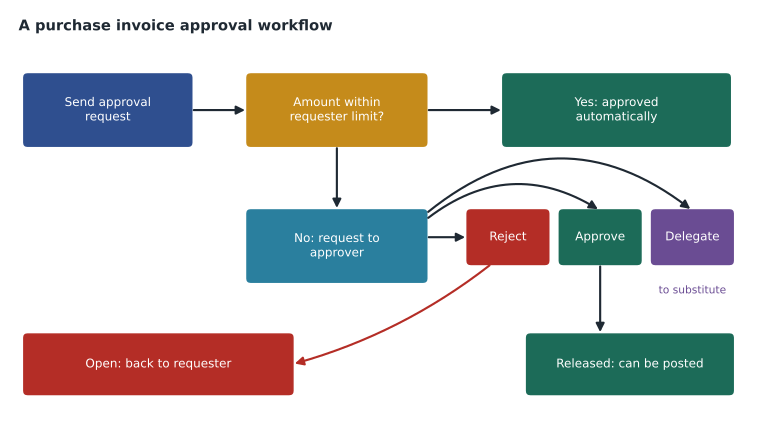
On a document such as a purchase invoice, the requester chooses Send Approval Request. The document status changes to Pending Approval, and it cannot be posted or edited until the request is resolved. The requester can Cancel Approval Request to withdraw it, for example to fix a line.
The approver opens Requests to Approve (or the link in the notification), reviews the document and chooses:
| Action | Result |
|---|---|
| Approve | The request moves to the next approver, or the document is approved and its status becomes Released |
| Reject | The request ends and the document returns to Open for the requester; a comment explains why |
| Delegate | The request is reassigned to the approver's substitute |
| Comments | Approvers and requesters can add comments that stay with the approval entry |
Approval requests that sit too long can be escalated or delegated automatically by setting a due date formula and delegation options on the workflow response, for example delegating to the substitute after two days. The approval administrator can also reassign requests manually when someone is away unexpectedly.
Native workflows and Power Automate
Business Central also integrates with Power Automate, which offers approval flows and many other automations that connect Business Central with other services, such as posting a Teams message when a large order arrives. Power Automate approvals can be used instead of, or alongside, native workflows. Native workflows are built into Business Central, need no extra license, and are what the MB-800 exam emphasizes. Power Automate is more flexible and connects to other apps, but each flow must be built and maintained, and some scenarios need a Power Automate license. Noor's rule: use native workflows for document approvals inside Business Central, and Power Automate for anything that crosses into other systems.
Other workflows worth knowing
Purchase invoices are the classic example, but several other workflows solve common control problems. Corbel & Finch enabled three more before go-live.
| Workflow | Problem it solves | Corbel & Finch setup |
|---|---|---|
| Sales order credit limit approval | Orders to customers over their credit limit ship without anyone noticing | Orders over the limit go to Callum before release |
| Vendor approval (including changes) | New vendors or changed vendor details, especially bank accounts, are used without checks | New vendors and changes go to the NEW-GREEN-VENDOR group or Callum |
| General journal batch approval | Payment journals are posted without a second person checking | Payment journal batches go to Bettina above 10,000 dollars |
Workflows for record changes, such as a change to a vendor's bank account, use a special response that holds the change until it is approved. The old value stays in force until the approver accepts the new one, which, together with field monitoring from lesson 5, closes a route that fraudsters often use.
Before enabling any workflow in production, the team tested it in the sandbox with a simple script:
| Test | Expected result |
|---|---|
| Send a document below the requester's limit | Approved automatically and released |
| Send a document above the limit | Request appears for the right approver with a notification |
| Approve as the approver | Document released; approval entry shows the approver and time |
| Reject with a comment | Document back to Open; requester sees the comment |
| Approver absent: delegate | Request moves to the substitute |
| Try to post a pending document | Posting is blocked |
When something does not work, the cause is usually setup rather than the workflow itself: a user missing from Approval User Setup, an approver with no email address, a limit of zero where unlimited was intended, or the notification job queue entry on hold. The Approval Entries page and the workflow's own steps are the places to look first.
Approvals and internal control
Workflows are one part of a company's internal controls, the set of checks that keep errors and fraud from reaching the books. Auditors look at three things when they review approvals: whether the rules match the company's written policy, whether the system enforces them (rather than relying on people remembering), and whether there is evidence of who approved what. Business Central's approval entries, with requester, approver, timestamps and comments, provide the evidence. The workflows and Approval User Setup enforce the rules. The written policy is the company's job.
Callum wrote Corbel & Finch's policy in half a page and attached the Business Central settings that enforce each line:
| Policy line | How Business Central enforces it |
|---|---|
| Purchases above 2,000 dollars need the controller's approval | Purchase invoice and order workflows with approval limits |
| Purchases above 25,000 dollars also need the owner's approval | Approver Chain from Callum to Bettina |
| New vendors and bank account changes need two people | Vendor approval workflow with a workflow user group, plus field monitoring |
| Payment runs above 10,000 dollars need the owner's approval | General journal batch approval workflow |
| No one approves their own requests | Approver IDs never point to the requester; substitutes are other people |
| Orders over a customer's credit limit need approval | Sales order credit limit workflow |
Bettina planned to send the policy and the matching settings to the auditors before their next visit, so they could see that hallway approvals had been replaced by system-enforced workflows with full evidence. Callum pointed out that the workflows had taken him an afternoon to set up; the policy discussion had taken three meetings.
Common mistakes
MistakeEnabling a workflow before Approval User Setup is complete.
InsteadSet approvers, limits and substitutes first, or requests have nowhere to go.
MistakeForgetting the job queue and email account for notifications.
InsteadCheck the notification job queue entry and email setup when approvers get nothing.
MistakeEditing an enabled workflow.
InsteadDisable it, change it and enable it again, or create a new version.
MistakeChoosing Approver Chain when only one senior approval is wanted.
InsteadUse First Qualified Approver to skip approvers whose limits are too low.
Summary and key terms
- Workflows are made of events, conditions and responses, and are usually created from Microsoft templates.
- Approval User Setup defines each user's approver, approval limits, substitute and email.
- Approver types are Approver (chain), Salesperson/Purchaser and Workflow User Group; limit types are Approver Chain, Direct, First Qualified and Specific Approver.
- Workflow user groups send requests to members in sequence.
- Notifications rely on Notification Setup, schedules, an email account and the job queue.
- Requests can be approved, rejected, delegated or canceled; Power Automate complements native workflows for cross-system automation.
- Workflow
- A set of steps, each with an event, conditions and responses, that automates a process.
- Workflow template
- A Microsoft-provided workflow that can be copied and adjusted.
- Approver chain
- The sequence of approvers formed by each user's Approver ID.
- Approval limit
- The largest amount a user can approve for a type of document.
- Workflow user group
- A list of users with sequence numbers used as approvers.
- Pending Approval
- The status of a document waiting for approval, which blocks posting.
- Delegate
- To pass an approval request to the approver's substitute.
Practice problems
Work each problem on paper first, then reveal the answer to check.
What status does a purchase invoice have while it waits for approval?
Show answer
Pending Approval.
Which approver type sends requests to the roastery manager first, then the controller, regardless of amount?
Show answer
Workflow User Group with sequence numbers 1 and 2.
Approvers receive no emails. Name two things to check.
Show answer
The notification job queue entry and the email account setup (also Notification Setup for the users).
Lesson quiz · 5 questions
Score 60% or more to complete this lesson.
Create a free account to save your progress, take quizzes and earn a certificate.