
MSBA-102 · Lesson 10 of 12 · 21 min
Auditing and eDiscovery basics
▶ Video coming soon A video version of this lesson is on the way.
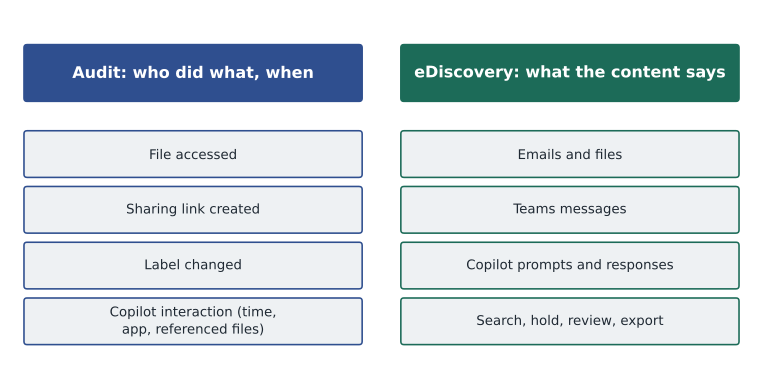
On November 12 a family member called Corvallin's complaints line. Her father's case manager had told her, she said, that a medication change had been "approved by the system", and she wanted to know who had approved it and what information they had used. Marguerite asked Teodor two separate questions: what happened, and what did the documents and messages say? In Microsoft Purview those two questions belong to two different tools. Audit records what happened. eDiscovery finds what was said.
Microsoft Purview Audit
Microsoft 365 services write events to the unified audit log: a user opened a file, created a sharing link, changed a sensitivity label, sent an email, signed in, changed a mailbox permission or interacted with Copilot. Each record has a date and time, the user, the activity, the item and other details. Audit is turned on by default for organizations with the right subscription, so most of the work is giving the right people permission to search it.
Purview offers two tiers. Audit (Standard) keeps records for 180 days by default; records created before October 17, 2023 were kept for only 90 days. Audit (Premium) keeps Exchange, SharePoint, OneDrive and Microsoft Entra ID records for one year by default, allows custom retention policies up to one year, or up to ten years with an add-on license, and records some extra events, such as when mail items are accessed, that investigators find valuable. Premium needs per-user licensing.
| Audit (Standard) | Audit (Premium) | |
|---|---|---|
| Default retention | 180 days | One year for Exchange, SharePoint, OneDrive and Entra ID records; 180 days for others |
| Custom retention | Not available | Up to one year, or ten years with an add-on |
| Extra events | Standard events | Additional events such as mail items accessed |
| Licensing | Included with eligible subscriptions | Per-user Premium license |
Searching the audit log
Administrators search the audit log with the Audit solution in the Purview portal. A search can filter by date range, activities, users and record types, runs in the background, and lets the results be viewed or exported to a CSV file. The same search is available in Exchange Online PowerShell through the Search-UnifiedAuditLog cmdlet and programmatically through an audit search API in Microsoft Graph. Searches are themselves recorded, so audit administrators are accountable too.
Copilot interactions appear as their own record type. A Copilot interaction record shows when the user interacted, in which app or service, and which files or other resources Copilot referenced, including their sensitivity labels. It does not contain the text of the prompt and response; that content is stored separately and found with eDiscovery.
# Exchange Online PowerShell: Copilot interactions for one user in a date range
Connect-ExchangeOnline
Search-UnifiedAuditLog -StartDate 2026-11-01 -EndDate 2026-11-12 `
  -RecordType CopilotInteraction `
  -UserIds case.manager@corvallincare.example -ResultSize 500 |
  Select-Object CreationDate, UserIds, Operations
Worked problem
Answering "what happened?"
Marguerite needs to know whether the case manager used Copilot around November 10 and which documents it drew on. Which tool and filters should Teodor use, and what will he see?
Show solution
- Open Audit in the Purview portal, or use Search-UnifiedAuditLog.
- Filter by the case manager's account, the dates November 9 to 11, and Copilot interaction activities.
- Each result shows the time, the app (for example Teams or Word) and the referenced files with their labels.
- Note the referenced files, such as the client's care plan, to check later in eDiscovery.
Answer: An audit search filtered by user, date and Copilot activity shows when Copilot was used and which files it referenced, but not the prompt text.
Microsoft Purview eDiscovery
eDiscovery is the process of identifying, preserving, collecting, reviewing and exporting content for legal matters, investigations and regulatory requests. In Microsoft Purview, eDiscovery works across Exchange mailboxes, SharePoint sites, OneDrive accounts, Teams messages, Viva Engage and Copilot interactions. Microsoft has brought its eDiscovery tools into one experience in the Purview portal, where work is organized into cases. The AB-900 skills outline highlights Content search in eDiscovery, which is the way to search across these locations for emails and files that match conditions.
| Step | What happens |
|---|---|
| Create a case | A container for the matter, with members who are allowed to work on it |
| Identify data sources | The people and locations involved, such as the case manager's mailbox and OneDrive and the branch site |
| Place holds (if needed) | Preserve content so it cannot be permanently deleted while the matter is open |
| Search | Use keywords and conditions such as date, sender, file type and type of item |
| Review and export | Look at results, add them to a review set where available, and export what is needed |
eDiscovery has tiers too. The standard capabilities cover cases, searches, holds and export. eDiscovery (Premium) adds features such as review sets with analytics, custodian management and legal hold notifications, and needs higher licensing. For a complaint like Corvallin's, the standard features were enough.
Finding Copilot interactions
Copilot prompts and responses are stored in the user's mailbox, in a hidden location, which makes them discoverable like Teams messages. Microsoft documents a search condition for this: Type, contains any of, Copilot activity. Searches can also use the item class for Copilot interactions when more precision is needed. Results show the prompt and Copilot's response, and can be exported or added to a review set.
Worked problem
Answering "what was said?"
The audit search showed the case manager used Copilot in Teams on November 10. Marguerite wants the actual conversation and the care plan as it stood that day. What should Teodor's eDiscovery search include?
Show solution
- Create a case called Complaint 2026-118 with Marguerite and the privacy officer as members.
- Add the case manager's mailbox and OneDrive and the branch site as data sources.
- Search the mailbox with Type contains any of Copilot activity and a date range of November 9 to 11.
- Search the branch site for the care plan by name, and check the version history for November 10.
- Review the results and export the conversation and the care plan for the complaint file.
Answer: A case with the right members, a search on the mailbox for Copilot activity in the date range, plus a search for the referenced file, then review and export.
The result answered the family's question. The case manager had asked Copilot to summarize the care plan, and the summary correctly noted that a pharmacist had approved the medication change. "The system" had been a loose phrase on the phone, not a decision by Copilot. Because a retention policy covered Copilot interactions (lesson 5), the conversation still existed; without it, the user could have deleted it and the answer might have been lost.
Who may search
Audit and eDiscovery reveal a great deal, so access is controlled by Purview role groups. Audit search needs roles such as Audit Reader or Audit Manager. eDiscovery needs roles such as eDiscovery Manager, whose members see only cases they belong to, and eDiscovery Administrator, who can access all cases. Teodor made sure that IT administrators did not get eDiscovery roles by default. Searches of staff mailboxes would be run by the privacy officer under the complaints policy, with Teodor helping on the technical side when asked.
| Task | Typical role |
|---|---|
| Search the audit log | Audit Reader or Audit Manager |
| Run searches in cases you belong to | eDiscovery Manager |
| Access and manage all eDiscovery cases | eDiscovery Administrator |
| Configure audit retention policies | Audit Manager, with Premium licensing |
Audit and eDiscovery as deterrents
Ines made one more point to the leadership team. Staff behave differently when they know that actions are recorded and that conversations can be retrieved when there is a legitimate reason. Corvallin's acceptable use policy for Copilot therefore said plainly that Copilot interactions are recorded in the audit log, kept for two years and can be searched by authorized staff for complaints, investigations and legal obligations. It also said who those staff were. Being open about monitoring builds trust; secret monitoring destroys it.
Holds
A hold preserves content so that it cannot be permanently deleted while a matter is open, even if a retention policy would otherwise delete it or a user tries to. Holds can cover whole mailboxes and sites or only content that matches a query, such as items from a date range or with certain keywords. Holds sit alongside retention: retention is the organization's routine rule, and a hold is a temporary exception for a specific case. When the complaint in this lesson looked as if it might become a legal claim, the privacy officer placed a hold on the case manager's mailbox and the branch site for the relevant dates.
Writing a search
eDiscovery searches use conditions and the keyword query language (KQL). Keywords can be combined with AND, OR and NOT, phrases go in quotation marks, and properties narrow the search, such as a sender, a date or a file type. A good search is specific enough to find the right items and broad enough not to miss them.
"care plan" AND ("medication change" OR "pharmacist")
  AND sent>=2026-11-09 AND sent<=2026-11-11
# plus condition: Type contains any of Copilot activity, email
Exporting and handling results
Exported results are sensitive by definition: they are the content someone needed for an investigation. Teodor's process said that exports were saved only to a restricted site with RAC applied, labeled Highly Confidential, and deleted when the case closed under a case-file retention label. eDiscovery records who ran searches and exports, which supports a clear chain of custody if the material is later used in a legal process.
Common audit activities
| Activity | Why investigators look for it |
|---|---|
| File accessed or downloaded | Shows who opened sensitive content |
| Sharing link created or used | Shows how content spread |
| Sensitivity label changed or removed | Shows attempts to lower protection |
| Mailbox permission added | Shows someone gaining access to another person's email |
| Copilot interaction | Shows AI use and the resources it referenced |
| Site permission changed | Shows how a site became overshared |
Audit for administrator actions
Audit covers administrators as well as users. Changes to sharing settings, DLP policies, labels, retention policies and role assignments are all recorded. Corvallin's monthly governance review included a short audit search for administrative changes to Purview and SharePoint settings, so that any unexpected change, such as a retention policy being turned off, would be noticed and questioned. When everyone knows that administrators are audited too, the system is easier to trust.
Investigations step by step
Most investigations combine the tools in this lesson in the same order. Audit identifies what happened and when, and narrows the people, dates and items involved. eDiscovery then preserves and retrieves the content for that narrow scope. Activity explorer and DSPM for AI add context, such as whether sensitive information types were detected in the interaction. Finally, the findings go to whoever owns the decision, which for Corvallin was the privacy officer for privacy matters and HR for conduct matters. Starting with audit keeps eDiscovery searches small, which protects the privacy of everyone not involved.
| Step | Tool | Output |
|---|---|---|
| Establish the timeline | Audit | Who, what, when and which items |
| Preserve the evidence | eDiscovery holds | Content cannot be permanently deleted |
| Retrieve the content | eDiscovery search and export | Messages, files and Copilot interactions |
| Add context | Activity explorer, DSPM for AI | Sensitive information detected, related events |
| Decide | Privacy officer or HR | Outcome recorded in the case |
Practice scenario: a lost laptop
A week after the complaint, a branch manager reported that her laptop had been left on a bus. Teodor used the same tools in a different order. An audit search for her account over the previous month showed which files she had synced or downloaded, which told the privacy officer what might be on the device. The labels on those files showed which were encrypted with Confidential / Clinical and so unreadable without her credentials, and which were General. Ama Owusu-Pratt, the help desk lead, wiped the device remotely through device management, and the privacy officer recorded the assessment. No eDiscovery search was needed, because the question was what had happened, not what the files said. Knowing which tool answers which question saved hours.
The incident also showed the value of labels. Because most of the client files on the laptop were encrypted, the privacy officer could conclude that the risk of disclosure was low, which shaped whether the loss needed to be reported as a breach. Without labels, every file on the device would have had to be treated as exposed.
Common mistakes
MistakeExpecting an audit record to contain the text of a Copilot prompt.
InsteadAudit shows the interaction, time, app and referenced items; eDiscovery finds the prompt and response.
MistakeAssuming audit records are kept forever.
InsteadAudit (Standard) keeps 180 days by default; longer needs Premium or an add-on.
MistakeSearching for Copilot interactions without a retention policy in place.
InsteadRetain Copilot interactions so they exist when a complaint arrives.
MistakeGiving every IT administrator eDiscovery access.
InsteadAssign eDiscovery and audit roles to the few people whose job requires them.
Summary and key terms
- Audit records who did what and when; eDiscovery finds what content says.
- Audit (Standard) keeps records for 180 days by default; Audit (Premium) keeps key records for one year and supports longer retention.
- Copilot interaction audit records show the time, app and referenced files with labels, not the prompt text.
- eDiscovery organizes work into cases with data sources, holds, searches, review and export, and highlights Content search for emails and files.
- Copilot prompts and responses are stored in the user's mailbox and found with the Copilot activity type condition.
- Unified audit log
- The record of user and administrator activities across Microsoft 365 services.
- Audit (Premium)
- The higher audit tier with longer default retention, custom retention policies and extra events.
- eDiscovery
- Identifying, preserving, searching, reviewing and exporting content for legal and investigative needs.
- Case
- An eDiscovery container for one matter, with members, data sources, holds and searches.
- Hold
- A preservation setting that prevents content from being permanently deleted while a matter is open.
- Content search
- Searching across mailboxes, sites and other locations for content that matches conditions, within Purview eDiscovery.
Practice problems
Work each problem on paper first, then reveal the answer to check.
Which tool tells you when a user created a sharing link: audit or eDiscovery?
Show answer
Audit.
What is the default retention for Audit (Standard) records?
Show answer
180 days.
Which search condition finds Copilot prompts and responses in eDiscovery?
Show answer
Type contains any of Copilot activity.
Lesson quiz · 5 questions
Score 60% or more to complete this lesson.
Create a free account to save your progress, take quizzes and earn a certificate.