
MSBA-101 · Lesson 7 of 12 · 19 min
Conditional Access policies
▶ Video coming soon A video version of this lesson is on the way.
Corvallin had eleven Conditional Access policies. Four had names like "Test 2" or "Teodor - temp". Two contradicted each other. One, created during the pandemic, excluded every user in the "Remote nurses" group from MFA, which had quietly grown to include 140 people. Ines asked Teodor to explain, before deleting anything, what each policy actually did when someone signed in. To do that he first had to explain how Conditional Access thinks.
Signals, decisions, enforcement
Conditional Access is the policy engine of Microsoft Entra ID. Every time a person or app signs in, Entra ID gathers signals about the attempt: who the user is and which groups and roles they hold, which app or resource they want, the device and whether it is managed and compliant, the location and IP address, the client app, and, with Entra ID P2, how risky the user or the sign-in looks. Policies use those signals to make a decision: block access, allow it, or allow it only if extra requirements are met. Entra ID then enforces the decision, for example by prompting for MFA before issuing the token. Microsoft describes Conditional Access as the Zero Trust policy engine, and lesson 9 explains why.
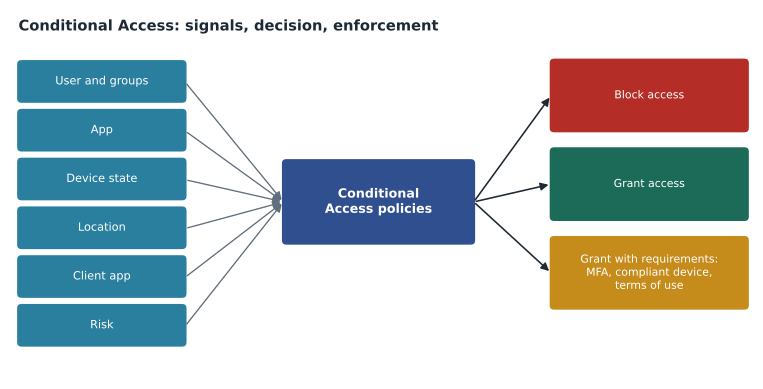
Conditional Access is an Entra ID P1 feature, and risk-based conditions need P2. It acts at sign-in and when tokens are refreshed, not continuously. Some services support continuous access evaluation, which lets Exchange, SharePoint and Teams react within minutes to critical events such as a user being disabled or a password being changed, rather than waiting for the access token to expire.
The parts of a policy
Each policy has two halves: assignments, which say when the policy applies, and access controls, which say what happens. A policy applies only if every one of its assignments matches.
| Part | Options | Example |
|---|---|---|
| Users | Include and exclude users, groups, roles, guests | All users, excluding the two emergency access accounts |
| Target resources | Cloud apps, user actions such as registering security info, authentication contexts | Office 365, VisitWise |
| Conditions: user and sign-in risk | Low, medium, high (P2) | Sign-in risk medium or high |
| Conditions: device platforms | Android, iOS, Windows, macOS, Linux | Android and iOS |
| Conditions: locations | Named locations, countries, trusted IP ranges | Anywhere except Canada and the United States |
| Conditions: client apps | Browser, mobile and desktop apps, legacy protocols | Legacy authentication clients |
| Conditions: filter for devices | Rules on device properties | Devices tagged as shared kiosks |
| Grant controls | Block, or require MFA, an authentication strength, a compliant device, a hybrid-joined device, an approved app, an app protection policy, a password change, terms of use | Require phishing-resistant MFA |
| Session controls | Sign-in frequency, persistent browser session, app enforced restrictions, Defender for Cloud Apps session control | Sign in again every 8 hours on unmanaged devices |
When a policy has several grant controls, the administrator chooses whether all are required or any one is enough. "Require MFA or a compliant device" lets a nurse on a managed phone in without a prompt while a personal laptop must do MFA. "Require MFA and a compliant device" demands both.
How several policies combine
Every policy whose assignments match a sign-in is applied, and their requirements add up. If one policy requires MFA and another requires a compliant device, the person must satisfy both. If any matching policy says block, the sign-in is blocked; block always wins. There is no priority order and no way for one policy to override another's requirement. That is why the pandemic policy at Corvallin was so damaging: it was not a policy that turned MFA off, but its exclusion meant that the main MFA policy no longer matched those 140 people at all.
Report-only mode and the What If tool
A new or changed policy can be set to report-only. Entra ID then evaluates it on every sign-in and records what it would have done in the sign-in log, without enforcing anything. Running a policy in report-only for a week or two, then reading the results in the Conditional Access insights and reporting workbook, is the safe way to find out who would be blocked before anyone is. The What If tool tests a hypothetical sign-in, such as a given user on an iPhone from outside the country to SharePoint, and lists which policies would apply and what they would require. Teodor used What If on each of the eleven policies before touching them.
Policies Microsoft recommends
The Entra admin center offers policy templates for common needs, and Microsoft also deploys Microsoft-managed policies into many tenants, which start in report-only mode and are switched on automatically after a notice period unless an administrator opts out. Typical baseline policies are:
| Policy | Why |
|---|---|
| Require MFA for all users | Stops most password attacks |
| Require phishing-resistant MFA for administrator roles | Admins are the highest-value targets |
| Block legacy authentication | Old protocols such as basic POP and IMAP cannot do MFA |
| Require MFA for registering security information | Stops an attacker with a password from registering their own method |
| Require a compliant or hybrid-joined device for admins or sensitive apps | Ties access to devices IT manages |
| Require MFA or block for medium and high sign-in risk | Responds to suspicious sign-ins (P2) |
| Require a password change for high user risk | Responds to leaked credentials (P2) |
Every policy that could lock people out should exclude the emergency access accounts from lesson 4, and those accounts must be watched closely because they are exempt. Exclusions beyond that should be rare, documented and reviewed; a group used for exclusions is a group an attacker would love to join.
Risky sign-ins and Identity Protection
Microsoft Entra ID Protection, part of Entra ID P2, assesses risk using Microsoft's view across billions of sign-ins. Sign-in risk is the probability that a particular sign-in was not made by the account owner, raised by signals such as an anonymous IP address, impossible travel between two distant places, or a known attack pattern. User risk is the probability that the account itself is compromised, raised for example when the user's credentials appear in a leak. Administrators review flagged items in the Risky sign-ins and Risky users reports, confirm them as compromised or safe, and use them as conditions in Conditional Access. AB-900 lists risky sign-ins among the things you should be able to troubleshoot.
Troubleshooting a blocked sign-in
Worked problem
Why was Ama blocked?
Ama Owusu-Pratt, the help desk lead, reports that she was blocked from the Microsoft Entra admin center while working from a hotel during a conference. Her normal sign-ins from the office work. How should Teodor investigate?
Show solution
- Open the Entra sign-in logs, filter by Ama's account and the time, and open the failed sign-in.
- On the Basic info tab, read the failure reason and error code, for example "Access has been blocked by Conditional Access policies".
- On the Conditional Access tab, see which policies applied and which one caused the block. Suppose it is "Admins: require compliant device", and the Device info tab shows she used the hotel business center computer.
- Check the Authentication details tab to confirm she did complete MFA, which rules out a stolen-password attack in this case.
- Explain that the policy worked as intended: admin portals may only be used from managed devices. If needed, use What If to confirm her managed laptop would pass.
Answer: The sign-in log showed the policy and condition responsible. The block was correct; the fix was to use her managed laptop, not to change the policy.
The same steps apply to most sign-in problems: find the sign-in, read the failure reason, look at which policies applied and why, and check the device and authentication details. Many issues turn out to be users on devices that have fallen out of compliance, a topic the Intune courses in this program cover.
Cleaning up Corvallin's policies
After What If testing, Teodor proposed five policies to replace the eleven: MFA for all users; phishing-resistant MFA for admin roles; block legacy authentication; compliant device required for admin portals and for VisitWise on unmanaged devices; and, because Corvallin had E5 security for administrators only, risk-based policies for that group. The pandemic exclusion group was removed. Each new policy ran in report-only for ten days, and the report showed that 23 people still used an old IMAP client on home computers. They were contacted before the legacy block was switched on.
# List Conditional Access policies and their state
Connect-MgGraph -Scopes "Policy.Read.All"
Get-MgIdentityConditionalAccessPolicy | Select-Object DisplayName, State |
    Sort-Object State, DisplayName
Devices in Conditional Access
Some of the most useful Conditional Access controls depend on devices. Require device to be marked as compliant allows access only from devices that Microsoft Intune manages and judges compliant with policies such as encryption, a minimum operating system version and an active antivirus. Require Microsoft Entra hybrid joined device allows only Windows devices joined to both on-premises Active Directory and Entra ID. Require approved client app and require app protection policy allow mobile access only through Microsoft apps such as Outlook and Teams that are protected by Intune app protection, even on personal phones that are not enrolled. These controls let an organization trust the device as well as the person, which is the endpoint pillar of Zero Trust in action.
The filter for devices condition targets or excludes devices by their properties, such as a device tagged as a shared kiosk in a branch office. Corvallin used it to apply stricter session controls to the shared computers at branch front desks: a sign-in frequency of four hours and no persistent browser sessions, so the next person to use the computer would not find the previous person still signed in.
Session controls in practice
Grant controls decide whether access is allowed; session controls shape what happens afterwards. Sign-in frequency sets how often users must sign in again, for example every eight hours on unmanaged devices. Persistent browser session decides whether "stay signed in" is offered. App enforced restrictions tell SharePoint and Exchange to give a limited, web-only experience on unmanaged devices, for example letting a nurse view a document in the browser but not download or print it. Conditional Access App Control, through Microsoft Defender for Cloud Apps, can monitor or block actions such as downloads in real time. These controls let an organization say "yes, but carefully" instead of a flat "no".
| Scenario | Grant control | Session control |
|---|---|---|
| Office staff on managed laptops | Require compliant device | None needed |
| Staff on personal home computers | Require MFA | App enforced restrictions: browser only, no downloads; sign-in frequency 8 hours |
| Nurses on personal phones | Require app protection policy | None needed |
| Shared front-desk computers | Require MFA | Sign-in frequency 4 hours; no persistent browser session |
| Administrators | Phishing-resistant MFA and compliant device | Sign-in frequency 4 hours |
Guests and Conditional Access
Guests from other organizations are covered by Conditional Access in the resource tenant, the tenant they are visiting. A policy targeting "guest or external users" can require MFA for them. Cross-tenant access settings in Entra External Identities let an organization trust MFA and device compliance claims from a partner's tenant, so a partner's staff who already did MFA at home are not asked again. Corvallin set up inbound trust for MFA from its main partner clinic's tenant, which removed a common complaint from the clinic's staff without weakening protection.
Common Conditional Access mistakes
Most Conditional Access incidents are self-inflicted. Administrators lock themselves out by applying a block policy to all users without excluding emergency access accounts. They exclude a group "temporarily" and forget it, as Corvallin did during the pandemic. They target "All cloud apps" with a device requirement and break sign-in for devices that cannot be managed, such as conference room systems. They forget that new users and new apps fall under existing policies automatically. And they make changes without report-only testing. A short checklist kept beside the change log prevents most of these.
| Before enabling a policy, confirm | Why |
|---|---|
| Emergency access accounts are excluded | Prevents a total lockout |
| It ran in report-only and the results were reviewed | Finds surprises before users do |
| What If was run for typical and unusual users | Checks the logic |
| Every exclusion has a named owner and review date | Stops exclusions becoming permanent holes |
| The help desk knows what is changing and when | Users get quick, consistent answers |
Conditional Access policies are tenant-wide configuration, so every change belongs in the change log along with the report-only results that justified it. When the insurer's auditor asked how Corvallin enforced MFA, Teodor answered with the policy list, the What If results and the sign-in report showing that every sign-in in the past month had satisfied MFA.
Common mistakes
MistakeExpecting one policy to override another.
InsteadAll matching policies apply and their requirements add up; any block wins.
MistakeSwitching a new policy straight to On.
InsteadRun it in report-only first and read the results.
MistakeForgetting to exclude emergency access accounts.
InsteadExclude them from policies that could lock everyone out, and monitor their use.
MistakeUsing a broad exclusion group to solve a few users' problems.
InsteadFix the users' devices or methods; keep exclusions small, documented and reviewed.
Summary and key terms
- Conditional Access uses sign-in signals to block, allow or allow with requirements.
- Policies have assignments (users, resources, conditions) and access controls (grant and session).
- All matching policies apply; requirements combine and a block always wins.
- Report-only mode and the What If tool let administrators test before enforcing.
- Identity Protection adds user and sign-in risk (P2); the sign-in log shows which policy affected a sign-in.
- Conditional Access
- The Entra ID policy engine that decides access at sign-in from signals.
- Grant control
- A requirement such as MFA or a compliant device that must be met to get access.
- Session control
- A control that shapes the session after sign-in, such as sign-in frequency.
- Report-only mode
- A policy state that records what would happen without enforcing it.
- Named location
- A set of IP ranges or countries used as a condition in policies.
- Sign-in risk
- The likelihood that a given sign-in was not made by the account owner.
Practice problems
Work each problem on paper first, then reveal the answer to check.
Two policies match a sign-in: one requires MFA, one requires a compliant device. What must the user do?
Show answer
Both: complete MFA and use a compliant device.
What license is needed for sign-in risk conditions?
Show answer
Microsoft Entra ID P2.
Which tool shows which policies would apply to a hypothetical sign-in?
Show answer
The What If tool.
Lesson quiz · 5 questions
Score 60% or more to complete this lesson.
Create a free account to save your progress, take quizzes and earn a certificate.