
MSBA-101 · Lesson 12 of 12 · 21 min
Case study: setting up a small business tenant
▶ Video coming soon A video version of this lesson is on the way.
In November 2026 Corvallin agreed to take over Kittiwake Physical Therapy, an independent clinic of 18 people in New Haven: eleven physical therapists, three physical therapist assistants, two receptionists, a bookkeeper and the owner, Hollis Brandreth. Kittiwake had been running on personal email addresses and a shared laptop at the front desk. The legal merger would take most of a year, and until then Kittiwake had to stay a separate business with its own records. Ines decided Kittiwake would get its own Microsoft 365 tenant now, built properly from the first day, so that moving it into Corvallin's tenant later would be simple. She gave the job to Teodor as his final review, and as practice for the exam.
This lesson follows his plan from requirements to handover. Every step uses something from lessons 1 to 11, and the same sequence works for any small organization.
Step 1: requirements
Teodor started with a short interview with Hollis and wrote the answers down. The clinic needed professional email on its own domain, kittiwakephysio.example; a shared reception inbox; a calendar for its two treatment rooms that the receptionists could book; a place for clinical forms and policies; chat and video calls for the occasional telehealth appointment; Microsoft 365 apps on four office computers and on everyone's phone; and protection for client health information, which HIPAA requires it to safeguard. There was no IT staff and no budget for one.
| Requirement | Microsoft 365 answer | Lesson |
|---|---|---|
| Email on the clinic's domain | Exchange Online with a verified custom domain | 1, 2 |
| Shared reception inbox | Shared mailbox, sign-in blocked, Full Access and Send As for receptionists | 2 |
| Bookable treatment rooms | Two room mailboxes in a room list | 2 |
| Forms and policies | A SharePoint team site through a Microsoft 365 group and team | 3 |
| Chat and video | Microsoft Teams | 3 |
| Apps on computers and phones | Licenses that include the Microsoft 365 Apps and Intune | 4 |
| Protect health information | MFA, Conditional Access, device management, Defender, restrictive sharing | 6 to 10 |
| No IT staff | Simple design, Corvallin's team as administrators, alerts to Corvallin's help desk | 4, 8, 11 |
Step 2: choose the licenses
With 18 users, the Business plans fit comfortably under their 300-user cap. Business Basic gives web and mobile apps only; Business Standard adds desktop apps; Business Premium adds Entra ID P1 (Conditional Access, group-based licensing), Intune for device management, Defender for Business for devices, Defender for Office 365 Plan 1 for email and information protection features. Because the clinic handles health information, has no IT staff and needs devices managed remotely, Teodor recommended Business Premium for everyone. That choice also meant every security feature used at Corvallin would be available, so the same habits would carry over.
Worked problem
Checking the license choice
Hollis asks whether the three physical therapist assistants, who only read schedules on their phones, could have a cheaper license. What should Teodor consider?
Show solution
- Business Basic would give them mailboxes, Teams and web apps, but not Conditional Access, Intune or Defender, because those come with Business Premium.
- Conditional Access policies are licensed per user. Leaving three people without Entra ID P1 would leave them outside the policies that protect everyone else, or out of license compliance.
- Their phones access client schedules, which contain health information, so device management matters for them as much as for anyone.
- The saving on three licenses is small compared with the risk and the complexity of two security designs.
Answer: Keep Business Premium for all 18. The protections that matter most are licensed per user.
Step 3: create the tenant and add the domain
Teodor signed up for Business Premium, choosing the country carefully because it sets the tenant's data location and usage defaults. He chose kittiwakephysio.onmicrosoft.com as the permanent initial domain. In Settings, Domains he added kittiwakephysio.example, added the TXT record the wizard supplied at the clinic's DNS host to prove ownership, and then added the service records: an MX record pointing mail to Exchange Online Protection, a CNAME for Autodiscover so Outlook finds mailboxes, an SPF TXT record listing Microsoft 365 as the only allowed sender, the two DKIM CNAME records and, a week later once mail was flowing, a DMARC record starting with a monitoring policy and moving to quarantine after reports looked clean.
Type   Name                         Value (simplified)
TXT    @                            MS=ms12345678                       (domain verification)
MX     @                            kittiwakephysio-example.mail.protection.outlook.com  priority 0
CNAME  autodiscover                 autodiscover.outlook.com
TXT    @                            v=spf1 include:spf.protection.outlook.com -all
CNAME  selector1._domainkey         (value supplied in the Defender portal)
CNAME  selector2._domainkey         (value supplied in the Defender portal)
TXT    _dmarc                       v=DMARC1; p=none; rua=mailto:dmarc-reports@kittiwakephysio.example
Step 4: administrators first
Before creating a single staff account, Teodor set up administration the way lesson 8 recommended. He created two emergency access accounts on the onmicrosoft.com domain, each with a long random password stored in Corvallin's safe and a FIDO2 security key, and permanently assigned Global Administrator. He invited Ines and himself as administrators using separate admin accounts, assigned Global Administrator to Ines and narrower roles to himself, and gave Ama Helpdesk Administrator so Corvallin's help desk could reset passwords. Business Premium does not include PIM, which needs Entra ID P2, so Teodor kept the number of admin roles small instead and recorded every assignment. Hollis was given no admin role at all; she would ask the help desk for changes.
Step 5: identity protection
New tenants start with security defaults on. Because Business Premium includes Conditional Access, Teodor replaced them with a small set of policies, built in report-only mode, tested with What If and switched on before any staff account existed.
| Policy | Users | Control |
|---|---|---|
| Require MFA | All users, excluding emergency access accounts | Require authentication strength: MFA |
| Admins: phishing-resistant MFA | All admin roles | Require authentication strength: phishing-resistant MFA |
| Block legacy authentication | All users | Block for legacy client apps |
| Secure security info registration | All users | Require MFA, or a Temporary Access Pass, to register methods |
| Require compliant device for Microsoft 365 | All users, excluding emergency access accounts | Require compliant device for desktop and mobile apps; browsers on unmanaged devices limited to web access without downloads |
In the Authentication methods policy he enabled Microsoft Authenticator and passkeys, enabled Temporary Access Pass for onboarding, and left SMS off. Self-service password reset was turned on for everyone.
Step 6: users, groups and licenses
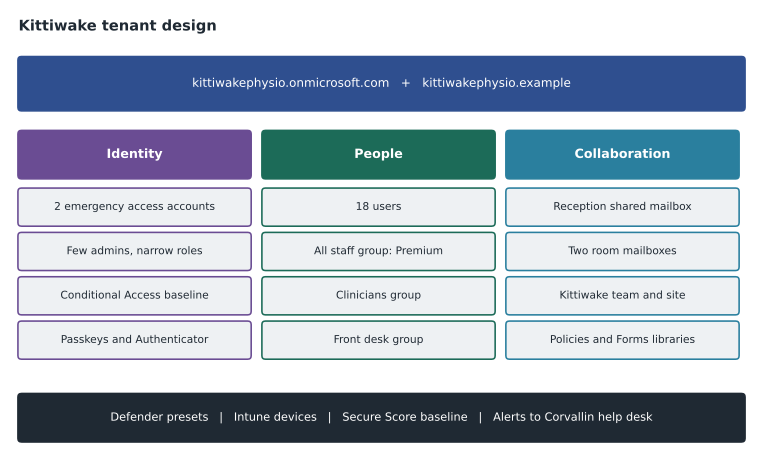
Teodor created the 18 users from a CSV file with display name, UPN on the custom domain, job title, department and usage location. He created a security group called All Kittiwake staff and assigned Business Premium to it through group-based licensing, so any future hire added to the group would be licensed automatically. Two further security groups, Clinicians and Front desk, would be used for permissions. Each new user received a Temporary Access Pass, delivered in person, and registered a passkey in Authenticator during a 20-minute session at the clinic.
Step 7: mail and collaboration objects
In the Exchange admin center Teodor created the reception@ shared mailbox, blocked its sign-in and granted Full Access and Send As to the Front desk group. He created Room 1 and Room 2 room mailboxes with automatic acceptance during opening hours and a room list called Kittiwake rooms. He created one team in Microsoft Teams called Kittiwake, which created its Microsoft 365 group and SharePoint site, with a standard General channel and a private channel for the owner and bookkeeper to discuss finances. In the team's site he created two libraries: Policies (Clinicians: Read, owner and Ines: Edit) and Forms. Permissions were granted to groups, never to individuals, and inheritance was left intact everywhere else.
In the SharePoint admin center, organization-level sharing was set to allow sharing only with people already in the organization or existing guests, anyone links were turned off, and the default link type was Specific people. OneDrive followed the same settings. External sharing could be loosened later for a single site if Kittiwake ever needed to share with a partner clinic, but it would never start open.
Step 8: devices and threat protection
The four office computers were enrolled in Intune and given a compliance policy requiring encryption, a supported Windows version and Defender antivirus. Staff phones were enrolled with app protection policies so work data stayed inside the Microsoft apps even on personal devices. In the Defender portal Teodor applied the Standard preset security policy to everyone and the Strict preset to Hollis and the bookkeeper, the people most likely to be targeted by invoice fraud. He ran an attack simulation two weeks after go-live; three people clicked, and each completed a short training module.
Step 9: measure and monitor
Before handover Teodor recorded the baseline Secure Score and Identity Secure Score, and marked the few recommendations that did not fit a clinic of this size as risk accepted, with reasons. He set Service health notifications and the message center weekly digest to go to Corvallin's help desk mailbox, and he synced Kittiwake's message center to the same Planner plan Corvallin used, with a Kittiwake bucket. The emergency access accounts had sign-in alerts that would email Ines and Teodor immediately.
Worked problem
Final review against Zero Trust
Before go-live, Ines asks Teodor to show how the design meets the three Zero Trust principles. What should his answer include?
Show solution
- Verify explicitly: passkeys or Authenticator for everyone, phishing-resistant MFA for admins, Conditional Access requiring compliant devices, legacy authentication blocked.
- Use least privilege access: two emergency accounts, very few named admins on narrow roles, permissions through groups, restrictive sharing defaults, no admin rights for the owner.
- Assume breach: Defender preset policies, device protection, alerts on emergency account use, attack simulation, service health and incident notifications to a monitored mailbox, and audit logging on by default.
Answer: Each principle maps to concrete settings in the tenant, so the design can be explained and checked.
Step 10: document and hand over
The last deliverable was a four-page document: the tenant and domain names, every admin account and role, the Conditional Access policies and why each exists, groups and what they grant, mailboxes and sites, sharing settings, devices and policies, the Secure Score baseline, and how to get help. A copy went into Corvallin's IT site and a printed copy into Hollis's office. The document also listed what would change when Kittiwake moved into Corvallin's tenant, so the migration team the following year would start with a map.
Teodor booked his AB-900 exam for the first week of December. The second course in this program, Data Protection and Governance for Microsoft 365 and Copilot, picks up the story with Corvallin's Copilot pilot and the oversharing problem Marguerite raised in lesson 3.
Step 11: test before go-live
Before handing the tenant to the clinic, Teodor ran through a test plan with Ama, signing in as two test users, one clinician and one receptionist, on a managed laptop, a personal phone and a computer that was deliberately not enrolled.
| Test | Expected result | Result |
|---|---|---|
| Clinician signs in on enrolled laptop with a passkey | Access to mail, Teams and the Policies library | Pass |
| Clinician signs in on unenrolled computer | Browser access only, no downloads | Pass after fixing the session control |
| Receptionist opens reception@ in Outlook | Mailbox appears automatically; can send as Reception | Pass |
| Receptionist books Room 2 for a time already booked | Request declined automatically | Pass |
| Clinician tries to share a form with a personal email address | Sharing blocked by organization setting | Pass |
| Old mail client using IMAP tries to connect | Blocked by legacy authentication policy | Pass |
| Test phishing message with a known bad link | Link blocked by Safe Links | Pass |
| Sign-in with an emergency access account | Alert email received by Ines and Teodor | Pass |
One test failed at first: the unenrolled computer could download files from the Policies library, because the app enforced restrictions session control had been set in Conditional Access but not switched on in the SharePoint admin center, where the matching setting for unmanaged devices must also be configured. Finding that in a test, rather than after a clinician downloaded client files to a home computer, was the point of testing.
What carries over to Corvallin
The Kittiwake tenant was small, but nothing about its design was small-business only. The same sequence, requirements, licenses, domain, administration, identity protection, people, collaboration objects, devices and threat protection, monitoring, testing and documentation, is how a tenant of 45,000 people should be built too. The difference at scale is that each step becomes a project with its own team. Teodor's design record became a template that Corvallin used for its own tenant documentation, filling in the gaps that two years of firefighting had left.
Common mistakes
MistakeCreating staff accounts before admin and security settings are in place.
InsteadSet up emergency access, admin roles and Conditional Access first, then create users.
MistakeMixing license types in a tiny organization to save a little money.
InsteadKeep one license that includes the protections everyone needs; per-user licensing applies to Conditional Access and device management.
MistakeStarting with open sharing and planning to tighten it later.
InsteadStart restrictive and open specific sites when a real need appears.
MistakeLeaving no documentation for a tenant with no IT staff.
InsteadWrite a short design record so others can support and later migrate it.
Summary and key terms
- Start from written requirements and map each to a Microsoft 365 feature.
- Business Premium suits small organizations that need Conditional Access, Intune and Defender.
- Add and verify the custom domain, then configure MX, Autodiscover, SPF, DKIM and DMARC.
- Protect administration and identity before creating users; assign licenses through groups.
- Use shared and room mailboxes, a team and libraries with group permissions, restrictive sharing, Defender presets, Secure Score baselines and monitored notifications, and document everything.
- Business Premium
- The Microsoft 365 business plan that adds Entra ID P1, Intune and Defender features to Business Standard.
- Preset security policy
- A Microsoft-defined Standard or Strict set of email protection settings applied in one step.
- App protection policy
- An Intune policy that protects work data inside apps on mobile devices.
- Baseline
- A recorded starting measurement, such as a Secure Score, used to track progress.
- Design record
- A short document describing how a tenant is configured and why.
Practice problems
Work each problem on paper first, then reveal the answer to check.
Why did Teodor create emergency access accounts before any staff accounts?
Show answer
So that administration is protected and recoverable before policies that could lock people out are switched on.
Which DNS record proves ownership of a custom domain?
Show answer
The TXT (or MX) verification record supplied by the admin center.
Why was Business Premium chosen for every user?
Show answer
It includes Conditional Access, Intune and Defender, which are licensed per user and needed to protect health information.
Lesson quiz · 5 questions
Score 60% or more to complete this lesson.
Create a free account to save your progress, take quizzes and earn a certificate.