
MSBA-101 · Lesson 11 of 12 · 20 min
Service health, message center and support
▶ Video coming soon A video version of this lesson is on the way.
At 8:10 on a Tuesday morning in October, the help desk phones started ringing. Nurses in two branches could not open their visit notes in Outlook, and Teams messages were arriving late. Ama logged the first five calls as separate problems, and Teodor started checking the branch network. Twenty minutes later Felix noticed the answer on the Service health page: Microsoft was investigating an Exchange Online incident affecting mailbox access in North America. Nothing at Corvallin was broken. The eleventh review was about making sure that next time, the help desk would know within minutes.
Service health
The Service health page in the Microsoft 365 admin center shows the current health of every service the tenant uses: Exchange Online, SharePoint, Teams, Microsoft Entra, Intune, Copilot and others. Each service is marked as healthy or as having one or more open issues. Issues come in two kinds. An incident is a critical problem that makes a service or major feature unavailable or severely degraded for many users. An advisory is a smaller problem affecting some users or a non-critical feature, often with a workaround. Each issue has a title, an ID (such as EX followed by a number for Exchange), the services and features affected, the user impact, Microsoft's current status, and timed updates as the investigation progresses.
| Item | What it is | Example |
|---|---|---|
| Incident | A critical issue with broad user impact | Users cannot access mailboxes in a region |
| Advisory | A limited issue, often with a workaround | Some users see delays in message trace results |
| Issue history | Resolved issues for the past 30 days | Checking whether last week's Teams problem was Microsoft's |
| Reported issues | Problems reported by your organization | An admin reports that file previews fail |
Administrators can report an issue from the same page if they believe a service problem is affecting them and it is not yet listed; Microsoft uses these reports to detect problems sooner. They can also set preferences so that email notifications for new and updated issues go to chosen addresses, filtered by service. Corvallin set notifications for Exchange, Teams, SharePoint and Entra to go to a help desk shared mailbox, so the first person on shift would see them. Service health is also available in the Microsoft 365 Admin mobile app, with push notifications.
If the admin center itself cannot be reached, Microsoft also publishes broad outages on a public status page and on its Microsoft 365 Status social media account. Those show only widespread events; tenant-specific details are in Service health.
The message center
Service health tells you what is broken now. The message center tells you what is changing. It is a list of posts from Microsoft, each with an ID beginning MC, announcing new features, changes to existing features, retirements, required actions and policy changes, typically weeks or months before they happen. Posts are tagged to help administrators sort them: by service, by category (Plan for change, Prevent or fix issues and Stay informed), and with tags such as Major update, Admin impact, User impact, Retirement, Feature update and Data privacy. Many posts include an "act by" date.
Message center posts can be marked as read, archived, marked as important, shared with colleagues and filtered by service. Preferences control a weekly email digest and immediate emails for major updates or data privacy posts. Administrators can also sync message center posts to Microsoft Planner, turning each relevant change into a task with an owner and due date, which is how many small teams make sure a retirement is not missed.
Worked problem
Triaging a week of message center posts
Teodor opens the message center on Monday and finds 23 new posts. Five are tagged for Exchange, six for Teams, four for SharePoint, three for Copilot, two for Entra and three for other services. Two are tagged Major update and one is tagged Retirement with an act-by date in six weeks. How should he handle them?
Show solution
- Filter to the services Corvallin uses and set the others to archived, after a quick scan of their titles.
- Read the Major update and Retirement posts first. The retirement has a deadline, so sync it to Planner, assign it to himself and set the due date two weeks before the act-by date.
- For each remaining post, decide: no action (mark read), inform users (share with the help desk or communications team), or change something (sync to Planner).
- Copilot posts go to the pilot team's channel because the pilot will be the first to see those changes.
- Record any change to tenant settings in the IT change log when it is made.
Answer: Filter, read the deadline-driven posts first, and turn every post that needs action into a tracked task. Fifteen minutes a week is enough for most small tenants.
The Microsoft 365 roadmap and release preferences
The public Microsoft 365 roadmap lists features in development, rolling out and launched, with an expected release month and the clouds and platforms they apply to. It is useful for planning but not a promise; dates move. Message center posts usually link to roadmap entries. Combined with the release preference from lesson 1, which can put selected users on targeted release to see changes early, the roadmap and message center give an organization time to prepare, train and adjust policies before users are surprised.
For Windows devices, a separate Windows release health section in the admin center shows known issues and the status of Windows updates, which the endpoint courses in this program use heavily.
Getting help from Microsoft
When something is wrong and Service health shows nothing, administrators can ask for help in the admin center under Help and support. The first step describes the problem in plain language and offers suggested solutions, diagnostics and documentation, increasingly powered by Copilot. Many common issues, such as mail delivery failures or users unable to sign in, have built-in diagnostics that check the tenant's configuration and report likely causes. If those do not solve it, the administrator can open a service request, choosing the severity based on business impact, giving contact details and preferred contact method, and attaching evidence such as error messages, screenshots, affected users and the time the problem started.
| Before opening a request, collect | Why |
|---|---|
| Affected users, devices and locations | Shows the scope and helps reproduce the problem |
| Exact error messages and correlation IDs | Lets Microsoft find the matching server logs |
| When it started and whether anything changed | Recent changes are the most common cause |
| Steps already tried | Avoids repeating work |
| Business impact | Sets the severity and response time |
Many organizations buy licenses through a Cloud Solution Provider (CSP) partner, which may provide first-line support itself. Larger organizations may have a Unified Support contract with Microsoft that adds faster response times and named contacts. Whatever the route, only people with an appropriate admin role can open service requests, and the Service Support Administrator role exists precisely for staff who need to open and track requests without broader rights.
Copilot in the admin center
Current versions of the Microsoft 365 admin center include Copilot in the admin center, which can answer questions about the tenant, summarize service health and message center posts, and help find settings. An admin agent can carry out certain administrative tasks from natural language requests, within the signed-in administrator's own permissions. These tools are helpful, but they work only as well as the administrator's judgment; every change they suggest should be read before it is approved, as with any other change.
Corvallin's new routine
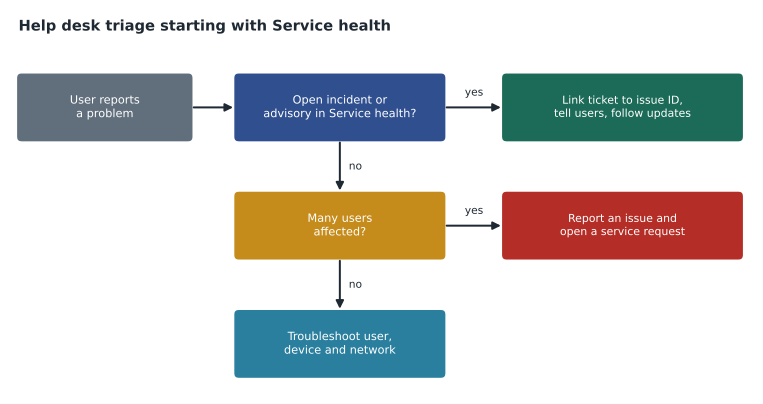
After the review, Ines formalized three habits. The help desk checks Service health before logging a widespread fault and links tickets to the Microsoft issue ID. Teodor triages the message center every Monday and syncs actions to a Planner plan called Tenant changes. And anyone opening a service request uses the checklist above and records the request number in the ticket. The October Exchange incident had cost the help desk an hour of confused troubleshooting. When a Teams advisory appeared in November, users were told about it within ten minutes, before most of them noticed.
Reviewing user and admin activity
When something changes unexpectedly, the question is usually "who did this, and when?". AB-900 asks you to use the appropriate tools to review audit logs for user and admin activity. Three tools cover most needs. The Microsoft Entra audit logs record changes to identity objects: users, groups, roles, applications and policies. The Entra sign-in logs record authentication activity. The unified audit log, searched with Audit in the Microsoft Purview portal, records user and admin activity across Microsoft 365 workloads: a file shared in SharePoint, a mailbox permission added in Exchange, a team deleted in Teams, a setting changed in the admin center, and Copilot interactions. Audit is on by default for most organizations, with standard retention of 180 days and longer retention available with higher licenses.
| Question | Tool |
|---|---|
| Who added a user to the Global Administrator role? | Entra audit logs |
| Why could a user not sign in at 9:15? | Entra sign-in logs |
| Who shared the budget spreadsheet with an outside address? | Purview Audit (unified audit log) |
| Who changed a mail flow rule last week? | Purview Audit, or the Exchange admin audit log |
| Which prompts did users send to Copilot about client files? | Purview Audit and DSPM for AI |
Usage and adoption reports
The Reports area of the Microsoft 365 admin center shows how services are used: active users per service over 7, 30, 90 or 180 days, email activity, OneDrive and SharePoint storage and file activity, Teams activity, Microsoft 365 Apps usage and, for organizations with Copilot, Copilot readiness and usage. Adoption Score goes further, scoring how the organization uses Microsoft 365 for communication, meetings, content collaboration and mobility, and how well the technology experience supports that. These reports helped Corvallin decide who should be in the Copilot pilot: people who already used Teams, OneDrive and Outlook heavily would get the most from it. By default, reports can show anonymized names, a privacy setting an administrator can change in Org settings.
Network health
Some "Microsoft 365 is slow" complaints are really network problems. Microsoft publishes the IP addresses and URLs its services use and recommends sending Microsoft 365 traffic directly to the internet from each office rather than through a distant proxy or VPN. The Network connectivity page in the admin center, together with Microsoft's connectivity test tool, measures connection quality from each office location and points out problems such as traffic leaving the network far from the user. Felix used it to show that the north branch's traffic was traveling to the head office before reaching the internet, which explained why its Teams calls were the worst in the company.
Managing change safely
Everything in this lesson supports one discipline: changing a live tenant without surprising people. Corvallin's change process was simple. Every tenant-wide change had a short record in the IT change log with the reason, the date, who made it and how to reverse it. Changes that affected users were announced in advance, piloted on targeted release users first where possible, and checked in the logs and reports afterwards. Message center posts that required action had owners and due dates. And when something went wrong, Service health was checked first, the right log second, and only then the user's device.
Worked problem
Was it Microsoft or us?
On a Wednesday afternoon, three users in head office report that Teams meetings keep freezing. Service health shows no Teams incident. What should Teodor check, in order?
Show solution
- Check Service health again for advisories as well as incidents, and the issue history for anything just resolved; nothing is listed.
- Check whether the problem is local: all three users are on the same floor and the same wireless network, while users elsewhere are fine.
- Ask Felix to look at the Network connectivity page and Teams call quality data for the head office location; both show high packet loss on the second-floor wireless access point.
- Felix restarts the access point and moves it to a less crowded channel; calls recover.
- Teodor records the cause in the ticket so the next similar report goes straight to the network check.
Answer: Not Microsoft this time. Service health ruled out a service problem quickly, and the network tools found the local cause.
Common mistakes
MistakeTroubleshooting a widespread fault locally before checking Service health.
InsteadCheck Service health first; many widespread problems are Microsoft's and already being worked on.
MistakeIgnoring the message center until something breaks.
InsteadReview it weekly and turn required actions into tracked tasks.
MistakeTreating roadmap dates as commitments.
InsteadThe roadmap is a plan; dates can move, so confirm with message center posts.
MistakeOpening a support request with no evidence.
InsteadInclude affected users, errors, timing, recent changes and impact.
Summary and key terms
- Service health shows incidents and advisories for each service, with issue history and email notifications.
- The message center announces upcoming changes, tagged by service, category and impact, and can sync to Planner.
- The Microsoft 365 roadmap shows planned features; release preferences let selected users see changes early.
- Help and support offers diagnostics and service requests; good evidence speeds resolution.
- Copilot in the admin center can summarize and help, within the administrator's permissions.
- Service health
- The admin center page showing the current status of each Microsoft 365 service.
- Incident (service health)
- A critical service problem with broad user impact.
- Advisory
- A limited service problem, often with a workaround.
- Message center
- The admin center list of announcements about upcoming changes.
- Microsoft 365 roadmap
- Microsoft's public list of features in development, rolling out and launched.
- Service request
- A support case opened with Microsoft from the admin center.
Practice problems
Work each problem on paper first, then reveal the answer to check.
What is the difference between an incident and an advisory in Service health?
Show answer
An incident is critical with broad impact; an advisory is limited, often with a workaround.
How can a small team make sure a message center retirement is not missed?
Show answer
Sync the post to Microsoft Planner and assign it with a due date.
Which role lets someone open support requests without broader admin rights?
Show answer
Service Support Administrator.
Lesson quiz · 5 questions
Score 60% or more to complete this lesson.
Create a free account to save your progress, take quizzes and earn a certificate.