
MSAZ-111 · Lesson 10 of 12 · 21 min
Extracting information from documents and forms
▶ Video coming soon A video version of this lesson is on the way.
Dana Whitcombe's accounts payable team receives about 2,600 supplier invoices a month, as PDFs attached to emails, scans of paper invoices and the occasional photo taken on a phone in a warehouse. Two clerks type the supplier, invoice number, date, purchase order, line items, taxes and total into the finance system, and they check each against the purchase order before anything is paid. It is careful, repetitive work, and it is the kind of work information extraction was built for. This lesson uses the invoice-extract project Arjun created in lesson 1. The AI-901 outline asks you to identify techniques for extracting information from text, images, audio and video, and to use Azure Content Understanding in Foundry Tools to extract information from documents and forms, images, and audio and video, and to build a lightweight application with it.
What information extraction means
Information extraction turns unstructured or semi-structured content into structured data: named fields with values that a program can store, check and act on. An invoice is semi-structured. Every supplier's layout is different, but every invoice contains much the same information. A free-text email is unstructured. A call recording or a video is unstructured too, but still contains facts worth extracting, such as the product a caller is asking about or the moment in a training video where a safety step is shown.
Extraction combines several techniques. OCR reads the text in a scanned page or photo. Layout analysis finds the structure: headings, paragraphs, tables, selection marks such as ticked boxes, and which text belongs to which label. Field extraction finds the specific values wanted, such as the invoice total. For audio and video, speech to text and visual analysis come first, and extraction works on the results. Generative models now help with every step, especially with documents whose layouts the system has never seen.
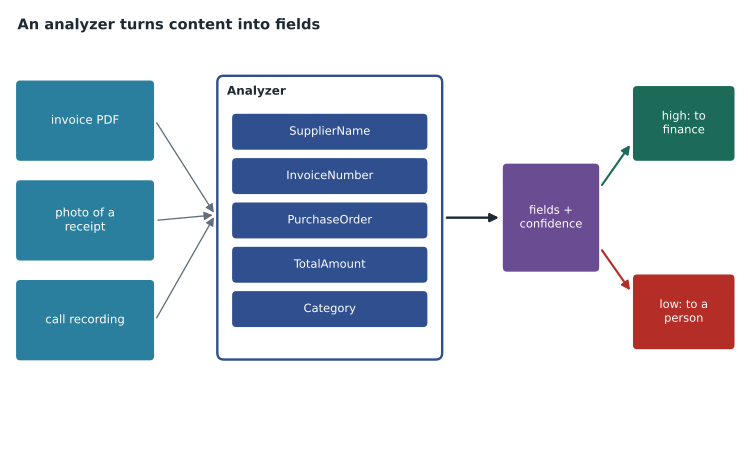
Azure Content Understanding
Azure Content Understanding is the Foundry Tool for this work. Microsoft describes it as using generative AI to process documents, images, audio and video into a structured format you define. Its core idea is the analyzer.
An analyzer is a reusable configuration that says how content should be processed and what to extract. It records the kind of content it expects, any processing settings, the model deployments it uses and a field schema: the list of fields to produce, each with a name, a type and a description. Once an analyzer is set up, every file sent to it is processed the same way, which is what makes the output dependable enough to feed into business systems.
Content Understanding offers prebuilt analyzers for common scenarios, such as invoices, receipts, contracts, procurement documents, call-center recordings and media, and lets you create custom analyzers for anything else. Microsoft's documentation describes three ways a field's value can be produced.
| Method | What it does | Invoice example |
|---|---|---|
| Extract | Pulls the value as it appears in the content (documents) | Invoice number INV-20931 exactly as printed |
| Classify | Chooses one value from a set of categories you define | Expense category: tools, building materials or services |
| Generate | Creates a value, such as a summary or description | A one-line description of what was bought |
The output is structured JSON matching the schema, and optionally markdown text of the whole document, which is useful when the same content will also be searched for grounding as in lesson 5. For documents, the service can also return a confidence score from 0 to 1 for each value and its grounding: where in the original document the value was found. Those two extras are what make human review practical, because a reviewer can be sent only the uncertain fields and shown exactly where each came from.
Field schema for the "hf-supplier-invoice" custom analyzer (simplified):
  SupplierName     string   extract    The supplier's company name
  InvoiceNumber    string   extract    The invoice number as printed
  InvoiceDate      date     extract    The date the invoice was issued
  PurchaseOrder    string   extract    The Harrow & Finch purchase order number, starting with PO-
  TotalAmount      number   extract    The total amount due, including taxes
  Category         string   classify   One of: tools, building materials, services, other
  Summary          string   generate   One sentence describing what was bought
Building a lightweight extraction application
A lightweight extraction application does three things: send a file to the analyzer, wait for the analysis to finish, and use the result. Analysis of a long document or a video can take some time, so the service works asynchronously: the first call starts the job and returns an address to check, and the application checks until the result is ready. The SDKs wrap this pattern in a single function that waits for completion. After that, the application applies business rules to the fields.
# Route extracted invoice fields: accept confident values, queue the rest for review.
import json
result = json.loads("""
{"fields": {
  "SupplierName":  {"value": "Prairie Fasteners Ltd.", "confidence": 0.97},
  "InvoiceNumber": {"value": "INV-20931",              "confidence": 0.95},
  "InvoiceDate":   {"value": "2026-11-03",             "confidence": 0.93},
  "PurchaseOrder": {"value": "PO-58810",               "confidence": 0.62},
  "TotalAmount":   {"value": 4318.75,                  "confidence": 0.91},
  "Category":      {"value": "building materials",     "confidence": 0.88}}}
""")
THRESHOLD = 0.85
accepted, review = {}, []
for name, f in result["fields"].items():
    if f["confidence"] >= THRESHOLD:
        accepted[name] = f["value"]
    else:
        review.append(f"{name} = {f['value']} (confidence {f['confidence']})")
print("accepted:", ", ".join(accepted))
print("send to a person:", review or "nothing")accepted: SupplierName, InvoiceNumber, InvoiceDate, TotalAmount, Category send to a person: ['PurchaseOrder = PO-58810 (confidence 0.62)']
What this code does
Takes the fields a document extraction service read from an invoice, each with a confidence score, and accepts those above a threshold automatically. Fields below the threshold are sent to a person to check. This keeps automation fast while catching uncertain values.
In the sample, the purchase order number came from a smudged part of a scan and has low confidence, so a clerk checks just that field. Everything else goes straight to the finance system, where the existing three-way match against the purchase order and the goods receipt still runs. Extraction replaces typing; it does not replace the controls.
Choosing a threshold
The confidence threshold is a business decision. Set it too low and wrong values slip through; set it too high and almost everything goes to review, saving little time. Dana's team runs a month of invoices through the analyzer while the clerks keep typing as usual, then compares the two.
Designing a good field schema
The field schema is where most extraction projects succeed or fail, and writing it is a business task as much as a technical one. Dana's team learns four lessons in the first week. First, describe each field the way you would brief a new clerk: "the Harrow & Finch purchase order number, which always starts with PO- and is usually near the top right" works far better than "PO". Second, choose the right type, such as a date, a number or a fixed list of categories, so that values come back in a form the finance system can use without cleaning. Third, extract only what the business uses; every extra field is another value to check. Fourth, decide what should happen when a field is missing, because a blank purchase order number is itself important information, often meaning the invoice was sent without one and must be queried with the supplier.
Line items need special treatment. An invoice can have one line or forty, so the schema defines a table-like field whose rows each contain a description, a quantity, a unit price and an amount. The application then checks that the line amounts add up to the subtotal and that the subtotal plus taxes equals the total, which catches many extraction errors automatically, without anyone reading the invoice.
# Check that extracted line items add up to the extracted total.
lines = [
    {"description": "Deck screws, 5 lb box", "qty": 40, "unit": 38.50},
    {"description": "Joist hangers",          "qty": 120, "unit": 6.25},
    {"description": "Exterior wood glue",     "qty": 24, "unit": 21.80},
]
subtotal = round(sum(l["qty"] * l["unit"] for l in lines), 2)
tax = round(subtotal * 0.05, 2)        # illustrative tax rate
extracted_total = 3011.42
print("subtotal", subtotal, "tax", tax, "computed total", round(subtotal + tax, 2))
print("matches extracted total:", abs(subtotal + tax - extracted_total) < 0.01)subtotal 2813.2 tax 140.66 computed total 2953.86 matches extracted total: False
What this code does
Multiplies quantity by unit price for each extracted invoice line, adds them into a subtotal, and adds tax to compare with the extracted invoice total. Here they do not match, so the invoice is flagged. A sum check like this catches extraction errors that confidence scores alone might miss.
When the numbers do not match, the invoice goes to a person even if every individual field had high confidence. Arithmetic checks like this cost nothing and catch errors that confidence scores alone miss.
Worked problem
Setting the review threshold
In the trial month, the analyzer extracted 2,600 invoice totals. At a threshold of 0.85, 2,340 totals were accepted automatically, and 6 of those were wrong. The other 260 went to review. What fraction of totals was accepted, and what was the error rate among accepted totals?
Show solution
- Accepted fraction: 2,340 ÷ 2,600 = 0.90.
- Error rate among accepted totals: 6 ÷ 2,340 ≈ 0.0026, about 1 in 390.
- Every wrong total was caught later by the purchase-order match, so no wrong payment was made.
Answer: Nine in ten totals needed no typing, and about 1 accepted total in 390 was wrong, all caught by the existing match. Dana accepts the 0.85 threshold for totals and sets a stricter 0.95 for bank details, where a mistake would be far more costly.
Beyond documents: images, audio and video
The same analyzer idea works for other kinds of content, which is what the AI-901 outline means by extracting information from images, audio and video.
- Images: a photo of a delivery note or a shelf label can be processed to extract printed text and specific values, much as a scanned document is.
- Audio: a call recording can be transcribed and analyzed to extract fields such as the reason for the call, the products mentioned, whether the issue was resolved and a short summary. This is how the contact center's note-drafting idea from lesson 8 could be built with a prebuilt call-center analyzer.
- Video: a training or product video can be split into segments, with descriptions, spoken words and key moments extracted for each, making a long video searchable.
For audio and video, the results usually include timestamps, so a reviewer can jump to the exact moment a value came from, which plays the same role as grounding does for documents.
Content Understanding and Document Intelligence
Before Content Understanding, Azure's main document service was Document Intelligence, formerly called Form Recognizer. It provides a layout model, prebuilt models for documents such as invoices, receipts, identity documents and tax forms, and custom models trained on labeled examples. It remains available, and you will meet it in older material and existing systems. Microsoft positions Content Understanding as the newer, generative-AI-based option that handles documents, images, audio and video in one service and reduces the need for training data. For the exam, know that both extract structured fields from documents, and that the current AI-901 outline names Content Understanding.
Responsible extraction
Invoices contain bank account numbers; receipts can contain card digits; call recordings contain whatever customers say. Carmen Ortiz's rules for the invoice project are the same as for every Skylight project: only the accounts payable team and the analyzer's managed identity can read the invoice storage; extracted bank details always go to a person for confirmation; files are kept only as long as tax rules require; and the team records which fields the analyzer fills automatically, so that auditors can see where a person was and was not involved. The last rule is accountability in practice.
Common mistakes
MistakeInformation extraction only works on typed documents.
InsteadExtraction works on scans, photos, audio and video too, using OCR, speech to text and visual analysis first.
MistakeA confidence score of 0.62 means the value is wrong.
InsteadIt means the service is unsure; send it to a person to confirm rather than rejecting it.
MistakeAutomated extraction removes the need for financial controls.
InsteadExtraction replaces typing; checks such as matching against purchase orders still run.
Summary and key terms
- Information extraction turns unstructured and semi-structured content into structured fields.
- Techniques include OCR, layout analysis, field extraction, and speech and visual analysis for audio and video.
- Azure Content Understanding uses analyzers: reusable configurations with a field schema, prebuilt or custom.
- Fields can be extracted, classified or generated; output is structured JSON and optionally markdown.
- Confidence scores and grounding let low-confidence values be routed to a person and checked at the source.
- Content Understanding handles documents, images, audio and video; Document Intelligence is the earlier document service.
- Keep existing controls, restrict access to sensitive files and record where automation fills fields.
- Information extraction
- Turning unstructured content into structured, named fields.
- Analyzer
- In Content Understanding, a reusable configuration that defines how content is processed and what fields to extract.
- Field schema
- The list of fields an analyzer produces, each with a name, type and description.
- Confidence score
- A value from 0 to 1 indicating how sure the service is about an extracted value.
- Grounding (in extraction)
- The location in the source content where an extracted value was found.
- Layout analysis
- Finding the structure of a document, such as paragraphs, tables and selection marks.
- Document Intelligence
- Azure's earlier document extraction service, formerly Form Recognizer.
Practice problems
Work each problem on paper first, then reveal the answer to check.
What is an analyzer in Content Understanding?
Show answer
A reusable configuration that defines how content is processed and the fields to extract.
Name the three ways a field's value can be produced.
Show answer
Extract, classify and generate.
Why are confidence scores useful?
Show answer
They let uncertain values be sent to a person while confident ones are accepted automatically.
Which kinds of content can Content Understanding process?
Show answer
Documents, images, audio and video.
What was Document Intelligence formerly called?
Show answer
Form Recognizer.
Why does extraction work asynchronously?
Show answer
Long documents and media take time, so the call starts a job and the application checks for the result.
Lesson quiz · 5 questions
Score 60% or more to complete this lesson.
Create a free account to save your progress, take quizzes and earn a certificate.