
JS-220 · Lesson 6 of 12 · 27 min
Lists, keys and conditional rendering
▶ Video coming soon A video version of this lesson is on the way.
On Thursday, January 27, Lucy sends the real list of shifts for the first two weeks of the portal pilot: forty-one shifts across the warehouse, the community kitchen, the lunch counter and the youth garden. She wants them grouped by day, with the full shifts shown but grayed out, a message when a filter matches nothing, and the volunteer's own shifts marked. While testing with this data, Mira finds a strange bug in her prototype: she types a note on the second shift in the list, a new shift is added at the top, and her note jumps to a different shift. "That one is about keys," Gareth says. "Everyone meets it once."
This lesson shows how to turn arrays of data into lists of elements, why every item in a list needs a key and how React uses keys to match items between renders. It explains the bug Mira found and how to avoid it. It then covers conditional rendering: showing different elements, or nothing, depending on the state, including the common pitfalls of the && operator and the empty, loading and error states every list needs.
From arrays to elements
JSX can contain arrays of elements, and React renders each item in turn. Lists are therefore made with ordinary array methods: map turns each item of data into an element, filter chooses which items to show, and toSorted puts them in order without changing the original array. These calls go directly inside the JSX, in braces, or in variables before the return.
const shifts = [
  { id: 's-104', area: 'Youth garden', day: 'Sunday', start: '1 p.m.', open: 2 },
  { id: 's-101', area: 'Warehouse', day: 'Saturday', start: '9 a.m.', open: 3 },
  { id: 's-102', area: 'Community kitchen', day: 'Saturday', start: '10 a.m.', open: 0 },
];

function App() {
  const available = shifts.filter((s) => s.open > 0).toSorted((a, b) => a.area.localeCompare(b.area));
  return (
    <ul className="shift-list">
      {available.map((s) => (
        <li key={s.id}>
          {s.area}, {s.day} at {s.start}: {s.open} left
        </li>
      ))}
    </ul>
  );
}
What this code does
filter keeps the shifts with open spaces and toSorted returns a new array sorted by area, leaving shifts as it was. map turns each shift into a list item, and the key prop gives each item the shift's id. The map call sits inside braces, so its array of elements becomes the children of the ul.
<ul class="shift-list">
  <li>Warehouse, Saturday at 9 a.m.: 3 left</li>
  <li>Youth garden, Sunday at 1 p.m.: 2 left</li>
</ul>
What this code does
The full kitchen shift was filtered out and the other two were sorted by area. The key prop does not appear in the HTML; it is used only by React.
Keeping data processing outside the JSX, in a variable such as available, makes the JSX easier to read. It also follows the rule from the last lesson: a filtered or sorted list is derived data, calculated during the render, not stored in state.
Grouping a list
Lucy's grouping by day is also derived data. Object.groupBy, available in all current browsers since 2024, takes an array and a function that returns a group name for each item, and returns an object whose properties are the groups. The example groups shifts by day and shows each group under a heading with a count.
const shifts = [
  { id: 's-101', area: 'Warehouse', day: 'Saturday', open: 3 },
  { id: 's-102', area: 'Community kitchen', day: 'Saturday', open: 0 },
  { id: 's-103', area: 'Lunch counter', day: 'Friday', open: 1 },
  { id: 's-104', area: 'Youth garden', day: 'Sunday', open: 2 },
  { id: 's-105', area: 'Warehouse', day: 'Friday', open: 4 },
];
const dayOrder = ['Monday', 'Tuesday', 'Wednesday', 'Thursday', 'Friday', 'Saturday', 'Sunday'];

const byDay = Object.groupBy(shifts, (s) => s.day);
const days = Object.keys(byDay).toSorted((a, b) => dayOrder.indexOf(a) - dayOrder.indexOf(b));

for (const day of days) {
  const group = byDay[day];
  const openShifts = group.filter((s) => s.open > 0).length;
  console.log(`${day} (${openShifts} of ${group.length} with spaces)`);
  for (const s of group) console.log(`  ${s.id} ${s.area}${s.open === 0 ? ' - full' : ''}`);
}Friday (2 of 2 with spaces) s-103 Lunch counter s-105 Warehouse Saturday (1 of 2 with spaces) s-101 Warehouse s-102 Community kitchen - full Sunday (1 of 1 with spaces) s-104 Youth garden
What this code does
Object.groupBy returns an object with one property per day, each holding the shifts for that day in their original order. Object keys come out in insertion order, so the days are sorted with a fixed list of day names. Each group then gets a heading line with a count and one line per shift, the same shape the grouped list in the portal will have.
Keys
Every element in an array needs a key: a string or number that identifies it among its siblings. If keys are missing, React shows a warning in the console, "Each child in a list should have a unique key prop". Keys are not shown on the page and are not passed to the component as a prop. They are for React's reconciliation: when a list renders again, React uses the keys to match each new element with the element it replaces.
Without keys, React can only match items by position: the first new item with the first old one, and so on. That is fine while a list never changes order. As soon as an item is inserted at the top, every item shifts down one position, and matching by position pairs each item with its neighbor's old element. With keys, React matches the warehouse shift with the warehouse shift wherever it moved to, reuses its element and moves it, and creates an element only for the item that is really new.
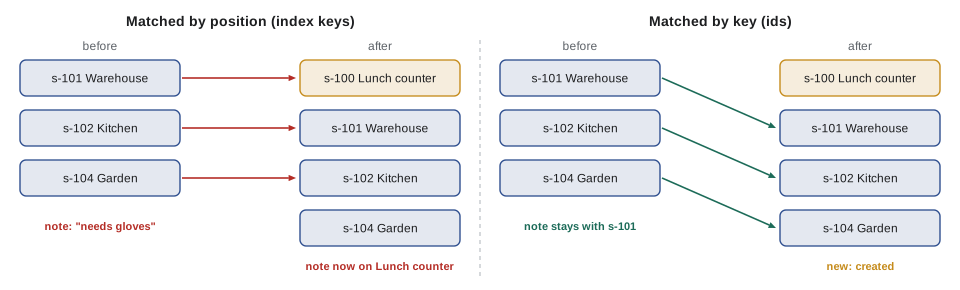
The example compares the two strategies on Lucy's list after a new lunch counter shift is added at the top. It lists what React would have to do in each case.
const before = ['s-101 Warehouse', 's-102 Kitchen', 's-104 Garden'];
const after = ['s-100 Lunch counter', 's-101 Warehouse', 's-102 Kitchen', 's-104 Garden'];
const keyOf = (item) => item.split(' ')[0];

function byPosition(old, next) {
  return next.map((item, i) => (i >= old.length ? `create ${item}` : old[i] === item ? `keep ${item}` : `rewrite row ${i} from ${old[i]} to ${item}`));
}

function byKey(old, next) {
  const oldKeys = new Set(old.map(keyOf));
  const nextKeys = new Set(next.map(keyOf));
  const ops = old.filter((item) => !nextKeys.has(keyOf(item))).map((item) => `remove ${item}`);
  return ops.concat(next.map((item) => (oldKeys.has(keyOf(item)) ? `keep ${item}` : `create ${item}`)));
}

console.log('matched by position:');
for (const op of byPosition(before, after)) console.log('  ' + op);
console.log('matched by key:');
for (const op of byKey(before, after)) console.log(' ' + op);matched by position: rewrite row 0 from s-101 Warehouse to s-100 Lunch counter rewrite row 1 from s-102 Kitchen to s-101 Warehouse rewrite row 2 from s-104 Garden to s-102 Kitchen create s-104 Garden matched by key: create s-100 Lunch counter keep s-101 Warehouse keep s-102 Kitchen keep s-104 Garden
What this code does
byPosition pairs items by their index, so an insertion at the top makes every row a mismatch: three rows are rewritten and one is created. byKey uses each item's id to find its old element, so the three existing shifts are kept and only the new one is created. React's real algorithm also works out which kept elements must move, but the principle is the same.
Why the note jumped
The work saved is not the main reason keys matter. The main reason is state. React keeps a component's state with its position in the tree, and for list items the position is the key. Mira's prototype used each item's index in the array as its key, key={index}. When the new shift arrived at the top, the warehouse shift moved from index 0 to index 1. But the state belonged to "the item with key 0", and key 0 was now the lunch counter shift. So the note typed for the warehouse appeared on the lunch counter.
The example reproduces the bug. Each row has some local state, a note, stored by key, exactly as React stores it. With index keys the note follows the position; with id keys it follows the shift.
const before = [{ id: 's-101', area: 'Warehouse' }, { id: 's-102', area: 'Kitchen' }];
const after = [{ id: 's-100', area: 'Lunch counter' }, ...before];

function renderRows(rows, keyFor, stateByKey) {
  return rows.map((row, i) => `${row.area}: note "${stateByKey.get(keyFor(row, i)) ?? ''}"`);
}

for (const [label, keyFor] of [['index as key', (row, i) => i], ['id as key', (row) => row.id]]) {
  const state = new Map();
  state.set(keyFor(before[0], 0), 'needs gloves');   // the note typed on the warehouse row
  console.log(label);
  console.log('  before:', renderRows(before, keyFor, state).join(' | '));
  console.log('  after: ', renderRows(after, keyFor, state).join(' | '));
}index as key before: Warehouse: note "needs gloves" | Kitchen: note "" after: Lunch counter: note "needs gloves" | Warehouse: note "" | Kitchen: note "" id as key before: Warehouse: note "needs gloves" | Kitchen: note "" after: Lunch counter: note "" | Warehouse: note "needs gloves" | Kitchen: note ""
What this code does
Each row's note is kept in a Map under the row's key, which is how React keeps state for list items. With the index as the key, the note is stored under 0, and after the insertion key 0 belongs to the lunch counter, so the note appears on the wrong shift. With the shift's id as the key, the note stays with s-101 wherever it moves.
The rules for keys follow from this. A key must be unique among siblings: two items in the same list cannot share one, though items in different lists can. It must be stable: the same item must get the same key on every render. The best key is an id that comes with the data, such as a shift id from Theo's database. The array index is acceptable only for lists that never reorder, filter or insert, and since that is hard to guarantee, Brightwater never uses it. A key made with Math.random() or crypto.randomUUID() during rendering is the worst choice: every render gives every item a new key, so React throws away every element and all its state each time.
When each item of a list renders more than one element, such as a heading and a paragraph with no wrapper, the short fragment syntax cannot hold a key. Use the long form instead: <Fragment key={s.id}>...</Fragment>, imported from react.
Keys outside lists
Keys also work on a single element, and that gives a clean way to reset state. Lesson 5 mentioned the note box on the shift details panel. When the volunteer chooses another shift, the draft note should be cleared. Writing <NoteBox key={shift.id} /> makes the key change with the shift, so React treats it as a different component, throws away the old instance with its state and creates a fresh one. No effect is needed.
Conditional rendering
Components often show different things in different situations: a Sign up button or a Full label, a list or an empty message, details or a loading line. Because JSX is JavaScript, the choice is made with ordinary JavaScript, in four common forms.
| Form | Example | Use when |
|---|---|---|
| if with an early return | if (!shift) return <p>Choose a shift.</p>; | A whole component looks different in one case, such as loading or empty |
| Ternary operator | {full ? <span>Full</span> : <button>Sign up</button>} | Choosing between two elements inside JSX |
| && operator | {isMine && <span className="badge">Your shift</span>} | Showing an element or nothing |
| null | return null; | A component that should show nothing at all in some cases |
Nested ternaries become hard to read quickly. When there are more than two cases, an early return or a small component with an if for each case is clearer. A component that shows a shift's status, for example, can return a different element for full, booked by this volunteer, nearly full and open.
The && pitfall
The && operator has a trap. a && b returns a when a is falsy and b otherwise. React renders false, null and undefined as nothing, which is why {isMine && <Badge />} works. But the number 0 is also falsy, and React renders numbers. {shift.open && <SignUpButton />} therefore shows a lonely 0 on the page when a shift is full. The same happens with NaN and with an empty string, which renders as nothing but can confuse later code.
// The same rule React uses: false, null and undefined show nothing, numbers show as text.
const show = (v) => (v === false || v === null || v === undefined ? '' : String(v));

const shifts = [{ area: 'Warehouse', open: 3 }, { area: 'Kitchen', open: 0 }];
for (const s of shifts) {
  const wrong = show(s.open && '[Sign up]');
  const right = show(s.open > 0 && '[Sign up]');
  const ternary = show(s.open > 0 ? '[Sign up]' : '[Full]');
  console.log(`${s.area.padEnd(9)} wrong: "${wrong}"  right: "${right}"  ternary: "${ternary}"`);
}Warehouse wrong: "[Sign up]" right: "[Sign up]" ternary: "[Sign up]" Kitchen wrong: "0" right: "" ternary: "[Full]"
What this code does
show applies React's rules for what a value renders as. With s.open && ..., a full shift makes the expression evaluate to 0, and 0 is rendered as text, so the wrong column shows a stray 0. Turning the left side into a real boolean with s.open > 0 fixes it, and a ternary shows something useful in both cases.
The fix is to make the left side a true boolean: {shift.open > 0 && <SignUpButton />}, or {Boolean(count) && ...}. Brightwater's lint rules include one that flags && with a number on the left, which catches most cases.
Empty, loading and error states
Every list has at least four states, and a good interface designs all of them: loading, while the data is on its way; error, when it could not be loaded; empty, when there is nothing to show; and ready, with the items. It is easy to design only the last one, and then a volunteer who filters for Sunday kitchen shifts sees a blank page and wonders whether the portal is broken. Sana's design gives each state a short, specific message and, where possible, a way forward, such as clearing the filters.
function ShiftRow({ shift, isMine }) {
  const full = shift.open === 0;
  return (
    <li className={full ? 'shift full' : 'shift'}>
      <span>{shift.area}, {shift.start}</span>{' '}
      {isMine ? <strong>Your shift</strong> : full ? <span>Full</span> : <span>{shift.open} left</span>}
    </li>
  );
}

function GroupedShifts({ shifts, myIds, onClearFilters }) {
  if (shifts.length === 0) {
    return (
      <div className="empty">
        <p>No shifts match these filters.</p>
        <button type="button" onClick={onClearFilters}>Clear filters</button>
      </div>
    );
  }
  const byDay = Object.groupBy(shifts, (s) => s.day);
  return (
    <>
      <p aria-live="polite">{shifts.length === 1 ? '1 shift' : `${shifts.length} shifts`} found</p>
      {Object.entries(byDay).map(([day, group]) => (
        <section key={day} aria-labelledby={`day-${day}`}>
          <h3 id={`day-${day}`}>{day}</h3>
          <ul>
            {group.map((s) => <ShiftRow key={s.id} shift={s} isMine={myIds.includes(s.id)} />)}
          </ul>
        </section>
      ))}
    </>
  );
}

const shifts = [
  { id: 's-103', area: 'Lunch counter', day: 'Friday', start: '11 a.m.', open: 1 },
  { id: 's-101', area: 'Warehouse', day: 'Saturday', start: '9 a.m.', open: 3 },
  { id: 's-102', area: 'Community kitchen', day: 'Saturday', start: '10 a.m.', open: 0 },
];
function App() {
  return (
    <>
      <GroupedShifts shifts={shifts} myIds={['s-101']} onClearFilters={() => {}} />
      <GroupedShifts shifts={[]} myIds={[]} onClearFilters={() => {}} />
    </>
  );
}
What this code does
GroupedShifts returns early with a helpful empty state and a Clear filters button when there is nothing to show. Otherwise it groups the shifts by day and renders a section for each day, keyed by the day, with a keyed ShiftRow for each shift. ShiftRow chooses between three labels with a ternary inside a ternary; with a fourth case, a small status component would be clearer.
<p aria-live="polite">3 shifts found</p>
<section aria-labelledby="day-Friday">
  <h3 id="day-Friday">Friday</h3>
  <ul>
    <li class="shift"><span>Lunch counter, 11 a.m.</span> <span>1 left</span></li>
  </ul>
</section>
<section aria-labelledby="day-Saturday">
  <h3 id="day-Saturday">Saturday</h3>
  <ul>
    <li class="shift"><span>Warehouse, 9 a.m.</span> <strong>Your shift</strong></li>
    <li class="shift full"><span>Community kitchen, 10 a.m.</span> <span>Full</span></li>
  </ul>
</section>
<div class="empty">
  <p>No shifts match these filters.</p>
  <button type="button">Clear filters</button>
</div>
What this code does
App rendered the list twice, once with three shifts and once with none. The first shows the count, the day headings and the three statuses; the second shows only the empty state with its button.
The result count uses aria-live="polite", so a screen reader announces "2 shifts found" when a filter changes, without interrupting. The headings for each day let screen reader users jump between days, and the list markup, ul and li, tells them how many shifts each day has. Full shifts are shown with the word Full, not only with gray text, because color alone does not reach everyone.
Very long lists
The pilot has about forty shifts on screen at a time, which React renders without any trouble. A list of thousands of rows is different: creating that many elements takes time and memory, even if only twenty are visible. The usual remedies are pagination, showing a page at a time, which Theo's API already supports with cursors, and virtualization, rendering only the rows that are visible and a few around them, with a library such as TanStack Virtual. The portal uses pagination for the volunteer's shift history and needs neither for the main list.
Common mistakes
MistakeKeys are needed only to silence a warning.
InsteadKeys decide which element and which state each item gets. Wrong keys move state to the wrong item.
MistakeThe array index is a good key.
InsteadOnly for lists that never reorder, filter or insert. Use a stable id from the data.
Mistakekey={Math.random()} guarantees unique keys.
InsteadIt gives every item a new key on every render, so React recreates every element and loses all their state.
Mistake{shift.open && <SignUpButton />} hides the button for full shifts.
InsteadIt shows 0 on the page. Use a boolean on the left: {shift.open > 0 && ...}.
MistakeIf the filter matches nothing, the list can just be empty.
InsteadShow an empty state that says what happened and offers a way forward.
Summary and key terms
- Lists are rendered by turning arrays of data into arrays of elements with map, after filter, toSorted or Object.groupBy as needed; filtered, sorted and grouped lists are derived data calculated during rendering.
- Every element in an array needs a key that is unique among its siblings and stable between renders; React uses keys to match new elements with old ones.
- React keeps component state with the key, so index keys move state to the wrong item when a list is reordered or added to, and random keys recreate every item on every render.
- Use ids from the data, and Fragment with a key when an item has several elements.
- Changing an element's key resets its state.
- Conditional rendering uses early returns, ternaries, && and null.
- With &&, make the left side a boolean, because 0 is rendered as text.
- Lists need loading, error, empty and ready states, with specific messages and accessible markup such as headings, list elements and polite live regions.
- Very long lists use pagination or virtualization.
- key
- A string or number that identifies an element among its siblings so that React can match it between renders.
- stable key
- A key that stays the same for the same item on every render, such as an id from a database.
- Object.groupBy
- A built-in function that groups an array's items into an object by a name returned for each item.
- conditional rendering
- Showing different elements, or none, depending on props and state.
- empty state
- What a list or screen shows when there is nothing to display, ideally with a way forward.
- live region
- A part of the page marked with aria-live whose changes a screen reader announces.
- pagination
- Showing a long list one page at a time.
- virtualization
- Rendering only the visible rows of a very long list.
Practice problems
Work each problem on paper first, then reveal the answer to check.
What does React use keys for?
Show answer
To match each element in a list with its element from the previous render, so that it can keep, move or create elements and keep each item's state.
Why did Mira's note move to another shift?
Show answer
The rows were keyed by index; after an insertion the index belonged to a different shift, and the state followed the index.
What is wrong with key={crypto.randomUUID()} in a map?
Show answer
Every render gives new keys, so React recreates all items and loses their state.
What does {count && <p>Some</p>} show when count is 0?
Show answer
The text 0.
How can a component's state be reset when the selected shift changes, without an effect?
Show answer
Give it key={shift.id} so that React creates a fresh instance.
Try it yourself
Work out the keyed changes
Complete keyedChanges(oldKeys, newKeys). It returns a list of operations that turn the old list into the new one when items are matched by key.
First, remove k for each old key missing from the new list, in old order. Then, for each new key in new order, keep k if it was in the old list or insert k if it is new. Use Sets for the lookups.
function keyedChanges(oldKeys, newKeys) {
  return [];
}

console.log(keyedChanges(['a', 'b', 'c'], ['x', 'a', 'b', 'c']).join(', '));
console.log(keyedChanges(['a', 'b', 'c'], ['a', 'c']).join(', '));
console.log(keyedChanges(['a', 'b'], ['b', 'a', 'd']).join(', '));
console.log(keyedChanges([], ['a']).join(', '));
Try it yourself
A results line without stray zeros
Complete resultsLine(shifts, mine) for the top of the shift list. It returns No shifts match these filters. for an empty list. Otherwise it returns 1 shift found or N shifts found, followed by , M with spaces and then, only when the volunteer has booked at least one of them, , K yours.
mine is an array of shift ids the volunteer has booked. Make sure no count of zero ever appears by accident.
function resultsLine(shifts, mine) {
  return '';
}

const shifts = [{ id: 'a', open: 2 }, { id: 'b', open: 0 }, { id: 'c', open: 1 }];
console.log(resultsLine(shifts, ['b']));
console.log(resultsLine(shifts, []));
console.log(resultsLine([{ id: 'b', open: 0 }], []));
console.log(resultsLine([{ id: 'a', open: 2 }], ['a']));
console.log(resultsLine([], ['a']));
Lesson quiz · 5 questions
Score 60% or more to complete this lesson.
Create a free account to save your progress, take quizzes and earn a certificate.