
JS-210 · Lesson 8 of 12 · 27 min
Testing the DOM
▶ Video coming soon A video version of this lesson is on the way.
On Thursday, November 11, the unit tests for orderTotal, lineCents and the tally storage all pass. But Rosa's most common complaint about the counter page has never been about arithmetic. It has been about the page: a button that did nothing after a quick double tap, a total that did not update, a quantity that could go below zero. "Those bugs live where the code meets the page," Gareth says. "Today we test that meeting point, the way a person uses it."
This lesson explains how to test code that works with the DOM: the simulated browser environments that let DOM code run inside a test runner, Vitest's Browser Mode that runs tests in a real browser, the Testing Library approach of finding elements the way a user does, simulating clicks and typing, and waiting for changes that happen later. As before, code that needs a real page is shown as listings, and the ideas behind it are shown with programs you can run here.
Where DOM tests run
Unit tests normally run in Node.js, which has no document, no buttons and no events from a screen. To test DOM code there, a test runner can provide a simulated DOM: a JavaScript implementation of the browser's document, elements and events. Two are common. jsdom is the older and more complete; happy-dom is newer and faster. Neither draws anything on a screen, and neither does layout, so they cannot answer questions such as whether a button is hidden behind another element, but they handle elements, attributes, events and forms well.
Vitest selects the environment per project or per file. A comment at the top of a test file, or an environment setting in the configuration, makes document available in that file's tests.
// vitest.config.ts
import { defineConfig } from 'vitest/config';

export default defineConfig({
  test: {
    environment: 'jsdom',
    setupFiles: ['./src/test-setup.ts'],
    restoreMocks: true,
  },
});
What this code does
environment: 'jsdom' gives every test file a simulated document and window. The setup file runs before each test file and is where Testing Library's extra matchers are added. restoreMocks puts back any vi.spyOn replacements after each test, as Lesson 7 recommended.
Since Vitest 4.0, released in October 2025, Browser Mode is stable. Instead of a simulated DOM, Browser Mode runs the test files inside a real browser, controlled through Playwright or WebdriverIO, so layout, focus, scrolling and real browser events all behave as they do for users. It is slower to start than jsdom, and Brightwater uses it for the components where real browser behavior matters, such as the counter page's on-screen number pad, while keeping jsdom for the rest.
| jsdom or happy-dom | Vitest Browser Mode | End-to-end (Lesson 9) | |
|---|---|---|---|
| Runs in | Node.js, simulated DOM | A real browser | A real browser |
| Tests | One component or module | One component or module | The whole page or app |
| Layout and CSS | No | Yes | Yes |
| Speed | Fastest | Fast | Slowest |
| Server and network | Doubles | Doubles | Real, or a test server |
Test what the user sees
The first DOM tests most people write check the implementation: that a button has the class btn-primary, that a list is the third child of a div, that a component's internal state is 2. Those tests break when someone tidies the markup, even though the page still works, and they pass when the page is broken in ways the markup does not show, such as a button with no accessible name.
Testing Library, a family of small libraries for the DOM, React and other frameworks, is built on a different principle, written by its author Kent C. Dodds: the more your tests resemble the way your software is used, the more confidence they can give you. A person using the counter page does not look for an element with an id. They look for a button labeled Soup of the day, press it and read the total. A screen reader user does the same through the accessibility tree, the browser's model of the page's roles, names and states. Testing Library's queries find elements in the same way.
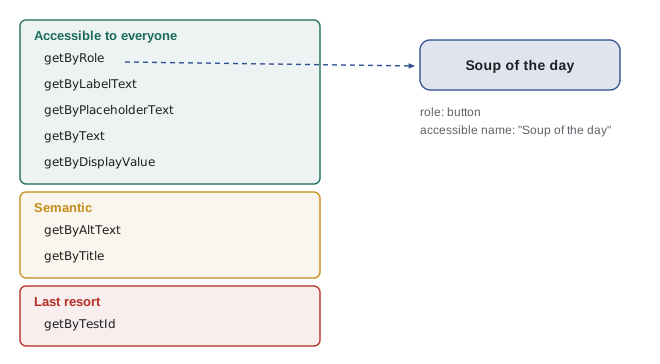
| Query | Finds elements by | Example |
|---|---|---|
| getByRole | Role and accessible name | getByRole('button', { name: 'Soup of the day' }) |
| getByLabelText | The label of a form control | getByLabelText('Quantity') |
| getByPlaceholderText | Placeholder text, if there is no label | getByPlaceholderText('Search the menu') |
| getByText | Visible text content | getByText('No orders yet') |
| getByDisplayValue | The current value of an input | getByDisplayValue('2') |
| getByAltText | An image's alt text | getByAltText('Food Hub logo') |
| getByTestId | A data-testid attribute | getByTestId('order-total') |
getByRole is the first choice for almost everything, because it finds elements the way assistive technology does and fails if an element has no accessible name. That makes every DOM test a small accessibility check as well: if Mira's test cannot find the plus button by its name, a screen reader user cannot find it either.
How a role query works
The browser computes each element's role from its tag and attributes, such as button for a button element and listitem for a li inside a list, and its accessible name from its text, its label or an aria-label. A query by role walks the tree and returns the element whose role and name match. The next example builds a small tree of plain objects, like a simplified accessibility tree for the counter page, and queries it.
const page = { role: 'main', children: [
  { role: 'heading', name: 'Lunch counter' },
  { role: 'group', name: 'Menu', children: [
    { role: 'button', name: 'Soup of the day' },
    { role: 'button', name: 'Sandwich' },
    { role: 'button', name: 'Oatmeal cookie' },
  ] },
  { role: 'list', name: 'Order', children: [] },
  { role: 'status', name: 'Total: 0.00' },
] };

function all(node, role, name) {
  const found = [];
  (function walk(n) {
    if (n.role === role && (name === undefined || (name instanceof RegExp ? name.test(n.name) : n.name === name))) found.push(n);
    (n.children ?? []).forEach(walk);
  })(node);
  return found;
}
function getByRole(root, role, { name } = {}) {
  const found = all(root, role, name);
  if (found.length === 0) throw new Error(`Unable to find role="${role}"${name ? ' and name ' + name : ''}`);
  if (found.length > 1) throw new Error(`Found ${found.length} elements with role="${role}"`);
  return found[0];
}

console.log(getByRole(page, 'button', { name: 'Sandwich' }));
console.log(all(page, 'button').map((b) => b.name).join(', '));
for (const attempt of [() => getByRole(page, 'button'), () => getByRole(page, 'button', { name: 'Coffee' })]) {
  try { attempt(); } catch (err) { console.log('Error:', err.message); }
}
console.log(getByRole(page, 'status', { name: /^Total/ }).name);{ role: "button", name: "Sandwich" }
Soup of the day, Sandwich, Oatmeal cookie
Error: Found 3 elements with role="button"
Error: Unable to find role="button" and name Coffee
Total: 0.00What this code does
all walks the tree and collects nodes whose role matches and, if a name is given, whose name matches exactly or by regular expression. getByRole insists on exactly one match: it throws when there is none, and also when there are several, because an ambiguous query is a sign the test or the page is unclear. Those two errors are the same ones Testing Library gives.
Testing Library has three families of query for different situations. getBy returns one element and throws if there is not exactly one. queryBy returns null instead of throwing when there is none, which is the way to assert that something is absent. findBy returns a promise and keeps trying until the element appears or a timeout passes, for things that appear after a delay. Each family has an All version, such as getAllByRole, that returns an array.
Simulating a user
Once a test has found an element, it acts on it. Testing Library's user-event library simulates what a real user does: a click is a pointer down, a pointer up and a click event, with focus moving to the button; typing is a sequence of key events with the input's value changing one character at a time. The older fireEvent helper dispatches a single event, which is quicker to write but less like real use. Brightwater uses user-event.
The counter page code that the tests target is written so that the DOM part is thin: it builds the buttons and listens for clicks, and it hands the real work to an order object that holds the state. Events in the DOM are delivered through EventTarget, which the runner on this page also provides, so the next example tests the order logic and its events without any page at all.
class Order extends EventTarget {
  #lines = new Map();
  add(item) {
    const line = this.#lines.get(item.id) ?? { ...item, qty: 0 };
    line.qty += 1;
    this.#lines.set(item.id, line);
    this.dispatchEvent(new CustomEvent('change', { detail: this.lines() }));
  }
  remove(id) {
    const line = this.#lines.get(id);
    if (!line) return;
    line.qty -= 1;
    if (line.qty === 0) this.#lines.delete(id);
    this.dispatchEvent(new CustomEvent('change', { detail: this.lines() }));
  }
  lines() { return [...this.#lines.values()].map((l) => `${l.qty} × ${l.name}`); }
}

// The test: listen like the page does, act like the user does, check what would be shown.
const order = new Order();
const shown = [];
order.addEventListener('change', (e) => shown.push(e.detail.join(', ') || '(empty)'));

const soup = { id: 'soup', name: 'Soup of the day' };
const cookie = { id: 'cookie', name: 'Oatmeal cookie' };
order.add(soup); order.add(soup); order.add(cookie);
order.remove('cookie'); order.remove('cookie');
shown.forEach((line, i) => console.log(`after action ${i + 1}:`, line));after action 1: 1 × Soup of the day after action 2: 2 × Soup of the day after action 3: 2 × Soup of the day, 1 × Oatmeal cookie after action 4: 2 × Soup of the day
What this code does
Order keeps the lines of an order in a private Map and dispatches a change event, with the lines to show, after every change. The test listens for change events exactly as the page's render function would and records what would be displayed. Removing the cookie a second time does nothing, so no event fires, which is the behavior that stops a quantity from going below zero.
With the logic tested like that, the DOM test only needs to prove that the page wires it up: pressing the button adds an item and the list shows it. Here is the jsdom test Mira writes for the counter page's menu, using Testing Library's DOM package and user-event.
// src/menu-view.test.ts
import { describe, expect, test } from 'vitest';
import { screen, within } from '@testing-library/dom';
import userEvent from '@testing-library/user-event';
import { mountCounter } from './menu-view';

describe('counter page', () => {
  test('pressing a menu button adds the item to the order', async () => {
    document.body.innerHTML = '<main id="app"></main>';
    mountCounter(document.getElementById('app')!, { taxRate: 0.1 });
    const user = userEvent.setup();

    await user.click(screen.getByRole('button', { name: 'Soup of the day' }));
    await user.click(screen.getByRole('button', { name: 'Soup of the day' }));

    const order = screen.getByRole('list', { name: 'Order' });
    expect(within(order).getAllByRole('listitem').map((li) => li.textContent)).toEqual(['2 × Soup of the day']);
    expect(screen.getByRole('status')).toHaveTextContent('Total: 9.90');
  });

  test('the remove button is not shown for an empty order', () => {
    document.body.innerHTML = '<main id="app"></main>';
    mountCounter(document.getElementById('app')!, { taxRate: 0.1 });
    expect(screen.queryByRole('button', { name: /remove/i })).toBeNull();
  });
});
What this code does
Each test starts with a fresh page body, mounts the counter page into it with a test tax rate of 10 in 100 and finds everything by role and name. The first test clicks the soup button twice as a user would and checks the order list and the total, 9.00 plus tax. The second uses queryByRole, which returns null rather than throwing, to show that a button is absent.
toHaveTextContent comes from @testing-library/jest-dom, a package of DOM matchers that also works with Vitest once it is imported in the setup file. Others include toBeVisible, toBeDisabled, toHaveValue and toHaveAccessibleName, each of which reads more clearly than checking attributes by hand.
Waiting for the page to change
Some changes happen later: the dashboard shows Loading, fetches today's shifts and then draws the panel. A test that checks immediately sees Loading, not the shifts. The wrong fix is to add a fixed delay, such as waiting half a second, which is slow when the change is quick and flaky when it is slow. The right fix is to wait for the thing itself: findBy queries and waitFor retry a check every few milliseconds until it passes or a timeout is reached.
// A simplified waitFor: retry a check on every tick until it passes or the time runs out.
async function waitFor(check, { timeout = 1000, interval = 50 } = {}) {
  const start = Date.now();
  let lastError;
  while (Date.now() - start <= timeout) {
    try { return check(); } catch (err) { lastError = err; }
    await new Promise((r) => setTimeout(r, interval));
  }
  throw lastError;
}

// A panel that loads after a delay.
const panel = { text: 'Loading…' };
setTimeout(() => { panel.text = 'Lunch counter: 2 spaces left'; }, 120);

const immediate = panel.text;
const result = await waitFor(() => {
  if (!panel.text.startsWith('Lunch')) throw new Error('still showing: ' + panel.text);
  return panel.text;
});
console.log('checked at once:', immediate);
console.log('after waitFor:  ', result);
try {
  await waitFor(() => { throw new Error('never appears'); }, { timeout: 100 });
} catch (err) {
  console.log('gave up with:   ', err.message);
}checked at once: Loading… after waitFor: Lunch counter: 2 spaces left gave up with: never appears
What this code does
waitFor calls the check repeatedly, pausing between attempts, and returns as soon as the check stops throwing. Checking at once sees the Loading text, while waiting for the real condition sees the loaded panel. If the condition never becomes true, waitFor throws the last error after the timeout, so the failure message still explains what was wrong.
test('shows shifts after loading', async () => {
  const getShifts = vi.fn().mockResolvedValue([{ area: 'Lunch counter', spacesLeft: 2 }]);
  mountStartingSoon(document.body, { getShifts, now: Date.UTC(2027, 10, 20, 10) });

  expect(screen.getByText('Loading…')).toBeInTheDocument();
  expect(await screen.findByText('Lunch counter: 2 spaces left')).toBeInTheDocument();
  expect(screen.queryByText('Loading…')).not.toBeInTheDocument();
});
What this code does
The test injects a stub for getShifts that resolves with one shift, and a fixed time. It checks that Loading appears first, then awaits findByText, which keeps looking until the shift appears. The last line uses queryByText to confirm that the loading message has gone.
Snapshot tests
A snapshot test saves the rendered output, such as a component's HTML, to a file the first time it runs, and fails later if the output changes. Snapshots are quick to write and catch unexpected changes, but they are easy to misuse: a large snapshot fails on every harmless change, and reviewers learn to update it without reading it. Brightwater uses small inline snapshots for formatted text, such as the receipt lines printed for the kitchen, and explicit assertions for everything else.
function receiptLines(order, taxRate) {
  const lines = order.map((l) => `${String(l.qty).padStart(2)} ${l.name.padEnd(18)}${(l.cents * l.qty / 100).toFixed(2).padStart(7)}`);
  const subtotal = order.reduce((s, l) => s + l.cents * l.qty, 0);
  const total = Math.round(subtotal * (1 + taxRate));
  lines.push('-'.repeat(27), `   ${'Total'.padEnd(18)}${(total / 100).toFixed(2).padStart(7)}`);
  return lines.join('\n');
}

const snapshot = ` 2 Soup of the day      9.00
 1 Oatmeal cookie       1.50
---------------------------
   Total               11.55`;

const output = receiptLines([{ qty: 2, name: 'Soup of the day', cents: 450 }, { qty: 1, name: 'Oatmeal cookie', cents: 150 }], 0.1);
console.log(output);
console.log(output === snapshot ? 'matches the snapshot' : 'DIFFERS from the snapshot');2 Soup of the day 9.00 1 Oatmeal cookie 1.50 --------------------------- Total 11.55 matches the snapshot
What this code does
receiptLines formats an order as fixed-width lines for the kitchen printer, with a test tax rate of 10 in 100. The snapshot is the exact text the test expects, written inline next to the test as Vitest's toMatchInlineSnapshot would store it. If someone changes the layout, the comparison fails and the reviewer sees exactly which characters changed.
What to test in the DOM
Gareth's guidance for DOM tests at Brightwater fits on an index card.
- Test behavior through roles and names, as a user would perceive the page. Avoid class names, ids and internal state.
- Keep logic out of the DOM code and test it with plain unit tests; DOM tests then only check the wiring.
- Act with user-event, and await every action.
- Wait for things, never for time: use findBy and waitFor, not fixed delays.
- Use data-testid only as a last resort, when an element has no role, label or text a user could find, and ask whether that is an accessibility problem first.
- Run the critical paths in a real browser, with Browser Mode or end-to-end tests, because simulated DOMs do not do layout.
Common mistakes
MistakeFind elements by class or id, because they are stable.
InsteadFind them by role and name. Classes and ids change with the markup and say nothing about what users see.
MistakeAdd a delay before checking content that loads later.
InsteadWait for the content with findBy or waitFor.
MistakegetByRole throws, so use queryByRole everywhere.
InsteadUse getBy when the element must be there, so a missing element fails clearly; use queryBy only to assert absence.
Mistakejsdom shows whether an element is visible on screen.
InsteadSimulated DOMs do not do layout. Use Browser Mode or an end-to-end test for layout and visibility.
MistakeSnapshots are a quick way to test a whole page.
InsteadLarge snapshots fail on harmless changes and get updated without review. Keep them small and focused.
Summary and key terms
- DOM code can be tested in a simulated DOM such as jsdom or happy-dom inside the test runner, in a real browser with Vitest's Browser Mode, stable since Vitest 4.0, or end to end.
- Testing Library finds elements the way users do, through the accessibility tree: getByRole with an accessible name is the first choice, followed by label, placeholder and text queries, with test IDs as a last resort. getBy throws unless there is exactly one match, queryBy returns null for absence and findBy waits for an element to appear. user-event simulates real clicks and typing.
- Keeping logic in plain objects, using EventTarget for changes, lets most behavior be tested without a page, so DOM tests only check the wiring.
- Waiting should be for a condition, with findBy or waitFor, never for a fixed time. jest-dom adds matchers such as toHaveTextContent.
- Snapshots should be small and reviewed.
- simulated DOM
- A JavaScript implementation of the browser's document and elements, such as jsdom, used in tests.
- Browser Mode
- A Vitest feature that runs test files in a real browser.
- Testing Library
- A family of libraries for testing user interfaces by the way users find and use elements.
- accessibility tree
- The browser's model of a page's roles, names and states, used by assistive technology.
- role
- What an element is to assistive technology, such as button, list or heading.
- accessible name
- The name assistive technology announces for an element, from its text, label or aria-label.
- user-event
- A Testing Library package that simulates realistic user interaction.
- findBy query
- A query that waits for an element to appear and returns a promise.
- snapshot test
- A test that compares output with a saved copy from an earlier run.
- data-testid
- An attribute added only so that tests can find an element; a last resort.
Practice problems
Work each problem on paper first, then reveal the answer to check.
Which query should a test use to find the counter page's Sandwich button?
Show answer
getByRole('button', { name: 'Sandwich' }).
How do you assert that the remove button is not on the page?
Show answer
expect(screen.queryByRole('button', { name: /remove/i })).toBeNull(), or not.toBeInTheDocument().
Why is a fixed delay a bad way to wait for loaded content?
Show answer
It is slow when loading is quick and flaky when it is slow; wait for the content itself.
What can Browser Mode test that jsdom cannot?
Show answer
Layout, visibility, real focus and other behavior that needs a real browser.
What does it mean if getByRole cannot find a button by its name?
Show answer
The button probably has no accessible name, which is an accessibility bug as well as a test failure.
Try it yourself
Find every match
Complete getAllByRole(root, role) so that it returns the names of every node in the tree with that role, in document order. It should throw Error('Unable to find role="..."') when there are none, as Testing Library does.
Nodes may have a children array, and children can have children of their own.
const page = { role: 'main', children: [
  { role: 'heading', name: 'Lunch counter' },
  { role: 'group', name: 'Menu', children: [{ role: 'button', name: 'Soup of the day' }, { role: 'button', name: 'Sandwich' }] },
  { role: 'list', name: 'Order', children: [{ role: 'listitem', name: '1 × Sandwich' }, { role: 'listitem', name: '2 × Soup of the day', children: [{ role: 'button', name: 'Remove soup' }] }] },
] };

function getAllByRole(root, role) {
  return (root.children ?? []).filter((n) => n.role === role).map((n) => n.name);
}

console.log(getAllByRole(page, 'button').join(' | '));
console.log(getAllByRole(page, 'listitem').join(' | '));
try { getAllByRole(page, 'checkbox'); } catch (err) { console.log(err.message); }
Try it yourself
Never below zero
Rosa reported that a quick double tap on the minus button could make a quantity negative. Fix Quantity so that decrease() does nothing when the value is already 0, and so that a change event is dispatched only when the value really changes.
The test code below listens for change events and prints what the page would show.
class Quantity extends EventTarget {
  value = 0;
  increase() { this.value += 1; this.dispatchEvent(new Event('change')); }
  decrease() { this.value -= 1; this.dispatchEvent(new Event('change')); }
}

const qty = new Quantity();
const shown = [];
qty.addEventListener('change', () => shown.push(qty.value));
qty.increase();
qty.decrease();
qty.decrease();
qty.decrease();
console.log('shown:', shown.join(', '));
console.log('final value:', qty.value);
Lesson quiz · 5 questions
Score 60% or more to complete this lesson.
Create a free account to save your progress, take quizzes and earn a certificate.