
JS-210 · Lesson 1 of 12 · 25 min
The JavaScript ecosystem
▶ Video coming soon A video version of this lesson is on the way.
If the plan holds, Brightwater Web Studio will look after three pieces of JavaScript for the Riverside Community Food Hub by the autumn of 2027. The lunch counter page has taken orders on a tablet since March 2027. Lucy Tran's office dashboard has shown the day's shifts since the April pilot of Theo Marchetti's server. The riverside-data library holds the shared code for both, and in October it gains the data structures from Mira Castellanos's algorithms block. All three moved to TypeScript in June 2027, and each has grown from one file to dozens.
Gareth Lindqvist, the senior developer and Mira's mentor, has planned a seventh block of Tuesday and Thursday sessions for the second autumn of her apprenticeship. It starts on Tuesday, October 19, 2027 and ends with a capstone on Tuesday, November 30 and Thursday, December 2. A review with Gareth and Theo is booked for Friday, December 3, before the December hamper drive puts the counter page and the dashboard under their heaviest use of the year. The subject is the tools around the code: package managers, build tools, linters, formatters, test runners and continuous integration. This course follows that plan. It assumes you can write functions, objects, modules and DOM code in JavaScript, at the level of The DOM and Browser Events.
"So far you have been the safety net," Gareth says at the first session. "You check the counter page by hand before every change goes out. That worked with one file. It does not work with forty files, three projects and a hamper drive. By December, the tools should catch most mistakes before you do, and they should catch them the same way every time."
What the ecosystem is
JavaScript is one language, but the JavaScript ecosystem is everything that has grown up around it: the places the code runs, the hundreds of thousands of shared packages, and the tools developers use to write, check, test and ship it. A small script can ignore almost all of this. A project that several people change every week cannot, because the tools are what keep the project working as it grows.
The first part of the ecosystem is the runtime, the program that actually runs JavaScript. Every web browser contains one: Chrome and Edge use V8, Firefox uses SpiderMonkey and Safari uses JavaScriptCore. Outside the browser, Node.js runs JavaScript on a computer or server, with access to files, the network and the operating system. Two newer runtimes, Deno and Bun, do the same job with different trade-offs. The language is the same in all of them, but the surrounding features differ: a browser has document and window, Node.js has a file system module and a process object, and the runner on this page, a Web Worker, has neither.
The second part is the package registry. npm, the registry that comes with Node.js, hosts millions of packages: libraries for dates and charts, frameworks such as React, and the tools in this course themselves. A package manager downloads packages from the registry, keeps track of their versions and installs them into a project. Lesson 2 covers it in detail.
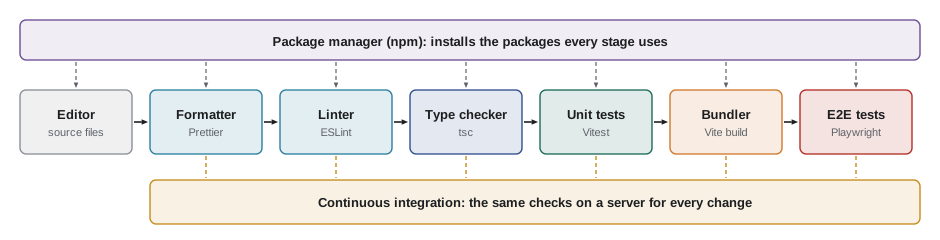
The third part is the toolchain, the set of programs that work on your code before it reaches a user. Each tool does one job, and together they form a pipeline.
| Tool | Job | Example | Lesson |
|---|---|---|---|
| Package manager | Installs and updates the packages a project depends on | npm, pnpm, Yarn | 2 |
| Bundler and build tool | Combines modules into a few files for the browser, removes unused code and serves pages while you work | Vite, esbuild, Rolldown | 3 |
| Type checker | Finds type errors in TypeScript or checked JavaScript | tsc | JS-130 |
| Linter | Finds likely bugs and risky patterns without running the code | ESLint | 4 |
| Formatter | Rewrites code into one consistent layout | Prettier | 5 |
| Unit test runner | Runs small automated tests of functions and modules | Vitest, Jest, node:test | 6–8 |
| End-to-end test runner | Drives a real browser through the finished page | Playwright | 9 |
| Continuous integration | Runs all of the checks on a server for every change | GitHub Actions | 11 |
A pipeline you can run
Real tools are large programs, but the idea of a pipeline is small. Each stage takes the output of the one before, does one job and passes the result on. The example below is a toy toolchain with three stages that work on a short piece of source code held in a string.
const source = `// counter page
let total = 0;   // running total
function add(price) { total = total + price; }
add(4.5);
add(1.5);`;

function stripComments(code) {
  return code.split('\n').map((line) => line.replace(/\/\/.*$/, '').trimEnd()).filter((line) => line !== '');
}
function checkNoLet(lines) {
  const problems = lines.filter((line) => line.startsWith('let '));
  return { lines, problems };
}
function report({ lines, problems }) {
  return `${lines.length} lines of code, ${problems.length} use of let at the top level`;
}

const stages = [stripComments, checkNoLet, report];
let value = source;
for (const stage of stages) {
  value = stage(value);
  console.log(stage.name, '->', typeof value === 'string' ? value : JSON.stringify(value).slice(0, 60));
}stripComments -> ["let total = 0;","function add(price) { total = total + pri
checkNoLet -> {"lines":["let total = 0;","function add(price) { total = to
report -> 4 lines of code, 1 use of let at the top levelWhat this code does
The source code goes through three functions in order, and each one receives the previous result. The first removes comments and blank lines, the second records lines that start with let, and the third turns the findings into a sentence. Real toolchains are built the same way, from small tools that each do one job and hand their result to the next.
The pipeline never runs the source code. Linters, formatters and type checkers all work by reading code as text and structure, which is why they can check code that would be dangerous or slow to run. Test runners are the exception: they run the code on purpose, in a controlled way, and compare what happens with what should happen.
Why tools pay for themselves
Every tool in the table costs something: time to set up, a few seconds every time it runs, and occasional confusion when it complains. They are worth it because of a pattern that software teams have noticed for decades: the later a mistake is found, the more it costs to fix. A typo caught by the editor as you type costs a second. The same typo caught in a review costs a conversation. Caught by Rosa at the lunch counter, with a queue of customers, it costs a morning and some trust.
The figures in the next example are not measurements from the Food Hub. They are an illustration, in minutes of someone's time, of how the cost of one small bug grows as it travels further from the keyboard. The shape is the point, not the exact numbers.
// Illustrative minutes of work to deal with one bug, by where it is found.
const stages = [
  ['in the editor (linter or type checker)', 1],
  ['by a unit test', 5],
  ['by an end-to-end test', 15],
  ['in code review', 30],
  ['by a user at the counter', 240],
];
const first = stages[0][1];
for (const [where, minutes] of stages) {
  const times = minutes / first;
  console.log(where.padEnd(42), String(minutes).padStart(4), 'min', ('x' + times).padStart(6));
}
const total = stages.reduce((sum, [, m]) => sum + m, 0);
console.log('If one bug slipped through every stage, it would cost', total, 'minutes in all.');in the editor (linter or type checker) 1 min x1 by a unit test 5 min x5 by an end-to-end test 15 min x15 in code review 30 min x30 by a user at the counter 240 min x240 If one bug slipped through every stage, it would cost 291 minutes in all.
What this code does
Each row pairs a stage with an illustrative number of minutes, and the loop prints the cost beside how many times larger it is than catching the bug in the editor. The final line adds up the rows for a bug that is noticed at every stage but fixed only at the end. The numbers are invented for the example; what they show is that early checks are cheap and late ones are expensive.
The tools in this course move checks to the left of that table. A linter runs as you type. A formatter runs when you save. Unit tests run in a second or two whenever a file changes. End-to-end tests and continuous integration run before a change is merged, so that a mistake that slips past one person is still caught before it reaches the tablet at the counter.
Node.js versions
Almost every tool in this course is itself a JavaScript program that runs on Node.js, even when the code it checks will run in a browser. That makes the version of Node.js on each computer important. A tool that needs a newer Node.js may refuse to start, or fail in a confusing way, on an older one.
Node.js has a published release schedule. Until 2026, a new major version came out every April and October, and only the even-numbered ones became long-term support (LTS) releases, which receive fixes for about three years. Node.js 26 came out in April 2026 and became the LTS release in October 2026. From Node.js 27, the project moves to one major release a year, each April, and every release becomes LTS the following October. If that schedule holds, Node.js 27 becomes the LTS release in October 2027, just as Gareth's block begins, with Node.js 26 moving to maintenance.
Brightwater's rule is simple: every project states the Node.js versions it supports, every developer uses an LTS release, and the continuous integration server tests on the same versions. Lesson 2 shows where that rule is written down, and Lesson 11 shows the server enforcing it.
// Which Node.js versions meet a tool's minimum?
function major(version) {
  return Number(version.replace(/^v/, '').split('.')[0]);
}
function meets(version, minimumMajor) {
  return major(version) >= minimumMajor;
}

const laptops = { Gareth: 'v26.4.0', Mira: 'v26.2.1', Theo: 'v24.11.0', 'old office PC': 'v20.18.3' };
const minimum = 22;
for (const [who, version] of Object.entries(laptops)) {
  console.log(who.padEnd(14), version.padEnd(9), meets(version, minimum) ? 'OK' : 'too old for this tool');
}Gareth v26.4.0 OK Mira v26.2.1 OK Theo v24.11.0 OK old office PC v20.18.3 too old for this tool
What this code does
major removes the leading v from a version string such as v26.4.0 and returns the first number, the major version. meets compares that number with the oldest major version a tool supports. Real tools check more carefully, as Lesson 2 shows, but the first question is always which major version is running.
The Food Hub projects and their tools
Gareth starts the block with an inventory. For each project he lists the tools it uses today, so that the gaps are visible. The counter page was built first and has the fewest tools; riverside-data, as a library that other projects depend on, has the most.
const projects = {
  'counter-page': ['npm', 'tsc'],
  'office-dashboard': ['npm', 'tsc', 'vite'],
  'riverside-data': ['npm', 'tsc', 'node:test'],
};
const wanted = ['npm', 'tsc', 'vite', 'eslint', 'prettier', 'vitest', 'playwright', 'ci'];

for (const [name, tools] of Object.entries(projects)) {
  const have = new Set(tools);
  const missing = wanted.filter((tool) => !have.has(tool));
  console.log(name.padEnd(17), 'has', String(have.size).padStart(1), ' missing:', missing.join(', '));
}
const everywhere = wanted.filter((tool) => Object.values(projects).every((list) => list.includes(tool)));
console.log('Used by every project:', everywhere.join(', '));counter-page has 2 missing: vite, eslint, prettier, vitest, playwright, ci office-dashboard has 3 missing: eslint, prettier, vitest, playwright, ci riverside-data has 3 missing: vite, eslint, prettier, vitest, playwright, ci Used by every project: npm, tsc
What this code does
Each project's tools go into a Set so that checking for a tool is quick and clear. For every project the code lists the wanted tools it does not have yet, and the last lines find the tools that all three projects already share. The output is Gareth's to-do list for the block.
The output is the plan for the block. All three projects already use npm and the TypeScript compiler. None of them has a linter, a formatter, a browser test or continuous integration beyond the type check Mira added in May. riverside-data has a few tests written with Node.js's built-in test runner; the counter page has none. By December, every project should have every tool on the list, configured the same way, so that moving from one project to another means learning the code, not the tooling.
Choosing tools in a changing ecosystem
JavaScript tools change quickly, and a tool that was the obvious choice five years ago may now be in maintenance or replaced. Gareth's advice is not to chase every new release, and not to cling to a tool after its community has moved on. When the studio chooses a tool, it asks the same questions.
- Is it maintained? Look at the date of the latest release and whether issues receive answers. A tool with no release in two years is a risk, however good it was.
- Is it widely used? A popular tool has answers to common problems written down, works with editors and other tools, and is easier for the next developer to learn.
- Does it do one job well? Tools that overlap cause conflicts, as Lesson 5 shows with linters and formatters.
- What does it cost to leave? A tool configured with a few lines can be swapped later. One that shapes all of the code is a bigger commitment.
- What license does it use? All of the tools in this course use permissive open-source licenses such as MIT or Apache 2.0, which allow use in client work.
This course names specific versions so that the examples are accurate, but expect the numbers to move. The ideas behind each kind of tool change much more slowly than the tools themselves, and those ideas are what the course teaches.
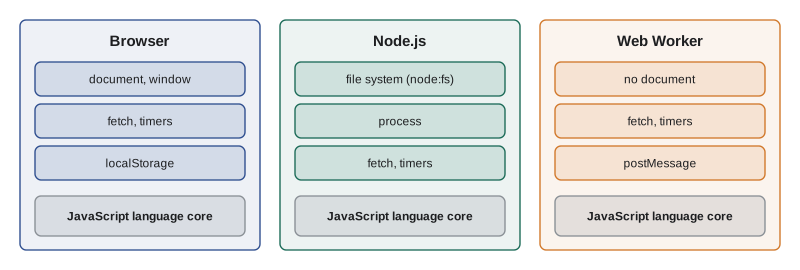
That figure explains a choice in this course. The runner on these pages is a Web Worker in your browser, with no page, no file system and no npm. Configuration files, command-line output and browser tests are therefore shown as listings, with output taken from running the real tools. The ideas behind each tool are shown with small programs you can run and change, such as a test runner in twenty lines or a linter rule over a list of lines.
node --version
npm --versionv26.2.1 11.6.2
What this code does
These two commands print the versions of Node.js and npm installed on the computer, and they are the first thing to check when a tool behaves strangely. The output shown is from Mira's laptop at the start of the block.
The commands in listings like this one are typed into a terminal, the text window where you run programs by name. On a Mac or Linux computer it is the Terminal app; on Windows it is Windows Terminal or the terminal built into an editor such as Visual Studio Code. Every tool in this course can be run from a terminal, and every editor can also run them for you.
Common mistakes
MistakeTools are only for big teams.
InsteadEven one developer forgets things. A linter and a few tests catch the same mistakes every time, and they make it safe for someone else to take over.
MistakeA tool that runs in Node.js checks code that runs in Node.js.
InsteadMost front-end tools run in Node.js but check code that will run in a browser. The runtime of the tool and the runtime of the code are different questions.
MistakeThe newest tool is the best choice.
InsteadChoose maintained, widely used tools that do one job well, and change them when there is a reason, not because a new version came out.
MistakeEvery developer can use whatever Node.js version they have.
InsteadPick supported LTS versions, write them down in the project and test on them in continuous integration.
Summary and key terms
- The JavaScript ecosystem is the runtimes, packages and tools around the language.
- Runtimes include the browser engines, Node.js, Deno and Bun; they share the language but differ in the features around it.
- The npm registry hosts packages, and a package manager installs them.
- The toolchain is a pipeline of tools that each do one job: package manager, bundler, type checker, linter, formatter, unit test runner, end-to-end test runner and continuous integration.
- Static tools read code without running it; test runners run it on purpose.
- Mistakes cost more the later they are found, so tools move checks earlier.
- Most tools run on Node.js, so projects state the Node.js versions they support and use LTS releases.
- From Node.js 27 there is one major release a year and each becomes LTS in October.
- Choose tools that are maintained, widely used, focused, easy to leave and permissively licensed.
- ecosystem
- The runtimes, packages, tools and community around a programming language.
- runtime
- The program that runs JavaScript, such as a browser engine or Node.js.
- Node.js
- A runtime that runs JavaScript outside the browser, with access to files, the network and the operating system.
- package
- A reusable piece of code published with a name and a version so that other projects can install it.
- package registry
- A server that stores packages, such as the npm registry.
- toolchain
- The set of tools that work on code between the editor and the user.
- static analysis
- Checking code by reading it, without running it.
- LTS release
- A long-term support release of Node.js that receives fixes for an extended period.
- terminal
- A text window where programs are run by typing their names and options.
Practice problems
Work each problem on paper first, then reveal the answer to check.
Name two tools that read code without running it and one that runs it.
Show answer
A linter and a type checker (or formatter) read it; a test runner runs it.
Why does the version of Node.js matter for a project whose code runs only in the browser?
Show answer
The tools themselves run on Node.js, so an old version can stop them working.
What changes in the Node.js release schedule from version 27?
Show answer
One major release a year, in April, and every release becomes LTS in October.
Give two questions to ask before adopting a new tool.
Show answer
Any two of: is it maintained, is it widely used, does it do one job well, what does it cost to leave, what license does it use.
Why are configuration files shown as listings in this course?
Show answer
The runner is a Web Worker with no file system, npm or page, so the tools cannot run here; listings show real output instead.
Try it yourself
Put the stages in order
Gareth wants the inventory sorted in pipeline order. Complete inPipelineOrder(tools) so that it returns the tool names sorted by their position in ORDER, without changing the original array.
Tools that are not in ORDER go at the end, in the order they were given.
const ORDER = ['npm', 'prettier', 'eslint', 'tsc', 'vitest', 'vite', 'playwright', 'ci'];

function inPipelineOrder(tools) {
  return tools;
}

console.log(inPipelineOrder(['vitest', 'npm', 'eslint']).join(' > '));
console.log(inPipelineOrder(['ci', 'jsdoc', 'tsc', 'prettier']).join(' > '));
Try it yourself
Read the major version
The old office PC reports its Node.js version in different ways depending on how it is asked. Complete majorVersion(text) so that it returns the major version as a number for inputs such as 'v20.18.3', '20.18.3' and 'Node.js v26.2.1'.
Return null if the text contains no version.
function majorVersion(text) {
  return Number(text.split('.')[0]);
}

for (const text of ['v20.18.3', '20.18.3', 'Node.js v26.2.1', 'not installed']) {
  console.log(text, '->', majorVersion(text));
}
Lesson quiz · 5 questions
Score 60% or more to complete this lesson.
Create a free account to save your progress, take quizzes and earn a certificate.