
GCP-212 · Lesson 3 of 12 · 19 min
Context-aware access
▶ Video coming soon A video version of this lesson is on the way.
In the third session Teresa brings a story from a retailer she used to work for. A buyer's password was stolen through a fake invoice, and the attacker signed in from a hotel computer on another continent and downloaded the supplier price list. 2-step verification would have stopped that particular attack, but Teresa wants a second question asked at every sign-in: not only who is this, but where are they and what are they using? That question is what context-aware access answers. This lesson covers access levels, how they are assigned to apps, the order in which to roll them out, and the mistakes that lock people out.
What context-aware access does
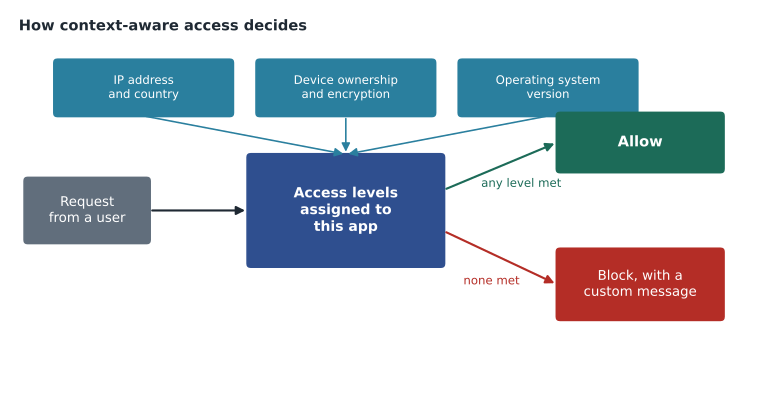
Context-aware access (CAA) lets administrators allow or block access to Workspace apps based on the context of each request: the IP address it comes from, the country, and the state of the device, such as whether it is company-owned, encrypted or running a supported operating system. The decision is made each time the app is used, not only at sign-in, so a laptop that falls out of policy loses access while it is out of policy. Google's help pages list the editions that include it; Birchline's Enterprise Standard and Frontline Standard licenses both do.
The building blocks are access levels. An access level is a named set of conditions, such as Company network (the head office and warehouse IP ranges) or Managed device (a device that Birchline owns or manages, encrypted, with a current operating system). Administrators then assign one or more access levels to an app for an OU or group. A user in that OU can use the app only from a context that meets at least one of the assigned levels.
Device signals and Endpoint Verification
Network conditions are easy to check because every request carries an IP address. Device conditions need information about the device itself. That information comes from endpoint management (lesson 9) for phones and tablets, and, for desktop and laptop computers, from Endpoint Verification, a Chrome extension and helper app that reports the device's operating system, encryption, screen lock and whether it is company-owned. Without that information, Google cannot tell whether a computer is managed, and a level that requires a managed device will treat it as unmanaged.
This is the most common source of trouble in a CAA rollout. Owen will deploy Endpoint Verification to every company laptop through Birchline's device management before any level that depends on device signals is enforced. He also notes that Google's help pages warn that some device details, such as encryption status, can take time to sync after a device is enrolled; a laptop enrolled on a Friday may not meet a level until later.
| Access level | Conditions | Used for |
|---|---|---|
| Company network | Request from Birchline's head office, warehouse or store IP ranges | Allowing store tablets, which never leave the store |
| Managed device | Company-owned or managed device, encrypted, screen lock on, current operating system | Head office access to Drive and Gmail from laptops |
| Allowed countries | Request from the United States or Canada | A second check for everyone, since all staff live and work in North America |
| Admin workstation | Managed device AND company network | The Admin console |
Assigning levels to apps
Levels do nothing until they are assigned. In the Admin console, under Security, Access and data control, Context-Aware Access, administrators choose an OU or group, choose apps and pick the levels. Several rules govern the result.
- Any level is enough. If an app has two levels assigned, a request that meets either one is allowed.
- Assignments are per OU or group. Different OUs can have different levels for the same app; a configuration group can apply a level across OUs.
- Apps are chosen individually. Gmail, Drive and Docs, Calendar, Vault, the Admin console and many others can each get their own assignment; levels can also cover some third-party and private web apps.
- Desktop and mobile apps are covered. Google's help pages describe options for applying levels to mobile and desktop apps as well as browsers; check the current settings before relying on one.
- Blocked users see a message. Administrators can write a custom message explaining what to do, such as "Use a company laptop or contact the IT helpdesk".
Owen plans a first set of assignments that matches how Birchline actually works.
| Who (OU or group) | Apps | Levels assigned |
|---|---|---|
| Admin accounts | Admin console | Admin workstation |
| Head office (Finance) | Drive and Docs, Gmail | Managed device |
| Head office (others) | Drive and Docs | Managed device, or Company network |
| Stores (floor staff) | All Workspace apps | Company network |
| Everyone | Vault | Managed device |
| Pilot | Same as their home OU | Tested first in monitor mode |
The Stores row reflects a deliberate choice. Floor staff sign in only on shared store tablets, which stay in the store, so Company network is a simple and reliable test. If a store's internet provider changes its IP addresses, though, every tablet in that store will be blocked. Owen adds a step to the store network change procedure: update the Company network level before the new connection goes live.
Monitor mode first
Turning on a level for 1,100 people without testing it is how outages happen. Google's help pages describe a way to run CAA assignments in a monitor mode, in which requests that would have been blocked are logged but allowed, so administrators can see the effect before enforcing. Where monitor mode is available for an assignment, Owen uses it for two weeks per wave and reviews the results in the audit logs (lesson 8), looking for the people and devices that would have been blocked and fixing each cause.
A short calculation from the pilot's two-week monitor log shows why. Owen counts, for each would-have-been-blocked request, the reason it failed, and estimates how many people in the February wave would be affected if nothing changed.
# Would-have-been-blocked requests from the pilot's monitor period, by reason.
pilot_people = 14
blocked_people = {
    "Endpoint Verification not installed": 3,
    "Encryption status not yet synced": 1,
    "Personal laptop used at home": 2,
    "Hotel network abroad": 0,
}
head_office = 230
for reason, n in blocked_people.items():
    share = n / pilot_people
    print(f"{reason:38} {n:>2} of {pilot_people} -> about {round(share * head_office)} in head office")
total = sum(blocked_people.values())
print(f"Total: {total} of {pilot_people} pilot users would have been blocked")Endpoint Verification not installed 3 of 14 -> about 49 in head office Encryption status not yet synced 1 of 14 -> about 16 in head office Personal laptop used at home 2 of 14 -> about 33 in head office Hotel network abroad 0 of 14 -> about 0 in head office Total: 6 of 14 pilot users would have been blocked
What this code does
The numbers are the pilot users who would have been blocked during the monitor period, grouped by the reason their request failed. For each reason, the share of the 14 pilot users is scaled up to the 230 people in head office, which estimates how many might be blocked in February if nothing changes. The total shows how many pilot users would have been affected overall.
These figures are a projection from a planned pilot, so the real numbers will differ, but the pattern is typical. Most would-be blocks come from missing software, which Owen can fix before enforcement by deploying Endpoint Verification everywhere. The two people using personal laptops raise a policy question for Teresa rather than a technical one: either they get company laptops, or the level for their OU allows Company network as well.
Order of rollout
Sofia recommends an order that starts where the risk is highest and the number of people is smallest.
- First, the Admin console. Only about a dozen admin accounts are affected, and a stolen admin session is the worst case. Keep one super admin account outside the assignment as a break-glass path, recorded and watched, so a misconfigured level cannot lock out every administrator.
- Second, Vault. Few people use it, and it holds everything.
- Third, Drive and Gmail for Finance and People and culture, the OUs with the most sensitive data.
- Fourth, everyone else, wave by wave, after monitor mode.
The break-glass point deserves emphasis. CAA applied to the Admin console can lock out the very people who would fix it. Google's guidance is to keep a super admin able to reach the console in an emergency; Birchline's sealed emergency account, tested quarterly, is that path.
Privacy and fairness
Device signals include information about personal devices when staff use them for work. US law gives employers wide latitude on company systems, but several states require notice of electronic monitoring, and transparency builds trust. Teresa adds a paragraph to the acceptable use policy explaining that Endpoint Verification reports device security status, not browsing or files, and that personal computers are not required.
How CAA fits with the other layers
Context-aware access is easy to over-trust. It decides whether a request may reach an app; it does not decide what the person may do once inside. A finance manager on a managed laptop can still share a payroll file with the wrong person, which is a job for sharing settings and data loss prevention (lesson 4). An attacker who steals a session cookie from a managed laptop arrives with that laptop's context, which is why session length and alerts still matter. And CAA does nothing for mail that has already left the organization. Sofia draws the boundary for Owen in one sentence: CAA narrows the doors; it does not watch the rooms.
| Threat | Does CAA help? | What else is needed |
|---|---|---|
| Stolen password used from an unknown laptop | Yes: the laptop is not managed | 2SV as well, in case the attacker uses a managed device |
| Staff member working from an internet café | Yes: blocked by the managed-device level | Clear block message so the person knows why |
| Malware on a managed laptop | No: the context still looks good | Device management, alerts, investigation |
| Oversharing a file to an outside address | No | Sharing settings and DLP rules |
| Departing employee downloading files on a managed laptop | No | Audit logs and alerts on large downloads |
Travel and other exceptions
Exceptions arrive within days of any rollout. A buyer travels to a trade show in Europe and is blocked by the Allowed countries level. A finance analyst's laptop is being repaired and she needs a loaner. A contractor is on site for a week with his own computer. Each case has a better answer than switching CAA off.
- Travel: a configuration group cfg-caa-travel, assigned a level without the country condition, with the traveler added for the dates of the trip and removed afterwards. The request records the destination and dates, and the group membership change appears in the Admin log.
- Loaner laptops: keep a small pool of company laptops already enrolled and reporting, so a loaner meets the level the moment it is handed over.
- Contractors: contractors sign in with accounts in the Contractors OU, which has its own assignments; they reach shared drives for their project only, from Company network on site, or through a company laptop issued for the engagement.
Owen also writes the custom block message with the helpdesk in mind. It names the reason in plain words, tells people what to try first, and gives the helpdesk extension. A message that just says access denied generates angry calls; a message that says "This app can be used only from a Birchline laptop or a Birchline network. If you are on a Birchline laptop, restart it and try again; otherwise call the IT helpdesk on extension 4357" generates fewer.
Common mistakes
MistakeEnforcing a managed-device level before Endpoint Verification is deployed.
InsteadDeploy device reporting first, wait for status to sync, then enforce.
MistakeApplying CAA to the Admin console with no emergency path.
InsteadKeep a tested break-glass super admin outside the assignment.
MistakeEnforcing for a whole wave without testing.
InsteadUse monitor mode, review would-be blocks and fix their causes.
MistakeForgetting to update the network level when a store's IP addresses change.
InsteadAdd the level update to the network change procedure.
Worked problem
Allowing a finance manager to work from home
Ines, a finance manager, wants to review reports from home on her company laptop. Finance has Managed device assigned for Drive and Gmail. She is blocked. What should Owen check?
Show solution
- Read the blocked request in the audit logs to see which condition failed.
- Check that Endpoint Verification is installed and reporting on her laptop; if not, deploy it.
- Check the laptop meets the level: company-owned, encrypted, screen lock on, current operating system. Encryption status may take time to sync after enrollment.
- Do not add Company network as a fix; she is at home, and the managed-device check is the one that matters.
- Once the laptop reports correctly, she can work from home with no change to the policy.
Answer: Find the failed condition in the logs and fix the device reporting; the policy itself is correct.
Summary and key terms
- Context-aware access allows or blocks app access based on IP, country and device state, checked on each request.
- Access levels are named sets of conditions; they are assigned to apps per OU or group, and any one assigned level is enough.
- Device conditions need device information from endpoint management or Endpoint Verification.
- Test with monitor mode where available, review would-be blocks and fix causes before enforcing.
- Roll out from the Admin console and Vault to sensitive OUs and then everyone, keeping a tested break-glass super admin.
- Explain device signals to staff in policy.
- Context-aware access (CAA)
- A feature that allows or blocks access to apps based on the context of each request.
- Access level
- A named set of conditions, such as IP ranges, countries or device state.
- Assignment
- Linking access levels to an app for an OU or group.
- Endpoint Verification
- Software that reports a computer's security state to Google for access decisions.
- Monitor mode
- A way to log requests that would be blocked without blocking them.
- Break-glass account
- An emergency admin account kept outside restrictions, tested and watched.
- Managed device
- A device owned or managed by the organization and meeting its policy.
- Custom block message
- The text a blocked user sees, explaining what to do.
Practice problems
Work each problem on paper first, then reveal the answer to check.
If an app has two access levels assigned, must a request meet both?
Show answer
No; meeting any one assigned level is enough.
Why must Endpoint Verification be deployed before a managed-device level is enforced?
Show answer
Without device information, Google treats the computer as unmanaged and blocks it.
Why keep a break-glass account outside the Admin console assignment?
Show answer
A wrong level could otherwise lock out every administrator.
Lesson quiz · 5 questions
Score 60% or more to complete this lesson.
Create a free account to save your progress, take quizzes and earn a certificate.