
GCP-212 · Lesson 10 of 12 · 18 min
Troubleshooting mail flow
▶ Video coming soon A video version of this lesson is on the way.
Mail problems are the helpdesk calls that never stop. During coexistence with Exchange they multiply, because every message to a migrated user takes an extra hop through the routing subdomain g.birchline.example that the second course set up. In the tenth session Sofia hands Owen five real complaints from the IT pilot rehearsal on test accounts and asks him to solve each one with evidence rather than guesses. This lesson covers a repeatable method for mail troubleshooting, the tools Google provides, and the problems that come up most often in a migration like Birchline's.
A method before the tools
Sofia's method has five questions, asked in order, because each answer narrows the next search.
- Which message? Get the sender, the recipient, the approximate time and, best of all, the subject or the message ID. "Mail isn't working" cannot be investigated; "the invoice from accounts@supplier.example to Ines at about 10:15 on Tuesday" can.
- Did it reach Google? If Google has no record of the message, the problem is before Google: the sender's system, DNS or the MX records, or Exchange still holding it.
- What did Google do with it? Delivered to the inbox, put in spam, quarantined, rejected, routed somewhere else, or delivered and then deleted by the user.
- Why? The log entry and the message headers show the reason: an authentication failure, a compliance rule, a routing setting, a spam verdict.
- What is the fix, and who owns it? Some fixes are Birchline's, such as a routing setting; some belong to the sender, such as their SPF record.
Email Log Search
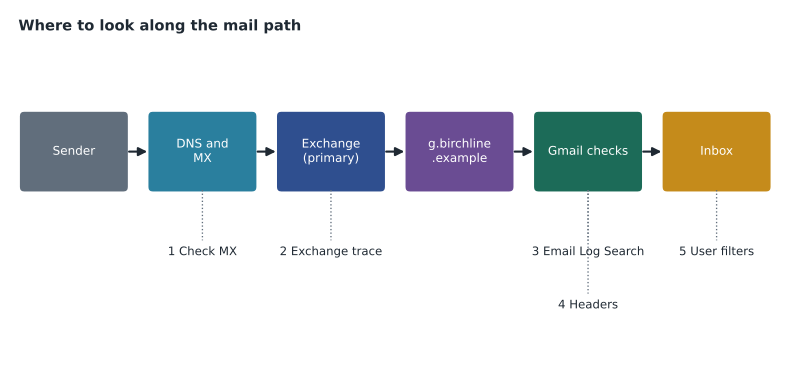
Email Log Search (ELS), under Reporting in the Admin console, finds messages that passed through Gmail for the organization and shows what happened to each. Google's help pages describe searches by date range, which is required, and by sender, recipient, sender or recipient IP, subject and message ID. Searches over the past 30 days show the full delivery steps; for messages older than 30 days, the search needs the recipient's full address and the message ID and shows only what happened after delivery. Each search returns up to 1,000 messages, results can take from a minute to an hour depending on how many match, and the results can be exported. ELS never shows message content. Using it needs the Gmail Settings administrator privilege.
| What ELS shows | Example |
|---|---|
| Delivery steps with times | Received from 198.51.100.24, passed spam checks, delivered to inbox |
| Where the message ended up | Inbox, spam, trash, or a label |
| Rule and setting actions | Content compliance rule Finance quarantine applied; routed to quarantine |
| Authentication results | SPF pass, DKIM fail, DMARC fail |
| After-delivery events | Deleted by the user two minutes after delivery |
ELS answers the second and third of Sofia's questions directly. If the search finds nothing for a message the sender insists was sent, Google never received it, and Owen looks earlier in the path: DNS, the sender's own logs, or Exchange.
Message headers and the Toolbox
Every message carries headers that record its journey: a Received line added by each server it passed through, with times, and authentication results added by Gmail. In Gmail, a user or the helpdesk can open a message and choose Show original to see them. Google's Admin Toolbox includes Messageheader, which reads pasted headers and lays out each hop, the delay at each one and the authentication results, and Check MX, which tests a domain's DNS and MX records for common Workspace mistakes. Other Toolbox tools include Browserinfo for browser problems, Encode/Decode for formats such as Base64 and SAML, and Log Analyzer for logs from Google's sync and migration tools.
Header times are often the quickest way to answer a complaint that mail is slow. The program below takes the times from a message's Received lines, oldest first, and shows the delay at each hop.
from datetime import datetime

# Times from the Received headers of a slow message, oldest hop first (all in UTC).
hops = [
    ("Supplier's server", "2026-11-10 15:02:11"),
    ("Birchline Exchange", "2026-11-10 15:02:14"),
    ("Exchange outbound queue", "2026-11-10 15:41:52"),
    ("Google (g.birchline.example)", "2026-11-10 15:41:55"),
    ("Delivered to inbox", "2026-11-10 15:41:57"),
]
fmt = "%Y-%m-%d %H:%M:%S"
times = [datetime.strptime(t, fmt) for _, t in hops]
for i in range(1, len(hops)):
    gap = (times[i] - times[i - 1]).total_seconds()
    print(f"{hops[i - 1][0]:28} -> {hops[i][0]:28} {gap / 60:6.1f} min")
print(f"Total: {(times[-1] - times[0]).total_seconds() / 60:.1f} min")Supplier's server -> Birchline Exchange 0.1 min Birchline Exchange -> Exchange outbound queue 39.6 min Exchange outbound queue -> Google (g.birchline.example) 0.1 min Google (g.birchline.example) -> Delivered to inbox 0.0 min Total: 39.8 min
What this code does
Each entry is one server the message passed through, with the time that server recorded, taken from the message headers and converted to the same time zone. The calculation finds the gap between each pair of neighboring times in minutes and the total time from the first server to delivery. The output shows at once which hop held the message longest.
The total is about 40 minutes, and almost all of it is spent in Exchange's outbound queue. Google delivered the message within seconds of receiving it. The fix belongs to Exchange: its send connector to the routing subdomain was throttled after a large newsletter, and Sofia raises the limit. Without the header times, the complaint would have been "Gmail is slow".
Five common problems
| Symptom | Likely cause | Evidence | Fix |
|---|---|---|---|
| Mail forwarded from Exchange lands in spam | Gmail sees Exchange's IP, not the original sender's, so SPF checks fail | Headers show SPF fail with Exchange's IP as the sender | Add Exchange's IP addresses as an inbound gateway (second course) |
| Messages from the shop platform bounce at some recipients | The platform sends as birchline.example but is not in SPF or signed with DKIM | Bounce text mentions unauthenticated mail; DMARC fails in the recipient's report | Add the platform's include or DKIM selector, staying within 10 SPF lookups |
| A user says a message never arrived | It was delivered and then deleted by a filter the user created | ELS shows delivery, then a move to trash by a user filter | Show the user the filter in Gmail settings |
| Finance messages held for hours | A content compliance rule sends them to quarantine | ELS shows the rule and quarantine | Check the rule's conditions; review the quarantine more often or narrow the rule |
| Nobody receives external mail | MX records changed or mistyped | Check MX reports missing or wrong MX records; ELS shows nothing new | Correct DNS; wait for the TTL to pass |
The first row is the problem most migrations hit first. When another system relays mail to Gmail, Gmail has to be told which IP addresses belong to that system, or it judges every relayed message as if Exchange had written it. The second course configured the inbound gateway for exactly this reason, and Owen's first check for any spam complaint about relayed mail is whether Exchange's addresses are still listed correctly, especially after a network change.
Reading bounce messages
When a message is rejected, the sender gets a bounce, also called a non-delivery report, with a three-digit SMTP code and usually an enhanced code such as 5.7.26. The first digit says whether to retry: 4 means a temporary failure the sending server will retry, and 5 means a permanent failure. The text after the code, often with a link to Google's help, says why. Owen keeps a short table at the helpdesk.
| Code pattern | Meaning | Typical action |
|---|---|---|
| 4xx (for example 421, 450, 451) | Temporary: try again later, often because of rate limits or a busy server | Wait; if it persists, check sending volume and limits |
| 550 5.1.1 | The recipient address does not exist | Check the spelling, aliases and whether the user was migrated |
| 550 5.7.x with authentication text | Unauthenticated mail rejected under sender rules or DMARC | Fix SPF, DKIM or DMARC for the sending domain |
| 552 or 5.2.x | Message too large or mailbox issue | Check the attachment size and limits |
| 5xx with a content or policy message | Blocked by a policy, such as a compliance rule or blocked attachment type | Find the rule in ELS and the admin settings |
Limits that cause mail problems
Some problems are not faults but limits. Gmail limits how many messages and recipients a user can send in a day, and how fast mail is accepted from one source; Google's help pages publish the current figures. A store manager who mails a weekly rota to 300 colleagues individually can hit a recipient limit, and a migration tool that pushes mail too quickly can be slowed down. The fixes are usually a group address for the rota and a slower migration schedule, not a support ticket.
Outbound problems
Not every complaint is about mail coming in. When Birchline's mail does not reach a customer or a supplier, the evidence is split: ELS shows that Gmail sent the message and what the receiving server answered, but the reason for a rejection lives in the recipient's system. Owen's checklist for outbound complaints starts with ELS for the receiving server's response, then checks Birchline's own SPF, DKIM and DMARC with Check MX and the DMARC reports from the second course, and only then contacts the recipient's administrator with the message ID and the exact response text. During coexistence there is one more step: if the sender is still on Exchange, the message never passed through Gmail at all, and the Exchange message trace is the place to look.
Outbound routing settings from the second course can cause their own surprises. A migrated user's reply to a colleague still on Exchange travels back through the outbound route to Exchange; if that route is misconfigured, replies inside the company fail while mail to the outside works. Owen tests that path explicitly after every routing change, by sending from a test account in the Pilot OU to a test mailbox still on Exchange and checking both ELS and the Exchange trace.
When to call Google support
Most mail problems are solved with ELS, headers and the Toolbox. A support case with Google makes sense when the evidence points inside Google, for example delays between Google's own hops in the headers, or a delivery step in ELS that makes no sense. A good case includes the message ID, the time with its time zone, the sender and recipient, the ELS export and the full headers. Sofia's experience is that a case with those five items is answered faster and more usefully than a case that says mail is slow.
Common mistakes
MistakeStarting with the user's mailbox before checking whether Google received the message.
InsteadAsk Sofia's questions in order; use ELS to see whether Google has a record.
MistakeBlaming Gmail for slow mail without looking at header times.
InsteadUse the Received times to find the slow hop.
MistakeApproving the sender to fix a spam verdict on relayed mail.
InsteadConfigure the inbound gateway so Gmail checks the original sender.
MistakeTreating a 4xx bounce like a 5xx bounce.
Instead4xx is temporary and retried; 5xx is permanent and needs a fix.
Worked problem
Invoices from a supplier go to spam
Since the pilot rehearsal began, invoices from accounts@northwood-supply.example to test Finance accounts land in spam. Other suppliers' mail is fine. What should Owen check?
Show solution
- Search ELS for messages from northwood-supply.example to the test accounts in the last week and open one entry.
- Read the authentication results: SPF passes for the supplier's domain, but DKIM fails and DMARC fails.
- Open the headers in Messageheader: the supplier's mail passes through a mailing service whose DKIM signature uses a different domain.
- Explain to the supplier that their messages fail DMARC under their own published policy and ask them to sign with their own domain's DKIM key.
- Meanwhile, do not add the supplier to an approved senders list without authentication; if a temporary measure is needed, add a narrow rule for the authenticated mailing service only.
Answer: The evidence shows the supplier's DKIM is misaligned; the fix belongs to the supplier, with only a narrow temporary measure on Birchline's side.
Summary and key terms
- Troubleshoot mail with a method: identify the message, see whether Google received it, find what Google did, find why, then decide the fix and owner.
- Email Log Search shows delivery steps, authentication results, rules applied and final location for 30 days, and post-delivery status for older messages with the address and message ID; it never shows content.
- Message headers and the Toolbox's Messageheader show each hop and its delay; Check MX tests DNS.
- During coexistence, relayed mail needs an inbound gateway. 4xx bounces are temporary, 5xx permanent.
- Some problems are sending limits rather than faults.
- Email Log Search (ELS)
- An Admin console tool that shows what happened to messages passing through Gmail.
- Message ID
- A unique identifier in each message's headers, the most precise search term.
- Received header
- A line each server adds to a message, recording when it handled it.
- Messageheader
- A Toolbox tool that analyses headers to show hops, delays and authentication results.
- Check MX
- A Toolbox tool that tests a domain's MX and DNS records for common mistakes.
- Inbound gateway
- A setting that tells Gmail which servers relay mail to it, so it checks the original sender.
- Bounce
- A non-delivery report sent back to the sender with a code and reason.
- Enhanced status code
- A detailed SMTP code such as 5.7.26 that explains a failure.
Practice problems
Work each problem on paper first, then reveal the answer to check.
A message cannot be found in ELS. What does that suggest?
Show answer
Google never received it; look earlier in the path.
What does a 4xx code mean?
Show answer
A temporary failure that the sending server will retry.
Which tool shows the delay at each hop from pasted headers?
Show answer
Messageheader in the Admin Toolbox.
Lesson quiz · 5 questions
Score 60% or more to complete this lesson.
Create a free account to save your progress, take quizzes and earn a certificate.