
CSCO-102 · Lesson 4 of 12 · 21 min
Name resolution and connectivity tests
▶ Video coming soon A video version of this lesson is on the way.
Thursday, October 29, begins with a flood. Between 7:55 and 8:20, nine tickets arrive from three different clients, all saying websites will not load. Jordan's first instinct is to suspect a major internet outage, but Marisol asks him to test before guessing. Within five minutes he finds that every affected device can reach outside IP addresses perfectly well, but none can turn names into addresses. All three clients use the same filtering DNS service that Brightline set up for them, and that service is having a regional problem. Marisol switches the three sites to the backup resolvers in the firewall settings, the tickets stop, and she posts a status update to the affected clients before most of their staff have finished their first coffee.
Name resolution is the fourth step on the staircase, and it fails more often than people think. This lesson explains how DNS works from a client's point of view and teaches the small set of command-line tests that every support technician uses to prove where a connectivity problem lies.
What DNS does
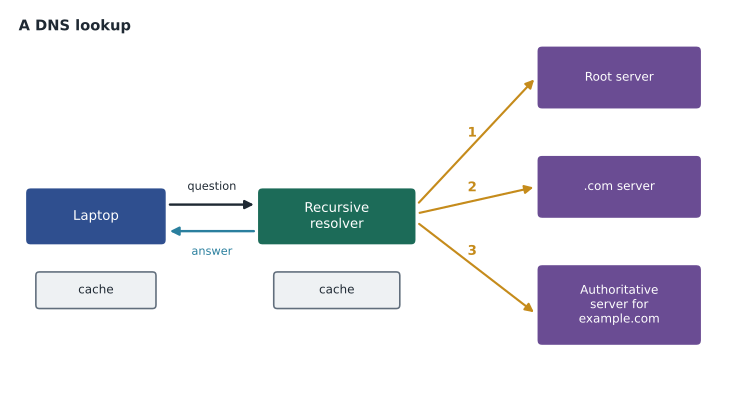
The Domain Name System translates names such as www.example.com into IP addresses. When an application needs to reach a name, the operating system first checks its own cache of recent answers and a local hosts file. If neither has the answer, it asks the DNS servers in its network settings. Those servers, called recursive resolvers, either answer from their own cache or work through the DNS hierarchy on the client's behalf: they ask the root servers which servers handle the top-level domain, ask those which servers are authoritative for the domain, and then ask the authoritative servers for the record itself. The answer comes back with a time to live, which says how long it may be cached.
Several types of DNS record matter to support work. An A record maps a name to an IPv4 address, and an AAAA record maps it to an IPv6 address. A CNAME record makes one name an alias for another. MX records tell email systems where to deliver mail for a domain. TXT records hold text, often used to prove domain ownership and to publish email security policies. PTR records support reverse lookups from an address back to a name.
| Record | Purpose | Where a support technician meets it |
|---|---|---|
| A | Name to IPv4 address | Most website and server lookups |
| AAAA | Name to IPv6 address | Services reached over IPv6 |
| CNAME | Alias for another name | Cloud services and vendor-hosted portals |
| MX | Mail server for a domain | Email delivery problems |
| TXT | Text data | Domain verification and email security records |
| PTR | Address to name | Reverse lookups in logs and mail checks |
Internal names and split DNS
Many organizations also have internal names that exist only on their own network, such as a file server or a printer. In networks built around Microsoft Active Directory, the domain controllers run DNS for the internal domain, and clients must use them as their DNS servers to find internal resources. If a laptop uses a public DNS resolver instead, it can browse the internet but cannot find the file server by name, which produces a confusing symptom: "the internet works but the shared drive is gone". Riverside Family Law's network is set up this way, and lesson 12 includes a ticket caused by exactly this mistake.
Some organizations use split DNS, where the same name resolves to an internal address inside the office and a public address outside. A user whose laptop has cached the inside answer may not reach the service from home until the cache clears. Clearing the client's DNS cache is a common fix after DNS changes.
The core connectivity tests
A small set of tools answers most connectivity questions. The ping command sends small echo requests and reports whether replies come back and how long they take. The traceroute command, tracert on Windows, shows each router along the path to a destination. The nslookup command, and dig on macOS and Linux, asks DNS servers directly and shows their answers. The ipconfig command on Windows, and ifconfig or ip on other systems, shows the device's own settings. Used in the right order, these tools climb the staircase from lesson 1 one step at a time.
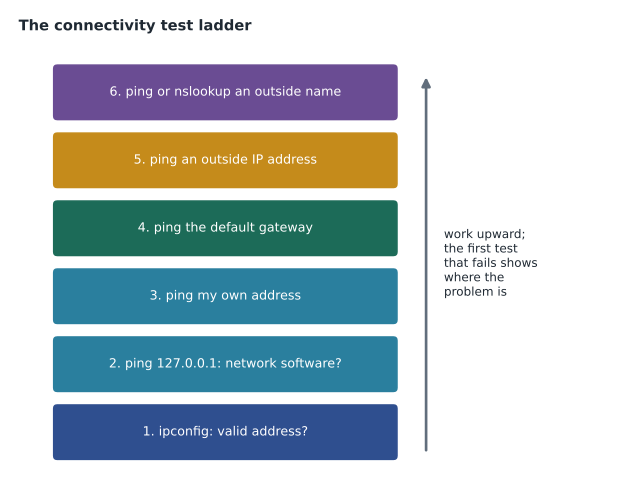
The ladder works like this. First, ipconfig confirms that the device has a sensible address, mask, gateway and DNS server, not a 169.254 address. Next, pinging 127.0.0.1, the loopback address, confirms that the device's network software is working; this almost always succeeds and failure points to a damaged network stack. Pinging the device's own address confirms the interface is up. Pinging the default gateway confirms the device can reach its router across the local network. Pinging a well-known outside IP address confirms the internet connection beyond the router. Finally, pinging or looking up an outside name confirms DNS. The first test that fails shows which step on the staircase is broken.
C:\Users\jordan> ping 192.168.20.1
Reply from 192.168.20.1: bytes=32 time=2ms TTL=64
Reply from 192.168.20.1: bytes=32 time=1ms TTL=64

C:\Users\jordan> ping 9.9.9.9
Reply from 9.9.9.9: bytes=32 time=14ms TTL=57
Reply from 9.9.9.9: bytes=32 time=13ms TTL=57

C:\Users\jordan> ping www.example.com
Ping request could not find host www.example.com. Please check the name and try again.

C:\Users\jordan> nslookup www.example.com
Server:  UnKnown
Address:  192.168.20.1

*** UnKnown can't find www.example.com: Server failed
Jordan's tests at the bakery show exactly that pattern. The gateway replies in a couple of milliseconds, an outside address replies in about fourteen, so the link, address, gateway and internet connection are fine. The name lookup fails, and nslookup shows the DNS server returning a failure. The fault is at step four, and switching DNS servers fixes it.
Reading ping and traceroute results
A successful ping shows a reply from the target with a round-trip time. A request timed out means no reply came back within the time limit, which can mean the target is down, the path is broken, or a firewall is blocking ping. That last point matters: many servers and some home routers deliberately ignore ping, so a failed ping is not proof that a service is down. A destination host unreachable message from the device's own address or from a router means there is no route to the destination. Round-trip times that jump around or occasional lost replies suggest a congested or unstable link, often Wi-Fi.
Traceroute shows each router on the path with the time to reach it. It is useful for showing whether traffic leaves the office at all and roughly where it stops. Lines of asterisks mean a router did not answer, which is often normal for routers configured not to respond, so a support technician looks at where the trace stops for good rather than at every gap. At entry level, traceroute mostly answers one question: is the problem inside our network, or out at the provider or beyond?
C:\Users\jordan> tracert -d 9.9.9.9

  1     1 ms     1 ms     1 ms  192.168.20.1
  2     9 ms     8 ms     9 ms  100.64.12.1
  3    11 ms    10 ms    12 ms  206.47.0.25
  4     *        *        *     Request timed out.
  5    14 ms    13 ms    14 ms  9.9.9.9
Testing a specific service
Ping and DNS prove that the network can reach a host, but not that the service on it is working. Support technicians test services directly where they can: opening a web page in a browser, mapping a share, or, on Windows, using the PowerShell command Test-NetConnection with a port number to check whether a particular port answers. A website that loads for one user but not another, when both pass the ladder, points at the browser, the user's account or a cached sign-in, not the network.
PS C:\Users\jordan> Test-NetConnection fileserver01 -Port 445

ComputerName     : fileserver01
RemoteAddress    : 10.10.1.20
RemotePort       : 445
TcpTestSucceeded : True
Clearing caches
Clients cache DNS answers, and browsers cache their own. After a DNS change, or after a DNS failure that has been fixed, a device may keep using a stale or failed answer until the cache entry expires. On Windows, ipconfig /flushdns clears the system cache; on macOS, a command clears the resolver cache, and restarting the browser clears its own. Clearing caches is a quick test as well as a fix: if a name works after flushing, the cache was the problem.
The hosts file and other surprises
Before asking DNS, operating systems check a local hosts file, a simple text list of names and addresses. It is rarely used today, but malware sometimes edits it to redirect banking or security websites, and old entries left by a long-gone software install can send a name to an address that no longer exists. When one device resolves a name differently from all its neighbors, the hosts file is worth a look. On Windows it lives in the system32\drivers\etc folder; on macOS and Linux it is the file named hosts in the etc folder.
Browsers add their own twist. Many can use DNS over HTTPS, sending name lookups encrypted to a resolver chosen by the browser rather than the one in the device's network settings. That protects privacy on untrusted networks, but it can bypass the organization's filtering DNS and its internal names. If a website is blocked in one browser and not another, or an internal site works in one browser only, the browser's secure DNS setting is a suspect. Organizations usually control it through browser policy.
Testing from more than one place
A single test from a single device can mislead. When a service seems down, test from a second device on the same network, and if possible from outside it, for example from a phone on cellular data. If the service works from outside but not from inside, the fault is in the local network, its firewall or its DNS. If it fails everywhere, the service itself or its provider is having trouble, and many providers publish status pages that confirm outages. Checking a status page before deep troubleshooting has saved Jordan more than one wasted hour.
Worked problem
Using the ladder
A lawyer at Riverside Family Law cannot open the document management portal. Jordan's tests show: ipconfig shows 10.10.1.84 with gateway 10.10.1.1 and DNS 10.10.1.5; ping 10.10.1.1 succeeds; ping 9.9.9.9 succeeds; nslookup of the portal name returns an address; the portal opens for other staff. Where is the fault likely to be?
Show solution
- The address, gateway and internet tests pass, so steps one to three are fine.
- DNS returns an address, so step four is fine.
- Other staff can open the portal, so the service itself is up.
- The remaining causes are on this lawyer's browser or account: a cached session, a browser extension, or an account or access issue.
Answer: At the service and account step on this lawyer's machine. Try a private browser window and check the account, rather than the network.
Common mistakes
MistakeTreating a failed ping as proof that a server is down.
InsteadMany hosts block ping; test the actual service.
MistakeJumping to the internet connection before testing the gateway.
InsteadClimb the ladder in order; the first failure is the clue.
MistakeUsing a public DNS server on a client that needs internal names.
InsteadClients in an Active Directory domain must use the internal DNS servers.
MistakeWorrying about every asterisk in a traceroute.
InsteadSilent routers are normal; look at where the trace stops for good.
MistakeForgetting caches after a DNS fix.
InsteadFlush the DNS cache and restart the browser.
Summary and key terms
- DNS turns names into addresses through caches, recursive resolvers and authoritative servers.
- A, AAAA, CNAME, MX, TXT and PTR records each serve a different purpose.
- Clients in a domain must use the internal DNS servers to find internal names.
- The test ladder runs from ipconfig through loopback, own address, gateway, outside address and outside name.
- A failed ping may mean blocking, not a failure; test the service itself when it matters.
- Traceroute shows the path and roughly where traffic stops.
- Flushing DNS and browser caches is both a test and a fix after DNS changes.
- Recursive resolver
- A DNS server that finds answers on a client's behalf.
- Authoritative server
- A DNS server that holds the official records for a domain.
- TTL
- Time to live; how long an answer may be cached.
- Loopback
- The address 127.0.0.1, which a device uses to talk to itself.
- ping
- A tool that sends echo requests and reports replies and round-trip time.
- traceroute
- A tool that lists the routers on the path to a destination.
- nslookup
- A tool that queries DNS servers directly.
Practice problems
Work each problem on paper first, then reveal the answer to check.
Which DNS record maps a name to an IPv4 address?
Show answer
An A record.
What does a successful ping to an outside IP address but a failed ping to an outside name suggest?
Show answer
A DNS problem.
Why might a server not answer ping even when it is running?
Show answer
It, or a firewall in front of it, may block ping.
Which Windows command clears the DNS cache?
Show answer
ipconfig /flushdns.
What does the traceroute tool show?
Show answer
Each router on the path and the time to reach it.
A laptop in an Active Directory domain uses a public DNS server. What symptom would you expect?
Show answer
Websites work but internal names such as the file server fail.
Lesson quiz · 5 questions
Score 60% or more to complete this lesson.
Create a free account to save your progress, take quizzes and earn a certificate.