
CSCO-102 · Lesson 3 of 12 · 21 min
Wi-Fi setup and common wireless problems
▶ Video coming soon A video version of this lesson is on the way.
Prairie Paws Veterinary Clinic's second location opened in the spring, and since then the treatment room tablets have been "dropping the Wi-Fi" several times a day. Ticket BL-24902 is the fourth on the subject in a month. Each time, someone restarted the tablet, it reconnected, and the ticket was closed. On Wednesday, October 28, Marisol assigns it to Jordan with a note: "Don't fix it again. Find out why it keeps happening." Jordan drives to the clinic with a laptop, a free Wi-Fi analyzer app on his phone and the clinic's floor plan, and spends the morning learning more about radio than he expected.
Wireless networks fail in ways wired networks do not. Radio signals weaken with distance, are blocked by walls and metal, and share the air with neighbors' networks, microwaves and other devices. Wireless security settings must match exactly between the device and the network. This lesson covers how Wi-Fi works at the level a support technician needs, how to connect devices securely, and how to diagnose the most common wireless complaints.
Wi-Fi basics: access points, SSIDs and bands
A Wi-Fi network is built from one or more access points, which send and receive radio signals and connect wireless clients to the wired network. In a small office, the access point is often built into the router. Larger sites have several access points managed together so that clients can move between them. Each wireless network has a name, the SSID, which devices show in their list of available networks. One access point can broadcast several SSIDs, for example a staff network and a guest network, each with its own security and its own place on the wired network.
Wi-Fi uses three frequency bands. The 2.4 GHz band reaches farther and passes through walls better, but it has only three channels that do not overlap and is crowded with other devices. The 5 GHz band has many more channels and higher speeds but shorter range. The 6 GHz band, available to devices that support Wi-Fi 6E and Wi-Fi 7, adds a large amount of clean spectrum with high speeds and short range. Most modern access points broadcast on two or three bands at once, and clients choose, or are steered, between them.
| Band | Strengths | Weaknesses | Typical use |
|---|---|---|---|
| 2.4 GHz | Longer range, better through walls | Few non-overlapping channels, crowded, slower | Older devices, sensors, long distances |
| 5 GHz | Many channels, faster | Shorter range, weaker through walls | Most laptops, phones and tablets |
| 6 GHz | Wide clean channels, fastest | Shortest range, newer devices only | Wi-Fi 6E and Wi-Fi 7 devices near the access point |
Wi-Fi generations
Wi-Fi standards come from the IEEE 802.11 family, and the Wi-Fi Alliance gives the main generations simple names. Wi-Fi 4 is 802.11n, Wi-Fi 5 is 802.11ac, Wi-Fi 6 is 802.11ax, Wi-Fi 6E is 802.11ax extended into the 6 GHz band, and Wi-Fi 7 is 802.11be. Each generation is backward compatible, so a new access point still serves older devices, but a network runs best when its clients are reasonably modern. A ten-year-old scanner that only supports 2.4 GHz may force an access point to keep older settings that slow everyone else down.
The exam expects support staff to recognize these names and know that higher generations are faster and more efficient, especially in busy spaces where many devices share the air, such as the community center's computer lab or a crowded clinic waiting room.
Wireless security settings
Wireless security protects the radio link, which anyone nearby can receive. Modern networks use WPA2 or WPA3. In personal mode, also called PSK or SAE, everyone uses the same passphrase. In enterprise mode, each user or device authenticates individually, usually with a username and password or a certificate checked by a server through a standard called 802.1X. WPA3 personal replaces WPA2's pre-shared key exchange with a stronger method that resists offline password guessing. Older methods such as WEP and the original WPA are broken and should never be used. An open network with no encryption is acceptable only for guest access, and even then many organizations add a captive portal and keep the guest network separate from internal systems.
When a device cannot join a secured network, the reason is often a mismatch: the wrong passphrase, a device that does not support WPA3 when the network requires it, or an enterprise network whose certificate the device does not trust. Windows and macOS remember the settings for each network, so a changed passphrase leaves every device holding the old one until someone tells it to forget the network and join again.
Joining a network and keeping it
Connecting a new device usually means choosing the SSID, entering the passphrase or credentials, and, for enterprise networks, accepting or installing the organization's certificate. Many organizations push Wi-Fi settings to their devices through mobile device management, so users never type a passphrase at all. When a setting changes, the support technician should update it centrally rather than visiting every device. Brightline manages the clinic's Wi-Fi profiles this way, which is how Jordan can see which tablets have the current settings.
C:\Users\jordan> netsh wlan show interfaces

    Name                   : Wi-Fi
    State                  : connected
    SSID                   : PrairiePaws-Staff
    Radio type             : 802.11ax
    Authentication         : WPA3-Personal
    Band                   : 5 GHz
    Channel                : 44
    Signal                 : 38 (of 100)
On Windows, netsh wlan show interfaces reports the SSID, band, channel, security type and signal quality of the current connection. On macOS, holding the Option key while clicking the Wi-Fi menu shows similar details. Phones and tablets show less, but free analyzer apps display every nearby network with its channel and signal strength.
Signal strength and interference
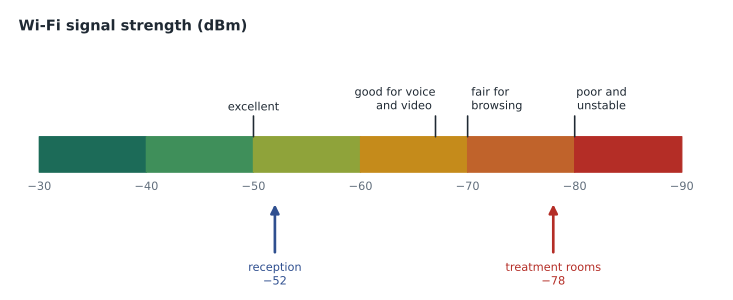
Wireless signal strength is usually measured in dBm, a logarithmic scale where values are negative and closer to zero is stronger. A signal around −50 dBm is excellent, −67 dBm is a common minimum for reliable voice and video, −70 dBm is usable for light browsing, and anything weaker than about −80 dBm will be slow and unstable. Every 3 dB is roughly a halving or doubling of power, so −70 dBm is far weaker than −60 dBm, not slightly weaker.
Signal is not the only factor. Noise and interference from other Wi-Fi networks on the same channel, from cordless devices, microwave ovens and some medical and industrial equipment can make a strong signal unusable. Metal, concrete, mirrors, water and even full shelves of supplies weaken signals. When Jordan walks the clinic with his analyzer, he finds that the treatment rooms are separated from the reception area, where the only access point hangs, by a concrete-block wall lined with stainless steel cabinets. In the treatment rooms the signal from the clinic's own network measures around −78 dBm, while a neighboring business's network on the same 2.4 GHz channel is almost as strong.
Guest networks and isolation
Most of Brightline's clients run a separate guest network for visitors. A well-built guest network gives internet access only: it sits on its own part of the network, cannot reach internal servers, printers or staff devices, and often uses client isolation so that guests' devices cannot see one another either. That separation is why a staff laptop accidentally joined to the guest network can browse the web but cannot reach the practice app or the file share, a common source of confusing tickets. When a user says "some things work and some don't", one of the first questions is which SSID they are connected to.
Guest networks should still use encryption where possible. WPA3 includes an option called enhanced open, which encrypts traffic on open networks without a passphrase, so that guests nearby cannot read each other's traffic. Where a shared guest passphrase is used, it should be changed periodically and displayed only where guests can see it, not taped to the reception PC for anyone to photograph.
Worked problem
Comparing two readings
Jordan measures −52 dBm at reception and −78 dBm in the treatment rooms. About how many times weaker is the signal in the treatment rooms, using the rule that every 3 dB halves the power?
Show solution
- The difference is 78 − 52 = 26 dB.
- 26 ÷ 3 ≈ 8.7 halvings.
- 2 raised to the power 8.7 is about 400.
- So the treatment room signal has roughly one four-hundredth of the power.
Answer: Roughly 400 times weaker. A 26 dB drop is enormous, which explains the dropouts.
Common wireless complaints and what to check
Most wireless tickets fall into a few patterns. "I can't see the network" usually means the device is out of range, does not support the band the SSID uses, or has its Wi-Fi turned off. "It won't accept the password" usually means a wrong or changed passphrase, a security type the device cannot use, or, on enterprise networks, an untrusted certificate or expired account. "It connects but nothing works" usually means a DHCP problem, a captive portal that has not been completed, or the device joining the guest network instead of the staff one. "It keeps dropping" usually means weak signal, interference, power-saving settings on the device, or a client moving between access points that are not well coordinated.
| Complaint | Likely causes | First checks |
|---|---|---|
| Cannot see the network | Out of range, band not supported, Wi-Fi off, SSID hidden | Airplane mode, distance, band support |
| Password not accepted | Wrong or changed passphrase, WPA3 not supported, certificate untrusted | Forget and rejoin, check security type |
| Connected, no internet | DHCP failure, captive portal, wrong SSID | IP address, portal page, which SSID |
| Keeps dropping | Weak signal, interference, power saving, roaming | Signal in dBm, channel, adapter power settings |
| Slow | Weak signal, crowded channel, old device, many users | Signal, band, channel use, device age |
Fixing the clinic tablets
Back at the office, Jordan writes up his findings: weak signal through the cabinet wall, interference from the neighbor on 2.4 GHz, and tablets that had fallen back to 2.4 GHz because the 5 GHz signal could not reach them at all. He also found that the tablets' battery saver turned off Wi-Fi after five minutes of inactivity, which caused some of the reported drops. Marisol reviews the write-up and agrees with his recommendation: a second access point in the treatment corridor, managed with the first so that the tablets roam smoothly between them, and a change to the tablets' power settings through the device management system. Owen Larkin approves the quote, and the clinic manager signs off on the installation for the following week.
The fix took longer than restarting tablets, but it ended the repeat tickets. Marisol's lesson for Jordan is that a recurring ticket is a problem to be investigated, not an incident to be closed again. Lesson 9 returns to that distinction.
Hotspots, tethering and travel
Users increasingly connect laptops through phone hotspots, hotel networks and airport Wi-Fi. A support technician should know that hotel and airport networks usually require a captive portal, where the user accepts terms or enters a room number before traffic flows; a VPN or security agent may block the portal page until it is completed. Phone hotspots use the phone's data plan and may be slow or capped. Public networks should be treated as untrusted, and organizations usually require a VPN, covered in lesson 8, before staff use them for work.
Common mistakes
MistakeClosing a recurring Wi-Fi ticket after a restart.
InsteadInvestigate the cause: signal, interference, settings or coverage.
MistakeReading −70 dBm as only slightly worse than −60 dBm.
InsteadThe dBm scale is logarithmic; 10 dB is a tenfold change in power.
MistakeLeaving old devices on WEP or original WPA.
InsteadUse WPA2 or WPA3; replace devices that cannot support them.
MistakeUpdating a changed passphrase by visiting every device.
InsteadPush Wi-Fi profiles through device management where possible.
MistakeAssuming connected means working.
InsteadCheck for a captive portal, the right SSID and a valid address.
Summary and key terms
- Access points connect wireless clients to the wired network; each network has an SSID.
- 2.4 GHz reaches farther but is crowded; 5 GHz and 6 GHz are faster with shorter range.
- Wi-Fi 4, 5, 6, 6E and 7 correspond to 802.11n, ac, ax, ax in 6 GHz, and be.
- Use WPA2 or WPA3; enterprise mode authenticates each user, personal mode shares a passphrase.
- Signal is measured in negative dBm; around −67 dBm or better suits voice and video.
- Common complaints map to range, security mismatch, DHCP or portals, interference and power saving.
- A recurring wireless ticket deserves a site investigation, not another restart.
- SSID
- The name of a wireless network.
- Access point
- A device that connects wireless clients to a wired network.
- Band
- A range of radio frequencies used by Wi-Fi: 2.4, 5 or 6 GHz.
- WPA3
- The current Wi-Fi security standard, stronger than WPA2.
- 802.1X
- A standard for authenticating each user or device on a network.
- dBm
- A logarithmic measure of signal power relative to one milliwatt.
- Captive portal
- A web page a user must complete before a network allows traffic.
Practice problems
Work each problem on paper first, then reveal the answer to check.
Which band reaches farthest through walls?
Show answer
2.4 GHz.
What IEEE standard is Wi-Fi 6?
Show answer
802.11ax.
Why should WEP never be used?
Show answer
It is broken and offers no real protection.
Is −80 dBm a strong or weak signal?
Show answer
Weak; it will be slow and unstable.
A device connects but has no internet at a hotel. What should you check first?
Show answer
Whether a captive portal needs to be completed.
Why did the clinic tablets drop off even near the access point?
Show answer
Battery saver turned Wi-Fi off after inactivity.
Lesson quiz · 5 questions
Score 60% or more to complete this lesson.
Create a free account to save your progress, take quizzes and earn a certificate.