
CSCO-102 · Lesson 1 of 12 · 22 min
How devices join a network
▶ Video coming soon A video version of this lesson is on the way.
On Monday, October 26, 2026, Jordan Pelletier starts his ninth week at Brightline IT Services in Omaha. His first eight weeks were about hardware and operating systems: replacing a failed drive at the bakery, rebuilding a user profile at the law firm, learning the troubleshooting method until he could recite it in his sleep. Marisol Tran, the service desk lead, opens the queue and turns her screen toward him. Of the forty tickets waiting, twenty-six say some version of the same thing: "the internet is down", "I can't get on the Wi-Fi", "the shared drive disappeared", "the printer says offline". "Most of what users call a computer problem," she says, "is really a network problem. For the next two months you learn the network side of support, the security side, and how to talk to people while you fix things. Start by understanding what a device has to do before it can talk to anything at all."
This course is the second half of the preparation for the Cisco Certified Support Technician (CCST) IT Support exam, 100-140. CSCO-101 covered hardware, operating systems and the troubleshooting method. CSCO-102 covers connectivity and resource access, common threats and how to prevent them, the tools a support technician uses, and the professional skills of documenting work and helping users. CSCO-190 then brings both halves together for final exam preparation.
What it means to be on the network
A device is on the network when it can exchange data with the other devices and services it needs. That sounds simple, but it hides a sequence of separate achievements, each of which can fail on its own. A laptop at the Kettle & Crumb Bakery office must first make a physical or radio connection, then receive an address, then learn how to reach devices outside its own network, then learn how to turn names into addresses, and finally reach the particular service the user wants, whether that is a website, a file share or a cloud app. A user who says "the internet is down" may be suffering from a failure at any one of these steps, and the support technician's job is to find out which.
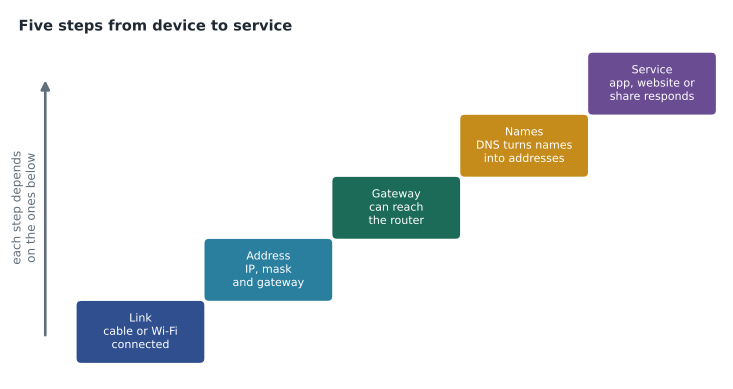
Marisol draws the steps on the whiteboard as a staircase, and Jordan copies it into his notebook. Each step depends on the one below it. If the cable is unplugged, nothing above works. If the device has no valid address, it cannot reach the gateway. If it cannot reach the gateway, it can talk only to devices on its own network. If DNS fails, the user cannot reach websites by name even though everything below is working. Thinking in these steps turns a vague complaint into a series of yes-or-no questions.
Step one: the link
The link is the physical or radio connection between the device and the network equipment it plugs into. On a wired network, that is an Ethernet cable from the device's network interface card to a wall jack or directly to a switch. The switch and the interface card negotiate a speed and duplex setting, and both show a link light when the connection is up. On a wireless network, the device associates with an access point, which bridges the radio connection onto the wired network. The operating system reports the link state: a network icon with a cross or a red mark usually means there is no link at all.
Link problems are common and easy to miss. Cables get kicked loose under desks, damaged by chair wheels or unplugged by cleaners. Docking stations lose their network connection when the laptop is not seated properly. Wi-Fi adapters get switched off by airplane mode or a function key. A support technician who checks the link first saves time, because no amount of clever troubleshooting higher up will help a device that is not physically connected.
Step two: an address
Every device on an IP network needs an IP address that is unique on its network, a subnet mask that tells it which addresses are local, and usually a default gateway, which is the router it sends traffic to when the destination is not local. It also needs the address of at least one DNS server. These four settings are the minimum configuration for a working client, and support technicians check them so often that Marisol calls them "the big four".
| Setting | What it does | Example at the bakery office |
|---|---|---|
| IPv4 address | Identifies this device on the network | 192.168.20.47 |
| Subnet mask | Shows which part of the address is the network, and so which addresses are local | 255.255.255.0 |
| Default gateway | The router that forwards traffic to other networks | 192.168.20.1 |
| DNS server | Translates names such as a website address into IP addresses | 192.168.20.1 and a public resolver |
Most clients receive these settings automatically from a DHCP server, usually built into the office router or firewall in a small business and running on a Windows or Linux server in a larger one. Some devices, such as printers, servers and network equipment, are given static addresses that never change, so that other devices can always find them. Lesson 2 explains how DHCP works and what happens when it fails, and how to tell a good address from a bad one at a glance.
Step three: the gateway and the wider network
A device can talk directly only to devices on its own local network, the ones whose addresses fall inside the range the subnet mask defines. To reach anything else, such as a cloud service, a website or a server at another site, it sends the traffic to its default gateway. The gateway is a router, often combined with a firewall and Wi-Fi in one small box in a small office. The router looks at the destination and forwards the traffic toward it, usually through the internet service provider's network.
If the gateway setting is wrong or the gateway itself is down, a user can still print to a printer on the same network and may still reach a local file server, but cannot reach the internet or other sites. That pattern, where local things work and remote things fail, is one of the most useful clues in network support. Marisol makes Jordan say it back to her: "If local works and remote fails, look at the gateway and beyond."
Step four: names
People and applications use names, not numbers. When a user types a website name or opens a share such as a server name followed by a folder, the device must find the IP address behind the name. It asks a DNS server, which answers from its own records or by asking other servers. If DNS fails, the network appears to be broken even though every lower step works: the user cannot open websites, email clients cannot find their servers, and cloud apps show sign-in errors. Lesson 4 covers name resolution and the tests that prove whether DNS is the culprit.
Step five: the service
Even when the device has a link, an address, a working gateway and working DNS, the service the user wants may be down, overloaded, blocked by a firewall, or refusing the user's credentials. A website may be having an outage. A shared folder may have permissions that exclude this user. A cloud app may require multifactor authentication the user has not set up. At this step, the network is fine and the problem belongs to the service or the account, which changes who needs to fix it.
Layers: a shared vocabulary
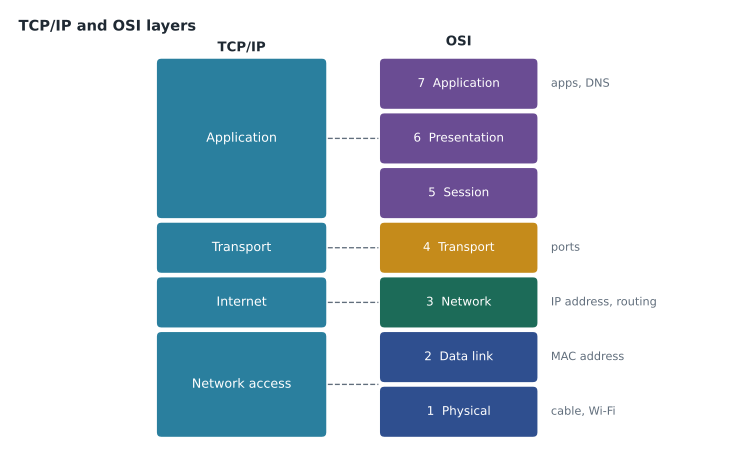
Network professionals describe these steps with layered models. The OSI model has seven layers, from physical at the bottom to application at the top. The TCP/IP model, which describes how the internet actually works, has four: network access, internet, transport and application. A support technician does not need to memorize every detail of either model for the IT Support exam, but needs to understand what the layers mean, because colleagues and documentation use them constantly. A network technician who says "it's a layer 1 problem" means a cable or radio problem. "Layer 3" means IP addressing and routing. "Layer 7" means the application.
The CCST Networking courses, CSCO-111 and CSCO-112, go into the models in depth. For support work, the practical lesson is that problems at lower layers cause symptoms at every layer above them, so checking from the bottom up is efficient, and that each layer has its own tools and its own clues.
MAC addresses and IP addresses
Every network interface has a MAC address, a 48-bit hardware address usually written as six pairs of hexadecimal digits, such as 3C-52-82-1A-7F-04. Switches use MAC addresses to deliver frames within a local network. IP addresses, by contrast, are logical addresses that can change and that routers use to move traffic between networks. A device keeps its MAC address wherever it goes, although modern phones and laptops often use a randomized MAC address for each Wi-Fi network to protect privacy, but it gets a new IP address on each network it joins.
Support technicians meet MAC addresses when a network uses them to control access, for example when the clinic's Wi-Fi only allows registered devices, or when a DHCP server gives a printer a reserved address by its MAC. Randomized MAC addresses can break those arrangements: a phone that presents a new MAC address appears to be a new device, so it may lose its reservation or be blocked. Turning off address randomization for that one trusted network is a common fix.
Wired and wireless at the clients
At Brightline's clients, most desktop computers are wired and most laptops, phones and tablets use Wi-Fi. Wired connections are faster and more reliable, and they are preferred for fixed devices such as reception PCs, point-of-sale terminals and printers. Wireless is convenient but more prone to interference, weak signal and authentication problems, which lesson 3 covers. Many devices have both, and an operating system that has both connected will normally prefer the wired one. A laptop that drops to Wi-Fi when its dock loses its network connection may suddenly be on a different network with different access, which confuses users who see that some things work and others do not.
C:\Users\jordan> ipconfig

Ethernet adapter Ethernet:
   Media State . . . . . . . . . . . : Media disconnected

Wireless LAN adapter Wi-Fi:
   Connection-specific DNS Suffix  . : kettlecrumb.local
   IPv4 Address. . . . . . . . . . . : 192.168.20.47
   Subnet Mask . . . . . . . . . . . : 255.255.255.0
   Default Gateway . . . . . . . . . : 192.168.20.1
Jordan learns to read this output quickly. The wired adapter shows media disconnected, which means no link: the dock or cable is the problem if the user expected a wired connection. The Wi-Fi adapter has a sensible address on the office network, the right mask and a gateway, so the lower steps are fine for Wi-Fi. On macOS, the same information appears in the Network section of System Settings, or from the command line with the ifconfig or networksetup commands. On Linux, the ip address command shows it.
Worked problem
Placing a symptom on the staircase
A receptionist at Prairie Paws Veterinary Clinic says she cannot open the clinic's booking website, but she can still print appointment cards to the label printer beside her, and a colleague's PC on the same desk has the same problem. Where on the five steps should Jordan look first?
Show solution
- Printing to a local printer works, so the link and the local address are fine on her PC.
- Two PCs share the problem, so it is unlikely to be a fault on one device.
- Local works but a remote website fails, which points to the gateway, the internet connection or DNS.
- Jordan should test whether the PCs can reach the gateway and an outside address, then test name resolution.
Answer: Start at step three, the gateway and beyond, then check DNS. The shared symptom and working local printing rule out the lower steps on her own PC.
Common mistakes
MistakeAssuming "the internet is down" means the internet connection has failed.
InsteadTreat it as a symptom and find which step has failed.
MistakeStarting with complicated tests before checking the link.
InsteadCheck the cable, dock, Wi-Fi switch and link light first.
MistakeIgnoring the pattern of what still works.
InsteadAsk what does work; local versus remote is a strong clue.
MistakeThinking the MAC address and IP address are the same thing.
InsteadThe MAC address is the hardware address; the IP address is assigned by the network.
MistakeForgetting that a laptop may silently switch from wired to Wi-Fi.
InsteadCheck which adapter is actually carrying traffic.
Summary and key terms
- A device climbs five steps to reach a service: link, address, gateway, name resolution and the service itself.
- Each step depends on the ones below, so troubleshooting usually starts at the bottom.
- A client needs four settings: IP address, subnet mask, default gateway and DNS server.
- Local devices are reached directly; everything else goes through the default gateway.
- The OSI and TCP/IP models give support staff a shared language for where a problem sits.
- MAC addresses identify hardware on a local network; IP addresses are logical and change between networks.
- Randomized MAC addresses can break reservations and access lists that depend on a fixed hardware address.
- Link
- The physical or radio connection between a device and the network.
- Default gateway
- The router a device sends traffic to when the destination is not on its own network.
- Subnet mask
- A value that shows which part of an IP address identifies the network.
- DNS
- The Domain Name System, which translates names into IP addresses.
- MAC address
- A 48-bit hardware address assigned to a network interface.
- OSI model
- A seven-layer reference model for network communication.
- TCP/IP model
- A four-layer model that describes how internet protocols work together.
Practice problems
Work each problem on paper first, then reveal the answer to check.
Name the five steps a device climbs before a user reaches a service.
Show answer
Link, address, gateway, name resolution and the service.
What are the big four client settings?
Show answer
IP address, subnet mask, default gateway and DNS server.
Local printing works but websites fail. Which step should you examine first?
Show answer
The gateway and beyond, then DNS.
What does ipconfig mean by media disconnected?
Show answer
The adapter has no link.
Which OSI layer covers cables and radio?
Show answer
Layer 1, the physical layer.
Why might a phone lose its reserved address on the clinic Wi-Fi?
Show answer
It may be using a randomized MAC address for that network.
Lesson quiz · 5 questions
Score 60% or more to complete this lesson.
Create a free account to save your progress, take quizzes and earn a certificate.