
CRE-250 · Lesson 3 of 12 · 28 min
Hardware: computers, cameras, capture and lighting
A stream can begin with a phone or a laptop, and many successful streamers started that way. As a channel grows, hardware choices affect image quality, reliability and what kinds of shows are possible. Streaming hardware differs from recording hardware in one crucial way: everything must work continuously, in real time, for hours, without overheating, dropping frames or crashing. This lesson covers the streaming computer and its encoder, single-PC and two-PC setups, consoles and capture cards, cameras for streaming (webcams, mirrorless cameras, phones), lenses and framing, lighting for streams, monitors and control surfaces, mobile and IRL rigs, and building a budget path. CRE-130 covered phone cameras and lighting fundamentals, and CRE-240 covered microphones; this lesson focuses on the live-specific details.
The streaming computer
The computer runs the game or activity, the streaming software that composes scenes, and the encoder that compresses video for upload. The key components are:
- The processor (CPU), which runs games and software and can encode video in software (x264), at a high processing cost.
- The graphics card (GPU), which renders games and includes hardware encoders (such as NVIDIA NVENC, AMD AMF/VCN and Intel Quick Sync) that compress video with little impact on game performance. Modern hardware encoders produce quality comparable to software encoding at typical streaming bitrates and support newer codecs such as HEVC and AV1 on recent cards.
- Memory (RAM), with 16 GB as a practical minimum for gaming and streaming together and 32 GB comfortable for heavier workloads.
- Storage, ideally fast solid-state drives, with space for local recordings, which can be large.
- Cooling and power, since hours of full load generate heat.
For non-gaming streams, such as talk shows and creative streams, a moderate computer with a good hardware encoder is often sufficient.
Single-PC and two-PC setups
Most streamers use a single computer for everything, which is simplest and, with hardware encoders, works well for most games. Some high-end streamers use two computers: a gaming PC that runs the game and a streaming PC that captures the gaming PC's output through a capture card and handles scenes, encoding, alerts and chat. Two-PC setups isolate the stream from game performance and crashes and allow heavy production, but they cost more, use more power and space, and are more complex. With modern hardware encoders, the benefits are smaller than they once were, and a two-PC setup is rarely necessary for a new streamer.
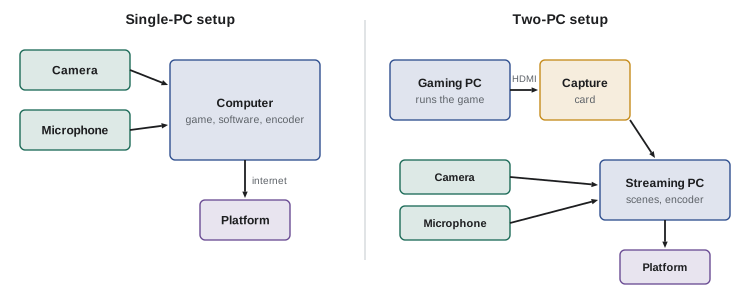
Consoles and capture cards
Game consoles can stream directly through built-in apps to some platforms, which is simple but offers limited overlays and control. For more production, a capture card takes the console's HDMI output into a computer running streaming software. External capture cards connect by USB; internal cards install in a PCIe slot. Important features include passthrough, which sends the console's signal to your TV or monitor with no delay so you can play without the slight latency introduced by capture; support for the resolution and frame rate you need, such as 1080p60 or 4K60 passthrough with 1080p capture; and HDR handling, since HDR console output can look washed out when captured without proper conversion. Note that some content is protected by HDCP copy protection, which capture cards cannot record; consoles usually allow disabling HDCP for gameplay in settings, but streaming services and protected video cannot be captured.
Cameras for streaming
Viewers connect with faces, so the camera matters for many formats. Options include:
- Webcams: simple USB cameras, with 1080p at 30 or 60 fps typical and some 4K models. Quality varies with sensor size and processing; most look adequate in good light and poor in dim light.
- Mirrorless and other interchangeable-lens cameras: larger sensors, better low-light performance, shallow depth of field and lens choice. They connect via clean HDMI output (without on-screen overlays) to a capture card, or by USB as a webcam on many recent models. Check that the camera can run continuously without overheating or shutting off after a time limit, that it can be powered by a dummy battery or USB power, and that it outputs clean HDMI.
- Phones: excellent cameras that can act as webcams through built-in features or apps, or stream directly for mobile streams.
- PTZ cameras: pan-tilt-zoom cameras controlled remotely, used for events, studios and multi-camera productions.
A camera placed slightly above eye level, framed to leave room for overlays and with the streamer looking toward it, looks more engaging than a laptop webcam looking up from below.
| Camera type | Pros | Cons |
|---|---|---|
| Webcam | Cheap, simple, plug and play | Weak in low light, small sensor |
| Mirrorless camera | Image quality, lenses, depth of field | Cost, overheating risk, capture card or setup needed |
| Phone as webcam | Good quality, already owned | Mounting, heat, notifications, battery |
| PTZ camera | Remote control, multi-camera events | Cost, setup |
Lenses, framing and depth
With interchangeable-lens cameras, a wide-to-normal focal length, about 24 to 35 mm equivalent, suits a desk setup at arm's length to a meter or so, while longer lenses compress the background and need more distance. A wide aperture separates the streamer from the background, but very shallow depth of field makes focus fragile if the streamer leans; continuous face-tracking autofocus helps. Framing for streams must account for overlays: the camera may appear as a small window in a gaming layout, full screen in just chatting, or both, so composing with some headroom and space around the face gives flexibility. Many streamers use two framings: a tight face cam for gameplay and a wider shot for chatting.
Lighting for streams
Lighting principles from CRE-130 apply, with live-specific considerations. Streams often happen at night, so artificial lighting must be reliable and consistent. A soft key light to one side, slightly above eye level, flatters the face; a fill or bounce reduces shadows; a back or rim light separates the streamer from the background; and practical or RGB accent lights give the set personality. Lights should be flicker-free at the camera's frame rate and shutter speed (CINE-220), cool enough for long sessions, and controllable, ideally with apps or stream deck buttons. Monitors and RGB peripherals cast colored light on faces, so the key light must be strong enough to dominate. Green screens, used to remove the background, need even lighting separate from the subject and space between subject and screen; software background removal has improved but can produce artifacts around hair and hands.
Worked problem
Lighting a night-time desk stream
A streamer's face looks blue and dim at night because the main light is the monitor, and the background is dark. What lighting would improve the image on a modest budget?
Show solution
- Add a soft LED panel or small softbox as key light at about 45 degrees to one side, slightly above eye level, set to a neutral white around 5,000–5,600 K.
- Set the camera's white balance to match the key light so skin looks natural despite the monitor glow.
- Add a small light behind the streamer, pointed at the shoulders or the background, to separate them from the dark room.
- Add one or two RGB accent lights on the background for brand color, kept dimmer than the face.
Answer: A soft neutral key light with matched white balance, a back or background light, and dim accent lights for the set.
Monitors and control surfaces
Streamers juggle a game or activity, chat, alerts, scene controls and sometimes guests. A second monitor shows chat, the streaming software and dashboards without interrupting the main activity. Stream controllers with programmable buttons, such as stream decks, switch scenes, mute microphones, trigger sounds and run macros with one press, reducing the need to alt-tab during the stream. Some streamers use tablets or phone apps for the same functions. A visible preview of what viewers see, a confidence monitor, helps catch problems such as a frozen camera or a wrong scene.
Mobile and IRL rigs
IRL streams from the street, events, travel or outdoors need portable rigs. Simple setups use a phone with a gimbal or grip and a wireless microphone; advanced rigs use backpacks with cameras, hardware encoders or phones, and bonded cellular connections that combine several mobile networks for reliability (Lesson 4). Considerations include battery life for several hours, heat, stabilization, wind protection for microphones, data plans and roaming costs, and safety in public (Lesson 12). Many IRL streamers have a second person, or a remote producer, watching chat and the stream health while they focus on the environment.
A budget path
Streamers can upgrade step by step, investing where it matters most for their content:
- Start: computer or console you have, built-in or phone camera, a basic USB microphone, a window or lamp for light, free streaming software.
- First upgrades: a good microphone (audio usually matters more than video, Lesson 6), a soft key light, a decent webcam or phone mount, and a second monitor.
- Next: a mirrorless camera with capture or USB, better lighting with back and accent lights, a stream controller, acoustic treatment.
- Later: capture cards for consoles or second cameras, a two-PC setup if needed, professional audio interfaces and multi-camera production.
Buy for the problems you actually have rather than for the setups of large streamers. Used equipment and rentals reduce costs.
Matching a setup to a format
Hardware should serve the format rather than the other way round. A talk stream needs a good microphone, a flattering camera and soft lighting before it needs a powerful graphics card. A competitive gaming stream needs a computer that can run the game and encode at the same time, low input latency and a reliable network. An art stream needs an overhead or tablet capture and accurate color. A cooking stream needs a second camera above the work surface, splash protection and lighting that reaches the counter.
| Format | First priority | Second priority | Can wait |
|---|---|---|---|
| Just chatting | Microphone | Camera and key light | Second monitor |
| PC gaming | Computer with hardware encoder | Microphone | Mirrorless camera |
| Console gaming | Capture card | Microphone | Stream deck |
| Art and craft | Overhead camera or screen capture | Even lighting | Green screen |
| Cooking | Overhead and front cameras | Bright, even lighting | Branded overlays |
Power, heat and noise
A streaming setup draws power for hours and can make a room hot and noisy. Computers under heavy load, lights and monitors add up, so plug equipment into a quality power bar with surge protection, and consider an uninterruptible power supply (UPS) for the computer and router so a short power cut does not end the stream. Fan noise reaches microphones, so place loud computers away from the microphone or under the desk, and choose quieter fans and LED lights with fanless or quiet cooling. In summer, plan ventilation, since high temperatures can cause computers to slow down to protect themselves.
Worked problem
Sizing a UPS for a streaming desk
A streaming computer draws about 450 W under load, the monitor 40 W, the router and modem 20 W, and two LED panels 60 W in total. The streamer wants to keep the computer, monitor and network running for about 5 minutes during a power cut to end the stream properly. What UPS rating is needed?
Show solution
- Essential load: 450 + 40 + 20 = 510 W (lights can go dark).
- Add about 25 % headroom: 510 x 1.25 = about 640 W.
- UPS units are often rated in volt-amperes; at a power factor of about 0.6 to 0.7, 640 W needs roughly 900 to 1,100 VA.
- Check the manufacturer runtime chart to confirm at least 5 minutes at 510 W.
Answer: A UPS rated at about 1,000 VA, or about 640 W or more, checked against its runtime chart.
Buying used and upgrading
Used cameras, microphones, capture cards and computer parts can save a lot of money, because many streamers upgrade regularly. Test used equipment before buying where possible, check that cameras offer clean HDMI output without overlays and do not overheat or shut off after 30 minutes, and buy from sellers who allow returns. Upgrade in the order that most improves the viewer experience: audio first, then lighting, then camera, then computer performance, unless the computer cannot run the stream at all.
Ergonomics of the streaming desk
Streamers sit for long sessions, so the desk should be set up for comfort as well as appearance. Place the main monitor at arm length with the top at or slightly below eye level, keep the camera close to the monitor so eye contact feels natural, use a microphone arm so the microphone can sit near the mouth without leaning forward, and keep frequently used controls within reach. Lesson 11 covers physical health in more detail.
Common mistakes
MistakeUsing a camera that overheats or shuts off.
InsteadCheck continuous operation, clean HDMI and power options.
MistakeLighting the face only with the monitor.
InsteadAdd a soft key light and match white balance.
MistakeBuying a two-PC setup first.
InsteadStart with a single PC and a hardware encoder.
MistakePlaying through a capture card's delayed preview.
InsteadUse passthrough to a TV or monitor.
MistakeSpending on video before audio.
InsteadPrioritize a good microphone.
Summary and key terms
- Streaming hardware must run reliably in real time for hours.
- Hardware encoders on GPUs handle compression with little performance cost.
- Two-PC setups isolate the stream but are rarely needed now.
- Capture cards bring consoles and cameras into streaming software; use passthrough.
- Mirrorless cameras give the best image but need clean output and power.
- Lighting needs a soft key, separation and controlled accents, flicker-free.
- Upgrade step by step, prioritizing audio and light.
- Encoder
- Hardware or software that compresses video for streaming.
- NVENC
- NVIDIA's hardware video encoder.
- x264
- Software H.264 encoder running on the CPU.
- Capture card
- Device that brings HDMI video into a computer.
- Passthrough
- Sending the input signal to a display without delay.
- HDCP
- Copy protection that blocks capture of protected content.
- Clean HDMI
- Camera output without on-screen overlays.
- Dummy battery
- Adapter that powers a camera from mains or USB.
- Stream controller
- Programmable button pad for stream functions.
- Bonded cellular
- Combining several mobile connections for reliability.
Practice problems
Work each problem on paper first, then reveal the answer to check.
Why use a hardware encoder?
Show answer
It compresses video with little impact on game performance.
Practical RAM minimum for gaming and streaming?
Show answer
16 GB.
What does a two-PC setup isolate?
Show answer
The stream from game performance and crashes.
What is passthrough?
Show answer
Sending the console signal to a display without capture delay.
Why might HDR console capture look washed out?
Show answer
HDR output is not converted properly.
Name three checks for a mirrorless streaming camera.
Show answer
Continuous operation, clean HDMI, power, autofocus.
Suggested focal length for a desk setup?
Show answer
About 24–35 mm equivalent.
Why must the key light dominate monitor light?
Show answer
Monitors and RGB cast colored light on faces.
What does a stream controller do?
Show answer
Switches scenes, mutes, triggers sounds and macros.
What is bonded cellular used for?
Show answer
Reliable IRL streaming over several mobile networks.
Lesson quiz · 5 questions
Score 60% or more to complete this lesson.
Create a free account to save your progress, take quizzes and earn a certificate.