
COMP-111 · Lesson 10 of 12 · 22 min
Device security and safe browsing
▶ Video coming soon A video version of this lesson is on the way.
The laptop and hotspot lending program has grown to about 180 laptops, and every returned laptop passes through Noor's hands before it goes out again. Last week one came back with three unfamiliar browser extensions, a toolbar nobody had installed on purpose, a desktop full of downloaded files and a pop-up insisting the computer was infected and offering a phone number to call. The laptop is reimaged in minutes, but Lorna uses it as the starting point for the cert club. "Most compromises start with a device that was not hardened or a browser click that should not have happened," she says. "Both are things a technician can prevent." This lesson covers device hardening, protecting lost or stolen devices, getting software from safe sources and the browser habits that keep people safe online.
What hardening means
Hardening a device means reducing its attack surface: the number of ways an attacker could get in. Every running service, open network port, installed program, enabled radio and default setting is a possible way in, so hardening removes what is not needed and secures what remains. Organizations usually write their hardening steps down as a baseline configuration so that every computer of a given type starts in the same secure state. Fairhaven's lending laptops follow such a baseline, applied automatically when a laptop is reimaged.
| Hardening step | Why it matters |
|---|---|
| Install operating system and application updates promptly | Updates patch known vulnerabilities that attackers actively exploit |
| Run anti-malware and keep it updated | Detects and blocks known malicious software and suspicious behavior |
| Turn on the host-based firewall | Blocks unsolicited incoming connections to the device |
| Change default passwords | Default credentials for devices and apps are published and easy to guess |
| Remove or disable unneeded software and services | Less software means fewer possible vulnerabilities |
| Disable unused features and radios such as Bluetooth or NFC when not needed | Closes wireless paths an attacker nearby could use |
| Require a screen lock with a PIN, password or biometric | Stops someone using an unattended device |
| Encrypt the drive | Protects data if the device is lost or stolen |
| Use a standard user account for daily work | Limits what malware can change if it runs |
Updates and patching
Software vulnerabilities are discovered constantly, and vendors release updates, also called patches, to fix them. Once a patch is published, attackers study it to learn how the flaw works, and unpatched devices become easy targets within days. Turning on automatic updates for the operating system, the browser and common applications is therefore one of the most effective security measures there is. In an organization, updates are usually tested briefly on a few machines and then rolled out to all of them on a schedule, with an urgent path for critical fixes. Devices that no longer receive updates because the vendor has ended support, such as an old operating system version, should be upgraded or retired, because any new flaw found in them will never be fixed.
Firmware needs updates too. The software inside routers, printers, smart thermostats and the makerspace 3D printers can have vulnerabilities just like a computer's operating system, and these devices are often forgotten because they seem to just work. Part of Dez's monthly routine is checking for firmware updates on network equipment, and the inventory script below shows the kind of check that makes it manageable.
from datetime import date
today = date(2026, 11, 12)
devices = [
    ("LT-0412", "laptop", "Windows 11", date(2026, 11, 10), True),
    ("LT-0377", "laptop", "Windows 11", date(2026, 9, 2), True),
    ("KIOSK-07", "kiosk", "Windows 10 IoT", date(2026, 10, 28), True),
    ("PRN-NG-2", "printer", "firmware 4.1", date(2025, 3, 14), False),
    ("MKR-P2", "3D printer", "firmware 1.9", date(2026, 6, 30), True),
]
for name, kind, platform, last_patch, encrypted_or_na in devices:
    age = (today - last_patch).days
    problems = []
    if age > 30:
        problems.append(f"last patched {age} days ago")
    if kind == "laptop" and not encrypted_or_na:
        problems.append("drive not encrypted")
    if kind == "printer" and age > 365:
        problems.append("check for firmware update")
    status = "OK" if not problems else "; ".join(problems)
print(f"{name:9s} {kind:10s} {status}")LT-0412 laptop OK LT-0377 laptop last patched 71 days ago KIOSK-07 kiosk OK PRN-NG-2 printer last patched 608 days ago; check for firmware update MKR-P2 3D printer last patched 135 days ago
What this code does
It goes through a short inventory of library devices, each with the date it was last updated, and works out how many days ago that was, using November 12, 2026 as today. Anything not updated in the last 30 days is flagged, and the old printer firmware gets an extra reminder. The output gives a quick list of which devices need attention, which is how a busy team keeps track of patching across hundreds of devices.
Anti-malware and firewalls
Anti-malware software, still often called antivirus, scans files and watches behavior for signs of malicious software. Traditional products compared files with a database of known malware signatures, which is why the signature updates matter; modern ones also look for suspicious behavior, such as a program suddenly encrypting hundreds of files, which can catch new threats. Windows includes Microsoft Defender, and organizations often use endpoint detection and response tools that report to a central console where the security team can investigate. Anti-malware is a safety net, not a license for risky behavior: no product catches everything.
A host-based firewall runs on the device itself and controls which network connections are allowed in and out, according to rules. It protects a laptop on a café's Wi-Fi in a way the library's network firewall cannot, because the laptop is no longer behind the library's firewall. Operating systems ship with one, and the lending laptops are set so patrons cannot turn it off. When an application asks for permission to accept incoming connections, the safe default is to refuse unless you know why it needs them.
Lost and stolen devices
Phones, tablets and laptops are easy to lose. Several controls limit the damage. Full-disk encryption, such as BitLocker on Windows and FileVault on macOS, makes the data unreadable without the user's credentials or recovery key, so a stolen laptop exposes the hardware but not the files. A strong screen lock with a short timeout stops someone simply picking up an unlocked device. Location tracking helps find a misplaced device, and remote wipe lets the owner or the organization erase it if it cannot be recovered. Organizations use mobile device management, or MDM, to enforce these settings and to wipe work data remotely. Fairhaven's lending laptops are enrolled in device management, so a laptop that is not returned can be locked and located, and any patron files left on it are cleared at check-in.
Recovery keys deserve a moment of attention. If a laptop's encryption recovery key is lost and the user forgets their password or the hardware changes, the data is gone for good. Organizations store recovery keys centrally in their device management or directory service; individuals should save theirs to their account with the operating system's vendor or print it and keep it somewhere safe, never on the same laptop.
Getting software from safe sources
Many infections begin with software that looked useful. Safe sources include the operating system's official app store, the vendor's own website reached by typing its address or using a bookmark, and the organization's approved software portal. Risky sources include download sites that bundle extra programs into installers, links in emails or pop-ups, and pirated software, which often carries malware precisely because people expect cracked software to behave oddly. Before installing, check the publisher's name in the installer, read the permissions an app requests and ask whether they make sense: a flashlight app has no reason to read contacts. Where a publisher lists a hash for a download, comparing it, as in lesson 8, confirms the file has not been tampered with.
Safe browsing
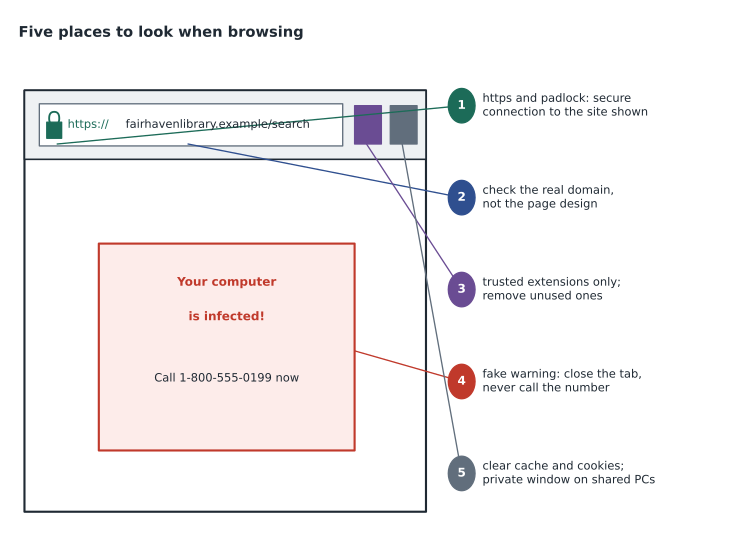
The browser is where people meet most online threats, so safe browsing habits are part of the Tech+ security domain. Keep the browser updated; modern browsers update themselves, but a browser that has not been restarted in weeks may be waiting to apply an update. Look at the address bar, not the page: HTTPS and the padlock mean the connection to the site is encrypted and the site's certificate matches its domain name, but they do not prove the site is honest. A phishing site can have a perfectly valid certificate for a domain such as fairhaven-library-login.example. What matters is whether the domain is the one you expect.
Certificate warnings deserve respect. A browser warning that a certificate is invalid, expired or issued for a different name means the browser cannot confirm it is talking to the real site. On a public network, it may mean someone is intercepting traffic. The safe response is not to click through, but to check the address, the computer's date and time, and whether the warning appears on other sites, as COMP-110 described.
Pop-ups and scareware are the next hazard. Pop-up blockers are built into every major browser and should stay on. A page or pop-up claiming that the computer is infected, that files are being deleted or that Microsoft or Apple has detected a problem, and giving a phone number to call, is a scam: legitimate companies do not contact people that way. The fix is to close the tab, or the whole browser if it will not close, and never to call the number or install anything it offers. That is exactly what had happened to the returned lending laptop, and Noor adds a line about it to the patron instructions printed inside every laptop bag.
Extensions and plugins add features to the browser but can read and change the pages a user visits. Install them only from the browser's official store, from publishers you recognize, and only if you need them; review installed extensions occasionally and remove any that are unfamiliar or unused. A malicious or hijacked extension can redirect searches, inject advertisements or steal what is typed into forms. Plugins, older add-ons that ran content such as Flash, have largely disappeared, and any site that insists you install one to view a video is suspect.
Private or incognito browsing stops the browser keeping history, cookies and form entries after the window closes, which is useful on shared computers such as the library's public stations. It does not make a user anonymous: the websites visited, the network operator and the internet service provider can still see the traffic. Clearing the cache and cookies removes stored copies of pages and the small files sites use to remember logins and preferences; it can fix pages that display wrongly and signs the user out of sites. The library's public computers clear everything automatically at the end of each session.
On public Wi-Fi, such as a café or airport, other people share the network. HTTPS protects the contents of web traffic, but a virtual private network, or VPN, encrypts all traffic between the device and the VPN provider or the organization's network, which protects other applications as well and hides which sites are being visited from others on the local network. Staff use the library's VPN when working remotely. A proxy server is a related idea: it makes web requests on behalf of users, and organizations use proxies to filter content, cache pages and log browsing; it does not necessarily encrypt anything.
Worked problem
Preparing a returned lending laptop
A laptop comes back with unknown extensions, a fake infection warning in the browser and downloaded files on the desktop. The library's baseline image is available. What should Noor do, and what should she tell the next borrower?
Show solution
- Do not call the number in the warning or try to remove the extensions one by one. Note the laptop's ID and what was found, in case it shows a pattern across returns.
- Reimage the laptop from the baseline, which restores the hardened configuration: updates, anti-malware, firewall, encryption, standard user account and no extra software.
- Confirm in the device management console that the laptop is compliant and that the previous borrower's files are gone.
- Make sure the printed instructions in the bag tell the next borrower to close fake warnings, install software only from official stores, use private browsing for personal accounts and sign out when done.
Answer: Reimage from the hardened baseline, confirm compliance, record what was found and give the borrower clear safe-browsing instructions.
Common mistakes
MistakePostponing updates indefinitely.
InsteadInstall them promptly; attackers target known, patched flaws.
MistakeTreating the padlock as proof a site is safe.
InsteadHTTPS shows an encrypted connection; still check the domain.
MistakeCalling the number in a pop-up warning.
InsteadIt is a scam; close the tab or browser.
MistakeBelieving private browsing makes you anonymous.
InsteadIt only stops local history and cookies being kept.
MistakeForgetting about printers, routers and other devices.
InsteadTheir firmware needs updates and their default passwords must change.
Summary and key terms
- Hardening reduces the attack surface with updates, anti-malware, firewalls, removed software and changed defaults.
- Prompt patching of operating systems, applications and firmware is among the most effective controls.
- Encryption, screen locks, tracking, remote wipe and device management protect lost or stolen devices.
- Install software only from official stores, vendor sites or approved portals.
- HTTPS encrypts the connection but does not prove a site is honest; check the domain and heed certificate warnings.
- Close fake warnings, limit extensions, use private browsing on shared computers and a VPN on public Wi-Fi.
- Hardening
- Reducing a device's attack surface by securing and removing what is not needed.
- Patch
- An update that fixes a flaw or vulnerability in software or firmware.
- Host-based firewall
- A firewall running on a device that controls its network connections.
- Full-disk encryption
- Encrypting a whole drive so data is unreadable without credentials.
- Remote wipe
- Erasing a lost or stolen device from a distance.
- MDM
- Mobile device management, used to enforce settings on and manage devices.
- Scareware
- Fake warnings designed to frighten users into calling or installing something.
- VPN
- A virtual private network that encrypts traffic between a device and a trusted network.
Practice problems
Work each problem on paper first, then reveal the answer to check.
Name three device hardening steps.
Show answer
For example, install updates, enable the firewall and change default passwords.
What protects data on a stolen laptop?
Show answer
Full-disk encryption, together with a strong sign-in.
A pop-up says your computer is infected and gives a number to call. What should you do?
Show answer
Close the tab or browser and do not call.
Does private browsing hide your activity from your internet provider?
Show answer
No.
Why use a VPN on public Wi-Fi?
Show answer
It encrypts all traffic between the device and a trusted network.
Why should old printer firmware be updated?
Show answer
It can contain vulnerabilities like any other software.
Lesson quiz · 5 questions
Score 60% or more to complete this lesson.
Create a free account to save your progress, take quizzes and earn a certificate.