
NET-103 · Lesson 6 of 12 · 28 min
Processes, services and systemd
▶ Video coming soon A video version of this lesson is on the way.
A server's job is to run programs that keep running: a web server waiting for customers, a database waiting for queries, a backup job that wakes up at night. Each running program is a process, and a Linux system typically has a few hundred of them. Some are started by people at the command line and end a moment later; others, called services or daemons, start when the machine boots and run until it shuts down. Being able to see what is running, stop what misbehaves and manage services properly is a core administration skill. On ridge-web, it is how Jordan keeps the shop online, restarts it safely after an update and finds out why it stopped at three in the morning.
This lesson covers processes and how to inspect them, signals and how to stop a process, running commands in the background, and systemd, the system that starts and supervises services on almost every modern Linux distribution, including how to write a unit file for the Ridgeline shop.
Processes
A process is a running instance of a program, with its own memory, its own open files and its own identity. The kernel gives each process a process ID, or PID, and records which process started it, its parent, as the PPID. Every process runs as a user, which decides what it may access, exactly as lesson 4 described. When the system boots, the kernel starts one process, PID 1, and every other process is its descendant. On modern distributions PID 1 is systemd.
Each process also has a state. Most of the time most processes are sleeping, waiting for something to happen: a network request, a key press, a timer. A process that is using the processor is running. A zombie is a process that has finished but whose parent has not yet collected its exit status; a few are harmless, but thousands point to a buggy parent program.
> ps aux --sort=-%mem | head -n 6
USER       PID %CPU %MEM    VSZ   RSS TTY  STAT START   TIME COMMAND
postgres  1204  0.3  4.1 225880 168212 ?   Ss   Nov01   4:12 /usr/lib/postgresql/16/bin/postgres -D /var/lib/postgresql/16/main
shop      1388  0.8  2.6 108344 106520 ?   S    Nov01  11:30 /srv/ridgeline/shop/venv/bin/python3 gunicorn --workers 3 app:app
shop      1391  0.5  2.2  98120  90004 ?   S    Nov01   7:02 /srv/ridgeline/shop/venv/bin/python3 gunicorn --workers 3 app:app
root       822  0.0  1.0  44120  41200 ?   Ss   Nov01   0:31 /usr/bin/python3 /usr/bin/fail2ban-server -xf start
www-data  1102  0.0  0.3  13980  12804 ?   S    Nov01   0:44 nginx: worker process
> pstree -p 1388
gunicorn(1388)-+-python3(1391)
               |-python3(1392)
               `-python3(1393)
The ps command takes a snapshot of processes, and ps aux, an old but universal form, shows every process with its user, PID, share of processor and memory, resident memory in kilobytes (RSS), state and command line. Sorting by memory or processor shows the heaviest processes first. The pstree command draws the parent-and-child tree; here the shop's main gunicorn process has three worker children, each handling customers' requests.
For a live view, top refreshes every few seconds, with a summary of load, memory and processor use at the top and the busiest processes below. Pressing M sorts by memory, P by processor, k asks for a PID to kill and q quits. Many administrators install htop, which shows the same information with colour bars and easier keys. Both are the first things to open when a server feels slow.
Because ps prints a regular table, it is easy to analyse. The listing below finds the process using the most memory and adds up memory by user, which shows at a glance that the database and the shop between them use most of what is in use.
ps = """USER PID %CPU %MEM RSS COMMAND
postgres 1204 0.3 4.1 168212 postgres
shop 1388 0.8 2.6 106520 gunicorn
shop 1391 0.5 2.2 90004 gunicorn
root 822 0.0 1.0 41200 fail2ban-server
www-data 1102 0.0 0.3 12804 nginx
postgres 1210 0.0 0.4 16800 postgres"""

rows = [line.split() for line in ps.splitlines()[1:]]
top = max(rows, key=lambda r: int(r[4]))
print("Most memory:", top[5], "PID", top[1], "using", int(top[4]) // 1024, "MB")

by_user = {}
for user, pid, cpu, mem, rss, command in rows:
    by_user[user] = by_user.get(user, 0) + int(rss)
for user, kb in sorted(by_user.items(), key=lambda item: -item[1]):
print(f"{user:9} {kb / 1024:7.1f} MB")Most memory: postgres PID 1204 using 164 MB shop 191.9 MB postgres 180.7 MB root 40.2 MB www-data 12.5 MB
Signals: asking processes to stop
Processes are controlled with signals, short messages the kernel delivers to a process. Each has a number and a name. A program can catch most signals and decide how to respond, which is how a well-written server finishes the requests it is handling before shutting down. The kill command sends a signal; despite its name, its default signal politely asks a process to terminate.
| Signal | Number | Meaning | Can be caught? |
|---|---|---|---|
| SIGTERM | 15 | Please terminate; the default for kill | Yes, so the program can clean up |
| SIGINT | 2 | Interrupt; sent by Ctrl+C | Yes |
| SIGHUP | 1 | Hang up; many daemons reload their configuration | Yes |
| SIGKILL | 9 | Kill immediately; the kernel ends the process | No |
| SIGSTOP | 19 | Pause the process; Ctrl+Z sends the similar SIGTSTP | No |
| SIGCONT | 18 | Continue a paused process | Yes |
> kill 4821
> kill -HUP 1102
> kill -9 4821
> pkill -f old_report.py
> pgrep -a gunicorn
1388 /srv/ridgeline/shop/venv/bin/python3 gunicorn --workers 3 app:app
Always try SIGTERM first and give the process a few seconds. SIGKILL cannot be caught, so the program gets no chance to finish writing files, release locks or tell its clients it is going, and data can be left half-written. It is the last resort for a process that ignores SIGTERM. The pgrep command finds PIDs by name and pkill signals them by name, which is convenient but risky: a careless pattern can match far more processes than you meant, so check with pgrep -a before using pkill. You may signal only your own processes unless you use sudo.
Foreground and background jobs
When you run a command in the shell it normally takes over the terminal until it finishes; it is in the foreground. Adding an ampersand at the end starts it in the background, so the prompt returns at once. Pressing Ctrl+Z pauses a foreground job, after which bg resumes it in the background and fg brings it back. The jobs command lists the shell's jobs.
> gzip -9 big_export.csv &
[1] 5120
> jobs
[1]+  Running                 gzip -9 big_export.csv &
> fg
gzip -9 big_export.csv
^Z
[1]+  Stopped                 gzip -9 big_export.csv
> bg
[1]+ gzip -9 big_export.csv &
Background jobs belong to your login session. If you disconnect, the shell sends them SIGHUP and they usually stop. For a long one-off task, such as copying a large backup, run it inside a terminal multiplexer like tmux, which keeps your session alive on the server after you disconnect, or start it with nohup. Anything that must run permanently, though, should not be a background job at all: it should be a service managed by systemd.
Services and systemd
Services used to be started by shell scripts in /etc/init.d, run one after another at boot. Since about 2015 nearly every major distribution has replaced that system with systemd, which starts services in parallel, restarts them if they crash, records their output and tracks every process they start. Systemd manages everything as units, each described by a small text file. A service unit runs a program, a timer unit triggers something on a schedule, a mount unit attaches a file system, a socket unit listens on a network port, and a target unit groups others into a state such as normal multi-user operation.
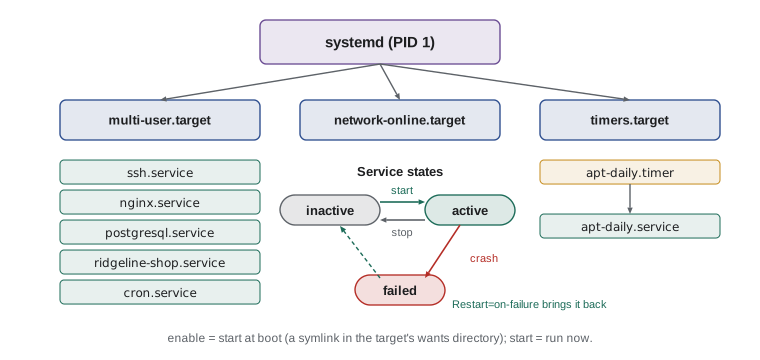
The systemctl command controls units. The verbs are easy to remember, and one distinction is essential: starting a service runs it now, while enabling it makes it start automatically at boot. They are independent, so a service can be running but not enabled, in which case it will be missing after the next reboot, which is a classic surprise.
| Command | Effect |
|---|---|
| systemctl status nginx | Shows whether it is running, since when, its main PID and its latest log lines |
| sudo systemctl start nginx | Starts it now |
| sudo systemctl stop nginx | Stops it now |
| sudo systemctl restart nginx | Stops and starts it, briefly interrupting service |
| sudo systemctl reload nginx | Asks it to reread its configuration without stopping, if it supports that |
| sudo systemctl enable --now nginx | Enables it at boot and starts it now |
| sudo systemctl disable nginx | Stops it starting at boot |
| systemctl is-active nginx; systemctl is-enabled nginx | One-word answers, useful in scripts |
| systemctl list-units --type=service --state=failed | Lists services that have failed |
| sudo systemctl daemon-reload | Rereads unit files after you change them |
> systemctl status ridgeline-shop
● ridgeline-shop.service - Ridgeline Coffee online shop
     Loaded: loaded (/etc/systemd/system/ridgeline-shop.service; enabled; preset: enabled)
     Active: active (running) since Sun 2026-11-01 05:02:14 UTC; 2 days ago
   Main PID: 1388 (gunicorn)
      Tasks: 4 (limit: 4613)
     Memory: 312.4M (peak: 351.0M)
        CPU: 18min 32.551s
     CGroup: /system.slice/ridgeline-shop.service
             ├─1388 /srv/ridgeline/shop/venv/bin/python3 gunicorn --workers 3 app:app
             ├─1391 /srv/ridgeline/shop/venv/bin/python3 gunicorn --workers 3 app:app
             ...
Nov 03 08:01:12 ridge-web gunicorn[1391]: GET /shop 200
The status output answers most questions at once. Loaded shows where the unit file is and that it is enabled at boot. Active shows that it is running and for how long. The CGroup section lists every process belonging to the service, because systemd places each service in a control group, a kernel feature that tracks and can limit a group of processes, so even child processes cannot escape supervision. The last lines are the service's most recent log messages, which lesson 9 shows how to explore fully with journalctl.
Writing a unit file
Packages install unit files for their services in /usr/lib/systemd/system. Units you write yourself, like the one for the Ridgeline shop, go in /etc/systemd/system, which also takes priority, so it is where local changes live. A unit file is a simple text file in sections, each holding key=value settings.
# /etc/systemd/system/ridgeline-shop.service
[Unit]
Description=Ridgeline Coffee online shop
After=network-online.target postgresql.service
Wants=network-online.target

[Service]
Type=simple
User=shop
Group=shop
WorkingDirectory=/srv/ridgeline/shop
EnvironmentFile=/etc/ridgeline/shop.env
ExecStart=/srv/ridgeline/shop/venv/bin/gunicorn --workers 3 --bind 127.0.0.1:8000 app:app
Restart=on-failure
RestartSec=5
NoNewPrivileges=true
ProtectSystem=strict
ReadWritePaths=/srv/ridgeline/shop/uploads /var/log/ridgeline

[Install]
WantedBy=multi-user.target
The [Unit] section describes the service and its ordering: After says start this once the network and the database are up. The [Service] section says how to run it: as the shop user, from its directory, with settings such as the database password read from a protected environment file, and Restart=on-failure tells systemd to restart it five seconds after any crash. The last three settings are hardening: NoNewPrivileges stops the process from ever gaining more privileges, ProtectSystem=strict makes the whole file system read-only for it, and ReadWritePaths lists the only places it may write. The [Install] section says which target pulls it in when it is enabled.
> sudo systemctl daemon-reload
> sudo systemctl enable --now ridgeline-shop
Created symlink /etc/systemd/system/multi-user.target.wants/ridgeline-shop.service -> /etc/systemd/system/ridgeline-shop.service.
> sudo systemctl edit nginx
> systemctl cat nginx | tail -n 3
# /etc/systemd/system/nginx.service.d/override.conf
[Service]
Restart=on-failure
Note that enabling a service simply creates a symbolic link in the target's wants directory, an example of lesson 2's links at work. To change a packaged unit, never edit the file in /usr/lib, because the next package update would overwrite it. Instead, systemctl edit creates a drop-in file that overrides just the settings you change, kept under /etc. Here Sam makes nginx restart automatically after a crash too.
Unit files use the same simple format as the INI files Windows made popular, so Python's configparser can read them, which Ridgeline's audit script in lesson 12 uses to check every service for the hardening settings.
import configparser

unit = """[Unit]
Description=Ridgeline Coffee online shop
After=network-online.target postgresql.service

[Service]
User=shop
ExecStart=/srv/ridgeline/shop/venv/bin/gunicorn --workers 3 --bind 127.0.0.1:8000 app:app
Restart=on-failure
NoNewPrivileges=true

[Install]
WantedBy=multi-user.target"""

cfg = configparser.ConfigParser(strict=False, interpolation=None)
cfg.optionxform = str          # keep systemd's capital letters
cfg.read_string(unit)
service = cfg["Service"]
print("Runs as:", service.get("User", "root"))
print("Restarts on failure:", service.get("Restart") == "on-failure")
for key in ("NoNewPrivileges", "ProtectSystem"):
print(f"{key}: {service.get(key, 'not set')}")Runs as: shop Restarts on failure: True NoNewPrivileges: true ProtectSystem: not set
Timers and targets
Systemd timers can replace cron for scheduled jobs, with the advantage that their runs are logged like any other service and that a missed run can be caught up after the machine was off. Ubuntu itself uses timers for daily package index updates and log rotation; systemctl list-timers shows them all with their next and last run times. Lesson 11 schedules Ridgeline's backup with cron, which remains common and simpler to read, and compares the two.
Targets group units into system states. multi-user.target is the normal state for a server: networking and services up, no graphical desktop. graphical.target adds a desktop on top, and rescue.target starts only the minimum needed to repair a broken system. systemctl get-default shows which target the machine boots into, and systemctl reboot and systemctl poweroff restart or shut it down cleanly.
Worked problem
The shop stops after an update
At 07:10 on a Tuesday, after the weekly updates and reboot, Theo reports that the shop shows an error page. nginx is running, but the shop is not answering. How should Jordan investigate and fix it?
Show solution
- Check the service: systemctl status ridgeline-shop shows Active: failed (Result: exit-code), with the last lines including ModuleNotFoundError: No module named psycopg.
- The error means the Python library for PostgreSQL is missing from the virtual environment. The update upgraded the system Python, and the virtual environment was built against the old version.
- Rebuild the environment as the shop user: sudo -u shop python3 -m venv --clear /srv/ridgeline/shop/venv, then reinstall from requirements.txt.
- Start the service again with sudo systemctl restart ridgeline-shop and check that status shows active (running) and that the home page loads.
- Prevent a repeat: add a check to the weekly routine, and consider pinning the shop to a Python version that does not change within the LTS release, as the next lessons discuss.
Answer: systemctl status showed the failure and its cause; rebuilding the virtual environment and restarting the service brought the shop back.
Try it yourself
The hungriest process
Write top_memory(ps_text) that reads ps output with a header line and the columns USER, PID, RSS and COMMAND (RSS in kilobytes), and returns a tuple (command, pid, megabytes) for the process with the largest RSS. pid should be an int and megabytes the RSS divided by 1024, rounded to one decimal place.
def top_memory(ps_text):
    return ('', 0, 0.0)


sample = 'USER PID RSS COMMAND\nshop 1388 106520 gunicorn\npostgres 1204 168212 postgres'
print(top_memory(sample))
Try it yourself
Audit a unit file
Write unit_problems(text) that reads a systemd unit file with configparser and returns a list of problems, in this order: runs as root if the [Service] section has no User or User=root, no restart if Restart is missing or set to no, and no NoNewPrivileges unless NoNewPrivileges=true. Return an empty list for a unit with none of these problems.
import configparser

def unit_problems(text):
    problems = []
    return problems
Common mistakes
MistakeReaching for kill -9 first.
InsteadSend SIGTERM and wait a few seconds; use SIGKILL only if the process ignores it.
MistakeStarting a service but not enabling it, so it is missing after a reboot.
InsteadUse sudo systemctl enable --now to start it and enable it at boot in one step.
MistakeEditing unit files under /usr/lib/systemd/system.
InsteadUse systemctl edit to create a drop-in under /etc, or put your own units in /etc/systemd/system.
MistakeChanging a unit file and forgetting daemon-reload.
InsteadRun sudo systemctl daemon-reload after editing unit files, then restart the service.
MistakeRunning a long-lived program as a background job from an SSH session.
InsteadMake it a systemd service so it survives logouts and reboots and restarts after crashes.
MistakeUsing pkill with a loose pattern.
InsteadCheck the matches with pgrep -a first.
Summary and key terms
- A process is a running program with a PID, a parent, a user and a state; PID 1 is systemd.
- ps aux, pstree, top and htop show what is running and what uses memory and processor time.
- Signals control processes: SIGTERM asks politely, SIGHUP often reloads configuration, SIGKILL cannot be refused.
- An ampersand, Ctrl+Z, bg, fg and jobs manage background jobs, which end when the session ends.
- systemd manages units: services, timers, mounts, sockets and targets.
- systemctl start runs a service now, enable starts it at boot, and status shows its state, processes and recent logs.
- Your own unit files go in /etc/systemd/system; changes to packaged units go in drop-ins made with systemctl edit.
- Unit settings such as User, Restart and NoNewPrivileges make services run safely and recover from crashes.
- process
- A running instance of a program.
- PID
- The process ID, a number the kernel gives each process.
- daemon
- A background process that provides a service, often with a name ending in d.
- signal
- A short message the kernel delivers to a process, such as SIGTERM or SIGKILL.
- zombie process
- A finished process whose exit status has not yet been collected by its parent.
- systemd
- The init system and service manager that runs as PID 1.
- unit
- A systemd object described by a file, such as a service, timer or target.
- enable
- To configure a unit to start automatically at boot.
- drop-in
- A small file that overrides some settings of an existing unit.
- control group (cgroup)
- A kernel feature that tracks and can limit a group of processes.
Practice problems
Work each problem on paper first, then reveal the answer to check.
How do you list the five processes using the most memory?
Show answer
ps aux --sort=-%mem | head -n 6, or press M in top.
What is the difference between systemctl restart and systemctl reload?
Show answer
restart stops and starts the service; reload asks it to reread its configuration while it keeps running.
A service is active now but systemctl is-enabled says disabled. What will happen at the next reboot?
Show answer
It will not start; enable it with sudo systemctl enable.
Why should a service unit set User= to a dedicated account?
Show answer
So the program runs with only that account's permissions instead of root's.
You changed /etc/systemd/system/ridgeline-shop.service. What two commands make the change take effect?
Show answer
sudo systemctl daemon-reload, then sudo systemctl restart ridgeline-shop.
Which signal does Ctrl+C send, and which does kill send by default?
Show answer
Ctrl+C sends SIGINT; kill sends SIGTERM.
Lesson quiz · 5 questions
Score 60% or more to complete this lesson.
Create a free account to save your progress, take quizzes and earn a certificate.