
NET-103 · Lesson 11 of 12 · 31 min
Shell scripting basics
▶ Video coming soon A video version of this lesson is on the way.
By now Jordan types the same sequences of commands again and again: the weekly update routine, the morning health check, the steps to back up the database and copy the backup off the server. Anything typed more than twice is worth writing down as a script, a text file of commands that the shell runs in order. Scripts save time, but more importantly they make work repeatable: a script does the same thing every time, at three in the morning as reliably as at noon, and it documents exactly what is done. This lesson teaches enough Bash scripting to write useful administration scripts safely, and shows how to run them on a schedule with cron and systemd timers.
The examples build two scripts that ridge-web runs every day: the nightly database backup with its clean-up of old copies, and a disk and service check that emails Jordan when something needs attention. Along the way you will meet the bug that let /srv fill with old backups in lesson 7, a mistake that catches administrators everywhere.
A first script
A shell script is a plain text file. Its first line, called the shebang, starts with #! and names the program that should run the rest of the file: #!/bin/bash for Bash. After that come commands, exactly as you would type them, plus comments, which start with # and are ignored. To run a script by name it must be executable, so you set the execute permission from lesson 4, and then run it with its path, ./hello.sh for one in the current directory.
#!/bin/bash
# health.sh - a quick look at ridge-web
echo "Health check on $(hostname) at $(date '+%Y-%m-%d %H:%M')"
uptime
df -h / /srv
systemctl is-active nginx postgresql ridgeline-shop> nano ~/scripts/health.sh
> chmod +x ~/scripts/health.sh
> ~/scripts/health.sh
Health check on ridge-web at 2026-11-10 09:02
09:02:11 up 2 days, 22:04, 1 user, load average: 0.04, 0.06, 0.02
Filesystem Size Used Avail Use% Mounted on
/dev/vda2 78G 15G 60G 20% /
/dev/vdb1 98G 41G 53G 44% /srv
active
active
activeWhy does the script need ./ or a full path, when commands like ls do not? The shell finds commands by searching the directories listed in the PATH variable, such as /usr/local/bin and /usr/bin, and for safety the current directory is not on that list. Scripts that everyone on the server should use go in /usr/local/bin, which is on the PATH and is reserved for software the administrator installs; Jordan's own scripts stay in ~/scripts.
Variables and quoting
A variable holds a value, such as a directory name or a count. In Bash you assign with name=value, with no spaces around the equals sign, because a space would make Bash treat the name as a command. To use the value, you write a dollar sign in front of the name, which the shell replaces with the value before running the command; this replacement is called expansion. The form with braces around the name does the same thing and is clearer when other text follows. By convention, variables that configure a script are written in capitals at the top, so that they are easy to find and change.
#!/bin/bash
BACKUP_DIR="/srv/backups"
DB="roastlog"
STAMP=$(date +%F)                      # command substitution: 2026-11-10
FILE="${BACKUP_DIR}/${DB}-${STAMP}.sql.gz"
echo "Writing ${FILE}"
echo 'Single quotes keep ${FILE} exactly as typed'
Two features appear here. Command substitution, a dollar sign followed by a command in parentheses, runs the command and puts its output in place, so STAMP gets today's date in year-month-day form, which sorts correctly as text. And the two kinds of quotation mark behave differently: double quotes allow expansion inside them, while single quotes keep everything exactly as typed. The last line therefore prints the variable's name literally.
The most important habit in shell scripting is to put double quotes around every variable you use. Without them, Bash splits the value at spaces and expands any wildcards in it, so a file name containing a space becomes two arguments, and an empty variable can vanish entirely and change the meaning of a command. A notorious example is a clean-up line that removes everything under a directory named in a variable: if the variable is accidentally empty and unquoted, the command can become a request to remove from the root of the file system. Quoted, the mistake produces a harmless error instead.
Exit status and safe scripts
Every command finishes with an exit status, a number that the shell keeps in a special variable named with a question mark: 0 means success and anything else means some kind of failure. The operators && and || use it: in a && b, b runs only if a succeeded, and in a || b, b runs only if a failed. A script ends with the exit status of its last command, or with the number given to the exit command.
By default Bash carries on after a command fails, which in an administration script is dangerous: if cd into the backup directory fails, the next command runs in the wrong place. Three settings, usually written together near the top as set -euo pipefail, make scripts stop at the first sign of trouble. The -e option exits as soon as a command fails, -u treats the use of an undefined variable as an error, which catches typing mistakes in names, and -o pipefail makes a pipeline fail if any command in it fails, not just the last. Every script in this lesson starts with them.
| Item | Meaning |
|---|---|
| exit status 0 | Success |
| exit status 1 to 255 | Failure; the number may say what kind |
| a && b | Run b only if a succeeds |
| a || b | Run b only if a fails |
| set -e | Stop the script when a command fails |
| set -u | Treat an undefined variable as an error |
| set -o pipefail | A pipeline fails if any part of it fails |
| exit N | End the script with status N |
Arguments, tests and conditions
Scripts can take arguments like any command. Inside the script, the first argument is a dollar sign followed by 1, the second a dollar sign followed by 2 and so on; a dollar sign followed by # gives the number of arguments, and a dollar sign followed by @, in double quotes, gives all of them, each kept separate. Decisions use if with a test inside double square brackets. Tests check files (-f for a regular file, -d for a directory, -s for a non-empty file), strings (== for equal, -z for empty) and numbers (-gt for greater than, -lt for less than, -ge and -le).
#!/bin/bash
set -euo pipefail
# check_disk.sh MOUNT LIMIT - exit 1 if MOUNT is at or above LIMIT
if [[ $# -ne 2 ]]; then
    echo "usage: check_disk.sh MOUNT LIMIT" >&2
    exit 2
fi
MOUNT="$1"
LIMIT="$2"
if [[ ! -d "$MOUNT" ]]; then
    echo "no such directory: $MOUNT" >&2
    exit 2
fi
USED=$(df --output=pcent "$MOUNT" | tail -n 1 | tr -dc '0-9')
if [[ "$USED" -ge "$LIMIT" ]]; then
    echo "WARN $MOUNT is at $USED (limit $LIMIT)"
    exit 1
fi
echo "OK $MOUNT is at $USED"
The script checks that it received exactly two arguments and that the first is a directory, printing a usage message to standard error (the >&2 redirection from lesson 3) and exiting with status 2 if not. It then asks df for the use figure alone, strips everything but digits with tr, and compares numbers with -ge. The exit status tells the caller what happened: 0 for fine, 1 for over the limit, 2 for a usage error. That makes the script easy to combine with others: check_disk.sh /srv 80 || send_alert would alert only when the check fails.
Loops and functions
A for loop repeats commands for each item in a list, which might be words, file names from a wildcard or lines of output. A while loop repeats while a test succeeds, and the pattern while read -r line is the standard way to process a file or command output line by line. Functions group commands under a name, so a script reads as a set of clear steps.
#!/bin/bash
set -euo pipefail
LIMIT=80
STATUS=0

check_service() {
    if ! systemctl is-active --quiet "$1"; then
        echo "FAIL service $1 is not running"
        STATUS=1
    fi
}

for svc in nginx postgresql ridgeline-shop ssh; do
    check_service "$svc"
done

for mount in / /srv; do
    /usr/local/bin/check_disk.sh "$mount" "$LIMIT" || STATUS=1
done

exit "$STATUS"
Look at the line with || STATUS=1. Because set -e stops a script when a command fails, a check that is expected to fail sometimes must be handled explicitly; the || makes the failure part of the plan, recording it in STATUS instead of ending the script. The whole script then exits with 1 if anything was wrong, which the scheduler below turns into an email.
The backup script, and the bug in the old one
Here is the nightly backup. It dumps the roast log database as the postgres user, compresses it, keeps the newest fourteen copies and deletes older ones. Compare it with the line from the original script that Sam's predecessor had written, shown first, which explains why /srv filled up with months of backups in lesson 7.
# the old clean-up line, run by cron:
cd backups && find . -name "*.sql.gz" -mtime +14 -delete

#!/bin/bash
# /usr/local/bin/backup-roastlog.sh - the new version
set -euo pipefail
umask 027
BACKUP_DIR="/srv/backups"
KEEP_DAYS=14
FILE="${BACKUP_DIR}/roastlog-$(date +%F).sql.gz"

sudo -u postgres pg_dump roastlog | gzip -9 > "${FILE}.part"
mv "${FILE}.part" "$FILE"                      # only complete backups get the real name
find "$BACKUP_DIR" -name "roastlog-*.sql.gz" -mtime +"$KEEP_DAYS" -print -delete
echo "backup ok: $(du -h "$FILE" | cut -f1)"
The old line used a relative path. Jobs run by cron start in the user's home directory, not in /srv, so cd backups failed, the && stopped find from running, and nothing was ever deleted; no error was seen because nobody read the job's output. The new script uses absolute paths throughout, stops on any failure, writes the dump to a temporary .part file and renames it only when it is complete, so a half-finished backup never looks like a good one, and prints what it deletes so that the log shows the clean-up working. The umask 027 makes the files readable only by their owner and group, as lesson 4's backup example required.
Choosing which old backups to delete is a small but important piece of logic. The script above uses age; another common rule is to keep the newest N files whatever their age, so that if backups stop for a while the last good ones are never deleted. The listing below works out that rule in Python, from date-stamped names, which sort correctly as text.
files = ["roastlog-2026-10-25.sql.gz", "roastlog-2026-11-09.sql.gz", "roastlog-2026-11-08.sql.gz",
         "roastlog-2026-10-31.sql.gz", "roastlog-2026-11-07.sql.gz", "notes.txt"]
KEEP = 3

backups = sorted(f for f in files if f.startswith("roastlog-") and f.endswith(".sql.gz"))
keep, delete = backups[-KEEP:], backups[:-KEEP]
print("keep:  ", keep)
print("delete:", delete)keep: ['roastlog-2026-11-07.sql.gz', 'roastlog-2026-11-08.sql.gz', 'roastlog-2026-11-09.sql.gz'] delete: ['roastlog-2026-10-25.sql.gz', 'roastlog-2026-10-31.sql.gz']
Scheduling with cron
Cron is the traditional Unix scheduler, and it is on every Linux system. Each user can have a crontab, a table of jobs edited with crontab -e and listed with crontab -l; system jobs go in /etc/cron.d or in /etc/crontab. Each line has five time fields, then the command. The fields are minute (0 to 59), hour (0 to 23), day of the month (1 to 31), month (1 to 12) and day of the week (0 to 7, where both 0 and 7 mean Sunday). An asterisk means every value, a comma separates a list, a dash gives a range and a slash with a number gives a step.
# /etc/cron.d/ridgeline  (system cron files name the user in the sixth field)
MAILTO=jordan@ridgeline.example
PATH=/usr/local/bin:/usr/bin:/bin
30 2 * * *    root      /usr/local/bin/backup-roastlog.sh >> /var/log/ridgeline/backup.log 2>&1
*/15 * * * *  root      /usr/local/bin/daily_check.sh > /dev/null
0 5 * * 2     root      /usr/local/bin/weekly-maintenance.sh
*/10 6-18 * * 1-6 roastsync /usr/local/bin/import-roastlog.sh| Schedule | Meaning |
|---|---|
| 30 2 * * * | Every day at 02:30 |
| */15 * * * * | Every 15 minutes |
| 0 5 * * 2 | Tuesdays at 05:00 |
| */10 6-18 * * 1-6 | Every 10 minutes from 06:00 to 18:50, Monday to Saturday |
| 0 0 1 * * | Midnight on the first of each month |
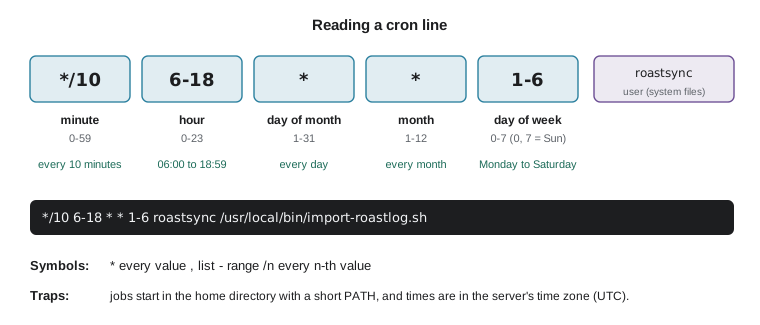
Three things trip up cron jobs, and the old backup bug was the first of them. Cron runs jobs in the user's home directory with a very short PATH and few environment variables, so a script that works when you type it can fail under cron; use absolute paths and set PATH at the top of the file. Cron emails a job's output to MAILTO, so a job that prints nothing on success and something on failure produces mail only when there is a problem, which is why daily_check.sh's normal output is sent to /dev/null while its error messages still reach Jordan. And times are in the server's time zone, which on ridge-web is UTC, so 02:30 UTC is the evening before in Kelowna or Boise; check with timedatectl.
Because the schedule format is compact, it is easy to misread. A small program that expands each field into the values it allows is a good way to check a schedule before trusting it with backups.
def expand(field, low, high):
    values = set()
    for part in field.split(","):
        step = 1
        if "/" in part:
            part, step = part.split("/")
            step = int(step)
        if part == "*":
            start, end = low, high
        elif "-" in part:
            start, end = (int(x) for x in part.split("-"))
        else:
            start = end = int(part)
        values.update(range(start, end + 1, step))
    return sorted(values)

print("minutes:", expand("*/10", 0, 59))
print("hours:  ", expand("6-18", 0, 23))
print("days:   ", expand("1-6", 0, 7))
print("mixed: ", expand("0,30,45-50/5", 0, 59))minutes: [0, 10, 20, 30, 40, 50] hours: [6, 7, 8, 9, 10, 11, 12, 13, 14, 15, 16, 17, 18] days: [1, 2, 3, 4, 5, 6] mixed: [0, 30, 45, 50]
Systemd timers as an alternative
Systemd timers, introduced in lesson 6, do the same job with a different style. A timer unit says when, and a service unit with the same name says what. Timers have advantages: each run is logged in the journal with its output and exit status, Persistent=true runs a missed job after the machine was switched off, and RandomizedDelaySec spreads jobs out so that many servers do not all start at once. Cron's single-line format is quicker to read and write. Many administrators use cron for simple jobs and timers where logging and catch-up matter; on ridge-web, Sam later moves the backup to a timer.
# /etc/systemd/system/roastlog-backup.service
[Unit]
Description=Nightly roast log backup

[Service]
Type=oneshot
ExecStart=/usr/local/bin/backup-roastlog.sh

# /etc/systemd/system/roastlog-backup.timer
[Unit]
Description=Run the roast log backup nightly

[Timer]
OnCalendar=*-*-* 02:30:00
Persistent=true
RandomizedDelaySec=5min

[Install]
WantedBy=timers.target
After sudo systemctl enable --now roastlog-backup.timer, systemctl list-timers shows when it will next run, and journalctl -u roastlog-backup shows every past run with its output. That solves the original problem in a second way: the output of every run is kept and can be checked, instead of disappearing.
Finally, a word on when not to use the shell. Bash is excellent for gluing commands together, but it becomes hard to read and error-prone once a script needs complex data handling, calculations or careful error recovery. A useful rule of thumb is that a script that grows beyond a page or two, or needs to parse structured data such as JSON, is better written in Python, which ridge-web has installed and which PYTH-120, Scripting and Automation for IT, uses for exactly this kind of work.
Worked problem
Will the import job run on Sunday?
Kai asks whether roast logs uploaded on a Sunday morning will be imported, given the line */10 6-18 * * 1-6 roastsync /usr/local/bin/import-roastlog.sh. Work it out and suggest a change if needed.
Show solution
- The fifth field, day of the week, is 1-6, which means Monday (1) to Saturday (6).
- Sunday is 0 or 7, so it is not included: the job never runs on Sundays.
- The hour field 6-18 means 06:00 to 18:59, so the last run each day is at 18:50.
- Ridgeline roasts on Sundays during the holiday season, so the import should include Sunday: change the field to * or to 0-6.
- After editing, check the file is valid by listing it and watching the next run in the log at the expected time.
Answer: No: 1-6 excludes Sunday. Change the day-of-week field to * so the job runs every day.
Try it yourself
Expand a cron field
Write expand(field, low, high) that returns a sorted list of the values a cron field matches. Support *, single numbers, ranges like 6-18, lists separated by commas, and steps like */15 or 0-30/10. low and high are the field's limits, such as 0 and 59 for minutes.
def expand(field, low, high):
    return [int(field)]


print(expand('*/15', 0, 59))
Try it yourself
Does the schedule match?
Using an expand function like the one above (it is provided for you in the setup), write matches(schedule, minute, hour, day, month, weekday) that returns True if the five-field cron schedule runs at that time. Treat weekday 7 in the schedule as Sunday, the same as 0. For simplicity, require all five fields to match.
def matches(schedule, minute, hour, day, month, weekday):
    return False
Try it yourself
Which backups to delete?
Write to_delete(names, keep) that takes a list of file names and returns, sorted, the backup files that should be deleted so that only the newest keep remain. Backups are names of the form roastlog-YYYY-MM-DD.sql.gz; ignore any other names. If there are keep or fewer backups, delete nothing.
def to_delete(names, keep):
    return []
Common mistakes
MistakePutting spaces around = when assigning a variable.
InsteadWrite name=value with no spaces; with spaces, Bash treats the name as a command.
MistakeLeaving variables unquoted.
InsteadPut double quotes around every variable expansion so spaces and empty values cannot change the command.
MistakeWriting scripts without set -euo pipefail.
InsteadStart every administration script with set -euo pipefail so it stops at the first failure.
MistakeUsing relative paths in scheduled jobs.
InsteadCron starts in the home directory with a short PATH; use absolute paths and set PATH.
MistakeThrowing away all output from a cron job.
InsteadDiscard routine output but let errors reach MAILTO or a log, and check them.
MistakeForgetting that the server clock is in UTC.
InsteadCheck the time zone with timedatectl and write schedules in that time.
Summary and key terms
- A script is a text file of commands that starts with a shebang such as #!/bin/bash and is made executable with chmod +x.
- Variables are assigned with name=value and expanded with a dollar sign; double quotes allow expansion, single quotes do not.
- Always quote variable expansions; unquoted values split at spaces and can vanish when empty.
- Every command returns an exit status, 0 for success; && and || act on it, and set -euo pipefail stops scripts on failure.
- Arguments, tests in double square brackets, if, for, while and functions build real tools.
- cron runs jobs from five time fields; jobs start in the home directory with a minimal PATH, so use absolute paths.
- Systemd timers log every run, catch up missed runs and suit jobs that need a record.
- Use Bash to glue commands together and Python once logic or data handling grows complex.
- shell script
- A text file of shell commands run in order.
- shebang
- The first line of a script, starting with #!, that names the interpreter.
- expansion
- The shell replacing a variable or command substitution with its value before running a command.
- command substitution
- Running a command and putting its output into another command or variable.
- exit status
- The number a command returns when it finishes; 0 means success.
- PATH
- The list of directories the shell searches for commands.
- cron
- The traditional Unix scheduler that runs commands at set times.
- crontab
- A table of scheduled jobs for a user or the system.
- systemd timer
- A unit that starts a service on a schedule, with logging and catch-up.
Practice problems
Work each problem on paper first, then reveal the answer to check.
What is wrong with DIR = /srv/backups in a Bash script?
Show answer
The spaces around = make Bash run DIR as a command; write DIR=/srv/backups.
Write a cron schedule for 23:45 every Friday.
Show answer
45 23 * * 5
Why does the backup script write to a .part file first?
Show answer
So that an interrupted backup never has the final name and is never mistaken for a complete one.
What does set -u protect against?
Show answer
Using a variable that was never set, such as a misspelled name, which then stops the script with an error.
A script works when you run it but fails under cron with command not found. What is the likely cause?
Show answer
cron's PATH is very short; use absolute paths or set PATH at the top of the crontab or script.
Name two advantages of a systemd timer over cron.
Show answer
Runs are logged in the journal with their exit status, and Persistent=true runs missed jobs; it can also add a random delay.
Lesson quiz · 5 questions
Score 60% or more to complete this lesson.
Create a free account to save your progress, take quizzes and earn a certificate.