
NET-103 · Lesson 3 of 12 · 27 min
Working with files, text and pipes
▶ Video coming soon A video version of this lesson is on the way.
Most of what a Linux administrator does is work with text. Configuration files are text, logs are text, the output of every command is text, and even the list of users is a text file. Linux provides a toolbox of small commands that each do one job with text: show it, search it, sort it, count it, cut it into columns. Their real power appears when they are joined together with pipes, so that the output of one becomes the input of the next. With a few of these tools Jordan can answer questions such as which coffees sold most online this week, which addresses are hammering the shop with requests, or how many orders failed, in a single line typed at the prompt.
This lesson starts with the everyday commands for creating, copying, moving and deleting files, then covers viewing and editing text, wildcards, the three standard streams and redirection, and finally the text-processing tools and pipelines that make the command line so productive.
Creating, copying, moving and deleting
A handful of commands handle files and directories. They are short to type and quick to run, and because they act immediately and silently, they reward care. There is no recycle bin on a Linux server: a file removed with rm is gone, and only a backup can bring it back.
| Command | What it does | Example |
|---|---|---|
| touch file | Creates an empty file, or updates the time of an existing one | touch notes.txt |
| mkdir dir | Creates a directory; -p creates parents too and does not complain if it exists | mkdir -p /srv/ridgeline/roastlog |
| cp src dest | Copies a file; -r copies a directory and everything in it; -a also keeps owners and times | cp -a shop shop-backup |
| mv src dest | Moves or renames a file or directory | mv roast.csv roast_log.csv |
| rm file | Removes a file; -r removes a directory tree; -i asks first | rm -i old_notes.txt |
| rmdir dir | Removes an empty directory only | rmdir emptydir |
> mkdir -p ~/practice/reports/2026
> cd ~/practice
> touch todo.txt
> cp todo.txt todo-copy.txt
> mv todo-copy.txt reports/
> ls -R
.:
reports  todo.txt

./reports:
2026  todo-copy.txt

./reports/2026:
> rm -r reports
> ls
todo.txt
The command rm -r removes a directory and everything below it without asking. Combined with -f, which forces removal and suppresses errors, it becomes rm -rf, the most feared command on Linux. A stray space can be disastrous: rm -rf / srv/old, with an accidental space after the slash, tells rm to remove the whole tree starting at /. Modern versions of rm refuse to work on / unless given an extra option, but that safeguard does not protect other directories. Good habits are to use -i when deleting by hand, to run ls with the same arguments first to see what will be removed, and to keep backups.
Sam sets Jordan a simple rule for ridge-web: practise in a directory under your home, never experiment with rm in /etc, /srv or /var, and copy a configuration file before editing it, for example cp /etc/nginx/nginx.conf /etc/nginx/nginx.conf.bak, so that you can always go back.
Viewing text
Several commands show the contents of text files, each suited to a different size of file and a different question.
| Command | Best for |
|---|---|
| cat file | Printing a short file in full; also joins (concatenates) several files |
| less file | Reading a long file page by page, with searching; press q to quit |
| head -n 20 file | The first lines, such as the header of a data file |
| tail -n 20 file | The last lines, which in a log are the most recent entries |
| tail -f file | Following a log live as new lines are added; press Ctrl+C to stop |
| wc -l file | Counting lines (or words with -w, characters with -c) |
Of these, tail -f is the one administrators reach for in a crisis. When Theo says a customer's order just failed, Jordan can run tail -f /var/log/nginx/access.log in one window, ask Theo to try the order again, and watch the request arrive. In less, typing a slash and a word searches forward, n jumps to the next match, G goes to the end and g back to the start, so even a log of millions of lines is easy to explore.
Editing text: nano and vim
Sooner or later every administrator must edit a configuration file on a server that has no graphical editor. Two text-mode editors are almost always available. GNU nano is simple: you type to insert text, and the commands are listed along the bottom of the screen, with the caret symbol meaning the Ctrl key, so Ctrl+O saves (writes Out) and Ctrl+X exits. Ubuntu opens nano by default when a command such as crontab -e needs an editor.
Vim, an improved version of the classic vi editor from 1976, is on virtually every Unix-like system, including tiny rescue environments where nano is missing. It is a modal editor: in normal mode keys are commands, and only in insert mode does typing insert text. Press i to start inserting, Esc to return to normal mode, then type :w to save, :q to quit, :wq to do both, or :q! to quit without saving. Vim is famously confusing at first, but those few keys are enough to survive, and many administrators come to prefer it for its speed.
To edit a file that belongs to root, put sudo in front: sudo nano /etc/hosts. A safer habit for some files is to use a dedicated command that checks your changes before saving them, such as visudo for the sudo rules, which lesson 4 introduces. A syntax error in some configuration files can lock everyone out.
Wildcards
When a command needs several file names, the shell can generate them from a pattern. These patterns are called wildcards or globs, and the shell expands them before the command runs, so ls *.csv receives the list of matching names, not the pattern itself. That is why the same patterns work with every command.
| Pattern | Matches | Example |
|---|---|---|
| * | Any characters, including none | *.csv matches roast_log.csv and orders.csv |
| ? | Exactly one character | roast?.csv matches roast1.csv but not roast10.csv |
| [abc] | One character from the set | shop[12].log matches shop1.log and shop2.log |
| [0-9] | One character from the range | roastlog-2026-11-0[1-7].sql.gz matches the first week of November |
| {a,b} | Each alternative in turn (brace expansion) | cp file.conf{,.bak} copies file.conf to file.conf.bak |
Python's fnmatch module uses the same rules as the shell, so you can test a pattern against a list of names safely before using it with a command like rm.
from fnmatch import fnmatch

names = ["roastlog-2026-11-01.sql.gz", "roastlog-2026-11-09.sql.gz", "roastlog-2026-10-31.sql.gz",
         "orders.csv", "roast_log.csv", "README"]
for pattern in ["*.csv", "roastlog-2026-11-0[1-7].sql.gz", "roast?log.csv", "*"]:
    hits = [n for n in names if fnmatch(n, pattern)]
print(f"{pattern:32} {hits}")*.csv ['orders.csv', 'roast_log.csv'] roastlog-2026-11-0[1-7].sql.gz ['roastlog-2026-11-01.sql.gz'] roast?log.csv ['roast_log.csv'] * ['roastlog-2026-11-01.sql.gz', 'roastlog-2026-11-09.sql.gz', 'roastlog-2026-10-31.sql.gz', 'orders.csv', 'roast_log.csv', 'README']
Standard streams and redirection
Every program started from the shell is given three channels, called standard streams. Standard input, number 0, is where it reads input, normally the keyboard. Standard output, number 1, is where it writes its results, normally the screen. Standard error, number 2, is where it writes error messages, also normally the screen. Keeping errors separate from results means that when you save a command's output to a file, error messages still appear where you can see them and do not get mixed into the data.
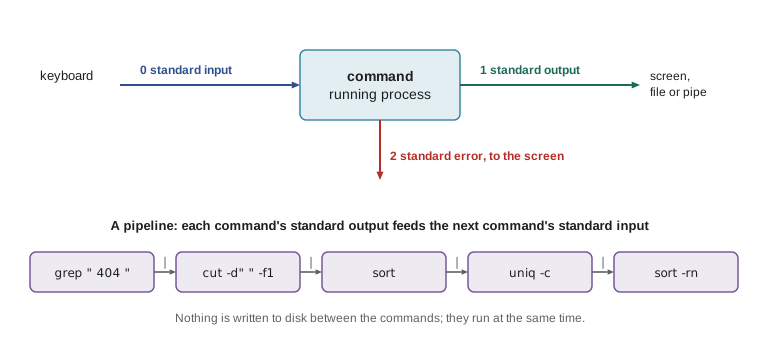
Redirection changes where these streams go. A greater-than sign after a command sends standard output to a file, replacing whatever the file held. Two greater-than signs append to the file instead. Putting the number 2 in front redirects standard error. A less-than sign feeds a file into standard input. And the special file /dev/null swallows anything written to it, which is how you discard output you do not want.
| Syntax | Effect |
|---|---|
| command > file | Standard output to file, replacing its contents |
| command >> file | Standard output appended to the end of file |
| command 2> file | Standard error to file |
| command > file 2>&1 | Both output and errors to the same file |
| command < file | Standard input read from file |
| command 2> /dev/null | Errors discarded |
> ls /srv/ridgeline /nonexistent > listing.txt
ls: cannot access '/nonexistent': No such file or directory
> cat listing.txt
/srv/ridgeline:
roastlog
shop
> date >> checks.log
> df -h /srv >> checks.log
> find /etc -name "*.conf" 2> /dev/null | wc -l
143
The greater-than sign is the most dangerous character in this section. Typing > when you meant >> erases the file's previous contents without any warning, and running a command such as sort roast.csv > roast.csv empties the file before sort even reads it, because the shell opens the output file first. Write to a new file and then rename it instead.
Pipes: joining commands together
A pipe, written with the vertical bar |, connects the standard output of one command to the standard input of the next. The commands run at the same time, with data flowing between them, and nothing is written to disk in between. Pipes let you build a custom tool on the spot out of simple parts. The idea came from Doug McIlroy at Bell Labs and was added to Unix in 1973, and it remains the heart of command-line work.
> grep "POST /checkout" /var/log/nginx/access.log | wc -l
312
> grep " 500 " /var/log/nginx/access.log | tail -n 3
> cut -d' ' -f1 /var/log/nginx/access.log | sort | uniq -c | sort -rn | head -n 5
   1840 203.0.113.88
    411 198.51.100.17
    207 192.0.2.44
    190 192.0.2.61
    122 198.51.100.200
> grep -c "sunrise-blend" /var/log/nginx/access.log
Read the third pipeline from left to right. cut -d' ' -f1 splits each line of the web server log at spaces and keeps the first field, the client's address. sort puts identical addresses next to each other. uniq -c collapses each run of identical lines into one, with a count in front. sort -rn sorts those counts as numbers, largest first. head -n 5 keeps the top five. The answer, that one address made 1,840 requests, is a clue worth following up, and lesson 9 shows what Jordan found.
The text-processing toolbox
The tools used in pipelines are worth knowing individually. Each has many options, which man describes, but a few of each cover most needs.
| Tool | Job | Common options |
|---|---|---|
| grep pattern | Keep lines that match a pattern | -i ignore case, -v invert, -c count, -n line numbers, -r search directories, -E extended patterns |
| sort | Sort lines | -n numeric, -r reverse, -k2 by second field, -t, field separator, -u unique |
| uniq | Collapse adjacent duplicate lines (sort first) | -c count, -d only duplicates |
| cut | Keep selected columns | -d delimiter, -f field numbers |
| wc | Count lines, words and characters | -l lines, -w words, -c bytes |
| tr | Translate or delete characters | tr a-z A-Z, tr -d to delete |
| sed | Edit a stream, for example find and replace | s/old/new/g, -i to edit a file in place |
| tee | Copy input to a file and to standard output | -a to append |
| xargs | Turn input lines into arguments for another command | -n to limit arguments per run |
The grep command is the one you will use most. Its name comes from a command in an early Unix editor, g/re/p, meaning globally search for a regular expression and print. A regular expression is a pattern language for text: a dot matches any character, a caret anchors the start of a line, square brackets match a set and an asterisk repeats what comes before. You can go a long way with plain words, though, and grep -i error /var/log/syslog is often all you need.
Here is the busiest-address pipeline written in Python, using the Counter class from the collections module. Seeing the same steps in both forms makes the shell version easier to remember, and the Python version is easier to extend when the question gets more complicated.
from collections import Counter

log = """203.0.113.88 - - [03/Nov/2026:08:01:12 +0000] "GET /shop HTTP/1.1" 200 5123
198.51.100.17 - - [03/Nov/2026:08:01:15 +0000] "GET /shop/sunrise-blend HTTP/1.1" 200 4210
203.0.113.88 - - [03/Nov/2026:08:01:16 +0000] "GET /wp-login.php HTTP/1.1" 404 162
192.0.2.44 - - [03/Nov/2026:08:02:40 +0000] "POST /checkout HTTP/1.1" 200 811
203.0.113.88 - - [03/Nov/2026:08:02:41 +0000] "GET /.env HTTP/1.1" 404 162
198.51.100.17 - - [03/Nov/2026:08:03:02 +0000] "POST /checkout HTTP/1.1" 500 97"""

lines = log.splitlines()
addresses = Counter(line.split()[0] for line in lines)        # cut | sort | uniq -c
for addr, count in addresses.most_common(2):                  # sort -rn | head
    print(count, addr)
statuses = Counter(line.split()[8] for line in lines)
print("By status:", dict(sorted(statuses.items())))
print("Checkouts:", sum("POST /checkout" in line for line in lines)) # grep | wc -l3 203.0.113.88
2 198.51.100.17
By status: {'200': 3, '404': 2, '500': 1}
Checkouts: 2Worked problem
Which coffees sell best online?
Theo wants to know which product pages were viewed most yesterday. Every product page has an address of the form /shop/ followed by the product name. Build a pipeline over the access log that lists the top three product pages.
Show solution
- Keep only successful product page requests: grep " 200 " access.log | grep -o "GET /shop/[a-z-]*". The -o option prints only the matching part of each line.
- Remove the GET and the /shop/ prefix so that only the name remains: pipe through cut -d/ -f3.
- Count each name: sort | uniq -c.
- Order by count and keep three: sort -rn | head -n 3.
- The result shows sunrise-blend with 412 views, espresso-ridge with 268 and ethiopia-guji with 190, which Theo compares with actual sales.
Answer: grep " 200 " access.log | grep -o "GET /shop/[a-z-]*" | cut -d/ -f3 | sort | uniq -c | sort -rn | head -n 3
Try it yourself
A small grep
Write grep(lines, word, ignore_case=False, invert=False) that returns the list of lines containing word. With ignore_case=True the match ignores capitals, like grep -i; with invert=True it returns the lines that do not match, like grep -v.
def grep(lines, word, ignore_case=False, invert=False):
    return lines


log = ['GET /shop 200', 'POST /checkout 500', 'GET /Checkout 200']
print(grep(log, 'checkout'))
Try it yourself
Top addresses in a web log
Write top_addresses(log_text, n) that returns a list of (count, address) tuples for the n busiest client addresses in a web server log, busiest first, just like cut -d" " -f1 | sort | uniq -c | sort -rn | head -n N. Break ties by address in alphabetical order.
def top_addresses(log_text, n):
    return []


sample = '1.1.1.1 GET /\n2.2.2.2 GET /\n1.1.1.1 GET /shop'
print(top_addresses(sample, 2))
Try it yourself
Count like wc
Write wc(text) that returns a tuple (lines, words, characters) the way wc counts them: lines is the number of newline characters, words are separated by any whitespace, and characters counts every character.
def wc(text):
    return (0, 0, 0)


print(wc('Sunrise Blend\nEthiopia Guji\n'))
Common mistakes
MistakeTyping > when you meant >>, wiping a log or configuration file.
InsteadUse >> to append; copy important files before redirecting into them.
MistakeSorting a file into itself, as in sort data.csv > data.csv.
InsteadWrite to a new file, check it, then rename it over the original.
MistakeUsing uniq without sorting first.
Insteaduniq only collapses adjacent duplicates, so put sort before it.
MistakeRunning rm -rf with a variable path or a stray space.
InsteadCheck the path with ls first, prefer rm -i by hand, and keep backups.
MistakeGetting stuck in vim.
InsteadPress Esc, then type :q! to quit without saving or :wq to save and quit.
MistakeForgetting to quote a pattern, so the shell expands it before find or grep sees it.
InsteadQuote patterns meant for the command, as in find /etc -name "*.conf".
Summary and key terms
- touch, mkdir -p, cp, mv and rm manage files; there is no recycle bin, so delete with care.
- cat, less, head, tail and wc show and count text; tail -f follows a log live.
- nano is simple; in vim, i inserts, Esc leaves insert mode and :wq or :q! leaves the editor.
- Wildcards such as *, ? and [0-9] are expanded by the shell before the command runs.
- Every program has standard input, output and error; > and >> redirect output, 2> redirects errors, < feeds input.
- A pipe | connects one command's output to the next command's input, building tools from small parts.
- grep, sort, uniq, cut, tr, sed, tee and xargs are the core text-processing tools.
- wildcard (glob)
- A pattern such as *.csv that the shell expands into matching file names.
- standard input
- Stream 0, where a program reads its input.
- standard output
- Stream 1, where a program writes its results.
- standard error
- Stream 2, where a program writes error messages.
- redirection
- Sending a stream to or from a file instead of the terminal.
- pipe
- A connection that feeds one command's output into the next command's input.
- pipeline
- A chain of commands joined by pipes.
- regular expression
- A pattern language for matching text, used by grep, sed and many programming languages.
- /dev/null
- A special file that discards anything written to it.
Practice problems
Work each problem on paper first, then reveal the answer to check.
Write a command that appends the current date to ~/checks.log.
Show answer
date >> ~/checks.log
How would you count the lines in /var/log/auth.log that contain Failed password?
Show answer
grep -c "Failed password" /var/log/auth.log
What is wrong with uniq -c names.txt if names.txt is not sorted?
Show answer
Duplicates that are not next to each other are counted separately; sort first: sort names.txt | uniq -c.
Which wildcard pattern matches roastlog-2026-11-10.sql.gz to roastlog-2026-11-19.sql.gz?
Show answer
roastlog-2026-11-1[0-9].sql.gz
Write a pipeline that shows the ten most common words in notes.txt.
Show answer
tr -s " " "\n" < notes.txt | sort | uniq -c | sort -rn | head -n 10, or an equivalent.
How do you save a file and quit in nano?
Show answer
Ctrl+O and Enter to save, then Ctrl+X to exit.
Lesson quiz · 5 questions
Score 60% or more to complete this lesson.
Create a free account to save your progress, take quizzes and earn a certificate.