
MSBA-303 · Lesson 4 of 12 · 23 min
Copilot Chat in the IDE and on GitHub
▶ Video coming soon A video version of this lesson is on the way.
Completions answer the question "what comes next?". Many tasks need a conversation instead: "what does this file do?", "why does this test fail?", "how would I add caching here?". On May 26 Priya moved the series to Copilot Chat, the conversational side of Copilot, and to the places it appears: the code editor, GitHub.com, GitHub Mobile and the terminal through Copilot CLI. Dmitri had used chat mostly as a search box. By the end of the session he was using it to explain, fix, test and plan, and he had learned which answers to trust least.
Chat in the editor
In Visual Studio Code, chat opens in a side panel, in a quick chat box, or inline inside the file you are editing. The panel is for longer conversations; inline chat, opened with Ctrl+I (Cmd+I on a Mac), is for a change to the code in front of you, such as "add input checking to this function", and shows the result as a proposed edit you accept or discard. Other supported editors offer similar panels and inline chat with their own keys.
The editor's chat panel offers modes that set how much Copilot may do. In ask mode it answers questions and proposes code that you copy or apply yourself. In edit-style modes it proposes changes to the files you name, which you review as a set of differences before accepting. In agent mode it can decide which files to read and change, run terminal commands and tests, and repeat until the goal is met, asking for approval before actions such as running a command; lesson 5 covers agent mode. Mode names and the exact list change between versions, so check your editor, but the idea of choosing how much autonomy to give is stable.
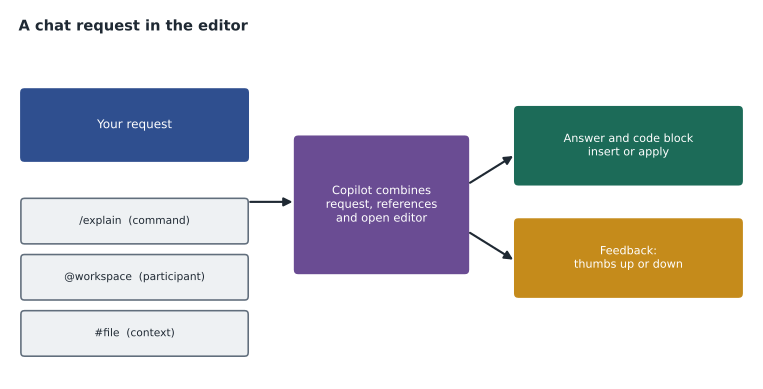
Slash commands, participants and context references
Chat understands three kinds of shorthand. Slash commands name a common task. Chat participants, written with @, direct the question to a specialist that knows about a particular area. Context references, written with # or added with an attach button, put specific files, selections or other material into the prompt. They save typing, and, more importantly, they tell Copilot what to look at instead of leaving it to guess.
| Shorthand | Example | What it does |
|---|---|---|
| /explain | /explain with a function selected | Explains the selected code in plain language |
| /fix | /fix on a failing line | Proposes a fix for a problem in the selection |
| /tests | /tests for a selected function | Drafts unit tests |
| /doc | /doc on a function | Drafts a documentation comment |
| /new | /new static site with a data folder | Scaffolds a new project or file |
| /clear | /clear | Starts a fresh conversation without earlier history |
| @workspace | @workspace where is the date parsed? | Searches the open project to answer |
| @terminal | @terminal why did this command fail? | Uses the editor's terminal output |
| @github | @github open issues labelled correction | Uses GitHub data such as issues and pull requests |
| #file, #selection, #codebase | compare #file:parser.py with #file:loader.py | Adds named files, the selection or a project search to the context |
Worked problem
Choosing what to put in the prompt
A test in trailcheck fails with a date error. Dmitri can ask "why does my test fail?" or he can select the failing test, attach the parser file and the error output, and ask the same thing. Which is better, and why?
Show solution
- The bare question leaves Copilot to guess which test and which code are involved.
- Selecting the test and attaching the parser file puts the two most relevant pieces in the context.
- Including the error output gives the exact message instead of a description of it.
- A narrower, richer prompt produces a more specific answer that is easier to check.
Answer: The second. Telling Copilot exactly what to look at gives it the evidence a human reviewer would want too.
Chat history and starting fresh
Within one conversation, chat sends earlier questions and answers back to the model with each new request, so follow-up questions such as "now make it handle empty lines" work. History also has a cost: an earlier wrong assumption carries forward, and a long conversation uses more of the model's context window and more credits for heavier models. Priya's rule was one conversation per task. When the topic changes, start a new chat or use /clear, so that old context does not leak into a new question.
Chat on GitHub.com
On GitHub.com, Copilot Chat opens from the Copilot icon at the top of most pages and from buttons on files, issues and pull requests. It can answer questions about a repository's code, summarize an issue thread, explain a file you are viewing, help write an issue, or explain a failed Actions run. On pull requests, Copilot can write a pull request summary: a description of what changed and why, drafted from the diff, which the author edits before posting. Code review, which is different, is covered in lesson 6.
GitHub.com also offers Copilot Spaces, collections of files, notes, issues and instructions that a person or team curates for a topic, so that chat answers from that chosen material rather than from whatever it happens to find. Priya created a space called "TrailCheck data format" with the format specification, the parser and three example reports, and shared it with the web team. Questions asked in the space were answered from those sources, which made answers more consistent.
| On GitHub.com | Good for | Watch for |
|---|---|---|
| Chat about a repository | Finding where something happens, explaining a file | Answers based on an index that may lag recent pushes |
| Issue and discussion summaries | Catching up on a long thread | Summaries that miss a late decision |
| Pull request summaries | A first draft of a description | Claims about intent that the diff does not show |
| Explaining a failed workflow run | A starting point for debugging | Guesses when the log is incomplete |
| Copilot Spaces | Answers grounded in chosen sources | Spaces going stale as the code changes |
GitHub Mobile
GitHub Mobile includes Copilot Chat for questions about repositories, issues and pull requests on a phone or tablet. It is handy for reading and triage away from a desk, for example asking for a summary of a pull request before approving a small change. It is not a place for careful code review, and by default chats on GitHub.com and in GitHub Mobile are kept for a limited time, unlike editor chats; lesson 8 explains the difference.
Copilot CLI
Copilot CLI brings Copilot to the terminal. It is a separate program, installed with a package manager, that you start in a project folder and talk to in plain language. It can explain a command, suggest the right one for a task, write a short script, read and change files in the folder, and run commands, asking for approval before it uses a tool that changes anything. It can be used interactively, as a conversation, or programmatically, by passing a single request on the command line, for example in a script. An earlier GitHub CLI extension offered command suggestions and explanations; it has been replaced by the newer standalone tool, which is the one the current study guide describes.
# start an interactive session in the project folder
cd trailcheck
copilot

# example requests typed into the session
> explain what the build script in package.json does
> find every place we read reports/*.csv and list them
> write a shell command that counts reports filed in May 2027
Rosa was cautious about the CLI because it can run commands. Priya showed the approval prompts: before running a command or editing a file, the CLI says what it intends to do and waits for yes, yes for the rest of the session, or no. The team agreed to answer yes one step at a time in shared repositories and never to approve commands they could not read.
Dmitri used the CLI that afternoon to write a one-line command that counted trail reports by condition for the Moncton office's weekly summary. He checked the command's output against a count he did by hand for one day before trusting it for the week.
Checking a chat answer
Chat answers sound authoritative, which makes their errors easy to miss. Priya gave Dmitri three checks. First, verify claims against the code: if chat says a function is called in three places, search for it. Second, run proposed code before relying on it, especially commands. Third, ask for sources: when chat refers to documentation or a library behaviour, open the official page. She also showed the feedback buttons, thumbs up and down on each response, which send feedback to GitHub and are part of how the product improves; they do not change the answer you were given.
Worked problem
Checking a claimed count
Chat says the date parser is called "in four places" in trailcheck. A project-wide search finds the function name in six lines: its definition, a comment, and four calls. Was chat right?
Show solution
- Six matches in total include the definition and a comment.
- Calls: 6 - 1 definition - 1 comment = 4.
- Chat's count of four calls matches.
Answer: Yes. Checking took a minute and confirmed the answer; when the numbers do not match, trust the search.
Limits worth knowing
Chat has limits that the exam expects you to know. Its view of a project is limited by the context window and by what it searches. It may not know about library versions or features released after its model was trained. Answers vary: asking the same question twice can give different responses. Heavier models use more credits, and organization policies can restrict which models and features are available. Chat can also be wrong with great confidence, which is why responsibility stays with the person.
Chat for learning a codebase
One of chat's most valuable uses is orientation. When Lena joined in March she spent her first days reading trailcheck to understand how it fitted together. With chat she could ask "where does a trail report go from the moment it is submitted to the moment it appears on the site?", get a walk-through naming the files involved, and then open each file to check. Priya encouraged this kind of question because it is easy to verify: every claim names a file or function you can look at. She discouraged questions such as "is this code good?", which invite confident opinions that are hard to check and easy to over-trust.
Chat is also useful for explaining things that are not code at all but sit next to it: a build log, an error message, a configuration file, a regular expression someone wrote years ago. Selecting the text and using /explain usually gives a clear first reading. For anything that matters, such as a security setting or a deployment step, the official documentation is still the source of truth, and the habit of opening it after reading Copilot's explanation catches most errors.
Applying code from chat
Chat answers often contain code blocks with buttons to copy the code, insert it at the cursor, or apply it to the file as a proposed edit. Applying an edit shows the change as a difference you can accept or reject, which is safer than pasting, because you see exactly what will change, including lines removed. Priya's rule was to apply rather than paste whenever the editor offers it, and to run the tests after accepting any change from chat. When chat proposes changes to several files, review each file's difference separately; it is easy to accept a set of changes because the first one looked right.
Worked problem
Choosing the right surface
Dmitri has three tasks: understand a long pull request discussion before a meeting, fix a failing test on his laptop, and find the right command to compress a folder of images on the build server. Which Copilot surface suits each?
Show solution
- The pull request discussion is on GitHub.com, so chat there can summarize the thread with the page as context.
- The failing test is in his editor, so inline chat or the chat panel with the test selected and the error attached suits it.
- The command is a terminal task, so Copilot CLI can suggest and explain it, and he approves before anything runs.
Answer: GitHub.com chat for the discussion, editor chat for the test, and Copilot CLI for the command. Each surface sees the context closest to the task.
Common mistakes
MistakeAsking vague questions and letting Copilot guess what to look at.
InsteadSelect code and attach files, errors and output with context references.
MistakeKeeping one long conversation for unrelated tasks.
InsteadStart a new chat or use /clear when the task changes.
MistakeApproving every CLI action automatically.
InsteadRead each proposed command; approve one step at a time in shared work.
MistakeTreating pull request summaries as accurate descriptions of intent.
InsteadEdit them; the diff shows what changed, not always why.
Summary and key terms
- Copilot Chat works in the editor panel, inline in files, on GitHub.com, on GitHub Mobile and in the terminal through Copilot CLI.
- Editor modes range from asking questions to proposing edits to agent mode, which acts on files and commands with approval.
- Slash commands, @ participants and # context references tell Copilot what to do and what to look at.
- Chat history carries context forward; start fresh when the task changes.
- On GitHub.com, chat can summarize issues and pull requests and answer from curated Copilot Spaces.
- Copilot CLI is a standalone terminal assistant that asks before running commands or changing files.
- Inline chat
- Chat opened inside a file to propose an edit to the code in front of you.
- Slash command
- A shorthand such as /explain or /tests that names a common chat task.
- Chat participant
- A specialist addressed with @, such as @workspace or @github.
- Context reference
- A # reference or attachment that adds files, selections or other material to a prompt.
- Copilot Spaces
- Curated collections of sources that chat answers from.
- Copilot CLI
- A standalone command-line assistant that answers questions, writes scripts and works on files.
Practice problems
Work each problem on paper first, then reveal the answer to check.
Which slash command drafts unit tests for selected code?
Show answer
/tests.
Why start a new chat when the task changes?
Show answer
So earlier history and assumptions do not carry into the new question and context is not wasted.
What does Copilot CLI do before running a command that changes files?
Show answer
It says what it intends to do and asks for approval.
Lesson quiz · 5 questions
Score 60% or more to complete this lesson.
Create a free account to save your progress, take quizzes and earn a certificate.