
MSBA-303 · Lesson 11 of 12 · 20 min
Managing Copilot in an organization
▶ Video coming soon A video version of this lesson is on the way.
By the July 14 session the pilot had run for eight weeks with four seats, and the question had changed from "should we buy Copilot?" to "how do we run it?". Rosa, as an organization owner, had been doing the work quietly: enabling Copilot, assigning seats, setting policies, watching usage and cost. She walked the team through it, because the GH-300 study guide expects candidates to know how organization-wide settings, policies, audit log events and subscriptions are managed, including through the REST API, and because Dmitri would one day be the person doing it.
Turning Copilot on for an organization
An organization gets Copilot Business by subscribing in its settings, with a payment method on file; in an enterprise, an enterprise owner first makes Copilot available to the organization. Once subscribed, owners choose who can have seats: no one yet, all members, or selected teams and people. They then set the policies from lesson 9 and the content exclusions, and decide how extra usage beyond the included allowance is handled. Only after that do they assign seats, so that people start with the intended settings rather than the defaults.
| Step | Where | Tidewater's choice |
|---|---|---|
| Subscribe to Copilot Business | Organization settings, billing | Monthly, payment by company card |
| Set policies | Organization settings, Copilot policies | Features on except previews; public code blocked; approved models |
| Set content exclusions | Organization and repository settings | Rules from lesson 9 |
| Set budgets for extra usage | Billing, budgets and alerts | Alert at 15 and stop at 20 US dollars a month |
| Choose who can get seats | Copilot access settings | Selected teams: web, plus Owen |
| Assign seats | Copilot access settings or REST API | 4 seats in the pilot |
Seats: assigning, removing and reviewing
Seats can be assigned to individual members or to teams. Assigning by team is easier to maintain, because joining or leaving the team adds or removes the seat. Seats are billed for the part of the month they are assigned. Removing a seat takes effect at the end of the current billing cycle, and the person keeps access until then. People removed from the organization lose their seat. Owners can see each seat's last activity date and the editor it was last used in, which is the basis of a regular seat review: a seat unused for 30 days or more is a candidate for removal.
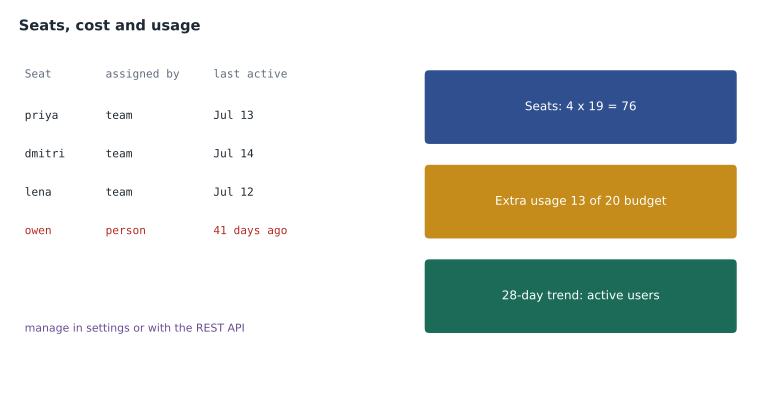
Seats can also be managed with the GitHub REST API, which matters for larger organizations that want to automate assignment from a staff directory or remove seats automatically when people leave. The Copilot user management endpoints let an authorized script list seats with their last activity, add seats for users or teams, and remove them. An owner or a token with the right permission is needed. Rosa did not need automation for four people, but she showed the idea so Dmitri would recognize it on the exam.
# list Copilot seats for the organization (GitHub CLI calling the REST API)
gh api /orgs/tidewater-guides/copilot/billing/seats

# add seats for two users
gh api --method POST /orgs/tidewater-guides/copilot/billing/selected_users \
  -f "selected_usernames[]=lena-fischer" -f "selected_usernames[]=owen-tremblay"

# remove a seat
gh api --method DELETE /orgs/tidewater-guides/copilot/billing/selected_users \
  -f "selected_usernames[]=former-intern"
A seat review
At the end of the pilot Rosa exported the seat list and ran a quick review. She also considered what the same review would look like after the planned expansion to eight people. Priya wrote it as a small script so the numbers could be rerun each month.
from datetime import date

seats = {  # person: last activity date
    "priya": date(2027, 7, 13),
    "dmitri": date(2027, 7, 14),
    "lena": date(2027, 7, 12),
    "owen": date(2027, 6, 3),
}
today = date(2027, 7, 14)
price = 19  # US dollars per seat per month

inactive = [p for p, d in seats.items() if (today - d).days >= 30]
print("inactive 30+ days:", inactive)
print("monthly saving if removed:", len(inactive) * price, "US dollars")
print("annual saving:", len(inactive) * price * 12, "US dollars")inactive 30+ days: ['owen'] monthly saving if removed: 19 US dollars annual saving: 228 US dollars
What this code does
The example lists each person with a Copilot seat and the last date they used it, then compares each date with today. Anyone who has not used Copilot for 30 days or more is listed as inactive, and the script multiplies the number of inactive seats by the seat price to show the monthly and yearly saving from removing them. Here only Owen's seat is inactive, 41 days since his last use, so removing it would save 19 US dollars a month and 228 a year.
Owen's seat had gone quiet because the data project he used it for had finished. Rather than remove it, Rosa asked him first: he expected to need Copilot again in September for the autumn data refresh. They agreed to remove the seat at the end of the cycle and reassign it when the work started. The point of a seat review is a conversation, not just a deletion.
Usage metrics
Business plans include Copilot usage metrics: dashboards and an API that show how Copilot is used across the enterprise or organization. The dashboard shows trends over 28 days, including daily and weekly active users, engagement such as chat requests per active user, the acceptance rate of suggestions, lines of code suggested, added and deleted, and pull request measures such as time to merge and Copilot review activity. Access can be given to people beyond owners through a custom role with permission to view Copilot metrics. Data for a day is available within about two days. The metrics cover editor, CLI and agent activity but not chat on GitHub.com or GitHub Mobile, and the richest data depends on people having telemetry turned on in their editors.
| Metric | What it suggests | What it does not prove |
|---|---|---|
| Active users | Whether people are using their seats | Whether use is valuable |
| Acceptance rate | How often suggestions look useful in the moment | Whether accepted code was correct or kept |
| Lines suggested and added | How much Copilot contributes to new code | Quality, or that more lines are better |
| Chat requests per user | How much people rely on chat | That answers were right |
| Pull request time to merge | Changes in flow of work | That Copilot caused the change |
Worked problem
Reading the pilot metrics
Over 28 days the pilot shows: 3.2 average daily active users out of 4 seats, 6,400 suggestions shown and 1,920 accepted, and median pull request time to merge falling from 26 hours to 19. What do these numbers say?
Show solution
- Daily use: 3.2 / 4 = 0.8, so most seats are used most days.
- Acceptance rate: 1,920 / 6,400 = 0.3, or 30 in 100.
- Time to merge fell by 26 - 19 = 7 hours, about 27 in 100.
- The fall may also reflect Copilot code review catching simple problems earlier, a quiet month, or smaller pull requests.
Answer: Seats are well used and suggestions are useful about 3 times in 10. The faster merges are encouraging but not proof; the team would compare with the same months last year and ask people what changed.
Cost and budgets
Lesson 2 introduced AI credits and budgets. Running Copilot means watching both parts of the bill each month: seat charges, which are predictable, and metered usage beyond the pooled allowance, which varies with agent sessions, code reviews and heavier models. Budgets with alerts keep metered usage visible; cost centres in larger enterprises assign usage to departments. Agent sessions also use Actions minutes or cloud compute, which have their own allowance and billing.
Worked problem
A month's bill
In the last pilot month Tidewater had 4 seats at 19 US dollars, a pooled allowance of 7,600 credits, and used 8,900 credits. Extra usage costs one cent a credit. What was the Copilot bill, and was it within the 20-dollar budget for extra usage?
Show solution
- Seats: 4 x 19 = 76 US dollars.
- Extra credits: 8,900 - 7,600 = 1,300 credits = 13 US dollars.
- Total: 76 + 13 = 89 US dollars.
- The alert is set at 15 dollars and the stop at 20; 13 dollars is below both, so no alert was sent.
Answer: 89 US dollars, with 13 dollars of extra usage, inside the budget and below the alert threshold.
Rosa reported the pilot's cost in Canadian dollars to the owners, converting the 89 US dollars at that month's rate, and showed the four-month projection for eight seats alongside it.
Audit, network and support
Three more administrative tasks round out the job. The audit log records Copilot events such as seats added and removed, policy changes and content exclusion edits; Rosa reviewed them monthly. Some company networks use proxies or firewalls that inspect traffic; Copilot needs to reach specific GitHub addresses, and the documentation lists the hosts to allow and how to configure editors for a proxy. Tidewater's office network needed no changes, but the partner publisher's did. Finally, support and feedback: users report problems through their editor or GitHub Support, and owners can check GitHub's status page when Copilot is unavailable for everyone.
Enablement: helping people use it well
Buying seats does not make people effective. Rosa and Priya planned a short enablement programme for the expansion: a one-hour introduction covering this course's main points, a shared page of team rules (no secrets or personal data in prompts, read before Tab, agent work through pull requests), the instructions files from lesson 6, and a monthly half-hour where people share one thing that worked and one that did not. MSBA-304 covers team practices in more depth. Usage metrics would show whether new users were active; conversations would show whether they were getting value.
Who can do what
Running Copilot needs a small number of people with specific permissions, not every owner. Organization owners can do everything. GitHub also offers custom organization roles with granular permissions, so that, for example, a team lead can view Copilot metrics or manage seats for their team without becoming an owner. Billing managers can see Copilot charges. In an enterprise, enterprise owners and people with AI control permissions set enterprise-wide policies. Tidewater kept it simple: Rosa and Priya as owners, Dmitri given a custom role to view metrics so he could prepare the monthly review.
| Task | Who can do it |
|---|---|
| Subscribe and set policies | Organization owners, or people with the right custom permissions |
| Assign and remove seats | Organization owners, or a custom role with that permission |
| View usage metrics | Owners, or a custom role with permission to view Copilot metrics |
| See Copilot charges | Owners and billing managers |
| Set enterprise-wide AI controls | Enterprise owners and people with AI control permissions |
Troubleshooting common problems
Rosa kept a short list of the problems people actually reported and their usual causes. "Copilot is not working at all" was usually a sign-in problem in the editor or a seat not yet assigned. "Copilot works on my laptop but not at the partner's office" was a proxy or firewall blocking GitHub's addresses. "I cannot select a model my colleague uses" was a model policy or a different organization providing the seat. "No suggestions in one file" was usually content exclusion working as intended. And "suggestions stopped mid-month" could be a budget stop on heavier features, though completions on paid plans keep working.
Owners also need a plan for people leaving. When someone leaves the organization, their seat is removed with their membership, and their Copilot access through Tidewater stops at the end of the cycle. Any personal plan they buy afterwards is their own business, but company code must not go with them; that is covered by the ordinary offboarding steps from MSBA-161, such as removing them from teams and reviewing outside collaborator access. Rosa added "check Copilot seat" to the offboarding checklist so it would never be forgotten.
Common mistakes
MistakeAssigning seats before setting policies and exclusions.
InsteadSet policies, exclusions and budgets first, then assign seats.
MistakeRemoving inactive seats without asking.
InsteadUse the seat review to start a conversation; reassign when work resumes.
MistakeTreating acceptance rate or lines of code as proof of value.
InsteadRead metrics as signals and combine them with people's experience.
MistakeWatching only seat charges.
InsteadWatch metered usage and Actions compute too, with budgets and alerts.
Summary and key terms
- Organizations subscribe to Copilot Business, set policies, exclusions and budgets, then assign seats to members or teams.
- Seat removal takes effect at the end of the billing cycle; last activity dates support regular seat reviews.
- The REST API can list, add and remove seats for automation.
- Usage metrics show active users, acceptance rate, lines of code and pull request measures over 28 days, with limits on what they prove.
- Bills combine seat charges and metered usage; budgets, alerts and cost centres keep usage visible.
- The audit log, network configuration, support and enablement are part of running Copilot well.
- Seat review
- A regular check of seat activity to find unused seats.
- Last activity date
- The most recent date a seat was used, shown to owners.
- Usage metrics
- Dashboards and API data about how Copilot is used in an enterprise or organization.
- Cost centre
- A grouping used to assign usage and cost to part of an enterprise.
- Telemetry
- Usage data sent by editors that metrics depend on.
Practice problems
Work each problem on paper first, then reveal the answer to check.
When does removing a Copilot seat take effect?
Show answer
At the end of the current billing cycle.
Name two things usage metrics do not cover or prove.
Show answer
Any two of: chat on GitHub.com and Mobile, whether accepted code was correct, whether Copilot caused faster merges, value to the business.
Why assign seats by team rather than by person?
Show answer
Joining or leaving the team adds or removes the seat automatically.
Lesson quiz · 5 questions
Score 60% or more to complete this lesson.
Create a free account to save your progress, take quizzes and earn a certificate.