
MSAZ-340 · Lesson 8 of 12 · 21 min
Automated investigation and response
▶ Video coming soon A video version of this lesson is on the way.
When the clerk's laptop alert fired on November 5, automated investigation had already examined the device, found the malicious scheduled task and proposed removing it before Ama opened the case. The proposal waited in the action center for 26 minutes until she approved it. Nadia asked her afterwards whether a person had added anything in those 26 minutes. Ama's honest answer was no. This lesson explains how automated investigation and response works in Defender for Endpoint and Defender for Office 365, how automation levels decide what it may do on its own, and how Harrow & Finch reviewed its settings at the end of October.
What automated investigation does
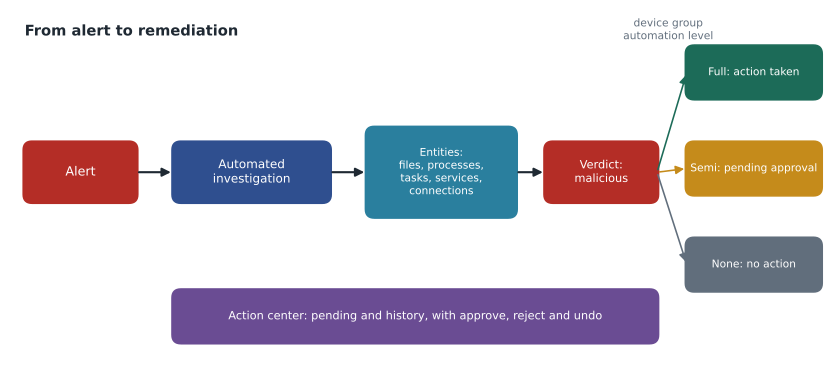
Automated investigation and response, or AIR, starts when certain alerts fire. It examines the entities involved, such as files, processes, services, drivers, scheduled tasks, registry keys, network connections, email messages and users, assigns each a verdict of malicious, suspicious or no threats found, and proposes or takes remediation actions for the malicious ones. As it works it can widen its scope: if a malicious file on one device is found on others, the investigation can add those devices. The investigation page shows a graph of what was examined, the evidence and verdicts, the actions, a log, and the entities still pending.
The point of AIR is capacity. Microsoft built it so that the common, well-understood cases, a malicious file with a known persistence mechanism or a phishing message delivered to many inboxes, are handled in minutes without waiting for a human, leaving analysts free for cases that need judgement. It is not a replacement for investigation: it examines what its playbooks know how to examine, and it does not know the business context that told Nadia a distribution centre laptop should never have accepted that installer.
Automation levels
In Defender for Endpoint, each device group has an automation level that decides what AIR does with remediation actions. Full, remediate threats automatically, means actions run as soon as AIR reaches a malicious verdict. The semi-automatic levels require approval, either for any remediation, for remediation of files in core folders such as the operating system folders, or for files outside temporary folders. No automated response means AIR does not run on the group's devices at all, which Microsoft advises against. Microsoft's recommendation, and the default for new tenants, is Full; many organizations nevertheless start more cautiously and move to Full as they build confidence.
| Automation level | What happens to remediation actions |
|---|---|
| Full - remediate threats automatically | Actions run as soon as a malicious verdict is reached |
| Semi - require approval for core folders remediation | Approval needed for files in operating system and program folders; others run automatically |
| Semi - require approval for non-temp folders remediation | Approval needed except for files in temporary folders such as the user's download and temp folders |
| Semi - require approval for any remediation | Every action waits for approval |
| No automated response | Automated investigation does not run on these devices |
Before October 30, Harrow & Finch's device groups had been set cautiously during the rollout: every group except Head office required approval for any remediation. Nadia asked Ama to measure what that caution cost, using the action center history for the previous 30 days.
# Pending actions in the last 30 days: (device group, minutes waiting for approval)
waits = [("Distribution", 38), ("Distribution", 190), ("Stores", 45), ("Stores", 410),
         ("Stores", 15), ("Finance", 12), ("Servers", 95), ("Stores", 230),
         ("Distribution", 75), ("Servers", 640), ("Stores", 18)]

from collections import defaultdict
by_group = defaultdict(list)
for g, m in waits:
    by_group[g].append(m)

for g, ms in sorted(by_group.items()):
    avg = sum(ms) / len(ms)
    print(f"{g:<13} {len(ms):>2} actions  average wait {avg:6.1f} min  longest {max(ms):>3} min")
all_m = [m for _, m in waits]
print(f"All groups {len(all_m):>2} actions average wait {sum(all_m) / len(all_m):6.1f} min")Distribution 3 actions average wait 101.0 min longest 190 min Finance 1 actions average wait 12.0 min longest 12 min Servers 2 actions average wait 367.5 min longest 640 min Stores 5 actions average wait 143.6 min longest 410 min All groups 11 actions average wait 160.7 min
What this code does
The program takes each pending action from the last month with its device group and the minutes it waited for someone to approve it. It groups the waits by device group and shows the number of actions, the average wait and the longest wait in each, then the average across all groups. The output shows 11 actions waiting about 160 minutes on average, with one server action waiting 640 minutes overnight and Stores actions waiting about 144 minutes on average.
Every one of the 11 actions had been approved in the end; none had been rejected. Every one had been correct. During the longest wait, on a Saturday night, a till PC at the Steinbach store had sat with a malicious file detected but not removed for nearly seven hours. Nadia's argument to Sunil was short: the approvals were adding delay, not judgement.
Notifications and approval routines
An automation level that requires approval only works if approvers know there is something to approve. Defender XDR can send email notifications for pending actions, and the action center can be filtered by investigation, device group and action type. Harrow & Finch sends pending-action notifications for the Servers group to the on-call responder's phone, and for all other semi-automatic groups to the security mailbox, which the analyst on shift checks every hour. Nadia also asked for a weekly report of every action taken automatically on Full groups, which Ama reads on Monday mornings with one question in mind: was any action wrong? In the first month, none was.
When an approver rejects a pending action, the rejection should carry a comment explaining why, because AIR will propose the same action again if the same evidence appears. A rejected action with no explanation is a mystery to the next analyst; a rejected action with a note, such as the file being a known internal tool awaiting a signed version, is a record that can lead to a proper fix, such as an allow indicator with an expiry date.
Finally, Nadia reminded Ama that automation settings are part of the security configuration and deserve the same change control as firewall rules. The October 30 change was recorded with its evidence, its approver and its review date in the security change log, and the three-month review is already in the calendar for the end of January 2027.
Worked problem
Choosing automation levels by device group
Using the 30-day review, which automation level should each device group have? Consider how disruptive a wrong action would be, how often the group's actions were rejected (never), and how long they waited.
Show solution
- Head office and Stores: most devices are standard laptops and till PCs with no unique role. A wrongly quarantined file is a nuisance, not an outage. Set Full.
- Distribution: the same kind of devices, but receiving runs on two shifts. Set Full; the waits mostly fell outside office hours.
- Finance and Executives: devices hold sensitive data, and a wrongly removed file could disrupt month-end. A semi level with approval for core folders keeps fast removal of downloaded files while protecting system folders. Set Semi - require approval for core folders remediation.
- Servers: a wrongly removed component could stop StockLine or payments. Keep Semi - require approval for any remediation, but add an on-call approver so actions do not wait overnight.
- Record the decision, the evidence and a review date in three months.
Answer: Full for Head office, Stores and Distribution; approval for core folders on Finance and Executives; approval for any remediation on Servers with an on-call approver.
Sunil approved the change on October 30. The clerk's laptop alert on November 5 was the last one that waited under the old Distribution setting, because the change to that group was scheduled for the following week to avoid touching the busy receiving period. Since the change, AIR has remediated eight alerts on store and head office devices with no waiting, and Ama reviews each in the action center history during her shift.
The action center
The unified action center lists remediation actions from Defender for Endpoint, Defender for Office 365, automatic attack disruption and manual actions, in two tabs: pending, for actions waiting for approval, and history, for actions taken, approved, rejected or undone. Each entry shows the investigation, the entity, the action type, its status and who decided it. Approvers can approve or reject pending actions individually or in bulk, and can undo completed actions from the history, such as restoring a quarantined file or removing a scheduled task block. Notifications can be set for pending actions so approvers learn about them quickly.
| Action center tab | Shows | Ama's routine |
|---|---|---|
| Pending | Remediation actions awaiting approval | Check at the start of every shift and when notified; approve or reject with a comment |
| History | Actions taken automatically or manually, with results and undo | Review the last 24 hours of automatic actions; undo if any were wrong |
Automated investigation in Defender for Office 365
Defender for Office 365 Plan 2 runs automated investigation for email threats, triggered by alerts such as a user clicking a malicious link, a user reporting a phishing message, or a message removed after delivery. The investigation groups similar messages into email clusters, identifies the users, mailboxes and URLs involved, checks whether other messages from the same campaign were delivered, and proposes actions such as soft-deleting messages in mailboxes, blocking a URL or sender, or recommending that a user's account be checked for compromise. Email remediation actions need approval by default and appear in the action center like endpoint actions.
In Marek's case on October 20, an email investigation started from the user-reported messages and the click alert. It found the 37 delivered copies, recognized that 31 had been purged, and proposed soft-deleting the remaining six, which is the remediation Ama approved. It also flagged Marek's mailbox as potentially compromised because of the inbox rule. Nadia pointed out that the investigation had done in a few minutes the searching that Ama would otherwise have done by hand in Threat Explorer; Ama's value was in the steps AIR could not take, such as phoning suppliers.
Investigation states and verdicts
An investigation's state tells the analyst whether it needs attention. Common states include running, pending action, remediated, partially remediated, no threats found, benign, failed and terminated by system. Pending action and partially remediated need follow-up. Failed means part of the investigation could not complete, for example because a device went offline, and should be checked by hand. No threats found does not prove a device is clean; it means AIR found nothing its playbooks recognize.
Analysts can also start an investigation themselves from a device page, which is useful when an alert arrived without one or when new evidence, such as a hash from another incident, should be checked against a device. Ama started one on the second distribution centre device, the one that had downloaded the installer without running it; it found the zip, gave it a malicious verdict and, under the new Full setting, removed it within four minutes.
Exclusions and limits
Folders, file extensions and file names can be excluded from automated investigation, and indicators can allow specific files, which AIR then treats as clean. These exclusions are different from antivirus exclusions and are meant for rare cases, such as a security tool whose own files look suspicious. Every exclusion is a place where automation will not look, so Harrow & Finch has none for AIR and only the vendor certificate allow described in lesson 3.
Nadia also explained what AIR does not do. It does not reset passwords, revoke sessions, warn suppliers, or decide whether a breach must be reported. It does not change configurations that let an attack happen, such as the local administrator exception on the distribution centre laptop. Its verdicts can be wrong in both directions, which is why the history tab exists and why classifications on resolved incidents matter. Automatic attack disruption, in lesson 11, goes further than AIR by containing users and devices during an attack, but it too is a starting point for human response.
Common mistakes
MistakeRequiring approval for every action is always the safest setting.
InsteadApprovals add delay; if they rarely change the outcome, they leave threats in place longer.
MistakeNo threats found means the device is clean.
InsteadIt means the investigation found nothing its playbooks recognize; other evidence may still need checking.
MistakeOnce an action is taken it cannot be reversed.
InsteadThe action center history allows undo, such as restoring a quarantined file.
MistakeAutomated investigation handles the whole incident.
InsteadIt examines and remediates entities; credential resets, communication, root causes and reporting remain human work.
Summary and key terms
- AIR examines entities from an alert, gives verdicts and proposes or takes remediation actions.
- Automation levels per device group range from Full to semi-automatic to no automated response; Full is Microsoft's recommendation and the new-tenant default.
- Choose levels by measuring approval waits and rejection rates against the disruption a wrong action would cause.
- The action center shows pending and historical actions from all products, with approve, reject and undo.
- Defender for Office 365 Plan 2 runs email investigations that cluster messages and propose mailbox remediation.
- Investigation states such as pending action, partially remediated and failed need follow-up.
- Automated investigation and response (AIR)
- Automatic examination of alert entities with verdicts and remediation actions.
- Automation level
- The device group setting that decides whether AIR remediates automatically or waits for approval.
- Action center
- The Defender portal page listing pending and completed remediation actions with approve, reject and undo.
- Verdict
- AIR's judgement on an entity: malicious, suspicious or no threats found.
- Email cluster
- A group of similar messages that an email investigation treats together.
- Pending action
- A remediation action waiting for approval.
Practice problems
Work each problem on paper first, then reveal the answer to check.
How long did the clerk's laptop remediation wait, and did the approval add anything?
Show answer
26 minutes, and no: the proposed action was correct as proposed.
What was the average approval wait across the 11 actions?
Show answer
About 160 minutes.
Which automation level did the Servers group keep, and what was added?
Show answer
Semi - require approval for any remediation, with an on-call approver.
What did the email investigation propose for Marek's case?
Show answer
Soft-deleting the six remaining copies and checking his mailbox for compromise.
Name two things AIR does not do.
Show answer
Reset passwords or revoke sessions, and decide breach reporting; also fixing configurations that allowed the attack.
Lesson quiz · 5 questions
Score 60% or more to complete this lesson.
Create a free account to save your progress, take quizzes and earn a certificate.