
JS-210 · Lesson 4 of 12 · 26 min
Linting with ESLint
▶ Video coming soon A video version of this lesson is on the way.
On Thursday, October 28, Gareth brings a file from the counter page's history: the first version of dailyTally, the function that adds up the day's orders for Rosa Delgado's closing report. "This shipped in March," he says. "It ran, nobody complained for a week, and then Rosa noticed the evening total was always zero. Before you read it line by line, let's ask a tool."
The tool is ESLint, the standard linter for JavaScript and TypeScript. This lesson explains what a linter checks, how ESLint is configured with its flat configuration file, how rules and severities work, which problems it can fix by itself and how to make it part of everyday work without drowning in warnings.
What a linter does
A linter reads source code and reports patterns that are likely to be mistakes, or that the team has agreed to avoid. The name comes from a 1978 Unix program called lint that found suspicious C code, named after the fluff that a clothes dryer catches. A linter is a form of static analysis: it never runs the program. It parses the code into a tree that describes its structure, the abstract syntax tree, and runs a set of rules over that tree. Each rule looks for one kind of problem.
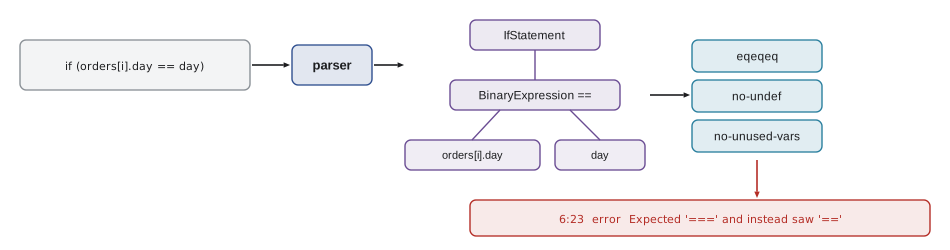
Because rules work on the structure of the code, they understand it far better than a text search. A search for == also finds === and strings that happen to contain two equals signs; the eqeqeq rule only reports a comparison whose operator is ==. The no-undef rule knows which names are declared in which scope, so it can report a misspelled variable that a text search would never notice.
| Kind of rule | Example rule | Catches |
|---|---|---|
| Possible errors | no-undef | Using a variable that was never declared, often a typo |
| Possible errors | no-dupe-keys | An object literal with the same key twice |
| Possible errors | no-unreachable | Code after a return or throw that can never run |
| Suspicious patterns | no-unused-vars | Variables, parameters and imports that are never used |
| Suspicious patterns | eqeqeq | Loose == and != comparisons that convert types |
| Best practice | prefer-const | let for a variable that is never reassigned |
| Team choice | no-console | console.log calls left in shipped code |
Running ESLint
Mira runs ESLint on a copy of that first dailyTally. The function was short, and it ran without throwing an error until the moment it reached the last line.
export function dailyTally(orders, day) {
  let count = 0;
  let total = 0;
  const label = "Tally for " + day;
  for (var i = 0; i < orders.length; i++) {
    if (orders[i].day == day) {
      count++;
      total += orders[i].total;
    }
  }
  console.log(count);
  return { count: count, total: totl };
}
What this code does
The function counts the orders for one day and is meant to add up their totals. It declares a label it never uses, compares days with a loose equals and logs the count to the console. The bug Rosa noticed is on the last line, where total is misspelled as totl.
npx eslint src/home/mira/code/counter-page/src/tally.js 4:9 error 'label' is assigned a value but never used no-unused-vars 6:23 error Expected '===' and instead saw '==' eqeqeq 8:7 error 'total' is assigned a value but never used no-unused-vars 11:3 warning Unexpected console statement no-console 12:33 error 'totl' is not defined no-undef ✖ 5 problems (4 errors, 1 warning)
What this code does
ESLint prints each problem with its line and column, its severity, a message and the rule that found it, grouped by file. The summary line counts errors and warnings. The misspelling causes two reports: totl is not defined, and total is assigned but never used, because adding to a variable does not count as reading it.
Two of those five reports point at the bug that reached Rosa, and they appear the moment the file is saved. In the counter page's original setup the misspelling only surfaced when the line ran, and then only as a ReferenceError in the browser console of a tablet nobody was watching. In March 2027 that could have been an hour of searching; with a linter it is a red underline in the editor.
The other three reports are not bugs, but each is worth a moment. The unused label is dead code that misleads a reader. The loose comparison works today because both days are strings, but would quietly treat the number 5 and the string '5' as equal. The console.log is a leftover from debugging. ESLint's job is to make the reader stop and decide.
const pairs = [[5, '5'], [0, ''], [null, undefined], [0, false], ['', false], ['Mon', 'Mon']];
for (const [a, b] of pairs) {
  const show = (v) => (typeof v === 'string' ? JSON.stringify(v) : String(v));
  console.log(`${show(a)} == ${show(b)}`.padEnd(22), String(a == b).padEnd(6), `${show(a)} === ${show(b)}`.padEnd(24), a === b);
}5 == "5" true 5 === "5" false 0 == "" true 0 === "" false null == undefined true null === undefined false 0 == false true 0 === false false "" == false true "" === false false "Mon" == "Mon" true "Mon" === "Mon" true
What this code does
Each pair is compared with the loose == and the strict === operators. The loose operator converts types before comparing, so the number 5 equals the string '5' and 0 equals both an empty string and false. The strict operator only says true when the type and the value are both the same, which is why the eqeqeq rule asks for it.
A linter in miniature
A real rule walks a syntax tree, but the idea can be shown on lines of text. The next example is a toy linter with two rules. Each rule receives the lines and returns messages with a line, a column and a rule name, and a reporter prints them in ESLint's style.
const source = [
  'let count = 0;',
  'if (day == today) count++;',
  'var label = "Tally";',
  'if (count != 0) report(count);',
];

const rules = {
  eqeqeq(lines) {
    const out = [];
    lines.forEach((line, i) => {
      const m = line.match(/[^=!]([=!]=)[^=]/);
      if (m) out.push({ line: i + 1, column: m.index + 2, message: `Expected '${m[1]}=' and instead saw '${m[1]}'` });
    });
    return out;
  },
  'no-var'(lines) {
    return lines.flatMap((line, i) => (line.startsWith('var ') ? [{ line: i + 1, column: 1, message: 'Unexpected var, use let or const instead' }] : []));
  },
};

const messages = Object.entries(rules).flatMap(([name, rule]) => rule(source).map((m) => ({ ...m, rule: name })));
messages.sort((a, b) => a.line - b.line || a.column - b.column);
for (const m of messages) console.log(`  ${m.line}:${m.column}`.padEnd(8), 'error', m.message.padEnd(42), m.rule);
console.log(`\n${messages.length} problems`);2:9 error Expected '===' and instead saw '==' eqeqeq 3:1 error Unexpected var, use let or const instead no-var 4:11 error Expected '!==' and instead saw '!=' eqeqeq 3 problems
What this code does
Each rule is a function that looks at every line and returns an array of messages. The eqeqeq rule finds a == or != that is not part of a longer operator, and no-var finds lines that start with var. The messages from all rules are joined, sorted by position and printed like ESLint's report.
Text matching is fragile: this eqeqeq would be fooled by a string containing ==. That is exactly why ESLint parses the code first. But the shape is the same: rules are small, independent functions, the linter collects their messages, and a formatter turns the messages into a report. ESLint's default report format is called stylish, and others produce JSON for tools or annotations for continuous integration.
Configuring ESLint
ESLint is configured in a file called eslint.config.js at the root of the project, the flat config format. The file is a JavaScript module that exports an array of configuration objects. Each object can say which files it applies to, which language options to use, which plugins to load and which rules to turn on. Later objects in the array override earlier ones for the files they match.
ESLint 10, released on February 6, 2026, made flat config the only format. The older .eslintrc files and .eslintignore are no longer read, eslint-env comments are reported as errors, and ESLint looks for eslint.config.js starting from the directory of each file it checks, so a project with several folders can have a config in each. ESLint 10 needs Node.js 20.19, 22.13 or 24 and later. ESLint 9 reached the end of its support on August 6, 2026, so projects still on it should move.
// eslint.config.js
import js from "@eslint/js";
import globals from "globals";
import { defineConfig } from "eslint/config";

export default defineConfig([
  { ignores: ["dist/", "coverage/"] },
  js.configs.recommended,
  {
    files: ["**/*.js"],
    languageOptions: {
      ecmaVersion: "latest",
      sourceType: "module",
      globals: globals.browser,
    },
    rules: {
      eqeqeq: "error",
      "prefer-const": "error",
      "no-console": ["warn", { allow: ["warn", "error"] }],
    },
  },
]);
What this code does
The first object tells ESLint which folders to skip, here the build output and test coverage reports. js.configs.recommended turns on the rules the ESLint team recommends for every project, such as no-undef and no-unused-vars. The last object applies to JavaScript files, tells ESLint that the code is a browser module so that document and window count as defined, and adds three team rules.
| Part | Purpose |
|---|---|
| ignores | Files and folders ESLint never checks, such as dist/ |
| files | Glob patterns for the files this object applies to |
| languageOptions.ecmaVersion | Which JavaScript syntax to accept; "latest" accepts everything standard |
| languageOptions.sourceType | "module" for import and export, "script" for classic scripts |
| languageOptions.globals | Names defined by the environment, such as document in a browser |
| plugins | Extra rules from packages, such as rules for TypeScript or accessibility |
| rules | Rules to turn on, off or change, with their severity and options |
The globals setting matters because ESLint cannot know where code will run. In a file for the counter page, document is defined by the browser; in a Node.js script it is not. The globals package lists the names each environment provides, so globals.browser tells ESLint about document, window, localStorage and the rest, and globals.node does the same for process and other Node.js names.
Severities and options
Every rule has a severity: "off" or 0 turns it off, "warn" or 1 reports a warning, and "error" or 2 reports an error. The difference matters for tools: ESLint exits with a failure code when there is at least one error, which stops a build or a continuous integration check, but warnings alone do not. Many rules also take options, given as an array after the severity, such as allowing console.warn and console.error while warning about console.log.
function exitCode(messages, { maxWarnings = Infinity } = {}) {
  const errors = messages.filter((m) => m.severity === 2).length;
  const warnings = messages.filter((m) => m.severity === 1).length;
  if (errors > 0) return { code: 1, why: `${errors} error(s)` };
  if (warnings > maxWarnings) return { code: 1, why: `${warnings} warnings, more than ${maxWarnings} allowed` };
  return { code: 0, why: warnings ? `${warnings} warning(s) only` : 'clean' };
}

const runs = {
  'first dailyTally': [{ severity: 2 }, { severity: 2 }, { severity: 2 }, { severity: 1 }, { severity: 2 }],
  'after fixing errors': [{ severity: 1 }],
  'clean file': [],
};
for (const [name, msgs] of Object.entries(runs)) {
  console.log(name.padEnd(20), exitCode(msgs));
}
console.log('with --max-warnings 0:', exitCode(runs['after fixing errors'], { maxWarnings: 0 }));first dailyTally { code: 1, why: "4 error(s)" }
after fixing errors { code: 0, why: "1 warning(s) only" }
clean file { code: 0, why: "clean" }
with --max-warnings 0: { code: 1, why: "1 warnings, more than 0 allowed" }What this code does
exitCode counts errors and warnings the way ESLint does when it decides whether a run has failed. Any error gives the failure code 1; warnings alone give 0 unless there are more than the allowed maximum. Brightwater runs ESLint with --max-warnings 0 in continuous integration, so warnings must be dealt with too.
Brightwater's convention is to use "error" for rules that catch bugs and "warn" only for things that are fine during development but must not be committed, such as console.log. In continuous integration the lint script runs with --max-warnings 0, so nothing slips through, while on a laptop a warning does not interrupt work.
Fixing problems automatically
Some rules know how to fix what they report. prefer-const can change let to const when a variable is never reassigned; others add missing semicolons or remove unnecessary code. Running ESLint with --fix applies every safe fix and reports only what is left. Fixes are applied only when the result means exactly the same thing, which is why eqeqeq, for example, left orders[i].day == day alone: changing it to === could change what the program does, and a person must decide.
// Before: npx eslint --fix src/shifts.js
export function openShifts(shifts) {
  let open = shifts.filter((s) => s.spacesLeft > 0);
  let names = open.map((s) => s.area);
  return names;
}

// After
export function openShifts(shifts) {
  const open = shifts.filter((s) => s.spacesLeft > 0);
  const names = open.map((s) => s.area);
  return names;
}
What this code does
Neither open nor names is ever reassigned, so prefer-const reports both and its fix changes let to const. The change is safe because const and let behave the same for a variable that is assigned once. ESLint rewrote this file in place and printed nothing, because no problems were left.
// A toy version of prefer-const's fix: change let to const when a name is assigned only once.
function preferConst(lines) {
  return lines.map((line) => {
    const m = line.match(/^(\s*)let (\w+) =/);
    if (!m) return line;
    const name = m[2];
    const reassigned = lines.some((other) => other !== line && new RegExp('(^|[^.\\w])' + name + '\\s*([+\\-*/]?=)(?!=)|' + name + '(\\+\\+|--)').test(other));
    return reassigned ? line : line.replace('let ', 'const ');
  });
}

const code = [
  'let total = 0;',
  'let shifts = loadShifts();',
  'for (const s of shifts) {',
  '  total += s.hours;',
  '}',
  'let label = "Hours: " + total;',
];
console.log(preferConst(code).join('\n'));let total = 0;
const shifts = loadShifts();
for (const s of shifts) {
total += s.hours;
}
const label = "Hours: " + total;What this code does
For every line that declares a variable with let, the function checks whether any other line assigns to the same name, with =, a compound operator such as += or an increment. If not, it changes let to const. total is updated in the loop and keeps let; shifts and label are assigned once and become const.
Turning rules off, carefully
Sometimes a rule is wrong for one line. A disable comment turns a rule off for the next line or a block. Every disable comment should say why, because the next person will otherwise assume it was a shortcut. ESLint can report disable comments that are no longer needed, and Brightwater turns that option on so that old comments do not pile up.
// The kitchen printer's driver reads this global; it is set by a script tag.
// eslint-disable-next-line no-undef -- defined by printer.js on the counter tablet
sendToPrinter(ticket);
What this code does
The comment turns off no-undef for the next line only, and the text after the two hyphens explains why. A better long-term fix is to declare sendToPrinter as a global in eslint.config.js for the one file that uses it, so the exception lives in the configuration rather than in the code.
TypeScript and plugins
The counter page, the dashboard and riverside-data are written in TypeScript, and ESLint needs a different parser to read TypeScript syntax. The typescript-eslint project provides that parser, a plugin with rules that understand types, such as one that reports promises that are never awaited, and ready-made configurations. Gareth's view is that the TypeScript compiler and ESLint are partners: tsc proves that the types fit, and ESLint catches patterns that type-check but are still likely mistakes.
// eslint.config.js for a TypeScript project
import js from "@eslint/js";
import tseslint from "typescript-eslint";
import globals from "globals";
import { defineConfig } from "eslint/config";

export default defineConfig([
  { ignores: ["dist/", "coverage/"] },
  js.configs.recommended,
  tseslint.configs.recommended,
  {
    languageOptions: { globals: globals.browser },
    rules: { eqeqeq: "error", "no-console": ["warn", { allow: ["warn", "error"] }] },
  },
]);
What this code does
The only change from the JavaScript version is the typescript-eslint configuration, which sets up its parser for .ts files and turns on its recommended rules. Some rules from @eslint/js, such as no-undef, are switched off for TypeScript files by that configuration because the compiler already checks them. The team's own rules come last so they win.
Other plugins add rules for particular areas. Brightwater's dashboard uses one for accessibility in its markup and the browser tests use the Playwright plugin's rules, which catch common mistakes such as forgetting to await an action. Each plugin is one more import and one more line in the array.
Linting in everyday work
A linter is most useful when it runs constantly and quietly. Brightwater sets it up in three places.
- In the editor. The ESLint extension for Visual Studio Code underlines problems as you type and offers fixes. This is where most problems are caught.
- As a script. npm run lint checks the whole project, which is useful after a large change.
- In continuous integration. Every pull request runs npm run lint with --max-warnings 0, so nothing is merged with a lint error. Lesson 11 sets this up.
Adding a linter to an old project usually produces hundreds of messages at once. Gareth's approach for the counter page is to turn on the recommended rules, fix everything that is a real bug first, apply --fix for the safe changes, and handle the rest in small commits over a few days, rather than one enormous change that nobody can review.
Common mistakes
MistakeA linter runs the code to find bugs.
InsteadIt reads the code's structure without running it, which is why it is fast and safe on any file.
MistakeWarnings never matter.
InsteadWarnings pass locally but should fail CI; run ESLint with --max-warnings 0 there.
Mistakeeslint --fix fixes every problem.
InsteadIt applies only fixes that cannot change behaviour. Problems such as == versus === need a person.
MistakeAn .eslintrc file configures ESLint 10.
InsteadESLint 10 reads only flat config, eslint.config.js. .eslintrc and .eslintignore are ignored.
MistakeDisable comments are a quick way to make errors go away.
InsteadUse them rarely, for one line, and always with a reason after --.
Summary and key terms
- A linter is a static analysis tool: it parses code into a syntax tree and runs rules that each look for one kind of likely mistake or banned pattern.
- ESLint is the standard linter for JavaScript and, with typescript-eslint, for TypeScript.
- It is configured in eslint.config.js, the flat config format, which exports an array of objects with ignores, files, languageOptions, plugins and rules.
- ESLint 10, released in February 2026, supports only flat config and finds the config from each file's directory. js.configs.recommended turns on a safe starting set, and globals tells ESLint which names the environment defines.
- Rules have severities off, warn and error; any error fails a run, and --max-warnings 0 makes warnings fail too. --fix applies only safe fixes.
- Disable comments should be rare, narrow and explained.
- Run the linter in the editor, as a script and in continuous integration.
- linter
- A tool that reads code and reports patterns that are likely to be mistakes.
- static analysis
- Examining code without running it.
- abstract syntax tree
- A tree that represents the structure of code, built by a parser.
- rule
- A check for one kind of problem, such as no-undef or eqeqeq.
- flat config
- ESLint's configuration format: an array of objects exported from eslint.config.js.
- severity
- Whether a rule is off, a warning or an error.
- autofix
- A change that a rule can make by itself because it cannot alter behaviour.
- globals
- Names that an environment provides without a declaration, such as document in a browser.
- disable comment
- A comment that turns a rule off for a line or block.
- plugin
- A package that adds rules or configurations to ESLint.
Practice problems
Work each problem on paper first, then reveal the answer to check.
Why does ESLint report total as never used when the code adds to it in a loop?
Show answer
Adding to a variable is not reading it; the only read was the misspelled totl.
What exit code does ESLint give with two warnings and no errors, and how can CI make that fail?
Show answer
0; running with --max-warnings 0 makes it fail.
Why does --fix not change == to ===?
Show answer
The two can behave differently, so the change could alter the program; a person must decide.
What does globals.browser tell ESLint?
Show answer
That browser names such as document, window and localStorage are defined.
Where is the ESLint configuration for an ESLint 10 project?
Show answer
In eslint.config.js, using flat config.
Try it yourself
Report var declarations
Write the rule noVar(lines). It should return one message for each line that declares a variable with var, as an object with line (counting from 1), column (where var starts, counting from 1) and message.
Lines where var is only part of a longer word, such as variety, must not be reported.
function noVar(lines) {
  return [];
}

const code = [
  'var total = 0;',
  'const variety = "soup";',
  'for (var i = 0; i < 3; i++) {}',
  '  var label = "x";',
];
for (const m of noVar(code)) console.log(`${m.line}:${m.column} ${m.message}`);
console.log('done');
Try it yourself
Summarize a lint run
Complete summary(messages) so that it returns ESLint's summary line for a list of messages, each with a severity of 1 (warning) or 2 (error).
The format is ✖ 5 problems (4 errors, 1 warning), with singular and plural words as needed, and No problems for an empty list.
function summary(messages) {
  return `✖ ${messages.length} problems`;
}

console.log(summary([{ severity: 2 }, { severity: 2 }, { severity: 2 }, { severity: 1 }, { severity: 2 }]));
console.log(summary([{ severity: 2 }]));
console.log(summary([{ severity: 1 }, { severity: 1 }]));
console.log(summary([]));
Lesson quiz · 5 questions
Score 60% or more to complete this lesson.
Create a free account to save your progress, take quizzes and earn a certificate.