
CYB-101 · Lesson 9 of 12 · 24 min
Securing endpoints and mobile devices
▶ Video coming soon A video version of this lesson is on the way.
An endpoint is any device people use to work: desktops, laptops, tablets, phones, and increasingly devices such as the receipt printer and the roaster's temperature logger. Endpoints are where people read email, open attachments and browse the web, which makes them the place most attacks land. Ridgeline's endpoints are a typical small-business mix: two Windows desktops, a Windows laptop that travels between the roastery and Kai's home, two point-of-sale tablets locked into the payment app, and six personal phones that staff use for email and the scheduling app. This lesson covers hardening those devices, keeping them updated, protecting them from malware, controlling what runs on them and managing mobile devices, including phones the business does not own.
Hardening
Hardening means reducing a device's attack surface and setting it up securely: removing what is not needed, turning on protections that are off by default, and choosing safe settings. Organizations usually work from a baseline, a documented standard configuration for each kind of device, often based on published benchmarks such as those from the Center for Internet Security. A baseline turns security from a matter of memory into a checklist, and makes it possible to spot drift, when a device's settings change from the standard over time.
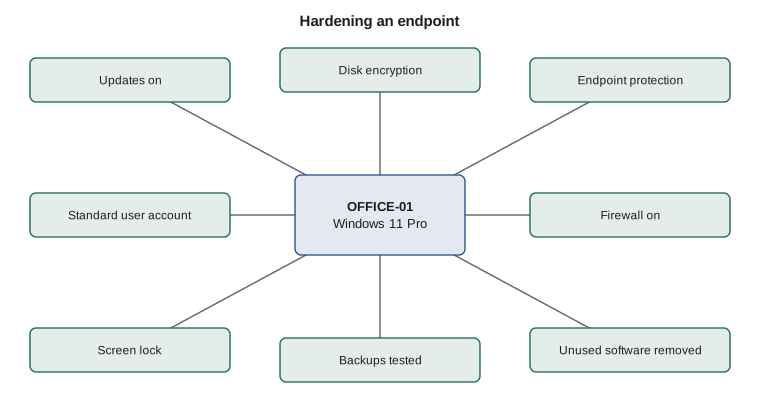
For Ridgeline's Windows computers, Sam's baseline includes these items. Updates install automatically for Windows, drivers, firmware and every application. BitLocker drive encryption is on, with recovery keys stored in the business account and the safe. Microsoft Defender antivirus and firewall are on and reporting to the management console. Staff sign in with standard accounts, and a separate administrator account, known only to Sam and Jordan through the password manager, is used for installing software. The screen locks after five minutes and on demand with Windows key plus L. Secure Boot and the TPM are enabled in the firmware, and the firmware itself has an admin password. Unused software, including the free trial programs that came with OFFICE-02, has been removed. Autorun of removable media is disabled. And the browser is kept updated with a short list of approved extensions.
Try it yourself
Spot configuration drift
Complete drift(baseline, actual) so that it returns a sorted list of the setting names where a device differs from the baseline, including any baseline setting missing from the device. Settings the device has but the baseline does not mention can be ignored.
baseline = {"auto_updates": True, "disk_encryption": True, "firewall": True,
            "admin_user": False, "screen_lock_minutes": 5, "autorun": False}

office_02 = {"auto_updates": True, "disk_encryption": False, "firewall": True,
             "admin_user": True, "screen_lock_minutes": 15, "wallpaper": "beans.jpg"}

def drift(baseline, actual):
    # compare each baseline setting with the device
    return []

print(drift(baseline, office_02))
Patching
Most successful attacks exploit vulnerabilities for which a fix already exists. Patch management is the process of finding, testing and installing updates for operating systems, applications, drivers and firmware, promptly and reliably. For a small business, the practical approach is to turn on automatic updates everywhere they are available, check every week that updates are actually installing, and handle the exceptions, such as the roaster logger's software, by hand. Critical security updates, especially for vulnerabilities known to be exploited in real attacks, should be installed within days, not weeks. National agencies, including CISA in the United States, publish lists of vulnerabilities known to be exploited, which help decide what to rush.
Patching also means replacing what can no longer be patched. Windows 10 reached the end of support in October 2025, after which it no longer receives regular security updates; Ridgeline replaced its last Windows 10 PC with OFFICE-02 for that reason. Routers, NAS devices and phones also stop receiving updates after a few years. An inventory with purchase dates and end-of-support dates, like the one Sam built in NET-101, makes these replacements predictable rather than surprising.
devices = [
    ("OFFICE-01", "2026-10-14", True),
    ("OFFICE-02", "2026-10-14", True),
    ("ROAST-LT", "2026-09-09", True),
    ("CAFE-POS1", "2026-10-02", True),
    ("OFFICE-NAS", "2026-03-30", False),
]
from datetime import date
today = date(2026, 10, 19)
for tag, last, auto in devices:
    age = (today - date.fromisoformat(last)).days
    note = "OK" if age <= 30 else "OVERDUE"
    if not auto:
        note += " (manual updates)"
print(f"{tag:<11} last updated {age:>3} days ago {note}")OFFICE-01 last updated 5 days ago OK OFFICE-02 last updated 5 days ago OK ROAST-LT last updated 40 days ago OVERDUE CAFE-POS1 last updated 17 days ago OK OFFICE-NAS last updated 203 days ago OVERDUE (manual updates)
Try it yourself
Patch compliance report
Complete overdue(devices, today, max_days) so that it returns a sorted list of device tags whose last update was more than max_days days before today. Each device is a tuple (tag, last update date as YYYY-MM-DD text).
from datetime import date

devices = [("OFFICE-01", "2026-10-14"), ("ROAST-LT", "2026-09-09"),
           ("OFFICE-NAS", "2026-03-30"), ("CAFE-POS1", "2026-10-02")]

def overdue(devices, today, max_days):
    late = []
    # compare (today - last update).days with max_days
    return late

print(overdue(devices, date(2026, 10, 19), 30))
Malware protection
Endpoint protection has moved far beyond the antivirus of the past, which compared files against a list of known malware signatures. Modern tools, often called endpoint detection and response (EDR) or extended detection and response (XDR) when they combine signals from several sources, watch behaviour: a document that launches a script, a process that starts encrypting hundreds of files, a program that tries to dump stored passwords. They can block the action, isolate the device from the network and alert an administrator, and they keep a record of activity that helps investigations. For Ridgeline, the business edition of Microsoft Defender, managed from the same console as the Microsoft 365 accounts, provides this without an extra product.
Other controls reduce what malware can do once it arrives. Least privilege, from lesson 7, matters enormously here: malware running under a standard account usually cannot change system settings, install drivers or disable protections. Application control, sometimes called allow-listing, goes further and lets only approved programs run at all. It is especially effective on single-purpose devices; the point-of-sale tablets run in kiosk mode, where only the payment app can open. Host-based firewalls block unexpected incoming connections even inside a trusted network, and browser protections block known malicious sites and downloads.
Encryption and physical protection
Laptops, tablets and phones get lost and stolen. Full-disk encryption, BitLocker on Windows, FileVault on macOS and the built-in encryption on modern phones and tablets, means a lost device exposes no data, provided it is locked with a decent PIN or password and the recovery key is not stored with it. Encryption also matters at the end of a device's life: an encrypted drive can be wiped securely by destroying its key, and drives that held sensitive data should be wiped or physically destroyed before disposal, as NET-101 lesson 11 explained.
Physical controls complement encryption. ROAST-LT has a cable lock in the roastery and never stays in a parked car. The point-of-sale tablets are mounted in locking stands, and the card readers are checked each morning for signs of tampering, such as a loose faceplate or an extra layer over the card slot, which can indicate a skimmer. Screens facing the counter use privacy filters, and the office door is now kept closed and locked when nobody is inside.
Mobile devices
Phones and tablets present particular challenges: they are always connected, easily lost, full of apps, and often owned by the employee rather than the business. Mobile device management (MDM) software lets an organization enrol devices, push settings such as a required PIN and encryption, install and remove apps, locate a lost device and wipe it remotely. Ridgeline's point-of-sale tablets are fully managed company-owned devices in kiosk mode. For staff phones, Ridgeline uses a lighter approach suited to bring your own device (BYOD): staff install the business email and scheduling apps, which the management system protects with app-level policies. Those policies require a device PIN and keep business data inside the managed apps, and if a phone is lost or the person leaves, only the business data is wiped, never the person's own photos and messages.
Common mobile threats include malicious apps, especially from outside official app stores; phishing by text message; unsecured public Wi-Fi; outdated operating systems that no longer receive updates; and jailbreaking or rooting, which removes the platform's built-in protections. Device policies typically block jailbroken devices, require a minimum operating system version and allow apps only from official stores.
Try it yourself
Is this phone allowed to sync business email?
Complete compliant(phone, min_version) so that it returns True only if the phone has a PIN, is encrypted, is not jailbroken, and runs an operating system version at least min_version. Versions are tuples such as (17, 4), which Python compares element by element.
def compliant(phone, min_version):
    # check pin, encrypted, jailbroken and os_version
    return True

mei = {"pin": True, "encrypted": True, "jailbroken": False, "os_version": (18, 1)}
old = {"pin": True, "encrypted": True, "jailbroken": False, "os_version": (15, 7)}
print(compliant(mei, (17, 0)), compliant(old, (17, 0)))
The browser and email client
For most staff, the browser and the email client are where the internet meets the endpoint, so they deserve their own place in the baseline. Browsers update themselves frequently, and the update should never be postponed for long, because browser vulnerabilities are among the most heavily attacked. Extensions are a particular risk: an extension can read and change every page the browser opens, including the bank and the payroll site, and popular free extensions are sometimes sold to new owners who add tracking or worse. Ridgeline allows only a short approved list: the password manager and the provider's ad and tracker blocker.
Built-in protections such as Microsoft Defender SmartScreen or Google Safe Browsing warn about known malicious sites and downloads and should stay on. Saved passwords belong in the password manager rather than scattered across each browser's own store, so that they are protected by one strong passphrase and MFA and can be shared safely by role. In the email client, Sam turned on the provider's built-in attachment scanning and link checking, disabled automatic loading of remote images, which can confirm to spammers that an address is active, and added a tag that marks every message from outside the company as external. That small tag makes a fake message from Rosa much easier to spot, because a genuine message from her never carries it.
Office documents with macros are a classic route for malware, because a macro is a small program that runs inside the document. Current versions of Microsoft Office block macros in files downloaded from the internet by default, and Ridgeline's baseline keeps that setting. Anita's one legitimate macro, in the monthly sales spreadsheet she built herself, lives in a trusted folder on the NAS instead of arriving by email.
Internet of things and specialized devices
Many endpoints are not computers in the usual sense: the receipt printer, the multifunction printer, the music box, a smart thermostat, security cameras and the roaster's temperature logger. These internet of things (IoT) devices often have weak default passwords, rarely receive updates and cannot run endpoint protection. The defences are to change default credentials, update firmware where possible, place them on their own segment or the guest network so that a compromise cannot spread, turn off cloud features that are not needed, and replace devices whose makers have stopped supporting them. The music box, now on the guest network with a new password, is a small example of all four.
Worked problem
Responding to a lost phone
Mei leaves her personal phone, which has the business email and scheduling apps, on the bus. Walk through what happens.
Show solution
- Mei reports it to Jordan straight away, as staff have been told to do for any lost device.
- The phone has a PIN and encryption, required by the app policies, so the data is protected for now.
- Jordan uses the management console to wipe only the business apps and data, leaving Mei's personal content alone.
- Jordan signs Mei out of her business account sessions; her MFA protects the account itself.
- When Mei gets a replacement phone, she installs the apps and signs in again.
Answer: A prompt report, a PIN and encryption, a selective wipe and ending sessions protect the business without touching Mei's personal data.
Common mistakes
MistakeSetting up computers individually from memory.
InsteadUse a documented baseline and check devices against it to catch drift.
MistakeDelaying updates because they might cause problems.
InsteadInstall updates automatically and promptly; rush fixes for vulnerabilities known to be exploited.
MistakeKeeping devices after they stop receiving security updates.
InsteadTrack end-of-support dates and replace devices in time.
MistakeLetting staff work in administrator accounts.
InsteadUse standard accounts daily and separate admin accounts only for changes.
MistakeStoring the BitLocker recovery key with the laptop.
InsteadKeep recovery keys in the business account and a secure offline place.
MistakeWiping an employee's entire personal phone when they leave.
InsteadUse app-level management for personal devices and wipe only business data.
Summary and key terms
- Endpoints are where most attacks land, so they need layered protection.
- Hardening follows a documented baseline; drift detection keeps devices on standard.
- Patch automatically and promptly, and replace devices that no longer receive updates.
- Modern endpoint protection watches behaviour; least privilege and application control limit malware.
- Full-disk encryption protects lost devices; physical checks catch theft and skimmers.
- MDM manages company devices fully; app-level management protects business data on personal phones.
- IoT devices need new passwords, updates, their own segment and timely replacement.
- endpoint
- Any device people use to work, such as a laptop, phone or tablet.
- hardening
- Reducing a device's attack surface and configuring it securely.
- baseline
- A documented standard secure configuration.
- configuration drift
- Settings changing away from the baseline over time.
- patch management
- Finding, testing and installing updates promptly.
- EDR
- Endpoint detection and response: behaviour-based protection with investigation tools.
- application control
- Allowing only approved programs to run.
- full-disk encryption
- Encrypting an entire drive so data is unreadable without the key.
- MDM
- Mobile device management, for enrolling, configuring and wiping devices.
- BYOD
- Bring your own device: staff using personal devices for work.
Practice problems
Work each problem on paper first, then reveal the answer to check.
Name four items in Ridgeline's Windows baseline.
Show answer
Any four of: automatic updates, BitLocker, Defender antivirus and firewall, standard user accounts, screen lock, Secure Boot and TPM, firmware password, unused software removed, autorun off, approved browser extensions.
Why did Ridgeline replace its last Windows 10 PC?
Show answer
Windows 10 reached end of support in October 2025 and no longer receives regular security updates.
How does EDR differ from traditional antivirus?
Show answer
It watches behaviour and can isolate devices and record activity, rather than only matching known malware signatures.
What protects data on a stolen, powered-off laptop?
Show answer
Full-disk encryption such as BitLocker, with the recovery key stored elsewhere.
Why is kiosk mode a good fit for the point-of-sale tablets?
Show answer
Only the payment app can run, which is application control on a single-purpose device.
What should happen to business data on a personal phone when an employee leaves?
Show answer
A selective wipe of business apps and data, leaving personal content untouched.
Lesson quiz · 5 questions
Score 60% or more to complete this lesson.
Create a free account to save your progress, take quizzes and earn a certificate.