
CSCO-101 · Lesson 7 of 12 · 22 min
macOS and Linux basics for support staff
▶ Video coming soon A video version of this lesson is on the way.
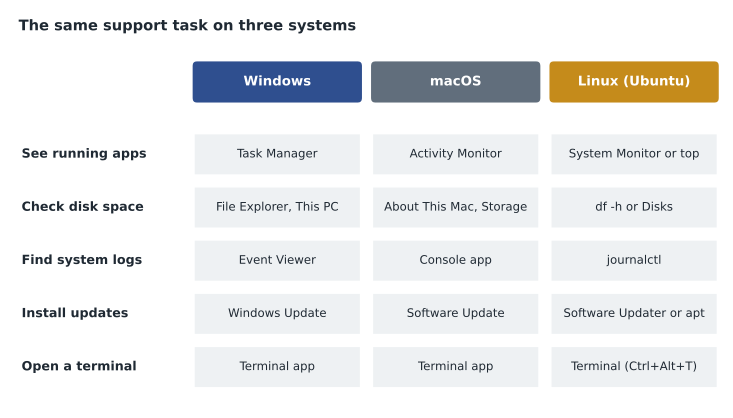
Not every Brightline client runs Windows. Two of the Riverside lawyers use MacBooks, the bakery's owner does her accounts on an iMac, and the Northfield Community Centre computer lab has a row of older PCs that a volunteer converted to Ubuntu Linux to keep them useful. When the community centre calls because a lab computer will not let a student sign in, Jordan realizes he has never used Linux outside a single college class. Marisol reassures him: the support questions are the same on every system. What changes is where the answers are.
macOS: the essentials
macOS is the operating system on Apple's Mac computers. Current Macs use Apple's own processors, called Apple silicon (M-series chips), while older Macs used Intel processors; some software and some troubleshooting steps differ between the two, so identifying the chip is an early step. The Apple menu, in the top-left corner of the screen, holds About This Mac, System Settings, Force Quit, Restart and Shut Down. About This Mac shows the chip, memory, serial number and macOS version.
The Finder is the file manager, equivalent to File Explorer in Windows. The Dock along the bottom or side holds favourite and running apps. Spotlight, opened with Command and Space, searches for files, apps and settings, and is the quickest way to open almost anything. System Settings, called System Preferences in older versions, controls networks, displays, users, privacy permissions, sharing and software updates. Mission Control and multiple desktops let users organize windows, and a user who "lost all my windows" has often moved to another desktop by accident.
Keyboard differences confuse Windows users. The Command key does most of what Ctrl does in Windows: Command and C copies, Command and V pastes, Command and Q quits an app. Closing a window with the red button often leaves the app running, which is normal on a Mac. Right-clicking can be done with two fingers on the trackpad or by holding Control while clicking.
Supporting Macs
Several macOS tools matter for support. Activity Monitor shows processes and their use of CPU, memory, energy, disk and network, like Task Manager. Force Quit, from the Apple menu or Command, Option and Escape, ends an unresponsive app. Disk Utility checks and repairs disks with First Aid, erases drives and manages partitions and volumes. The Console app shows system logs. Software Update in System Settings installs macOS updates, and most apps update through the App Store or their own updaters.
Macs have their own security features. FileVault encrypts the startup disk; its recovery key must be saved somewhere safe, just like a BitLocker key. Gatekeeper checks that apps come from the App Store or identified developers, and blocks others unless the user overrides it. System Integrity Protection prevents changes to core system files. Apps must ask permission to use the camera, microphone, screen recording, files and folders, and many support tickets on a Mac are solved by granting a permission in Privacy and Security settings.
Backups on a Mac are usually made with Time Machine, which copies everything to an external drive or network storage on a schedule and allows files, or the whole system, to be restored. Business Macs are often enrolled in a mobile device management service, just like phones, so the organization can push settings and apps and lock or erase a lost laptop. When a Mac will not start properly, macOS Recovery, reached by holding the power button on Apple silicon Macs or Command and R on Intel Macs during start-up, offers Disk Utility, reinstallation and Time Machine restore.
Linux: what support staff need to know
Linux is a family of operating systems built on the Linux kernel. Each variety, called a distribution, packages the kernel with tools, a desktop and a way to install software. Common distributions include Ubuntu, Debian, Fedora, Linux Mint and Red Hat Enterprise Linux. Linux runs most of the world's web servers and cloud systems, all Android phones under the hood, many network devices and appliances, and a smaller share of desktops. Entry-level support staff meet it on desktops repurposed to extend their life, on kiosks and on appliances, and later, in more advanced roles, on servers.
A Linux desktop looks familiar: windows, a file manager, a web browser and a settings app. Ubuntu's default desktop is called GNOME. Software is installed from the distribution's software centre or with a package manager on the command line, such as apt on Ubuntu and Debian or dnf on Fedora. The package manager downloads software from trusted repositories, checks it and installs its dependencies, so users rarely download installers from websites. Updates for the whole system, applications included, come through the same mechanism.
Linux uses a single directory tree starting at the root, written as a forward slash. Users' files live under /home, configuration files under /etc, logs under /var/log, and attached drives appear under /media or /mnt. There are no drive letters. File names are case sensitive, so Report.txt and report.txt are different files, which surprises users coming from Windows.
Users and permissions on macOS and Linux
Both macOS and Linux descend from Unix and share its approach to users and permissions. Every file has an owner, a group and permissions for reading, writing and executing, set separately for the owner, the group and everyone else. Ordinary users cannot change system files. The administrator on Linux is called root, and ordinary users who are allowed to administer the system run individual commands with root rights by putting sudo in front of them, entering their own password. On a Mac, administrator accounts work the same way, and the Terminal app accepts the same sudo command.
df -h /
Filesystem      Size  Used Avail Mounted on
/dev/sda2        46G   45G  0.2G /

sudo apt clean
[sudo] password for jordan:

sudo journalctl --vacuum-size=200M
Vacuuming done, freed 3.1G of archived journals from /var/log/journal.
The community centre ticket turns out to be exactly that: the lab computer's disk filled up with old system logs, and the desktop could not start a session for the student because there was no space to write the session files. Jordan connects remotely, checks the disk with df, clears the package cache and trims the logs, and the student can sign in. He adds a note recommending log limits on all the lab computers.
ChromeOS and other systems
ChromeOS, found on Chromebooks, is a Linux-based system built around the Chrome browser and Google accounts. Most user data lives in the cloud, apps run in the browser or come from the Google Play store, and the system updates itself automatically. Schools use Chromebooks widely because they are inexpensive and easy to manage centrally. Supporting a Chromebook usually means checking the user's account and network, the management policy from the Google admin console, and, when things go badly, a Powerwash, which resets it to factory settings; because data is in the cloud, this is less drastic than resetting a Windows computer.
| Task | Windows | macOS | Linux (Ubuntu) |
|---|---|---|---|
| End a frozen app | Task Manager, End task | Force Quit (Command+Option+Esc) | System Monitor, or kill in a terminal |
| Encrypt the startup disk | BitLocker | FileVault | LUKS, chosen at installation |
| Back up the system | File History, backup software | Time Machine | Deja Dup or other backup tools |
| Run a command as administrator | Run as administrator | sudo in Terminal | sudo in Terminal |
| Recover a system that will not start | Windows Recovery Environment | macOS Recovery | Recovery mode in the boot menu or live USB |
Supporting mixed environments
Most small businesses are mixed environments: Windows desktops, a few Macs, phones of both kinds, perhaps a Linux appliance or two. The support principles do not change, but a few practical points help. Shared files should be stored somewhere all systems can reach, such as a cloud service or a network share that supports both Windows and Mac clients. File names should avoid characters that one system does not allow; Windows forbids several characters, such as the colon and question mark, that macOS and Linux accept, which can cause files to fail to sync. Fonts and document formats can differ subtly between systems, so documents that must look identical, such as legal filings, are often shared as PDF.
Account and device management also differ. Macs can be managed by the same cloud services that manage Windows and phones, through Apple's business programs, and can sign in with work accounts. Linux desktops are less often centrally managed in small businesses, which is why the Northfield lab computers needed hands-on attention; a simple automated update and log limit configuration would prevent most of their tickets.
Reading permissions on macOS and Linux
Permissions on macOS and Linux are shown by the ls -l command as a string of ten characters, such as -rw-r--r--. The first character shows the type, a dash for a file or d for a directory. The next nine are three groups of three, for the owner, the group and everyone else, each showing r for read, w for write and x for execute, or a dash if that right is missing. So -rw-r--r-- means the owner can read and change the file, and everyone else can only read it. The chmod command changes these rights and chown changes the owner; both usually need sudo on files the user does not own. A user who cannot save a file in a shared folder on a Linux system often lacks write permission on that folder, which ls -l reveals at once.
Processes on macOS and Linux can be listed with ps or watched live with top, which shows CPU and memory use like Task Manager; htop, if installed, gives a friendlier view. The kill command ends a process by its number, and kill -9 forces it, much like End task in Windows. These commands appear again in lesson 8.
When in doubt on an unfamiliar system, return to the same questions you would ask on Windows: what changed, what is the scope, what do the logs say, and what is using the resources? The tools have different names, but the answers are there to be found, and the user will rarely know or care which system you used to find them.
Mac and Linux users also benefit from the same preventive habits as Windows users: regular updates, enough free disk space, backups that are checked, and a standard rather than administrator account for everyday work.
Worked problem
Finding the equivalent on an unfamiliar system
A Riverside lawyer on a MacBook says Microsoft Word has frozen and the rest of the laptop is slow. Jordan knows what he would do on Windows. What are the macOS equivalents of each step?
Show solution
- Windows: Ctrl+Shift+Esc to open Task Manager. macOS: open Activity Monitor with Spotlight, or Force Quit with Command+Option+Esc.
- Windows: end the frozen task. macOS: choose Word in Force Quit and click Force Quit.
- Windows: check CPU and memory use in Task Manager. macOS: check the CPU and Memory tabs in Activity Monitor for anything else using resources.
- Windows: check Windows Update and Office updates. macOS: check Software Update and Microsoft AutoUpdate.
- Windows: Event Viewer if it keeps happening. macOS: the Console app, and Word's own crash reports.
Answer: Force Quit, Activity Monitor, Software Update and Console do on a Mac what Task Manager, Windows Update and Event Viewer do on Windows.
Common mistakes
MistakeAssuming the red button quits a Mac app.
InsteadIt usually closes the window; Command and Q quits the app.
MistakeIgnoring the chip type on a Mac.
InsteadCheck About This Mac; Apple silicon and Intel Macs differ in recovery steps and software.
MistakeDownloading Linux software from random websites.
InsteadInstall from the distribution's repositories with the software centre or package manager.
MistakeForgetting Linux file names are case sensitive.
InsteadMatch the exact case when typing names and paths.
MistakeLeaving FileVault keys unsaved.
InsteadStore recovery keys securely, just like BitLocker keys.
Summary and key terms
- macOS runs on Macs with Apple silicon or Intel chips; About This Mac identifies them.
- Activity Monitor, Force Quit, Disk Utility, Console and Software Update are core Mac support tools.
- FileVault, Gatekeeper and privacy permissions protect Macs; Time Machine backs them up.
- Linux comes in distributions such as Ubuntu; software comes from repositories through package managers.
- Linux has one directory tree from root, no drive letters, and case-sensitive names.
- macOS and Linux share Unix-style permissions and the sudo command.
- ChromeOS is cloud-centred and centrally managed; a Powerwash resets it.
- Apple silicon
- Apple's own M-series processors used in current Macs.
- FileVault
- Full-disk encryption on macOS.
- Distribution
- A packaged variety of Linux, such as Ubuntu or Fedora.
- Package manager
- A tool that installs software and updates from trusted repositories.
- sudo
- A command that runs another command with administrator rights.
- Powerwash
- A factory reset on a Chromebook.
Practice problems
Work each problem on paper first, then reveal the answer to check.
Which macOS app is the equivalent of Task Manager?
Show answer
Activity Monitor.
Which key combination opens Force Quit on a Mac?
Show answer
Command+Option+Esc.
Where does Linux keep configuration files?
Show answer
Under /etc.
Which command installs software on Ubuntu from the command line?
Show answer
apt, usually run with sudo.
Are Report.txt and report.txt the same file on Linux?
Show answer
No; Linux file names are case sensitive.
What is the Mac equivalent of BitLocker?
Show answer
FileVault.
Which built-in Mac tool makes scheduled backups?
Show answer
Time Machine.
Lesson quiz · 5 questions
Score 60% or more to complete this lesson.
Create a free account to save your progress, take quizzes and earn a certificate.