
CSCO-101 · Lesson 12 of 12 · 22 min
Practice: hardware and operating system tickets
▶ Video coming soon A video version of this lesson is on the way.
Eight weeks after his first day, Jordan has closed more than two hundred tickets. On his last Friday review for this course, Marisol tries something different. She prints six real tickets from the past month, removes the notes, and hands them to him one at a time. For each one he must say what he would ask, what he would check, what he thinks the cause is, how he would fix and verify it, and what he would write in the ticket. "If you can do these on paper," she says, "you can do them on the exam, and you can definitely do them on the phone." This lesson works through the same six tickets, and then looks at writing ticket notes and preparing for the exam.
Ticket 1: the computer that loses its time
A front-desk computer at Northfield Community Centre shows the wrong date and time every Monday, and staff have to set the clock before they can sign in to the booking website, which rejects their sign-in. The computer is unplugged at the wall every Friday to save power.
The pattern is the clue: the clock is wrong only after the computer has been unplugged for the weekend. That points to the CMOS battery on the motherboard, which keeps the clock running without mains power. Jordan would confirm by checking the firmware's clock after a short unplug, replace the coin battery with the one specified for the board, set the date and time in the firmware, and make sure Windows is set to synchronize its time automatically. Verification is a Monday morning with the right time. The sign-in failures happened because secure websites check certificates against the date, and a computer with the wrong date fails those checks.
Ticket 2: the laptop that will not see its dock
A Riverside lawyer's laptop no longer shows anything on her two monitors at her desk, and her keyboard and wired network on the dock have stopped too. The laptop charges from the dock. It started after a Windows update on Tuesday.
Scope is one laptop and one dock, and everything on the dock fails together, so the dock connection is the likely fault rather than the monitors. The timing suggests the update. Jordan would check Device Manager for the dock's devices, look in the dock manufacturer's support site for a firmware or driver update compatible with the latest Windows update, and test the laptop on another dock to confirm whether the laptop or the dock is at fault. Installing the dock's updated firmware and driver fixes it. Verification includes both monitors at the right resolution, the keyboard and the wired network. The note records the dock model and firmware version, because the firm has eleven more of the same docks.
Ticket 3: the slow reception PC at the second clinic
The second Prairie Paws location reports that its reception PC is as slow as the first one was before its upgrade.
Jordan already has a theory from lesson 2, but the method still applies: he measures before changing anything. Task Manager shows memory near its limit and the disk at its maximum. The computer is the same model as the first, so the same SSD and memory upgrade will help, after confirming warranty status and parts compatibility, backing up data and confirming the BitLocker recovery key. After the upgrade he takes new Task Manager readings and records both sets in the ticket, which also gives the clinic manager evidence for budgeting the other upgrades.
Ticket 4: the label printer and the new labels
Kettle & Crumb's office reports that after switching to a cheaper brand of price labels, every label prints with the text cut off at the bottom and the next label partly printed.
The change is the clue: same printer, same computer, new labels. The printer is not finding the gap between labels correctly, or the driver has the wrong label size. Jordan would check the new labels' size, set the media size and type in the printer driver, run the printer's media calibration so it learns the new gap, and print a test label. If the cheaper labels' gaps or backing confuse the sensor, he would recommend the previous brand. The fix and the label size go into the knowledge base article for that printer.
Ticket 5: the boot loop after an update
A bakery manager's laptop shows a blue screen with the stop code DRIVER_IRQL_NOT_LESS_OR_EQUAL and the file name of a network driver, restarts, and does the same again. It began after the laptop installed updates overnight.
The stop code and the driver file name point to a network driver, and the timing points to the overnight updates. Jordan would let Windows enter the Recovery Environment after the failed starts, enter the BitLocker recovery key if asked, and start in Safe Mode. In Safe Mode he would roll back the network driver in Device Manager, or uninstall the latest update from the recovery options if the driver came with it. After a normal start, he would check the manufacturer's site for a corrected driver and pause that update until a fix is available. Verification is several normal restarts and a working network connection.
Ticket 6: the deleted folder
A Riverside paralegal deleted a client folder from her desktop and emptied the Recycle Bin. She realized only the next afternoon.
This one tests calm more than technique. Jordan would ask exactly which folder, where it was and when it was deleted; check whether it was in a OneDrive-synced folder, in which case it may be in the OneDrive recycle bin or restorable with OneDrive's version history; and otherwise restore it from the firm's nightly backup, choosing the backup before the deletion and restoring to a separate location first so that nothing newer is overwritten. After the paralegal confirms the files open, he would move them back and record the restore in the ticket, including the backup date used. Because the folder holds client information, he would handle it like any other confidential data.
| Ticket | Key clue | Cause | Fix |
|---|---|---|---|
| 1 Clock wrong after weekends | Only after unplugging | CMOS battery | Replace battery; set time; enable time sync |
| 2 Dock stopped after update | Everything on the dock failed together | Dock firmware or driver | Update dock firmware and driver |
| 3 Slow reception PC | Disk at maximum, memory near limit | Hard disk and too little RAM | SSD and RAM upgrade, measured before and after |
| 4 Labels cut off | Only after new labels | Media size or gap calibration | Set media size; calibrate |
| 5 Boot loop | Stop code names a network driver | Bad driver from update | Safe Mode; roll back driver; pause update |
| 6 Deleted folder | Recycle Bin emptied | User deletion | Restore from cloud version history or backup |
Writing good ticket notes
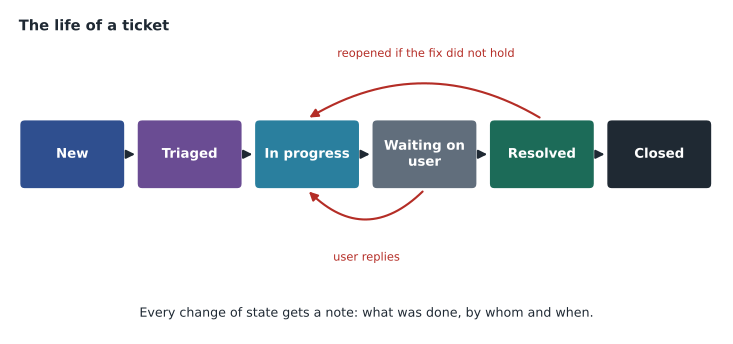
Every one of these tickets ends with documentation, and good notes share a structure. They state the symptom in the user's words and in technical terms. They record the scope and what was checked, including results, such as copied command output. They state the cause found, the change made, and how the fix was verified, including the user's confirmation. They note any follow-up, such as parts on order, a recommendation, or a knowledge base article created. And they are written in plain, professional language, because the user, a client manager or an auditor may read them. A useful habit is to write notes as you work rather than at the end, so that nothing is forgotten if you are interrupted.
Notes are also where professionalism shows. Avoid blaming the user ("user broke it again"), avoid jargon that a client manager would not understand, and never paste passwords or other secrets into a ticket. If you recorded personal or client information to solve the problem, include only what is needed.
BL-25106  Riverside Family Law  Priority: 3  Status: Resolved
Reported: Laptop shows nothing on desk monitors; dock keyboard and network dead. Started after Tuesday's update.
Scope: One user. Other docks on site working. Laptop charging from dock.
Checks: Device Manager showed dock USB and display devices with warnings. Laptop worked on spare dock.
Cause: Dock firmware incompatible with the latest Windows update.
Action: Installed dock firmware and driver from vendor site; restarted.
Verified: Both monitors at native resolution; keyboard and wired network working; user confirmed.
Follow-up: Same dock model on 11 other desks; scheduled firmware update (BL-25110).
Preparing for the exam
With this course complete, Jordan has covered the hardware and operating system areas of the CCST IT Support exam and the troubleshooting method that runs through all of them. CSCO-102 covers connectivity, security, remote tools and customer service, and CSCO-190 brings everything together with timed practice. Marisol's advice for preparation is practical. Keep working real or lab tickets and map each to an exam area. Practise each tool from this course until you can use it without looking things up. Re-read Cisco's current exam topics list and tick off each item you can explain and demonstrate. When you read a practice question, use the method: identify the problem from the details given, eliminate unlikely causes, and choose the answer that tests or fixes the most probable cause with the least risk.
On scenario questions, watch for the clue that changes everything: "after an update", "only on Mondays", "everyone in the office", "since the new labels". Watch for words such as first, best and most likely, which ask for the order in which a careful technician would act, not just any correct action. And remember that the safest correct answer is usually the right one: back up before changing, check the simple things before the complex ones, and verify before closing.
Before moving on, Marisol asks Jordan which of the six tickets was hardest. He says the deleted folder, because the user was upset and he was afraid of making it worse. She agrees, and tells him that is exactly why calm, methodical steps matter most on the tickets where people are anxious: confirm the facts, choose the safest restore, and keep the user informed at each step.
Worked problem
Answering a scenario question with the method
A practice question reads: "A user reports that her desktop shows the wrong time every morning, and she must set it manually. The computer is shut down and unplugged each night. What should the technician do first?" The options are: reinstall Windows; replace the CMOS battery; update the graphics driver; change the user's time zone. Which is the best answer, and why?
Show solution
- Identify: the clock is wrong after the computer is unplugged overnight; it is otherwise correct.
- Theory: the CMOS battery keeps the clock running without mains power; a weak battery explains the pattern exactly.
- Eliminate: reinstalling Windows is drastic and unrelated; the graphics driver is unrelated; a wrong time zone would be wrong all the time, not only after unplugging.
- Choose: replace the CMOS battery.
Answer: Replace the CMOS battery. The clue "unplugged each night" separates it from the other options.
Common mistakes
MistakeJumping to the fix you used last time.
InsteadUse the method even when you think you know the answer.
MistakeLeaving out what you checked.
InsteadRecord checks and their results, not just the fix.
MistakeWriting notes only at the end.
InsteadWrite as you work so nothing is lost when you are interrupted.
MistakePutting passwords or secrets in tickets.
InsteadNever record credentials; reference the password manager instead.
MistakeChoosing the most dramatic answer on the exam.
InsteadChoose the safe, simplest step that addresses the most likely cause.
Summary and key terms
- Every ticket follows the method: identify, theorize, test, fix, verify, document.
- Clues such as timing, scope and recent changes often point straight at the cause.
- Measure before and after changes so results are evidence, not impressions.
- Good notes state the symptom, scope, checks, cause, action, verification and follow-up.
- Notes are professional documents: no blame, no secrets, only necessary personal data.
- Prepare for the exam with real tasks, the current topic list and the method.
- On scenario questions, find the clue and choose the safest correct first step.
- Ticket state
- The stage a ticket is in, such as new, in progress or resolved.
- Knowledge base
- A searchable library of solutions and procedures.
- Follow-up
- Work that remains after a ticket is resolved, recorded so it is not forgotten.
- Verification
- Proof that a fix works, ideally confirmed by the user.
- Scenario question
- An exam question that describes a situation and asks for the best action.
Practice problems
Work each problem on paper first, then reveal the answer to check.
A clock is wrong only after a computer is unplugged. What is the likely cause?
Show answer
A failing CMOS battery.
Everything connected to a dock stops working at once. Where should you look first?
Show answer
At the dock and its connection, firmware and drivers.
What should you do before restoring a deleted folder over the original location?
Show answer
Restore it to a separate location first, so newer files are not overwritten.
Name four things a good ticket note includes.
Show answer
Any four of the symptom, scope, checks and results, cause, action, verification and follow-up.
A stop code names a network driver after an update. What are two possible fixes?
Show answer
Roll back the driver in Safe Mode, or uninstall the update, then get a corrected driver.
Why measure performance before an upgrade?
Show answer
To confirm the bottleneck and to show the result afterwards.
What does the word first in an exam question ask for?
Show answer
The step a careful technician would take before any other.
Lesson quiz · 5 questions
Score 60% or more to complete this lesson.
Create a free account to save your progress, take quizzes and earn a certificate.