
CSCO-101 · Lesson 4 of 12 · 22 min
Printers, peripherals and displays
▶ Video coming soon A video version of this lesson is on the way.
Kettle & Crumb Bakery has three shops and a small office above the original one, and almost every ticket from them involves something plugged into a computer rather than the computer itself. This week it is a receipt printer that prints blank slips, a label printer that prints labels shifted halfway off the sticker, a new monitor that shows "no signal" and a wireless mouse that stutters across the screen. Marisol calls these "the edges of the system", and she tells Jordan that half of all hardware tickets live there. Each one, she says, is solved by asking the same three questions: is it connected, is it recognized, and is it configured?
Ports and cables
Peripherals connect through ports, and a technician should be able to identify every common port by sight and know what it carries. Universal Serial Bus (USB) is the most common. USB-A is the flat rectangular connector that only fits one way up; USB-C is the small oval connector that fits either way and is now used for data, charging and video on most new laptops, tablets and phones. USB versions differ in speed: USB 2.0 is slow by today's standards, while USB 3.x and USB4 are much faster. Blue or labelled ports usually indicate USB 3 or higher. Thunderbolt uses the USB-C connector shape, marked with a lightning symbol, and carries very high-speed data and video, often to docking stations.
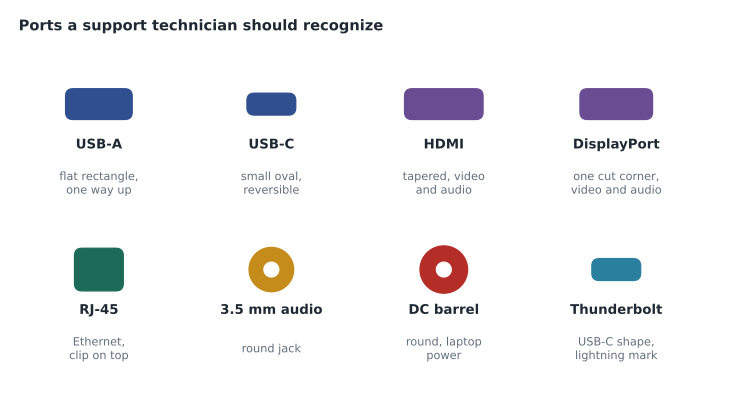
Video connectors include HDMI, common on monitors, televisions and projectors; DisplayPort, common on business monitors and graphics cards, with one corner cut off; and the older VGA and DVI, still found on older projectors and monitors. USB-C can carry DisplayPort video when the device supports it, which is why a USB-C to HDMI adapter works with some laptops and not others. Network cables use RJ-45 connectors for Ethernet; telephone cables use the smaller RJ-11. Audio uses 3.5 mm jacks, and many headsets now connect by USB or Bluetooth instead.
Cables matter as much as ports. A cable that looks right can still be the wrong kind: a charge-only USB cable carries no data, an older HDMI cable may not support a high resolution or refresh rate, and a long or cheap cable may cause intermittent faults. When a peripheral works on one computer but not another, or works sometimes, swapping the cable for a known good one is one of the fastest tests a technician can do.
| Port or connector | Carries | Common uses |
|---|---|---|
| USB-A | Data, power | Keyboards, mice, flash drives, printers |
| USB-C | Data, power, often video | Laptops, phones, docks, monitors |
| Thunderbolt | Very fast data, video, power | Docks, high-end displays, external storage |
| HDMI | Video and audio | Monitors, TVs, projectors |
| DisplayPort | Video and audio | Business monitors, graphics cards, daisy-chained displays |
| VGA | Analog video only | Older projectors and monitors |
| RJ-45 | Ethernet network | Wired network connections |
| 3.5 mm | Analog audio | Headphones, speakers, microphones |
Drivers and recognition
A peripheral that is plugged in still needs the operating system to recognize it and a driver to control it. A driver is software that translates between the operating system and the device. Operating systems include generic drivers for many keyboards, mice, storage devices and displays, so these usually work as soon as they are connected. Printers, scanners, specialized label printers, graphics cards and docking stations often need the manufacturer's driver for full function.
In Windows, Device Manager shows every detected device. A yellow warning triangle means Windows found the device but the driver is missing or has a problem; a device under "Other devices" means Windows does not know what it is. Right-clicking a device lets you update, roll back, disable or uninstall its driver. Rolling back is useful when a problem started right after a driver update. On a Mac, System Information lists connected USB, Thunderbolt and Bluetooth devices, and most drivers arrive through system updates.
Printers
Printers cause more support calls than almost any other device. Laser printers use a laser to draw an image on a drum, which attracts toner powder; the toner is transferred to paper and fused with heat. They are fast and economical for large volumes. Inkjet printers spray tiny drops of ink and are common for photos and home use. Thermal printers use heat on special paper and are used for receipts and many shipping labels; they have no ink or toner at all, so a thermal printer that prints blank slips usually has the paper roll in upside down, because only one side of thermal paper is coated. Impact printers, now rare, strike a ribbon and are still used for multi-part forms.
Printers connect by USB, by Ethernet or Wi-Fi as network printers, or through a print server that shares a printer with many users. Network printers need an IP address, and a printer whose address changes may disappear from computers that were pointed at the old address; giving shared printers a reserved address is good practice, as CSCO-102 explains. Computers send jobs to a print queue, managed in Windows by the Print Spooler service. A stuck job at the top of the queue blocks everything behind it, and clearing the queue or restarting the spooler is a classic fix.
C:\> net stop spooler
The Print Spooler service was stopped successfully.

C:\> del /Q C:\Windows\System32\spool\PRINTERS\*.*

C:\> net start spooler
The Print Spooler service was started successfully.| Symptom | Likely cause | First things to try |
|---|---|---|
| Blank receipts from a thermal printer | Paper roll loaded upside down | Turn the roll over so the coated side faces the print head |
| Faded or streaky laser prints | Low toner, worn drum | Shake or replace the toner; check the drum |
| Labels printing off the sticker | Media size or gap sensor not calibrated | Set the label size in the driver; run the printer's calibration |
| Jobs stuck, nothing prints | Stuck job or stopped spooler | Cancel the job; restart the Print Spooler |
| Printer offline on every PC | Printer off, unplugged or changed address | Check power and network; print a configuration page |
| Paper jams repeatedly | Wrong paper, worn rollers, debris | Use the right paper; clean or replace rollers |
Most printers can print a configuration or status page from their own buttons or menu. That page shows the printer's network address, firmware version, page count and supply levels, and it proves the printer itself works. If the configuration page prints but computers cannot print, the problem is between the computer and the printer, not inside the printer.
Displays
Display problems fall into three groups. No picture at all usually means a power, cable, input or source problem: the monitor is off, the cable is loose, the monitor is set to the wrong input, or the computer is sending video to a different port. A picture that is wrong, such as the wrong resolution, stretched images, flicker or the wrong colours, usually points to display settings, the driver or the cable. A picture with physical faults, such as dead pixels, lines, or dim areas, usually means the display panel or its backlight is failing.
For a desktop with a separate graphics card, the monitor must be connected to the card, not to the motherboard's video ports, which are often disabled when a card is present. Laptops use a function key combination or the Windows key plus P to switch between the built-in screen, an external display, or both. In Windows, Settings, System, Display controls resolution, scaling, orientation and the arrangement of multiple monitors. Most displays work best at their native resolution, the number of pixels the panel actually has; other resolutions look blurry.
Input devices and docks
Keyboards and mice are the most frequently replaced peripherals. Wired devices fail at the cable or the connector; wireless devices fail when batteries are low, when the USB receiver is unplugged or blocked, or when there is interference. A wireless mouse that stutters often improves when its receiver is moved to a front port or a short USB extension closer to the mouse, away from USB 3 ports and metal desks, which can interfere with 2.4 GHz signals. Bluetooth devices must be paired with the computer and may need re-pairing after an operating system update.
Docking stations connect a laptop to monitors, a keyboard, a mouse, a network cable and power through a single connector. They solve a lot of desk clutter and create their own class of tickets. Docks need firmware updates, they must supply enough power for the laptop, and they support a limited number and resolution of external displays. When several devices on a dock stop working at once, the dock or its connection is the most likely cause, not the devices.
Sharing printers and managing supplies
In an office, printers are usually shared. A printer connected directly to the network can be added on each computer by its address or name, or published from a print server so that computers get the printer and its driver automatically. Management tools can deploy printers to users by department, which avoids the classic problem of a user printing confidential documents to the wrong floor. Many offices also use secure printing, where a job waits on the printer until the user signs in at the printer with a code or card, so that sensitive pages are not left in the output tray. Riverside Family Law uses secure printing for exactly that reason.
Supplies are part of support. Toner and ink cartridges, drums, fuser units and maintenance kits wear out on a schedule that the printer reports on its status page. Keeping a spare toner for each shared printer, and checking supply levels during routine visits, prevents a whole category of urgent calls. When replacing supplies, follow the printer's instructions, recycle the old cartridges through the maker's program, and keep toner away from skin and clothing.
Scanners and multifunction devices add their own tickets. Scan-to-email needs the device to reach the mail service with valid settings, and scan-to-folder needs a network share the device has permission to write to; both commonly break when a password changes or the mail service tightens its security, so check those settings first.
Worked problem
Solving the bakery's four peripheral tickets
Kettle & Crumb reports: (1) blank receipts on the Broadway till; (2) price labels printing half off the sticker after a new label roll; (3) a new monitor showing no signal on the office PC, which has a graphics card; (4) a wireless mouse stuttering. What is the most likely fix for each?
Show solution
- (1) Thermal paper only prints on its coated side; turn the roll over.
- (2) The new roll has a different label size or gap; set the media size in the driver and run the printer's calibration.
- (3) The monitor is probably plugged into the motherboard's video port; move the cable to the graphics card and check the monitor's input setting.
- (4) Move the mouse's receiver to a front port or extension closer to the mouse, and replace its battery.
Answer: Each fix answers one of the three questions: connected, recognized, configured. None needs a new device.
Jordan solves all four by phone in under an hour, writing each fix into the knowledge base so the bakery's staff, and the next technician, can find it. Marisol reads the articles and adds one line to the receipt printer article: a photo of the roll loaded correctly.
Common mistakes
MistakeAssuming a cable is fine because it fits.
InsteadTest with a known good cable; charge-only and old cables cause many faults.
MistakePlugging the monitor into the motherboard when a graphics card is installed.
InsteadConnect displays to the graphics card.
MistakeReinstalling the printer driver for every printing problem.
InsteadPrint a configuration page first to locate the fault.
MistakeIgnoring a yellow triangle in Device Manager.
InsteadIt means a driver is missing or failing; update or roll it back.
MistakeReplacing a thermal printer that prints blank.
InsteadCheck the paper roll orientation first.
Summary and key terms
- Identify ports by shape: USB-A, USB-C, Thunderbolt, HDMI, DisplayPort, VGA, RJ-45 and 3.5 mm audio.
- Cables can look right and still be wrong; swap in a known good one early.
- Drivers let the operating system control devices; Device Manager shows problems and allows rollback.
- Laser, inkjet, thermal and impact printers fail in different ways.
- A configuration page proves the printer works and shows its network address.
- Display problems divide into no picture, wrong picture and damaged panel.
- Docks, wireless receivers and Bluetooth pairing cause many input device problems.
- Driver
- Software that lets the operating system control a device.
- Print spooler
- The Windows service that manages print queues.
- Thermal printer
- A printer that uses heat on coated paper, with no ink or toner.
- Native resolution
- The actual number of pixels on a display panel.
- Docking station
- A device that connects a laptop to many peripherals through one connector.
- Configuration page
- A status page printed by the printer itself.
Practice problems
Work each problem on paper first, then reveal the answer to check.
Which connector is reversible and can carry data, power and video?
Show answer
USB-C.
A device appears under Other devices in Device Manager. What does that mean?
Show answer
Windows detected it but does not know what it is, usually because no driver is installed.
Why does a thermal printer print blank slips after a paper change?
Show answer
The roll was loaded upside down, so the uncoated side faces the print head.
Which Windows service manages print queues?
Show answer
The Print Spooler.
Which key combination switches display modes on a Windows laptop?
Show answer
Windows key plus P.
Several devices on a dock stop working at once. What is the likely cause?
Show answer
The dock or its connection to the laptop.
What does a printed configuration page prove?
Show answer
That the printer itself works, and it shows the printer's address and status.
Lesson quiz · 5 questions
Score 60% or more to complete this lesson.
Create a free account to save your progress, take quizzes and earn a certificate.