
CSCO-101 · Lesson 10 of 12 · 22 min
Diagnosing boot and performance problems
▶ Video coming soon A video version of this lesson is on the way.
The call comes in at 7:52 on a Monday: Prairie Paws' second location cannot open. The front-desk computer, which runs the appointment book and the payment terminal, shows a black screen with a blinking cursor, and the clinic opens at eight. Marisol puts Jordan on the phone with the technician on site and stands behind him. "Boot problems feel urgent," she says quietly, "so slow down. Find the last thing that worked." Twenty minutes later the computer is running and the first patients are being checked in. That afternoon a different client calls about the opposite problem: a computer that starts fine but is painfully slow. Lesson 10 covers both.
How a computer starts
Starting a computer happens in stages, and each stage has its own characteristic failures. First the power supply must deliver power, and fans and lights come on. Then the firmware runs the power-on self-test (POST), checking that the CPU, memory and graphics work. Next the firmware looks for a boot device in the order set in its settings and loads the boot loader from that device's EFI system partition. The boot loader starts the operating system, which loads drivers and services and finally shows the sign-in screen. After sign-in, the user's profile and start-up apps load.
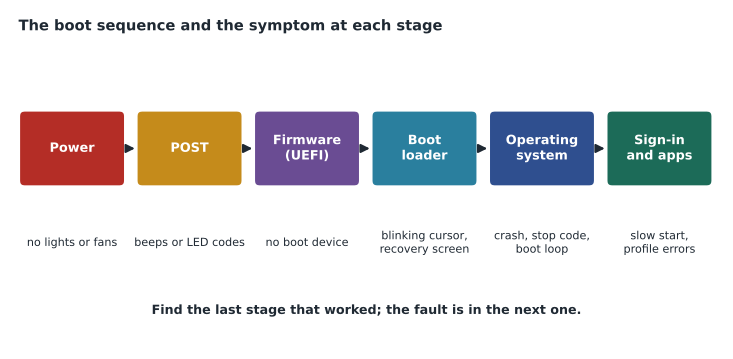
The most useful diagnostic idea is to find the last stage that worked. If the fans spin but nothing appears on screen, power works and the problem is in POST or the display. If the manufacturer's logo appears and then a message says no boot device was found, the firmware works and the problem is with the storage or boot order. If Windows starts to load and then shows a stop code, the boot loader works and the problem is in the operating system or a driver.
No power and POST failures
A computer that shows no sign of life needs its power path checked: the wall outlet, a power bar or surge protector, the power cable, the power supply switch on the back of a desktop, and the laptop's charger and battery. A laptop that will not start on battery may start on its charger, or the reverse. A desktop whose fans spin for a moment and stop may have a failing power supply, a short circuit, or a component that was not seated properly after a repair.
If the computer powers on but POST fails, it usually signals the fault with beeps or flashing lights. The pattern differs by manufacturer, and the meanings are in the computer's documentation or on the manufacturer's support site; a common pattern indicates a memory problem. The usual fixes are to reseat the memory, test with one module at a time, disconnect recently added parts, and check that the display is connected to the right port. A computer that has just had hardware work done should be checked for loose or misplaced connectors first.
Boot device and boot loader problems
A message such as "no bootable device" or "operating system not found" means the firmware could not find something to start. Check the boot order in the firmware settings; a USB flash drive left plugged in may be first in the list, or a new drive may have been put ahead of the system drive. Check that the drive is detected in the firmware at all; a drive that does not appear may have failed or come loose. A blinking cursor on a black screen often means the firmware found a drive but could not find a working boot loader on it.
Windows includes the Windows Recovery Environment (WinRE), which appears automatically after repeated failed starts or can be opened from the recovery options. It offers Startup Repair, which fixes many boot loader problems automatically; System Restore, which returns system files and settings to an earlier restore point; uninstalling the latest updates; a command prompt for advanced repairs; and Reset this PC. On a BitLocker-protected computer, WinRE asks for the recovery key, which is another reason to keep those keys where technicians can get them.
At Prairie Paws, the blinking cursor turned out to have a simple cause. Over the weekend someone had plugged a USB stick of X-ray images into the front of the computer, and the firmware was trying to boot from it. Removing the stick, and then moving the USB devices below the internal drive in the boot order, solved it. Jordan added a note to the clinic's asset record.
Operating system crashes and boot loops
When Windows hits a serious error it cannot recover from, it stops and shows a blue screen with a stop code and a QR code, then restarts. The stop code, such as CRITICAL_PROCESS_DIED or DRIVER_IRQL_NOT_LESS_OR_EQUAL, and any driver file named on the screen, are the most important clues; photograph them or ask the user to. Crashes are most often caused by faulty or incompatible drivers, failing memory or storage, overheating, or damaged system files. A computer that crashes during every start and restarts again is in a boot loop.
Safe Mode starts Windows with a minimal set of drivers and services. If the computer is stable in Safe Mode, the problem is likely a driver or start-up program that Safe Mode does not load. From Safe Mode you can roll back a driver, uninstall a recent update or application, or run system file repairs. Event Viewer and Reliability Monitor, covered in lesson 6, record the crash details after the computer is running again.
| Symptom | Stage | First things to check |
|---|---|---|
| No lights, no fans | Power | Outlet, power bar, cable, power supply switch, charger |
| Fans spin, beeps, no picture | POST | Memory seating, display connection, recent hardware changes |
| No boot device found | Firmware | Boot order, USB devices, drive detected in firmware |
| Blinking cursor, recovery screen | Boot loader | Startup Repair in WinRE; boot order |
| Stop code, restarts | Operating system | Recent drivers or updates; Safe Mode; memory and disk tests |
| Slow to reach the desktop | Sign-in and apps | Start-up apps, disk health and free space, profile size |
Performance problems
A slow computer is the most common complaint in support, and the hardest to pin down, because slow can mean many things. Start by finding out what the user means: slow to start, slow to open one application, slow all the time, slow only in the afternoon, slow only on the network? Then measure. Task Manager's Processes and Performance tabs show which resource is busy: CPU, memory, disk or network. A resource that is constantly at or near its maximum is a bottleneck. Resource Monitor, opened from Task Manager, gives more detail about which processes use which files and network connections.
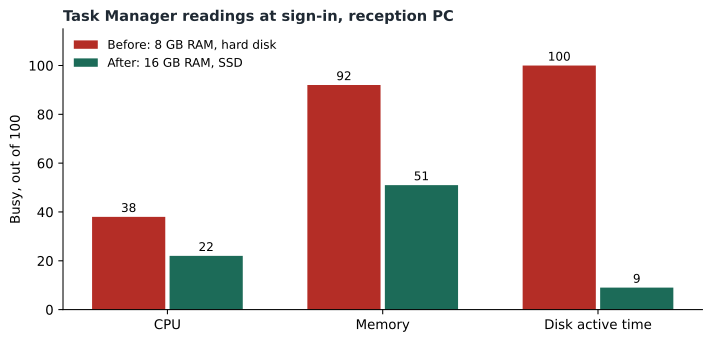
Common causes of slowness and their fixes are well known. Too many start-up apps slow sign-in; disable the unnecessary ones in Task Manager's Startup tab. A nearly full system drive leaves Windows no room for updates and temporary files; free space with Storage Sense or Disk Cleanup and move large files elsewhere. A hard disk at 100 active time is a bottleneck; an SSD fixes it. Memory near its limit causes paging; close programs or add RAM. A single process using a lot of CPU may be stuck or may be malware; identify it before ending it. Overheating makes the CPU throttle; clean the dust. Pending updates and a computer that has not been restarted in weeks also cause odd slowness, which a restart and update often clear.
Malware and unwanted software are a cause to keep in mind. Browser toolbars, cryptocurrency miners and other unwanted programs consume resources and often arrive bundled with free downloads. Unknown processes with high CPU use, a browser home page that has changed, or pop-ups outside the browser are signs worth investigating; CSCO-102 covers malware removal.
C:\> perfmon /report
(collects data for 60 seconds, then opens a System Diagnostics report)

C:\> powercfg /energy
Energy efficiency analysis complete. Report saved to C:\Windows\system32\energy-report.html
Application and profile problems
Some problems appear only after sign-in, and they can look like performance problems. A user profile holds a person's settings, desktop, documents and app data. A damaged profile may cause a temporary profile to load, with a message that the user is signed in with a temporary profile, an empty desktop, or settings that reset each time. Very large profiles slow sign-in, especially when parts of them are synchronized from the network. Signing in as a different user on the same computer is a quick test: if the problem disappears, it lives in the original user's profile, not in the computer.
Individual applications can also slow or crash. Start by checking for application updates, then use the application's repair feature, available for many programs in Settings, Apps, Installed apps, Advanced options or Modify. Clearing an application's cache or temporary files often helps, especially for web browsers and collaboration apps. Browser problems in particular are often caused by extensions; testing in a private window, where extensions are usually disabled, separates the browser from its add-ons.
A final check before closing any boot or performance ticket is to look at what the computer will do next. Pending restarts, updates waiting to install and a nearly full drive are problems that have not happened yet. Restarting once more under your supervision, installing pending updates and freeing space before you hand the computer back prevents the next call. If the computer is approaching the end of its useful life, with an old processor, no upgrade path or repeated failures, say so in the ticket so that the client can plan a replacement rather than discover the need during an outage.
When a slow computer has no obvious bottleneck, compare it with a similar computer that feels normal. The same model, with the same software, measured at the same time of day, quickly shows whether the difference is in the hardware, the software or the way the user works.
Worked problem
Diagnosing a slow afternoon
A Riverside paralegal says her laptop is fine in the morning and very slow by mid-afternoon. Task Manager at 3 p.m. shows CPU at 95, with one process, the document indexer, using most of it; memory and disk are moderate. The fans are loud. What is happening, and what should Jordan do?
Show solution
- Identify: slowness builds during the day, and the CPU is the busy resource.
- Theory 1: the indexer is stuck on a damaged file. Theory 2: the laptop is overheating, so its CPU throttles and everything takes longer.
- Test: the fans are loud and the laptop is hot; Task Manager shows the CPU speed falling well below its rated speed, which suggests throttling. The indexer finishes quickly after a cool-down.
- Fix: clean the laptop's vents and fan; set the indexer to run outside working hours.
- Verify: next afternoon, CPU use and fan noise are normal and the paralegal reports no slowdown. Document both changes.
Answer: Overheating made the CPU throttle, and the indexer's afternoon run made it obvious. Cleaning and rescheduling solve both.
Common mistakes
MistakeReinstalling Windows for every boot failure.
InsteadFind the last stage that worked and fix the stage after it.
MistakeIgnoring the stop code on a blue screen.
InsteadPhotograph or record the stop code and any named driver file.
MistakeLeaving USB drives plugged in when diagnosing boot problems.
InsteadRemove them and check the boot order.
MistakeTreating slowness as one problem.
InsteadMeasure which resource is the bottleneck first.
MistakeEnding unknown processes without identifying them.
InsteadLook up the process; it may be system-critical or malware.
Summary and key terms
- Start-up runs through power, POST, firmware, boot loader, operating system and sign-in.
- Find the last stage that worked; the fault is in the next one.
- POST beep and light codes point to memory and other hardware faults.
- No boot device usually means a boot order or drive detection problem.
- WinRE offers Startup Repair, System Restore, update removal and reset; Safe Mode isolates drivers.
- Stop codes and named drivers are the key clues to crashes.
- Slowness is diagnosed by measuring CPU, memory, disk and network and removing the bottleneck.
- POST
- Power-on self-test, the firmware check of core hardware at start-up.
- Boot order
- The firmware setting that decides which device is tried first.
- WinRE
- Windows Recovery Environment, the built-in repair system.
- Safe Mode
- A Windows start-up with minimal drivers and services.
- Stop code
- The error name shown on a Windows blue screen.
- Bottleneck
- The resource that limits overall performance.
Practice problems
Work each problem on paper first, then reveal the answer to check.
The fans spin and the computer beeps three times but shows nothing. Which stage failed?
Show answer
POST.
A computer says no bootable device after a weekend. What two things should you check first?
Show answer
Whether a USB device is plugged in and first in the boot order, and whether the drive is detected.
Which Windows tool fixes many boot loader problems automatically?
Show answer
Startup Repair in the Windows Recovery Environment.
What does it mean if Windows is stable in Safe Mode but crashes normally?
Show answer
A driver or start-up program not loaded in Safe Mode is likely the cause.
Where can unnecessary start-up apps be disabled?
Show answer
Task Manager's Startup tab.
Disk active time is at 100 on a hard disk. What upgrade helps?
Show answer
Replacing the hard disk with an SSD.
Why record the stop code from a blue screen?
Show answer
It identifies the type of failure and often the driver involved.
Lesson quiz · 5 questions
Score 60% or more to complete this lesson.
Create a free account to save your progress, take quizzes and earn a certificate.