
MSBA-280 · Lesson 1 of 12 · 19 min
Sales prerequisites and mailboxes
▶ Video coming soon A video version of this lesson is on the way.
Four weeks after Kestrelbay Marine Supply went live on Dynamics 365, Ottilie Graves-Mendoza, the sales director, sat down with Mirela Dragomir-Hale to plan the next stage. The foundations were in place: accounts, contacts, a sales process card turned into a business process flow, and sellers logging their work every day. "Now I want the clever parts," Ottilie said. "Price lists that match what we actually charge, a forecast I believe, a list each morning of who to call, and Copilot telling Joaquim what happened at a marina before he walks in."
Mirela agreed, with one condition. Every intelligent feature in Dynamics 365 Sales depends on plain configuration underneath it. Predictive scoring learns from history that has to be recorded correctly. Copilot summarizes emails only if the emails reach Dataverse. The sales accelerator ranks records only if the right people own them. This course follows Mirela through that second stage, one feature at a time, and it covers the first domain of Exam AB-210, configuring Dynamics 365 Sales core features for AI, along with the configuration parts of the second domain.
What you need before you configure Sales
A Dynamics 365 Sales deployment has the same base as any customer engagement app: a Dataverse environment, the Sales app installed into it, users with licenses and security roles, and a sandbox where changes are built first. Kestrelbay already had all of that from phase one. For the AI features, the list grows. Microsoft's documentation describes several conditions that must be true before Copilot in Dynamics 365 Sales works.
| Prerequisite | Why it matters | Where it is set |
|---|---|---|
| Environment in a region where Copilot in Sales is available | Copilot runs on Azure OpenAI Service | Chosen when the environment is created |
| Consent to move data across regions, when needed | Lets Copilot use an endpoint in another region | Power Platform admin center |
| Copilot turned on for the environment | The platform switch above the Sales app | Power Platform admin center |
| Copilot turned on for the sales apps | Controls which apps show the Copilot pane | Sales Hub, App Settings, Copilot |
| Data loss prevention policies allow the needed connectors | A blocked connector stops Copilot | Power Platform admin center |
| Users in the allowed Microsoft Entra groups | Limits who sees Copilot | Microsoft Entra admin center and environment settings |
Copilot in Dynamics 365 Sales is turned on by default for organizations in a region with an Azure OpenAI endpoint that have also consented to cross-region data movement and chosen the monthly release channel for the app. Organizations that turned it off before stay off. Everyone else must give consent in the Power Platform admin center and then turn it on in the Sales Hub app. Microsoft recommends allowing cross-region data movement even where a local endpoint exists, so that Copilot keeps working if that endpoint is interrupted. Mirela put that decision in front of Ravi Castellane-Duff and the finance lead before she changed anything, because it is a data residency decision, not a technical one.
For Kestrelbay the question was whether customer emails and notes could be processed in another United States region when the nearest endpoint was busy. Mirela explained what moves (the prompt and the data needed to answer it), what does not (the stored rows stay in the environment's region) and that the setting can be reversed. The owners accepted it and recorded the decision in the project log.
Sales plans and what each one includes
The second prerequisite is the right license. Dynamics 365 Sales is sold in three main plans. Sales Professional covers core sales force automation: accounts, contacts, leads, opportunities, quotes, orders and a simple product catalog. Sales Enterprise adds the full lead-to-cash process, deeper customization, forecasting, goals and a set of digital selling features. Sales Premium removes the capacity limits on those digital selling features and adds the advanced versions of some of them.
The AB-210 skills outline asks candidates to differentiate features in Sales plans, and the clearest way to do that is by the digital selling capabilities Microsoft lists for Sales Enterprise. According to Microsoft's documentation, an Enterprise license includes the sales accelerator for up to 1,500 sequence-connected records a month, predictive lead and opportunity scoring for up to 1,500 records a month, conversation intelligence with no hour limit, and basic relationship intelligence built from Dynamics 365 data. Premium removes the 1,500-record limits and adds advanced relationship insights that also use Exchange data.
| Capability | Sales Enterprise | Sales Premium |
|---|---|---|
| Sales accelerator | Up to 1,500 sequence-connected records a month | No limit |
| Predictive lead and opportunity scoring | Up to 1,500 records a month | No limit, plus advanced model settings |
| Conversation intelligence | No limit | No limit |
| Relationship intelligence | Basic, from Dynamics 365 data | Advanced, from Dynamics 365 and Exchange data |
Kestrelbay had bought Sales Enterprise for its 18 sellers. Mirela checked whether the limits would bite. Kestrelbay creates roughly 300 leads and 200 opportunities a month, so scoring 1,500 records a month was enough with room to spare. Sequences would only be used by inside sales at first. She recorded the conclusion: stay on Enterprise, measure usage for three months, and revisit Premium only if the limits are reached. AI agents are a separate question, because agents consume Copilot Credits rather than the per-user limits above; the next course covers agent capacity and billing.
Where Sales is configured
Most Sales settings live in the Sales Hub app. Selecting Change area in the lower-left corner switches the site map to App Settings, which groups settings for the product catalog, goals, forecasts, Copilot and general Sales options. A separate area, Sales Insights settings, holds the settings for intelligence features such as conversation intelligence, predictive models and relationship insights. Environment-wide settings, such as auditing, email, security roles and Copilot for the whole environment, are made in the Power Platform admin center. A newer page, Get started with digital sales, offers quick setup for several Enterprise features in one place.
Mirela gave the Kestrelbay team a rule of thumb. If a setting changes how sellers work in the Sales app, look in App Settings first. If it changes the platform for every app, look in the Power Platform admin center. If it is an intelligence feature with a model behind it, look in Sales Insights settings. Menus move between releases, so she always confirmed the current location on Microsoft Learn before writing instructions for the help desk.
Mailboxes and server-side synchronization
Email is the single most important prerequisite for Sales AI. Copilot summaries draw on email activities. Relationship intelligence measures how often and how recently people exchange mail. The sales accelerator sends emails in sequences. All of that needs email to reach Dataverse, which happens through server-side synchronization: a service that connects each user's Exchange Online mailbox to Dynamics 365 and synchronizes email, appointments, contacts and tasks.
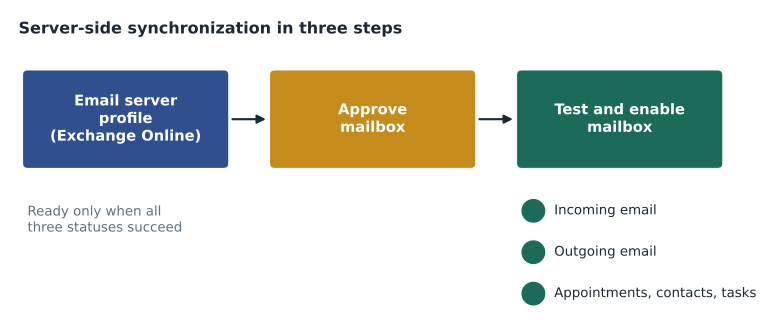
Setting it up has three steps. First, an email server profile for Exchange Online defines how Dataverse connects to the mail system; in a Microsoft 365 tenant one is created automatically. Second, each user's mailbox row in Dynamics 365 must be approved, which confirms that the email address really belongs to that user; approval needs a Microsoft 365 global administrator or Exchange administrator, or an approval process that the administrator has delegated. Third, the mailbox is tested and enabled, and Dynamics 365 reports whether incoming email, outgoing email, and appointments, contacts and tasks are working.
Two settings on each mailbox decide what is tracked. Incoming email processing can track all messages, messages in response to Dynamics 365 email, or messages from known leads, contacts and accounts. Most companies choose the last option or the response option, to avoid filling Dataverse with newsletters. Appointments, contacts and tasks synchronization keeps calendars aligned in both directions. Mirela set Kestrelbay's sellers to track email from known leads, contacts and accounts, and showed them how to track a message manually from Outlook when a new customer wrote in.
Worked problem
Diagnosing a mailbox that will not synchronize
Joaquim Pellerin-Sousa reports that emails from a marina manager never appear on the account timeline, though other sellers' emails do. His mailbox row shows incoming email status "Not run". What should Mirela check, in order?
Show solution
- Open Joaquim's mailbox row and confirm the email address matches his Exchange Online address.
- Check whether the mailbox has been approved; an unapproved mailbox cannot be tested.
- Run Test and Enable Mailbox and read the alerts on the row.
- Check the incoming email setting; if it tracks only responses to Dynamics 365 email, a new thread from the marina will not be tracked.
- Confirm the marina manager exists as a contact, because the "known contacts" option only matches existing rows.
Answer: In this case the mailbox had never been approved after Joaquim's address changed. Mirela had an Exchange administrator approve it, tested and enabled it, and the next morning's emails appeared on the timeline.
Outlook, Teams and the other Microsoft 365 connections
Sellers spend much of the day in Outlook, so the Dynamics 365 App for Outlook matters. It lets a seller track an email or meeting to a record, set the Regarding row and create a contact from a sender without leaving Outlook. It is deployed centrally from the Microsoft 365 admin center or added by users with the right privilege. Phase one had deployed it already; Mirela checked that every seller still had the privilege after the security roles were copied and renamed.
The Teams, SharePoint and OneDrive connections were also in place from phase one: sellers could collaborate on an opportunity in a Teams channel, and documents for each account were stored in a SharePoint folder created automatically. For the AI stage, Mirela added one more item to the checklist: auditing. Copilot's "recent changes" list is generated from audit history, so auditing must be on for the environment and for the lead, opportunity and account tables. Lesson 10 returns to this.
Importing and exporting data
The exam also lists evaluating options for importing and exporting data. Phase one had used dataflows to migrate the old customer database. For ongoing work, sellers export a view to Excel to work on a list offline, and administrators use the import wizard for small loads such as a list of trade-show leads. Mirela added a governance rule: imports of more than 200 rows go through a sandbox test first, and every import uses a data map that matches on an alternate key so that it updates existing rows rather than duplicating them. Clean data now would make every model trained later more accurate.
A readiness checklist
Mirela finished the planning session with a one-page checklist, which became the template for the rest of the course. Every item was ticked before any AI feature was switched on in production.
| Check | Kestrelbay status |
|---|---|
| Environment region and Copilot availability confirmed | Done |
| Cross-region data movement decision recorded | Approved by owners |
| Sales Enterprise licenses assigned to all 18 sellers | Done |
| All seller mailboxes approved, tested and enabled | 17 of 18; Joaquim fixed |
| Auditing on for lead, opportunity and account | Turned on |
| Data loss prevention policy reviewed for Copilot connectors | No conflicts |
| Changes built in Kestrelbay-Test first | Agreed for every lesson |
Ottilie read the list and laughed. "So the clever parts start with checking email addresses." Mirela nodded. "They always do. The AI can only see what the system has been allowed to record."
Preparing people as well as settings
Mirela added a people track to the plan alongside the technical one. Each seller would get a short session before each feature went live, a one-page guide and a named champion to ask: one inside seller and one field rep volunteered. She also confirmed that every seller's security role still included the privileges the new features needed, because phase one roles had been copied and trimmed. Small gaps, such as a missing privilege for the Outlook app or for mobile access, are the most common reason a well-configured feature appears broken to one person.
Common mistakes
MistakeTurning on Copilot before mailboxes synchronize.
InsteadApprove, test and enable every seller's mailbox first, so summaries and insights have email to work with.
MistakeTreating cross-region data movement as a purely technical switch.
InsteadBring it to the data owners as a residency decision and record their answer.
MistakeBuying Sales Premium for every seller by default.
InsteadCompare expected volumes with the Enterprise limits and upgrade only the users who need more.
MistakeLeaving auditing off for leads, opportunities and accounts.
InsteadTurn auditing on, because Copilot's recent changes list is built from audit history.
Summary and key terms
- Sales AI features depend on the environment region, licenses, mailboxes, auditing and Copilot settings at both the environment and app level.
- Sales Professional, Enterprise and Premium differ mainly in process depth and in the capacity of digital selling features such as scoring and the sales accelerator.
- Enterprise includes scoring and sequences for up to 1,500 records a month each; Premium removes those limits.
- Server-side synchronization needs an email server profile, an approved mailbox and a successful test before email reaches Dataverse.
- Most settings are in Sales Hub App Settings; intelligence features are in Sales Insights settings; platform settings are in the Power Platform admin center.
- Server-side synchronization
- The service that connects Exchange Online mailboxes to Dataverse and synchronizes email, appointments, contacts and tasks.
- Mailbox approval
- Confirmation by an administrator that a mailbox's email address belongs to its user, required before testing.
- Cross-region data movement
- Consent that lets Copilot process prompts in an Azure OpenAI endpoint outside the environment's region.
- App Settings
- The Sales Hub area that holds settings for the product catalog, goals, forecasts, Copilot and general Sales options.
- Sales Insights settings
- The Sales Hub area for intelligence features such as conversation intelligence and predictive models.
- Sales Enterprise
- The Sales plan with the full lead-to-cash process and capped digital selling features.
Practice problems
Work each problem on paper first, then reveal the answer to check.
List three prerequisites for Copilot in Dynamics 365 Sales.
Show answer
For example: a supported region (or consent to cross-region data movement), Copilot turned on in the Power Platform admin center, and Copilot turned on for the sales app in App Settings.
A seller's mailbox shows "Not run" for incoming email. What is the most likely missing step?
Show answer
The mailbox has not been approved and then tested and enabled.
When would a company with 20 sellers on Sales Enterprise need Premium for scoring?
Show answer
When it needs to score more than 1,500 leads and opportunities a month or wants the advanced model settings.
Lesson quiz · 5 questions
Score 60% or more to complete this lesson.
Create a free account to save your progress, take quizzes and earn a certificate.