
MSBA-222 · Lesson 1 of 12 · 21 min
Meeting policies and settings
▶ Video coming soon A video version of this lesson is on the way.
By the middle of October 2026, Corvallin Home Care's Teams relaunch had settled down. The 214 untidy teams of the old environment had become 96 active ones, the branch template was in use, and the help desk was taking fewer collaboration tickets each week. The next set of questions that reached the IT office was about meetings rather than teams. A branch manager wanted to know why her case conference could not be recorded. The communications coordinator wanted to run a monthly webinar for family caregivers. Head office wanted a proper all-staff town hall instead of a meeting with 450 people crammed into it. And Felix Okonkwo-Reyes, who looks after the network and voice, had been asked to replace the aging phone system at head office with Teams Phone.
This course follows that work. It covers the part of the MS-700 exam called "Manage meetings and calling", which Microsoft weighted at 15 to 20 percent of the exam in the skills outline dated October 27, 2026. It also touches skills the exam places in other domains, such as bandwidth planning and monitoring call quality. Later courses in the MS-721 program go much deeper into phone systems, Teams Rooms and call quality; here the aim is the depth a Teams administrator needs. This first lesson covers the controls that shape every meeting: meeting policies, meeting settings, organizer options and the newer template and customization policies.
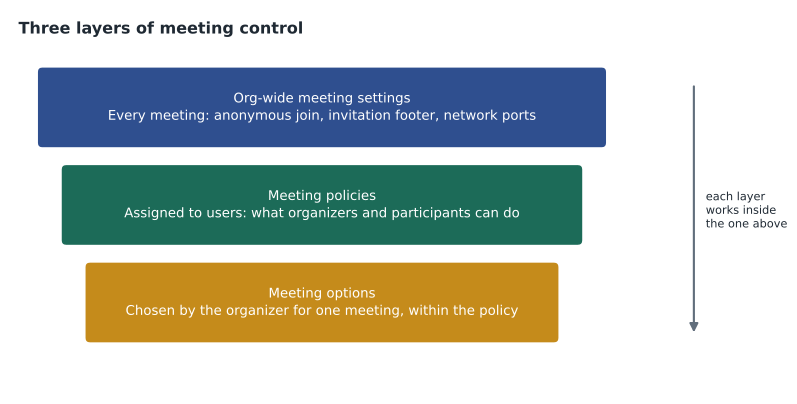
Three layers of meeting control
Teams meetings are controlled at three levels, and most confusion about meetings comes from mixing them up. The first level is org-wide meeting settings in the Teams admin center. These apply to every meeting in the tenant and cover a small number of things: whether anonymous users can join, whether anonymous users can interact with apps in meetings, the custom footer added to meeting invitations (a logo, a legal notice link, a help link), and network settings such as Quality of Service port ranges.
The second level is meeting policies. A meeting policy is a named set of settings assigned to users, and it controls what the organizer of a meeting can do and, for many settings, what each participant can do. Policies cover audio and video, recording and transcription, content sharing, participants and guests, the lobby, chat in meetings, Copilot, and many smaller features. Most meeting settings that an exam question asks about live here.
The third level is meeting options, which the organizer sets for an individual meeting, either from the meeting invitation in Teams or Outlook or during the meeting. Meeting options include who can bypass the lobby, who can present, whether attendees can unmute or turn on cameras, whether chat is on, whether the meeting is recorded automatically and how Copilot can be used. The policy sets the limits and defaults; the organizer chooses within those limits. If the policy turns a feature off, the organizer cannot turn it back on.
Organizer policy or participant policy?
A meeting brings together people with different policies, so Teams has to decide whose policy applies to each setting. The rule is set per setting, and Microsoft documents it in the description of each one. Many settings follow the organizer's policy: the lobby, whether the meeting can be recorded at all, whether Copilot is available and whether external participants can join, because these are properties of the meeting itself. Others follow each participant's own policy: whether that person can share their screen, use their camera, or record the meeting if recording is allowed, because these are about what an individual can do. A few combine both, so a feature works only if the organizer's policy allows it and the participant's policy does too.
This explains a common help desk ticket. A coordinator at the East Branch could not share her screen in a meeting that her manager organized, although everyone else could. The manager's policy allowed screen sharing, so the problem had to be the coordinator's own policy. It turned out she had been added to an old test group that still had a restrictive policy at rank 1. Removing her from the group fixed the problem the next day.
| Setting (examples) | Whose policy applies | Why |
|---|---|---|
| Who can bypass the lobby (default) | Organizer | It is a property of the meeting |
| Whether the meeting can be recorded | Organizer, and the person recording | Both must allow it |
| Screen sharing mode | Each participant | It controls what one person can share |
| Use of camera (IP video) | Each participant | It controls one person's video |
| Copilot in the meeting | Organizer | The organizer chooses how Copilot can be used |
| Meeting chat | Organizer for the meeting; participant policy can also restrict | Check each setting's description |
Microsoft's documentation for each setting states whose policy applies. Because the details change from time to time, the safe habit for an administrator is to look up the setting rather than rely on memory, and for an exam candidate to know the principle: settings that describe the meeting follow the organizer, settings that describe a person's actions follow that person.
Policy assignment and precedence
Meeting policies are assigned the same way as other Teams policies, which the earlier courses in this program covered. A user can have a policy assigned directly, inherit one from a group assignment, get one through a policy package, or fall back to the Global (Org-wide default) policy. A direct assignment wins over a group assignment. Among group assignments, the one with the lowest rank number wins. If there is no direct or group assignment, the Global policy applies.
Microsoft also supplies preset policies such as AllOn, RestrictedAnonymousAccess and AllOff, which exist for backwards compatibility and can be assigned but not edited. Corvallin's approach, set during the relaunch, was to edit the Global policy so it suits most staff and to add a small number of custom policies for groups with different needs.
| Policy | Assigned to | Main differences from Global |
|---|---|---|
| Global (Org-wide default) | Everyone not covered below | Recording and transcription allowed; recordings expire after 60 days; Copilot on with transcript |
| Standard-Meetings | Head office and branch managers (rank 2) | As Global, plus meeting registration and longer recording expiry for training |
| Clinical-Meetings | Clinical leads and case conference organizers (rank 1) | Recording and transcription off; Copilot only during the meeting; external participants wait in the lobby |
| External-Events | Communications team (rank 3) | Webinars and town halls allowed; Q&A on; anonymous join for events |
# Requires the MicrosoftTeams module (8.x)
Connect-MicrosoftTeams
# Create the clinical meeting policy from Global and change what differs
New-CsTeamsMeetingPolicy -Identity "Clinical-Meetings" `
    -AllowCloudRecording $false -AllowTranscription $false `
    -AutoAdmittedUsers "EveryoneInCompanyExcludingGuests"
# Assign it to the clinical leads group at rank 1
New-CsGroupPolicyAssignment -GroupId $clinicalLeadsGroupId `
    -PolicyType TeamsMeetingPolicy -PolicyName "Clinical-Meetings" -Rank 1
# Check one user's effective policy
Get-CsUserPolicyAssignment -Identity "m.ostrander-bey@corvallincare.example" `
    -PolicyType TeamsMeetingPolicy
What a meeting policy controls
The Teams admin center groups meeting policy settings into sections, and the names change slightly between releases. The sections that matter most for administrators are these.
Meeting scheduling controls whether users can schedule private meetings, channel meetings, meetings from Outlook and meetings in personal calendars, and whether they can use the Meet now option in channels. Turning off private meeting scheduling does not stop someone from joining meetings organized by others.
Meeting join and lobby controls who can bypass the lobby by default (for example, only the organizer, people in the organization, people in the organization and guests, or everyone), whether people who dial in by phone can bypass the lobby, whether anonymous users and dial-in callers can start a meeting, and whether the organizer can change these defaults. Lobby settings are a meeting's first line of protection.
Audio and video controls mode for audio and camera, whether participants can give or request control, and the use of background effects. Content sharing controls screen sharing mode (entire screen, single application or off), whether PowerPoint Live and the whiteboard can be used, and whether external participants can take control.
Recording and transcription controls whether meetings can be recorded and transcribed, where recordings are stored, how long they are kept and whether live captions are on. Lesson 2 covers this section. Copilot controls whether Copilot can be used in meetings and whether a transcript must be saved. Participants and guests controls whether anonymous users can join, whether external participants can give or request control, chat for external participants, and features for people who join by phone.
There are also settings for live captions, meeting reactions, attendance reports, engagement reports, the Q&A feature for meetings, and the watermark and end-to-end encryption options that need Teams Premium (lesson 6).
Copilot in meetings
The MS-700 outline asks candidates to configure meeting settings, including for Microsoft 365 Copilot. Copilot can summarize a meeting, list action items and answer questions about what has been said. To do that it needs to read the conversation, and the policy decides whether it can use a saved transcript or only work while the meeting runs.
The meeting policy setting for Copilot has four values, shown in PowerShell as Enabled, EnabledWithTranscript, EnabledWithTranscriptDefaultOn and Disabled. With EnabledWithTranscript, which is the default, Copilot works only if a transcript is saved. With Enabled, the organizer can also allow Copilot without saving a transcript, so Copilot can answer questions during the meeting but nothing remains afterwards. EnabledWithTranscriptDefaultOn starts the transcript automatically. Disabled turns Copilot off in meetings the user organizes. Copilot still needs each user to have a Microsoft 365 Copilot license, and it does not work in meetings that use end-to-end encryption.
In meeting options, the organizer then chooses how Copilot may be used in a particular meeting: during and after the meeting, only during the meeting, or off. Corvallin's Clinical-Meetings policy uses the Enabled value with transcription off, so clinical leads with Copilot licenses can ask Copilot to recap the discussion while a case conference is in progress, but no transcript or recording of client details survives the meeting. Dr. Marguerite Ostrander-Bey, the clinical director, accepted that design after a long conversation about what a transcript of a case conference would mean for privacy.
Worked problem
Why Copilot is missing from a case conference
A clinical lead with a Copilot license says Copilot is grayed out in a case conference she joined. The meeting was organized by a branch nurse who has no Copilot license and is assigned Clinical-Meetings. What is the most likely explanation?
Show solution
- Copilot availability in a meeting follows the organizer's policy and meeting options.
- Check the organizer's meeting options: if transcription is off and the options do not allow Copilot during the meeting, Copilot is unavailable.
- Check the lead's own license: she has one, so her license is not the problem.
- Check whether the meeting uses end-to-end encryption, which blocks Copilot.
Answer: The organizer had left Copilot off in the meeting options. Changing the option to "Only during the meeting" made Copilot available to licensed participants.
Meeting templates and template policies
Meeting templates give organizers a starting point for common meeting types, with options already set and, in some cases, locked so that organizers cannot change them. Microsoft supplies built-in templates, and organizations with Teams Premium can build custom meeting templates that set options such as lobby, recording, chat, watermarking and a sensitivity label. Meeting template policies decide which templates users see when they create a meeting, so an administrator can hide templates that do not apply to a group.
Corvallin's 20 clinical leads, who were given Teams Premium licenses during the relaunch, use a custom Case Conference template. It locks recording off, sets the lobby so external participants always wait, applies the Clinical Confidential sensitivity label and adds a watermark when content is shared. Because the template is locked, a lead cannot accidentally record a conference with a family member present.
Meeting customization policies
Meeting customization policies, also listed in the MS-700 outline, control branding in meetings: logos, background images and colors that appear in the pre-join screen and the meeting. Microsoft moved some of this branding for meetings and events from Teams Premium into the standard enterprise licenses on April 1, 2026, which lesson 6 explains. A customization policy is assigned to organizers like any other policy, and branding applies to meetings they organize. Corvallin created one policy with its logo and colors for the communications team's events, and left ordinary meetings without branding so that everyday meetings looked familiar to staff.
Anonymous and external participants
The org-wide setting for anonymous join and the policy setting for anonymous users work together. Anonymous users are people who join without signing in with an account the meeting recognizes, such as a family member joining a care planning meeting from a browser. If anonymous join is off at the org level, nobody can join anonymously, whatever the policy says. If it is on, each organizer's policy decides whether anonymous users can join that organizer's meetings. Microsoft also documents a join verification option that can require anonymous users to complete a check before they reach the lobby, and in some situations Microsoft requires an emailed one-time passcode for external participants as a protection measure.
External participants are different from anonymous ones. People from other organizations that Corvallin allows through external access join with their own work account, and guests join with the guest account they have in Corvallin's tenant. The lobby setting decides whether each type waits, and the Clinical-Meetings policy makes every external participant wait so that a nurse can confirm who has joined before discussing a client.
| Who joins | Identity Teams sees | Typical lobby treatment at Corvallin |
|---|---|---|
| Staff | Corvallin account | Bypass the lobby |
| Guest (for example a partner pharmacist) | Guest account in Corvallin's tenant | Wait in clinical meetings; bypass in partner project meetings |
| External user from another organization | Their own organization's account | Wait |
| Anonymous user | Display name only | Always wait |
| Dial-in caller | Phone number, possibly masked | Wait unless the policy lets callers bypass |
Checking settings before a big change
Before changing the Global meeting policy, Teodor exported its current settings with Get-CsTeamsMeetingPolicy and saved the output with the change ticket. If a change caused problems, he could compare the before and after values and put back the old one. The same habit applies to every policy change: record the current state, make one change at a time, give it time to reach clients (policy changes can take several hours), and test with a pilot user before telling everyone.
He also kept a short page in the IT wiki that explained the meeting policies in plain words for managers: who gets which policy, what each one allows, and who to ask when a meeting needs something different. That page answered half of the questions branch managers used to send by email, and it reminded the IT team of the reason behind each setting when someone asked to change it months later.
Common mistakes
MistakeTelling an organizer to turn on a feature in meeting options when their policy has it off.
InsteadChange or reassign the policy; meeting options work only within the policy.
MistakeAssuming every meeting setting follows the organizer.
InsteadCheck whose policy applies: settings about a person's actions usually follow that person.
MistakeEditing a preset policy such as AllOn.
InsteadPreset policies cannot be edited; create a custom policy instead.
MistakeExpecting Copilot to work in an end-to-end encrypted meeting.
InsteadCopilot, recording and transcription are not available with end-to-end encryption.
Summary and key terms
- Org-wide meeting settings apply to every meeting; meeting policies are assigned to users; meeting options are chosen per meeting within the policy.
- Some settings follow the organizer's policy, some follow each participant's policy and some need both.
- Policy precedence is direct, then group by lowest rank, then Global.
- The Copilot meeting setting decides whether a transcript is required; organizers then choose during and after, only during, or off.
- Meeting templates and template policies give organizers controlled starting points; custom templates need Teams Premium.
- Meeting customization policies apply branding to the meetings and events an organizer runs.
- Meeting policy
- A named set of Teams meeting settings assigned to users that controls what organizers and participants can do.
- Meeting options
- Settings the organizer chooses for one meeting, within the limits of the policy.
- Org-wide meeting settings
- Tenant-wide settings that apply to every meeting, such as anonymous join and the invitation footer.
- Lobby
- The waiting area where people stay until someone admits them to the meeting.
- Meeting template
- A starting point for a meeting type with options already set and possibly locked.
- Meeting template policy
- A policy that decides which meeting templates a user sees.
- Meeting customization policy
- A policy that applies branding to meetings and events an organizer runs.
Practice problems
Work each problem on paper first, then reveal the answer to check.
An organizer wants to record a meeting but the Record option is missing. Where do you look first?
Show answer
The organizer's effective meeting policy, recording and transcription section.
A participant cannot share a screen in a meeting where others can. Whose policy do you check?
Show answer
The participant's own meeting policy, because screen sharing follows each participant.
What Copilot policy value lets Copilot work during the meeting without keeping a transcript?
Show answer
Enabled, with the organizer choosing "Only during the meeting" in meeting options.
Lesson quiz · 5 questions
Score 60% or more to complete this lesson.
Create a free account to save your progress, take quizzes and earn a certificate.