
MSBA-201 · Lesson 5 of 12 · 19 min
Groups: Microsoft 365, security and distribution
▶ Video coming soon A video version of this lesson is on the way.
Corvallin's old Exchange servers had 214 distribution lists. Teodor exported them and sent the list to Ines with one line: "Some of these are older than the agency's current logo." There were lists for branches that had closed, lists for committees that had finished their work years ago, and four separate lists called some variation of All Nurses, each with a slightly different membership. The file server had its own collection of Active Directory security groups, named by people who had long since left.
Moving to Microsoft 365 was the chance to clean this up, but only if Teodor understood the kinds of group Microsoft 365 offers and chose the right one for each job. Groups do three different things in Microsoft 365: they deliver email to many people, they grant access to resources, and they provide a shared workspace with a mailbox, files and often a team. Different group types do different combinations of those jobs.
The four group types
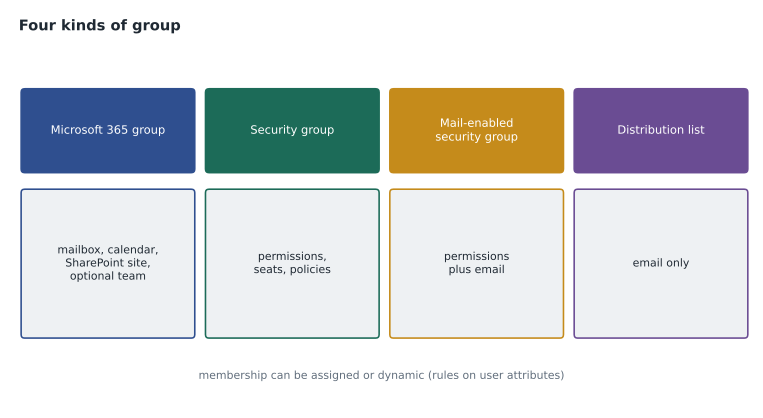
A Microsoft 365 group is a collaboration group. Creating one creates a shared mailbox and calendar, a SharePoint team site for files, a Planner plan, a OneNote notebook and, if the group is used for Teams, a team. Members get access to all of these; owners manage membership and settings. Microsoft 365 groups can be public, meaning anyone in the organization can join, or private, meaning owners approve members. They can include guests if guest access is allowed.
A security group grants access and applies settings. Security groups are used to assign licenses, to give permissions on SharePoint sites and other resources, to target Conditional Access and Intune policies, and to scope apps. They have no mailbox. Security groups can contain users, devices and other groups, and they are the usual group type synchronized from on-premises Active Directory.
A mail-enabled security group does both of the simpler jobs: it grants access like a security group and receives email like a distribution list. It is useful when the people who need access to a resource are also the people who should receive related email. Mail-enabled security groups are managed in the Exchange admin center or Exchange Online PowerShell and cannot be dynamic in the way Entra dynamic groups are.
A distribution list, sometimes called a distribution group, only delivers email. A message sent to the list goes to every member. Distribution lists are managed in Exchange and suit announcements and departmental mailing. Exchange Online also offers dynamic distribution groups, whose membership is calculated from recipient properties each time mail is sent.
| Group type | Permissions and policies | Shared workspace | Typical use | |
|---|---|---|---|---|
| Microsoft 365 group | Yes, with shared mailbox and calendar | For its own resources; usable elsewhere | Yes: site, plan, notebook, optional team | A team or project that works together |
| Security group | No | Yes | No | Licenses, site access, Conditional Access, Intune |
| Mail-enabled security group | Yes | Yes | No | People who need access and the related mail |
| Distribution list | Yes | No | No | Announcements to a department or role |
Choosing the right type
Microsoft recommends Microsoft 365 groups for collaboration, because people get a workspace rather than just an email address, and because a group used as a team in Teams brings conversations, files and meetings together. For pure access control, security groups remain the right choice. Teodor wrote a simple decision rule for the help desk:
| If the request is... | Create... |
|---|---|
| "We need a place to work together on something" | A Microsoft 365 group, usually through a new team in Teams |
| "These people need access to this site, app or license" | A security group |
| "We need to email everyone in this role" | A distribution list, or a dynamic distribution group if membership follows an attribute |
| "These people need access and should get the related email" | A mail-enabled security group |
Applied to the 214 old lists, the rule worked well. The four All Nurses lists became one dynamic distribution group based on job title. Branch committee lists became Microsoft 365 groups with teams, because the committees wanted to share minutes and files. Lists for closed branches and old committees were archived and not migrated at all. In the end Corvallin moved 61 lists and retired the rest.
Assigned and dynamic membership
Membership in a security group or Microsoft 365 group can be assigned, where owners or administrators add and remove members by hand, or dynamic, where Microsoft Entra ID calculates membership from rules on user or device attributes. A dynamic rule might include every user whose department is Nursing, or every device whose operating system is Android. When an attribute changes, membership updates automatically, which is why accurate job titles and departments matter so much in Lesson 4.
Connect-MgGraph -Scopes "Group.ReadWrite.All"
New-MgGroup -DisplayName "Frontline Staff (licensing)" -MailEnabled:$false `
    -MailNickname "frontline-licensing" -SecurityEnabled `
    -GroupTypes "DynamicMembership" `
    -MembershipRule '(user.department -in ["Home Care","Nursing"]) -and (user.accountEnabled -eq true)' `
    -MembershipRuleProcessingState "On"
Dynamic membership for Entra groups requires Microsoft Entra ID P1 licenses for the users who are members, which E3, E5 and F3 all include. Dynamic rules have limits worth knowing: membership changes are not instant, because the directory processes rules in the background; complex rules take longer; and a mistake in a rule can add or remove many people at once. Teodor always used the rule validation feature in the Entra admin center to test a rule against sample users before saving it.
Worked problem
Predicting a dynamic group
The rule for Frontline Staff includes enabled users whose department is Home Care or Nursing. Corvallin has 290 enabled Home Care users, 48 enabled Nursing users, 5 disabled Nursing users on leave, and 12 Nursing supervisors whose department field says Clinical Management. How many members will the group have?
Show solution
- Enabled Home Care users: 290, all included.
- Enabled Nursing users: 48, included.
- Disabled Nursing users: 5, excluded by the accountEnabled condition.
- Supervisors in Clinical Management: 12, excluded because their department does not match.
- Total: 290 + 48 = 338 members.
Answer: 338 members. The supervisors were meant to be excluded because they held office licenses, so the rule did exactly what was wanted. Had they needed frontline licenses, the fix would have been to change the rule, not to add them by hand to a dynamic group, which is not possible.
Owners, naming and expiration
Every Microsoft 365 group should have at least two owners, so that it survives one person leaving. Owners can add and remove members, change settings and, in Teams, manage channels. Groups with no owner are a common source of clutter, and Microsoft 365 includes an ownerless group policy that can ask active members to become owners.
Group sprawl is the other risk. When everyone can create Microsoft 365 groups, organizations quickly end up with thousands, many abandoned after a week. Three controls help. A naming policy adds a prefix or suffix, such as the department, to every group name and can block certain words. A group expiration policy asks owners to renew groups after a set number of days, and deletes groups that nobody renews; a deleted Microsoft 365 group can be restored for 30 days. Creation restrictions can limit who may create Microsoft 365 groups to members of a particular security group. Corvallin allowed only managers and the IT team to create groups, applied a naming prefix such as CHC-, and set groups to expire after 180 days unless renewed. Activity counts as renewal for groups that are in use, so active groups renew automatically.
| Control | Where it is set | Corvallin's choice |
|---|---|---|
| Who can create Microsoft 365 groups | Microsoft Entra settings, applied with Graph or Entra PowerShell | Members of the Team Creators security group only |
| Naming policy | Microsoft Entra admin center, Groups, Naming policy | Prefix CHC- and a blocked-words list |
| Expiration | Microsoft Entra admin center, Groups, Expiration | 180 days, with renewal reminders to owners |
| Guest access to groups | Group settings and external collaboration settings | Allowed only for named groups after review |
Managing groups in the admin centers
Groups appear in several places, which can be confusing at first. The Microsoft 365 admin center, under Teams and groups, Active teams and groups, lists Microsoft 365 groups, security groups, mail-enabled security groups and distribution lists together, and lets administrators create any of them. The Microsoft Entra admin center manages security and Microsoft 365 groups, including dynamic rules, naming and expiration. The Exchange admin center manages the mail-related properties of mail-enabled groups and distribution lists, such as who may send to them and whether outside senders are allowed. The Teams admin center manages the team side of groups that have teams.
For synchronized groups, the source of authority is on-premises Active Directory: their membership must be edited there, and the cloud shows them as synced from on-premises. Group writeback can copy cloud groups back to Active Directory for organizations that still have on-premises applications needing them, and Microsoft Entra Cloud Sync now supports provisioning groups to Active Directory, as Lesson 7 explains.
Groups and access to resources
A good habit is to grant access to groups, never to individual users. When a new intake coordinator joins, adding her to the Intake security group gives her the Intake site, the intake forms app and the license for the scheduling add-on in one step. When she leaves or moves, removing her from the group takes all of it away. Granting access to individuals instead means every change has to be repeated in every place, and something is always missed.
Nested groups, where a group is a member of another group, work for some purposes and not others. Security groups can be nested for many access scenarios, but group-based licensing applies only to direct members of the licensed group, and Microsoft 365 groups cannot contain other groups as members. Teodor kept nesting to a minimum and documented every case, because nested membership makes it hard to answer the simple question "why does this person have access?"
Cleaning up
Before migration, Teodor produced three lists for Ines: groups to migrate as they were, groups to migrate in a new form, and groups to retire. Owners of groups to be retired got two weeks' notice by email. Nobody objected to losing the lists for branches that had closed in 2014. Two people objected to losing a list called Coffee Club, which, after some discussion, became a Teams channel.
Groups in daily support
Most group-related help desk calls fall into a handful of patterns. "I can't see the team's files" usually means the person is not a member of the Microsoft 365 group, or was added only to a private channel. "I didn't get the announcement" usually means they are not in the distribution list, or that the list only accepts mail from internal senders and the sender was outside. "My new starter has no license" usually means the dynamic rule did not match because an attribute such as department was blank or misspelled in the HR record. Ama's team learned to check membership and attributes first, which solved most cases without involving Teodor.
Exchange settings on mail-enabled groups deserve a check too. By default, distribution lists accept mail only from senders inside the organization, which protects large lists from spam but surprises people when a partner hospital's message to a team address bounces. Owners can allow outside senders, limit who may send to the list, or require moderation so that messages to a large list are approved before delivery. Corvallin required moderation for the All Staff list after a well-meaning reply-all storm in the first week, in which 300 people replied to ask others to stop replying.
Nested and dynamic groups also interact with other services in ways worth testing. SharePoint can grant access to security groups and Microsoft 365 groups, Conditional Access and Intune policies can target security groups including dynamic device groups, and Teams policies can be assigned to groups with ranks. Before relying on a group for something important, Teodor tested it with one or two test accounts: added them, waited for membership to update, and checked that the license, site access or policy arrived as expected. Removing the test accounts confirmed that access disappeared again.
Finally, groups should appear in the decision log like everything else. For each important group, Teodor recorded its purpose, type, owners, membership rule if dynamic, and what it was used for: licenses, site access, policies or mail. When Ines asked during an audit why 41 people could open the finance site, the answer took one minute instead of an afternoon.
Common mistakes
MistakeUsing a distribution list to grant access to a SharePoint site.
InsteadDistribution lists only deliver mail; use a security group or Microsoft 365 group for access.
MistakeGiving each Microsoft 365 group a single owner.
InsteadAssign at least two owners so the group survives a departure.
MistakeLetting everyone create Microsoft 365 groups with no naming or expiration policy.
InsteadLimit creation, add a naming policy and set expiration with renewal.
MistakeGranting permissions to individual users.
InsteadGrant access to groups so that joining or leaving a group changes all related access at once.
Summary and key terms
- Microsoft 365 groups provide a shared mailbox, calendar, site and optional team for collaboration.
- Security groups grant access and target licenses and policies; mail-enabled security groups add email.
- Distribution lists only deliver mail; dynamic distribution groups calculate recipients from properties.
- Membership can be assigned or dynamic; dynamic Entra groups need Entra ID P1 and well-maintained attributes.
- Govern groups with owners, creation restrictions, naming policies and expiration, and grant access to groups rather than individuals.
- Microsoft 365 group
- A collaboration group with a shared mailbox, calendar, SharePoint site and optional team.
- Security group
- A group used to grant permissions and target licenses and policies.
- Distribution list
- A mail-only group that delivers messages to its members.
- Dynamic membership
- Group membership calculated automatically from rules on attributes.
- Group expiration policy
- A policy that asks owners to renew groups and deletes unrenewed ones.
- Naming policy
- Rules that add prefixes or suffixes to group names and block certain words.
Practice problems
Work each problem on paper first, then reveal the answer to check.
A project team wants shared files, a calendar and a place to chat. Which group type fits?
Show answer
A Microsoft 365 group, usually created as a team in Teams.
Why can a dynamic group not have members added by hand?
Show answer
Its membership is calculated entirely from its rule; to change membership, change the rule or the attributes.
What happens to a Microsoft 365 group that nobody renews under an expiration policy?
Show answer
It is deleted, and can be restored for 30 days.
Lesson quiz · 5 questions
Score 60% or more to complete this lesson.
Create a free account to save your progress, take quizzes and earn a certificate.