
MSBA-201 · Lesson 3 of 12 · 19 min
Organization settings and the admin centers
▶ Video coming soon A video version of this lesson is on the way.
With the domain verified, Teodor opened the Microsoft 365 admin center and clicked Show all in the navigation for the first time. The list ran to the bottom of the screen: Users, Teams and groups, Roles, Resources, Billing, Copilot, Support, Settings, Setup, Reports, Health, and then a section called Admin centers with links to Security, Compliance, Endpoint Manager, Identity, Exchange, SharePoint and Teams. Ama Owusu-Pratt, who had come over from the help desk to learn alongside him, asked the obvious question. "Which one do I actually use?"
The honest answer is "all of them, for different things". Microsoft 365 is a family of services, and each major service has its own admin center or portal. The Microsoft 365 admin center is the front door: it handles users, licenses, billing and tenant-wide settings, and it links to the specialist portals. This lesson maps the admin centers, then works through the organization-wide settings that Teodor configured before any real user arrived: the organization profile, branding, release preferences, security and privacy settings, and service settings.
A map of the admin centers
Each admin center owns the configuration of one area. Some settings appear in more than one place, usually as a shortcut back to the owning portal, but each setting has one true home. Knowing that home saves time when following documentation or an exam question that says "in the Exchange admin center".
| Admin center or portal | Owns | Typical tasks at Corvallin |
|---|---|---|
| Microsoft 365 admin center | Users, licenses, billing, tenant settings, service health, reports | Creating users, assigning licenses, reading Message center |
| Microsoft Entra admin center | Identity, authentication, Conditional Access, roles, devices, synchronization | Setting sign-in methods and Conditional Access |
| Exchange admin center | Mailboxes, mail flow rules, connectors, migration | Creating shared mailboxes and moving mailboxes |
| SharePoint admin center | Sites, sharing, storage, OneDrive settings | Setting external sharing and creating hub sites |
| Teams admin center | Teams policies, meetings, calling, devices, apps | Setting meeting policies and app permissions |
| Microsoft Defender portal | Threat protection, incidents, Secure Score, email security | Reviewing alerts and anti-phishing policies |
| Microsoft Purview portal | Compliance, information protection, retention, eDiscovery, audit | Searching the audit log and creating labels |
| Microsoft Intune admin center | Device enrollment, compliance, configuration, apps | Enrolling frontline phones and tablets |
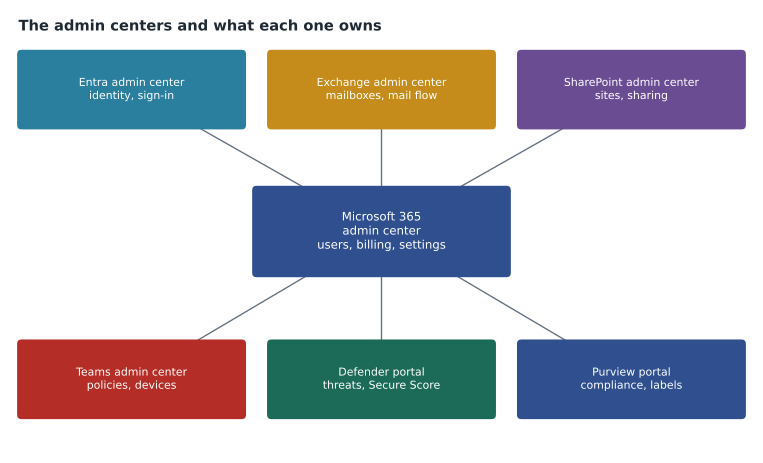
Access to an admin center depends on the person's role, not on the link. Ama, who would eventually hold the Helpdesk Administrator role, would see the Microsoft 365 admin center with only the pages that role allows; opening the Exchange admin center would show her nothing she could change. Lesson 6 explains how roles and admin centers line up. For now, Teodor used his Global Administrator account to configure tenant-wide settings, and made a note to stop using it for daily work once narrower roles were in place.
The organization profile
Under Settings, then Org settings, the Organization profile tab holds the facts Microsoft uses to describe and contact the organization: its name, address, technical contact, preferred language, and several settings that change how the tenant behaves. Teodor filled in the organization information first. The technical contact address is where Microsoft sends some service communications, so he used a shared mailbox rather than his own address, ensuring messages would not be lost when someone changed jobs.
The organization profile also shows the data location page described in Lesson 1, the help desk information that appears when users click the help menu in Microsoft 365 apps, and the release preferences, covered below.
Branding: logo, URL, themes and backgrounds
Branding makes the tenant recognizably Corvallin's, which turns out to be a security feature as well as a cosmetic one. Staff who are used to seeing the agency logo on the sign-in page and in the Microsoft 365 header are more likely to notice a fake sign-in page that lacks it. There are two related places to brand.
In the Microsoft 365 admin center, custom themes under the organization profile set the logo shown in the top bar of Microsoft 365 web apps, the colors of the navigation bar and accent, an optional clickable company URL behind the logo, and the default background image. An organization can create a default theme for everyone and additional themes for specific groups, for example a different logo for a subsidiary, and can choose whether users may override the theme with their own choices.
In the Microsoft Entra admin center, company branding customizes the sign-in experience: the banner logo, background image, sign-in page text and links shown when users sign in with a work account. Corvallin added its logo, a calm photo of the harbor as the background and a line of sign-in page text reminding staff that IT would never ask for their password by phone.
| What it changes | Where it is set | Corvallin's setting |
|---|---|---|
| Top-bar logo, colors and logo link | Microsoft 365 admin center, Org settings, Organization profile, Custom themes | Agency logo linking to the intranet home page |
| Background image for Microsoft 365 apps | Custom themes | Harbor photo, users may not change it |
| Sign-in page logo, background and text | Microsoft Entra admin center, Company branding | Logo, photo and a short anti-phishing reminder |
| Help desk contact in the help menu | Organization profile, Help desk information | Help desk phone number and the self-service portal link |
Release preferences
Microsoft updates Microsoft 365 continuously. Release preferences decide when the tenant sees new features. With standard release, the default, the organization receives updates when they become broadly available. With targeted release, people receive some updates earlier, so they can test them and prepare others. Targeted release can apply to everyone or to selected users only.
Teodor chose standard release for the tenant and targeted release for selected users: himself, Ama, two schedulers who liked trying new things, and a nurse supervisor. That small group would see changes first and warn everyone else. It is the same pattern most organizations use, because it combines early warning with stability for the majority. Targeted release affects many but not all features, and it is separate from the update channels used for the desktop Microsoft 365 Apps, which Intune or other tools manage.
Security and privacy settings
The Security and privacy tab collects settings that affect every user. Several deserve a deliberate decision.
Password expiration policy. Microsoft's guidance, in line with modern password research, is that passwords should not expire on a schedule when multifactor authentication is in use, because forced changes push people toward predictable patterns. The Microsoft 365 admin center sets cloud passwords to never expire by default for new tenants. Corvallin kept that setting for cloud-only accounts and relied on multifactor authentication and leaked-credential detection instead. For synchronized accounts, the on-premises Active Directory password policy still applies, which is one reason identity decisions and password policy belong together.
Self-service password reset. Letting users reset their own passwords after proving their identity removes many help desk calls. The setting is linked from the admin center but configured in the Microsoft Entra admin center, where administrators choose which users can use it and which verification methods they need. For synchronized accounts, password writeback lets a cloud reset change the on-premises password too. Ama wanted this more than any other feature, since password resets were a quarter of her team's calls.
Privacy profile. The organization can publish a link to its privacy statement and a privacy contact, which appear to guests and in some sharing experiences. Dr. Ostrander-Bey supplied the agency's privacy statement URL and named the privacy officer.
Sharing. A tenant-level switch decides whether users can add new guests to the organization. It works together with the more detailed external collaboration settings in Microsoft Entra ID and the sharing levels in SharePoint and Teams, covered in Lessons 9 and 10. Teodor turned guest invitations off at the tenant level until those detailed settings were planned, rather than leaving them open by default during the migration.
Idle session timeout. This signs people out of Microsoft 365 web apps after a period of inactivity, which matters on shared computers in branch offices. The setting applies across Microsoft 365 web apps, and Corvallin chose its value with the calculation in the example below.
Customer Lockbox. When Microsoft support engineers need access to customer content to resolve an issue, Customer Lockbox requires an administrator in the organization to approve the request first. It is included in Microsoft 365 E5 and in some compliance add-ons, but not in E3 or in the E5 Security add-on. Ines wanted it, so Teodor added it to the list of features to weigh at each license renewal.
Worked problem
Choosing an idle timeout
Branch offices share two computers among about 20 staff who each use them for roughly 30 minutes a day. A nurse leaves a session open; the next person may sit down at any time. Ines wants the timeout short enough that an unattended session is unlikely to be reused, but long enough that people writing care notes are not signed out mid-sentence. She suggests choosing between 1 hour, 3 hours and 12 hours.
Show solution
- With about 20 people sharing 2 computers for 30 minutes each, a computer is used about 20 x 30 / 2 = 300 minutes, or 5 hours, a day.
- Gaps between users are therefore short, so even a 1-hour timeout leaves a window for someone else to inherit a session.
- A long timeout increases that window; a very short one interrupts long notes.
- The real fix is for shared devices to be set up as shared or kiosk devices with sign-out between users, and for the web timeout to be a backstop.
Answer: Teodor chose a 1-hour idle session timeout as a backstop and asked Ama to configure the branch computers as shared devices in Intune, so that each person signs out properly at the end of a session.
Services settings
The Services tab lists dozens of individual services and features, each with settings: calendar sharing, Microsoft Forms, Bookings, Microsoft 365 on the web, user owned apps and services, Microsoft Planner, Viva features, Microsoft Search and more. The defaults suit most organizations, but a few choices mattered for Corvallin.
| Service setting | Decision | Reason |
|---|---|---|
| Calendar sharing with external people | Free and busy times only | Client names in appointment titles must not leave the agency |
| Microsoft Forms external sharing | Only people in the organization can respond by default | Intake forms contain health information |
| User owned apps and services | Users may not start trials or buy add-ons themselves | Purchases go through IT |
| Microsoft Bookings | On for the intake team only | Families book assessment calls online |
| Copilot settings | Reviewed separately before any Copilot licenses are assigned | Data governance first (see the MSBA-102 and MSBA-205 courses) |
The admin center also has a Copilot page that gathers settings for Microsoft 365 Copilot, Copilot Chat and agents, along with readiness information and usage. The AB-650 exam treats managing AI services as a large domain of its own, and later courses in this program cover it in depth. For tenant configuration, the important habit is the one Teodor followed: review the Copilot settings deliberately, together with data governance, rather than discovering them after licenses have been assigned.
Finding settings quickly
With hundreds of settings across several portals, nobody memorizes them all. Every admin center has a search box that finds settings as well as users and groups, and Microsoft documentation links directly to the relevant pages. Administrators who manage many tenants or repeat the same changes often use PowerShell or Microsoft Graph instead, which also leaves a record of exactly what was changed. Teodor kept a page in the decision log called "Settings changed from default", listing every setting, its new value and the reason. It took ten minutes a week to maintain and saved hours during the first audit.
"So the answer to my question," Ama said at the end of the afternoon, "is that the Microsoft 365 admin center is where I start, and it tells me where to go next."
"That, and the decision log tells you why it looks the way it does," Teodor said.
Recording configuration as a baseline
Organizations that need stronger change control export their configuration regularly so that changes can be compared over time. Microsoft provides configuration management features for some workloads, and many administrators keep scripts that read key settings with PowerShell and save them to a file each week. Teodor's weekly export covered the organization profile, sharing settings, password policy and guest settings; when an unexpected change appeared, the comparison showed exactly what had moved and the audit log showed who had moved it.
Common mistakes
MistakeLooking for every setting in the Microsoft 365 admin center.
InsteadEach service has its own admin center; the Microsoft 365 admin center is the front door and links to them.
MistakeForcing all cloud passwords to expire every 90 days.
InsteadWith multifactor authentication in place, Microsoft recommends passwords that do not expire on a schedule.
MistakePutting the whole organization on targeted release.
InsteadUse targeted release for a small group of selected users who can test and warn everyone else.
MistakeLeaving guest invitations and external calendar details open during a migration.
InsteadDecide sharing settings deliberately before real data arrives.
Summary and key terms
- Microsoft 365 has several admin centers; each owns one area, and the Microsoft 365 admin center links to them all.
- The organization profile holds organization facts, help desk details, data location and release preferences.
- Branding is set in custom themes (Microsoft 365 apps) and company branding (Entra sign-in pages).
- Security and privacy settings cover password expiration, self-service password reset, privacy profile, sharing, idle timeout and Customer Lockbox.
- Service settings control features such as calendar sharing, Forms and user purchases; record every change from default.
- Organization profile
- The admin center tab holding organization information, themes, help desk details and release preferences.
- Custom theme
- The logo, colors, link and background shown in Microsoft 365 web apps.
- Company branding
- Customization of the Microsoft Entra sign-in pages.
- Targeted release
- A release preference that gives selected users or everyone some updates early.
- Idle session timeout
- A setting that signs users out of Microsoft 365 web apps after inactivity.
- Customer Lockbox
- A feature requiring customer approval before Microsoft engineers access customer content.
Practice problems
Work each problem on paper first, then reveal the answer to check.
Where would you configure the logo shown on the Microsoft Entra sign-in page?
Show answer
Company branding in the Microsoft Entra admin center.
What is the benefit of targeted release for selected users?
Show answer
A small group sees changes early and can test them and prepare everyone else, while most users stay on standard release.
Why might an organization stop users starting trials of self-service products?
Show answer
To keep purchases, licenses and data governance under IT control.
Lesson quiz · 5 questions
Score 60% or more to complete this lesson.
Create a free account to save your progress, take quizzes and earn a certificate.