
MSBA-173 · Lesson 9 of 12 · 24 min
Contacts and contact groups
▶ Video coming soon A video version of this lesson is on the way.
Every wedding brings new people: the couple, their parents, a planner, a dozen vendors and, often, a venue that is new to Maple & Pine. Over the years the office's contacts had come from everywhere: a spreadsheet Rosalind kept when the business started, business cards typed in by hand, people added by right-clicking a sender, and contacts on phones that had never reached Outlook. Some vendors had three contact cards; others had none. The eighth session covered the “Manage contacts and tasks” domain's contact objectives: creating and editing contacts, importing them from external sources, sharing them, and building and maintaining contact groups.
The People module
Ctrl+3, or People on the navigation bar, opens the Contacts folder. In current versions the default People view shows a list of names on the left and the selected person's contact card on the right, with their details, recent messages and, for people in your organization, their position in the organization. Home > Current View switches to Business Card, Card, Phone or List, the classic views. List views can be sorted and grouped like mail, for example by Company or Categories, and View Settings adds columns.
Each contact is an item with dozens of fields. The Contact window, opened with Home > New Contact (Ctrl+Shift+C) or by double-clicking a contact in a classic view, has a General page with name, company, job title, File as, up to three email addresses, phone numbers, addresses, a web page and notes, and a Details page with department, office, manager, assistant, nickname, birthday and anniversary. The All Fields page lists every field, including custom ones.
| Field | Notes |
|---|---|
| Full Name | Choose Full Name to split it into title, first, middle, last and suffix |
| File as | Sort order, such as Last, First or Company; set the default in File > Options > People |
| E-mail, E-mail 2, E-mail 3 | Up to three addresses, each with a Display as name |
| Phone numbers | Four visible slots chosen from about nineteen types, such as Business, Mobile, Home |
| Addresses | Business, Home and Other, with one marked as the mailing address |
| Birthday and Anniversary | On the Details page; Outlook adds them to the calendar as yearly events |
| Picture | Shown on the business card and in messages from the person |
Creating and editing contacts
There are three fast ways to create a contact. New Contact creates one from scratch. Right-clicking a person's name or address in a message and choosing Add to Outlook Contacts creates one with the name and address already filled in; Outlook may show the contact card first, with an Add or Edit option. And New Contact from Same Company, on the Save & New menu of an open contact, starts a new contact with the company, address and business phone copied, which suits large vendors with several staff.
The objective “edit contact information” means changing any field of an existing contact. Open it, make the change and choose Save & Close. In the newer People view, choose Edit on the contact card. Outlook may detect a duplicate when you save a contact with a name or address that already exists and offer to Update information of selected Contact instead, which merges the new details into the existing card; that is usually the right choice.
Worked problem
A vendor with a new number
Northshore Florals has changed its business phone and added a second email address for orders. Odile also wants the contact filed by company name so it sorts under N, not under the owner's surname. What should she change?
Show solution
- Open the contact for the florist.
- In the Business phone box, type the new number.
- Use the arrow beside E-mail to choose E-mail 2 and type the orders address.
- In File as, choose Northshore Florals (company name). Choose Save & Close.
Answer: Phone, extra email addresses and File as are all fields on the contact's General page.
Contacts can carry categories too. The team gave every vendor a category for its type (Venue, Catering, Photography, Florist, Music) so that Arrange by Categories in a list view shows the vendor directory by trade. They also turned on Follow Up flags on a few contacts, which works just like flags on messages, to remember calls that need returning.
Importing contacts from external sources
The objective “import contacts from external sources” uses the Import and Export Wizard: File > Open & Export > Import/Export. The wizard offers several actions. For contacts, the main ones are Import from another program or file, which can import a Comma Separated Values (.csv) file or an Outlook Data File (.pst), and Import a VCARD file (.vcf) for a single contact card. Export to a file works the same way in reverse.
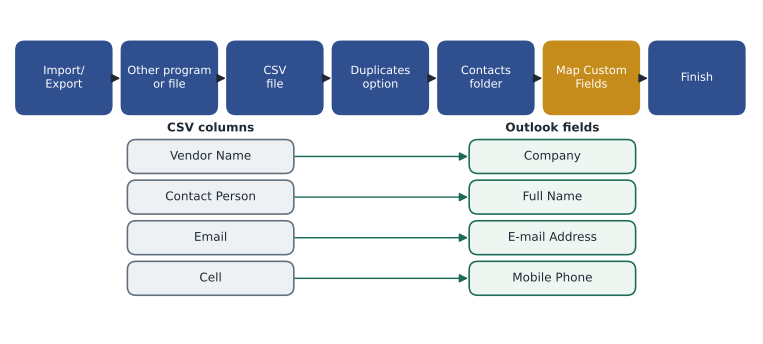
For a .csv file, the wizard asks how to handle duplicates: Replace duplicates with items imported, Allow duplicates to be created or Do not import duplicate items. Then it asks for the destination folder, normally Contacts, and offers Map Custom Fields. This is the step people skip and regret. Outlook tries to match the spreadsheet's column headings to its own fields, but a column called Vendor Name or Cell will not match automatically. In the Map Custom Fields dialog, drag each column from the left onto the matching Outlook field on the right, such as Vendor Name onto Company and Cell onto Mobile Phone.
Worked problem
Bringing in Rosalind's old spreadsheet
Rosalind's vendor spreadsheet has columns Vendor Name, Contact Person, Email, Cell and Type. Teo saves it as a .csv file. Most vendors are already in Outlook; the spreadsheet has newer phone numbers. How should he import it?
Show solution
- Choose File > Open & Export > Import/Export > Import from another program or file > Comma Separated Values.
- Browse to the file and choose Replace duplicates with items imported, because the spreadsheet is newer.
- Choose the Contacts folder, then Map Custom Fields.
- Map Vendor Name to Company, Contact Person to Full Name (or First and Last Name), Email to E-mail Address and Cell to Mobile Phone. Leave Type unmapped or map it to Categories.
- Choose OK and Finish, then check a few contacts.
Answer: Choosing the duplicate option and mapping fields correctly turns a spreadsheet into clean contacts in one pass.
To import a single vCard that someone sent you, open the .vcf attachment and choose Save & Close, or drag it onto the People icon. For many vCards, use the wizard's Import a VCARD file. Contacts stored in a Google account can be exported from Google as a .csv file and imported the same way. In new Outlook for Windows, People > Manage contacts > Import contacts imports a .csv file without the mapping dialog, so headings must match Outlook's names.
Sharing contacts
The objective “share contacts” covers two things: sending individual contacts to someone, and sharing a whole contacts folder. To send one or more contacts, select them and choose Home > Share > Forward Contact, then As a Business Card (a vCard attachment that works with any mail program) or As an Outlook Contact (an Outlook item attachment, best for other Outlook users). A business card can also be inserted into a message with Attach Item > Business Card, as in lesson 4.
To share a whole folder with colleagues in the same organization, choose Home > Share > Share Contacts with the folder selected. Outlook sends a sharing invitation; the recipient opens it and the folder appears under Shared Contacts in their People module. The default permission is read-only. To let people add and edit contacts, change the folder's permissions through Folder > Folder Permissions (or right-click > Properties > Permissions), choosing a level such as Reviewer (read only), Author (create and edit own items) or Editor (create and edit all items).
| Goal | Command | Recipient gets |
|---|---|---|
| Send a vendor's details to a couple | Forward Contact > As a Business Card | A .vcf file any app can open |
| Send a contact to a colleague using Outlook | Forward Contact > As an Outlook Contact | An Outlook item to save |
| Give the team read access to a folder | Share Contacts | The folder under Shared Contacts |
| Let the team edit the folder | Folder Permissions > Editor | Full editing rights |
Maple & Pine settled on one shared folder, Vendors, in the office mailbox, with Editor permission for the whole team, so a phone number corrected by Odile is correct for everyone.
Contact groups
A contact group (once called a distribution list) is a single name that sends to several people. Home > New Contact Group (Ctrl+Shift+L) opens a window with a Name box and an empty member list. Add Members offers From Outlook Contacts, From Address Book and New E-mail Contact, the last for someone not yet in your contacts. Remove Member removes the selected person. Save & Close saves the group, which then appears in the Contacts folder with a group icon and can be typed in a To line like a single name.
The MO-400 objectives on contact groups are precise: create and delete groups, add contacts to existing groups, update contacts within groups, and delete group members. Each is done from the open group.
| Objective | How |
|---|---|
| Create a group | Home > New Contact Group, name it, Add Members, Save & Close |
| Delete a group | Select the group in Contacts and press Delete (members' contacts are not deleted) |
| Add contacts to an existing group | Open the group, Add Members, choose the contacts |
| Update contacts within a group | Open the group and choose Update Now, or open a member to edit |
| Delete group members | Open the group, select the member, Remove Member, Save & Close |
Update Now needs a word of explanation. A contact group stores a copy of each member's name and address when they are added. If you later change a contact's email address in the contact card, the group may still hold the old one. Update Now refreshes every member from the current contact cards. Double-clicking a member in the group opens their contact card or address book entry so you can edit the person directly.
Worked problem
The festival vendors list
For the summer festival, Teo needs a contact group called Festival vendors with five vendors. Later the sound company changes its email address, one vendor withdraws, and a new caterer joins. How does he keep the group right?
Show solution
- Create the group: New Contact Group, name Festival vendors, Add Members > From Outlook Contacts, choose the five vendors, Save & Close.
- When the sound company's address changes, edit its contact card, then open the group and choose Update Now.
- Select the vendor who withdrew and choose Remove Member.
- Choose Add Members > From Outlook Contacts and add the new caterer. Save & Close.
Answer: Add Members, Remove Member and Update Now cover every change, and the group always sends to the current list.
Contact groups are personal: they live in your contacts and only you can use them, though you can forward one to a colleague as an Outlook item. For lists the whole organization uses, an administrator creates a distribution list or a Microsoft 365 group in the organization's address book instead. New Outlook for Windows calls contact groups contact lists and creates them from People > New contact list.
Keeping contacts clean
Teo ended with a routine for the shared Vendors folder: one person owns each vendor's card; new vendors are added from their first message with Add to Outlook Contacts and then completed; File as is always the company name for vendors; and every card gets a trade category. A quick Advanced Find for contacts with an empty email field, from lesson 6, runs once a month.
When Odile next needed every florist for a large wedding, she arranged the Vendors folder by Categories, selected the Florist group, and sent one message to all of them in Bcc, without a spreadsheet in sight.
Contacts on the exam
MO-400 contact tasks name exact fields and exact groups. “Add the mobile number shown to the contact for Northshore Florals” means the Mobile field, not Business or Home. “Add Sugar Tide Bakery to the existing Festival vendors group” means opening the group that already exists, not creating a second group with the same name. “Delete the member Harbor Hall from the group” means Remove Member, leaving the contact card in place. Read the field or group name twice, and after saving, reopen the item to confirm the change landed where the task asked.
Common mistakes
MistakeImporting a spreadsheet without opening Map Custom Fields.
InsteadMap each column to the right Outlook field, or data lands in the wrong place or not at all.
MistakeExpecting a contact group to pick up a changed address automatically.
InsteadOpen the group and choose Update Now.
MistakeDeleting a contact to remove them from a group.
InsteadOpen the group and use Remove Member; the contact card stays.
MistakeSending a contact as an Outlook Contact to someone who does not use Outlook.
InsteadForward it as a Business Card (vCard).
Summary and key terms
- Contacts are created with New Contact, Add to Outlook Contacts or New Contact from Same Company, and edited by opening the card.
- The Import and Export Wizard imports .csv files, .pst files and vCards; Map Custom Fields matches columns to Outlook fields.
- Forward Contact sends contacts as business cards or Outlook items; Share Contacts shares a folder, with permissions set in Folder Permissions.
- Contact groups are created with New Contact Group, maintained with Add Members, Remove Member and Update Now, and deleted like any item.
- Contact
- An Outlook item storing a person's or organization's details.
- File as
- The field that controls how a contact is sorted and listed.
- CSV
- Comma Separated Values, a plain-text table format used for importing contacts.
- Map Custom Fields
- The import step that matches file columns to Outlook fields.
- Contact group
- A personal list of contacts addressed with one name.
- Update Now
- A contact group command that refreshes members' details from their contact cards.
Practice problems
Work each problem on paper first, then reveal the answer to check.
Where do you start importing contacts from a .csv file?
Show answer
File > Open & Export > Import/Export > Import from another program or file > Comma Separated Values.
How do you add a contact to an existing contact group?
Show answer
Open the group, choose Add Members and pick the contact.
How do you send a contact to someone who uses another email program?
Show answer
Forward Contact > As a Business Card.
Does deleting a contact group delete its members' contacts?
Show answer
No; only the group is deleted.
Lesson quiz · 5 questions
Score 60% or more to complete this lesson.
Create a free account to save your progress, take quizzes and earn a certificate.