
MSBA-173 · Lesson 1 of 12 · 22 min
The Outlook workspace
▶ Video coming soon A video version of this lesson is on the way.
Maple & Pine Events runs on email. Couples write in with questions at midnight, venues send floor plans as attachments, caterers confirm headcounts by reply, and every wedding has at least a dozen calendar items before the day itself. By the autumn of 2026 the shared Burlington office inbox held more than nine thousand messages, about four hundred of them unread, and Rosalind Achebe-Hart had a simple request for her team: “I want to be able to find anything in under a minute.” Teo Marchetti-Ruiz, already working through the Word, Excel and PowerPoint exams on Thursday afternoons, agreed to run a series of Outlook sessions for the whole office. The events coordinator, Odile Fenwick-Lau, who looks after the shared inbox, decided to sit the Outlook certification exam at the end of it.
This course follows those sessions. It teaches every skill measured by the Microsoft Office Specialist Outlook exam, and it teaches them the way a busy office uses them, because the exam is a set of practical tasks rather than a test of definitions. This first lesson explains what the exam is and how it fits the Microsoft Office Specialist (MOS) certifications, then takes a careful tour of the Outlook window, its views and the newer versions of Outlook you are likely to meet at work.
Which Outlook exam? MO-410 and MO-400
When this course was planned, the course title referred to an exam called MO-410, “Microsoft Outlook (Microsoft 365 Apps)”. Microsoft listed that exam as “coming soon” on its training pages in 2023, and people were still asking when it would be released. As of November 2026 it has not appeared. Microsoft Learn's list of Microsoft 365 Apps exams includes Word (MO-110), Excel (MO-210 and the Expert exam MO-211) and PowerPoint (MO-310), and no Outlook exam.
The Outlook exam that is available is MO-400: Microsoft Outlook (Office 2019). Microsoft's exam page lists it for scheduling with no retirement date, and passing it earns the Microsoft Office Specialist: Outlook Associate (Office 2019) certification. The course is therefore built around MO-400, and the course title now names it. Almost everything it tests works the same way in the classic Outlook that comes with a Microsoft 365 subscription, and the places where the newer Outlook differs are pointed out as they come up.
| Item | MO-400 facts (Microsoft Learn, November 2026) |
|---|---|
| Full name | Exam MO-400: Microsoft Outlook (Office 2019) |
| Certification earned | Microsoft Office Specialist: Outlook Associate (Office 2019) |
| Format | Performance-based project tasks in the Outlook application, 50 minutes |
| Delivery | Scheduled through Certiport, at a testing center or with online proctoring where offered |
| Retirement date | None listed |
| Renewal frequency shown | 60 months |
| Level | Intermediate |
How MO-400 counts toward MOS Associate
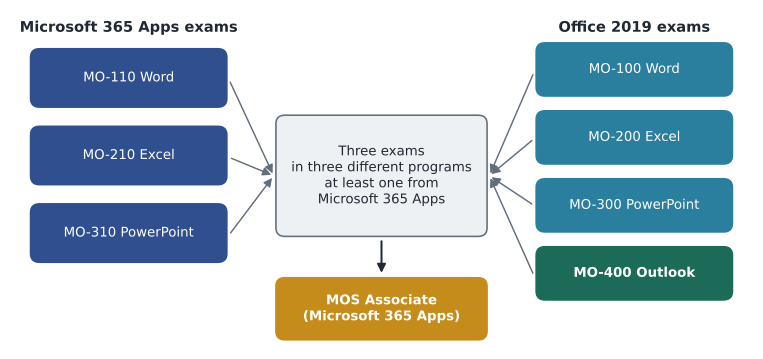
The broader credential most people in Teo's position aim for is Microsoft Office Specialist: Associate (Microsoft 365 Apps). Microsoft's rule for it, as published on Microsoft Learn, is that a candidate passes three exams in different programs, and at least one of the three must be a Microsoft 365 Apps exam. The eligible exams are MO-110, MO-210 and MO-310 from the Microsoft 365 Apps family, plus MO-100, MO-200, MO-300 and MO-400 from the Office 2019 family.
Three consequences follow. First, MO-400 can be one of the three exams, but only alongside at least one Microsoft 365 Apps exam: Word, Excel and Outlook would qualify if Word or Excel was taken in its Microsoft 365 Apps version. Second, two exams in the same program, such as the 2019 and Microsoft 365 Apps versions of Word, count only once. Third, three Office 2019 exams on their own, such as MO-200, MO-300 and MO-400, do not earn the Microsoft 365 Apps Associate credential. Teo's own plan stayed as it was (MO-110 in December 2026, then MO-210 and MO-310), but for Odile, who uses Outlook far more than PowerPoint, Word plus Excel plus Outlook was the better route.
What MO-400 measures
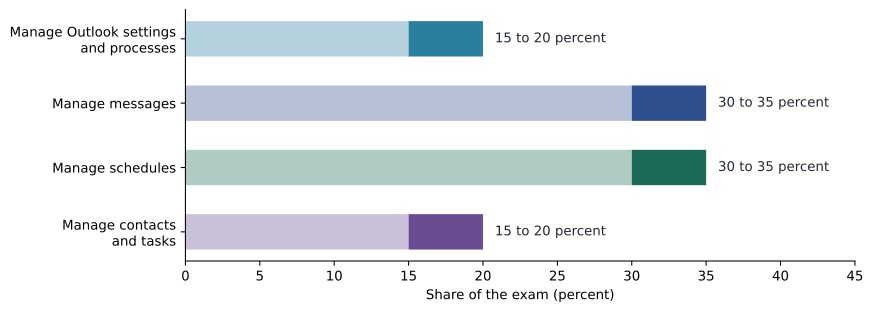
Microsoft's skills outline for MO-400 has four domains. The weights tell you where most of the exam's tasks come from: messages and schedules together make up about two thirds of it.
| Domain | Weight | Main skills | Lessons |
|---|---|---|---|
| Manage Outlook settings and processes | 15 to 20 percent | Customize display settings, add accounts, automatic replies, default fonts, reply settings, signatures, search and Advanced Find, search folders, printing and saving | 1, 2, 4, 6, 11 |
| Manage messages | 30 to 35 percent | Attachments, Cc and Bcc, @mentions, replies and forwards, follow-up flags, importance and sensitivity, hyperlinks and images, sorting, folders, categories, ignoring conversations, display | 3, 4, 5 |
| Manage schedules | 30 to 35 percent | Work times, multiple calendars, recurring items, canceling meetings, items from messages, time zones, Scheduling Assistant, availability, forwarding, reminders, invitations and responses, updating items | 7, 8 |
| Manage contacts and tasks | 15 to 20 percent | Importing, editing and sharing contacts, contact groups and their members, tasks | 9, 10 |
How a MOS exam works
MOS exams are performance-based. Rather than multiple-choice questions, you work in a live copy of the application on a set of short projects, each with several tasks written as plain instructions, such as “Create a rule that moves messages from Lakeview Catering into the Vendors folder” or “Configure an automatic reply for the dates shown that is sent only to people inside the organization.” You read the task, do it in Outlook, mark it complete or for review, and move on. A score of 700 out of 1,000 passes, and results appear as soon as you finish.
Because the exam watches the end state, any correct method normally counts: the ribbon, a right-click menu, a keyboard shortcut or a dialog box. What does not count is doing something close to the task but not exactly the task, such as flagging a message for “Tomorrow” when the task said “This Week”, or adding a person as a required attendee when the task said optional. Reading each instruction slowly is the most important exam skill there is, and this course comes back to it in lesson 12.
The classic Outlook window
MO-400 is delivered in the desktop application, the program now usually called classic Outlook to distinguish it from the newer app described later in this lesson. Its window has six main parts.
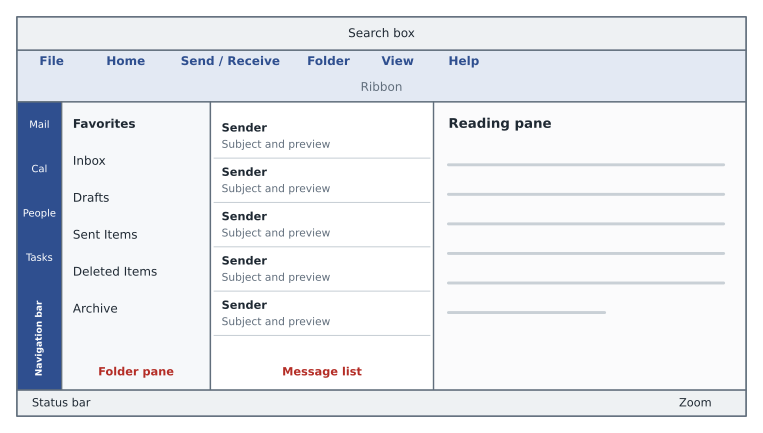
The ribbon runs across the top, with the tabs File, Home, Send / Receive, Folder, View and Help, and more tabs as you open other modules or items. Many organizations now see the simplified ribbon, a single-line version that shows fewer commands; the small arrow at the right end of the ribbon switches between simplified and classic layouts. Exam tasks are easier with the classic, full-height ribbon, because every group is visible.
The search box sits above the ribbon in current versions (in Outlook 2019 it sits above the message list). Typing in it opens the contextual Search tab with tools to narrow results, covered in lesson 6.
The navigation bar switches between Outlook's modules: Mail, Calendar, People and Tasks, plus Notes, Folders and Shortcuts behind the ellipsis. In Outlook 2019 it runs along the bottom of the folder pane; in current Microsoft 365 versions it is a column of icons down the left edge. Keyboard shortcuts work in both: Ctrl+1 for Mail, Ctrl+2 for Calendar, Ctrl+3 for People and Ctrl+4 for Tasks.
The folder pane lists your mailboxes and their folders: Inbox, Drafts, Sent Items, Deleted Items, Junk Email, Archive, Outbox and any folders you create, with a Favorites section at the top for the folders you use most. It can be minimized to a narrow strip with the arrow at its top, or switched off and on with View > Layout > Folder Pane.
The message list shows the items in the selected folder, with the sender, subject, preview text and date. Above it, the Focused and Other tabs appear when Focused Inbox is on, and the All and Unread filters sit beside them. The column headers or the sort control set the order, which lesson 5 explains.
The reading pane shows the selected item without opening it. It can sit on the right, at the bottom or be turned off with View > Layout > Reading Pane. The To-Do Bar, which can show a small calendar, upcoming appointments and tasks on the right side, is turned on from View > Layout > To-Do Bar.
Finally, the status bar at the bottom shows the item count, the connection status and the zoom slider, with buttons on the right for the Normal and Reading views.
Items, folders and modules
Everything Outlook stores is an item: a message, an appointment, a meeting request, a contact, a contact group, a task or a note. Each module shows a different kind of item in a different folder, but they share one store. That is why you can drag a message onto the Calendar icon to make an appointment from it, or onto the Tasks icon to make a task, and why one search can look through every kind of item.
| Module | Default folder | Item types | Shortcut to the module | New item shortcut |
|---|---|---|---|---|
| Inbox | Messages, meeting requests and responses | Ctrl+1 | Ctrl+Shift+M (new message) | |
| Calendar | Calendar | Appointments, meetings, events | Ctrl+2 | Ctrl+Shift+A (appointment), Ctrl+Shift+Q (meeting) |
| People | Contacts | Contacts, contact groups | Ctrl+3 | Ctrl+Shift+C (contact), Ctrl+Shift+L (contact group) |
| Tasks | Tasks and To-Do List | Tasks, flagged items | Ctrl+4 | Ctrl+Shift+K (task) |
Ctrl+N creates a new item of whatever kind belongs to the current module: a message in Mail, an appointment in Calendar, a contact in People and a task in Tasks. The New Items menu on the Home tab creates any kind of item from anywhere.
Views, and changing what you see
Each folder can be displayed in more than one view. The View tab's Change View gallery lists them: for mail, Compact, Single and Preview; for the calendar, the arrangements Day, Work Week, Week, Month and Schedule View, plus list views; for contacts, People, Business Card, Card, Phone and List; for tasks, Detailed, Simple List, To-Do List, Prioritized, Active, Completed, Next 7 Days, Overdue and more.
View Settings (View > Current View > View Settings) opens the Advanced View Settings dialog, where you choose columns, grouping, sorting, filters, other settings such as fonts and grid lines, and Conditional Formatting, which colors or bolds items that meet a condition. Reset View returns the current view to its defaults, which is the fastest fix when a folder suddenly looks wrong. The MO-400 objective “change the display of messages, calendar items, contacts and tasks” is about exactly these tools, and lesson 2 practices them.
Worked problem
Finding the missing reading pane
Odile's laptop shows the message list across the whole window, with no preview, and the folder list has shrunk to a thin strip. Messages only open in separate windows. How does Teo put the window back the way the team uses it?
Show solution
- On the View tab, in the Layout group, choose Reading Pane > Right.
- Choose Folder Pane > Normal to expand the folder list again.
- If the message list still looks unusual, for example grouped strangely or missing columns, choose Current View > Reset View and confirm.
Answer: Reading Pane and Folder Pane are both on View > Layout; Reset View restores the folder's default view settings.
The new Outlook for Windows
Since 2023 Microsoft has also offered a newer Windows app called new Outlook for Windows. It is built on the same technology as Outlook on the web, so it looks and behaves much more like the browser version than like classic Outlook. Many people now have a toggle at the top right of classic Outlook labeled Try the new Outlook, and new Windows devices may open the new app by default.
For organizations, Microsoft has published a staged plan. In an announcement in early 2026, it moved the opt-out stage for business customers, when new Outlook becomes the default but users and administrators can still switch back, to March 2027. A later cutover stage, when switching back is no longer possible, will come with at least twelve months' notice. Microsoft's support documentation says existing classic Outlook installations will continue to be supported until at least 2029. In practice, offices will use both for some time.
The differences that matter for this course are these. New Outlook replaces File > Options with a Settings window (the gear icon), uses a single-line ribbon by default, and organizes mail, calendar, people and to-do as apps in a bar on the left. It handles tasks through Microsoft To Do rather than the classic Tasks folder. Some classic features work differently or are not available in it, including Advanced Find, classic search folders and full support for older data files (.pst). Where a lesson's steps differ in new Outlook, a short note says so. For the exam, practice in classic Outlook, because that is what MO-400 uses.
| Task | Classic Outlook | New Outlook for Windows |
|---|---|---|
| Change settings | File > Options | Settings (gear icon) |
| Automatic replies | File > Info > Automatic Replies | Settings > Accounts > Automatic replies |
| Signatures | File > Options > Mail > Signatures | Settings > Account > Signatures |
| Rules | Home > Rules > Manage Rules & Alerts | Settings > Mail > Rules |
| Tasks | Tasks module | To Do app and My Day |
| Advanced Find | Ctrl+Shift+F | Not offered; use search filters |
Getting help inside Outlook
The search box at the top doubles as a command finder: typing “signature” or “automatic replies” lists the matching commands as well as messages, so you can run a command without knowing which tab holds it. This works on the exam too, and it is a good fallback when a command has moved between versions. Help on the ribbon (or F1) opens Microsoft's support articles, and Help > Feedback sends comments to Microsoft. Hovering over any ribbon button shows a ScreenTip with its name and shortcut.
Teo finished the first session by asking everyone to do three things before the next one: switch to the full ribbon, open each module with Ctrl+1 to Ctrl+4, and try the search box as a command finder by typing “reading pane”. Odile booked nothing yet. “I want to see the skills list first,” she said, and printed it.
Common mistakes
MistakeStudying for MO-410 because older course lists mention it.
InsteadMO-410 has not been released; MO-400 is the current Outlook MOS exam.
MistakeAssuming any three MOS exams earn MOS Associate (Microsoft 365 Apps).
InsteadThe three must be in different programs and at least one must be a Microsoft 365 Apps exam.
MistakePracticing only in new Outlook for Windows.
InsteadMO-400 runs in the classic desktop application, so practice there.
MistakeClosing the reading pane by accident and rebuilding the view by hand.
InsteadUse View > Layout > Reading Pane, and Reset View for other view problems.
Summary and key terms
- MO-400: Microsoft Outlook (Office 2019) is the current Outlook MOS exam; MO-410 was announced but not released.
- MOS Associate (Microsoft 365 Apps) needs three exams in different programs, at least one from the Microsoft 365 Apps family; MO-400 can be one of them.
- The four MO-400 domains are settings and processes, messages, schedules, and contacts and tasks; messages and schedules weigh most.
- The classic window has a ribbon and search box, navigation bar, folder pane, message list, reading pane and status bar.
- Views and View Settings control how each folder is displayed; Reset View restores defaults.
- New Outlook for Windows is replacing classic Outlook in stages, with business opt-out from March 2027 and classic support until at least 2029.
- MOS
- Microsoft Office Specialist, a family of performance-based certifications for Office applications.
- Classic Outlook
- The long-standing Outlook desktop application for Windows, used by the MO-400 exam.
- New Outlook for Windows
- Microsoft's newer Outlook app for Windows, built on the same technology as Outlook on the web.
- Item
- Any object Outlook stores, such as a message, appointment, contact or task.
- Reading pane
- The area that previews the selected item without opening it.
- View
- A saved arrangement of columns, sorting, grouping and filters for a folder.
Practice problems
Work each problem on paper first, then reveal the answer to check.
Which exams does Microsoft list as eligible for MOS Associate (Microsoft 365 Apps)?
Show answer
MO-110, MO-210 and MO-310 from Microsoft 365 Apps, and MO-100, MO-200, MO-300 and MO-400 from Office 2019.
What is the quickest way to run a command when you do not know which tab holds it?
Show answer
Type its name in the search box at the top of the window and choose it from the results.
How do you switch to the Calendar without the mouse?
Show answer
Press Ctrl+2.
Name two classic features that work differently or are missing in new Outlook for Windows.
Show answer
For example, Advanced Find and classic search folders; tasks are handled by Microsoft To Do.
Lesson quiz · 5 questions
Score 60% or more to complete this lesson.
Create a free account to save your progress, take quizzes and earn a certificate.