
MSBA-173 · Lesson 6 of 12 · 24 min
Searching and filtering
▶ Video coming soon A video version of this lesson is on the way.
Folders and categories make a mailbox tidy, but Rosalind's real test was finding things. “A couple calls and says, I sent you the photo of the cake we liked in the spring. I want that photo on screen before they finish the sentence.” Search is the fastest way to do that, and MO-400 tests it under “perform search operations”: searching messages, calendar items, contacts and tasks; creating search folders; and using Advanced Find. This lesson covers all three, plus the filters that narrow a folder without searching at all.
Instant Search
The search box at the top of the window (above the message list in Outlook 2019) searches the current folder or mailbox as you type. Ctrl+E or F3 jumps to it. Results replace the message list, matching words are highlighted, and the contextual Search tab opens on the ribbon. Close Search (or Esc) returns to the folder.
Outlook searches the sender, recipients, subject, body and the text of many kinds of attachments, so a search for “cake” can find a message whose only mention of cake is inside a PDF menu. This relies on the search index, which Outlook builds in the background with Windows Search. If results look incomplete on a new computer, the index may still be building; Search Tools > Indexing Status shows how many items remain.
The Search tab
The Search tab has four groups that the exam uses constantly.
| Group | Commands | Effect |
|---|---|---|
| Scope | All Mailboxes, Current Mailbox, Current Folder, Subfolders, All Outlook Items | Where the search looks |
| Refine | From, Subject, Has Attachments, Categorized, This Week, Sent To, Unread, Flagged, Important, More | Adds a criterion to the search |
| Options | Recent Searches, Search Tools | Repeats earlier searches; Advanced Find, Indexing Status, Search Options |
| Close | Close Search | Returns to the folder |
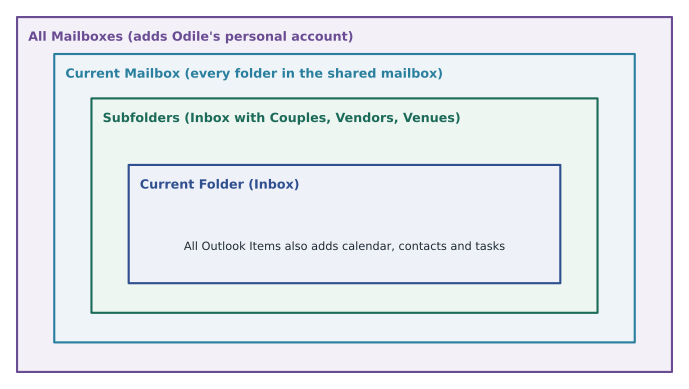
Scope matters more than people expect. Current Folder searches only the folder you are in, so a search from the Inbox will not find a message already moved to Vendors. Subfolders includes the folder's subfolders. Current Mailbox searches every folder in the mailbox, and All Mailboxes adds other mailboxes you have open, such as a personal account. All Outlook Items searches messages, calendar, contacts and tasks together. The default scope is set in File > Options > Search.
Each Refine button adds a criterion to the search box in Outlook's search syntax. From adds from:“”, with the cursor ready for a name; Has Attachments adds hasattachments:yes; This Week offers a menu of date ranges (Today, Yesterday, This Week, Last Week, This Month, Last Month, This Year, Last Year); and More adds other properties, such as Size, Importance, Sensitivity or Cc, as boxes below the search box.
Search syntax
Typing criteria directly is often faster than the buttons. Outlook's keywords take the form property:value, and can be combined. Quotation marks search for an exact phrase. AND, OR and NOT (in capitals) combine terms.
| To find | Type |
|---|---|
| Messages from a sender | from:lakeview |
| Words in the subject | subject:headcount |
| An exact phrase | “rehearsal dinner” |
| Messages with attachments | hasattachments:yes |
| Messages with an attachment named or containing a word | attachments:floorplan |
| Messages received in a period | received:last week, or received:>=1/9/2026 |
| Large messages | messagesize:>5 MB, or messagesize:large |
| Messages with a category | category:“Morrison wedding” |
| Unread or flagged messages | read:no, or followupflag:followup flag |
| Messages to a person | to:odile |
| Combine criteria | from:lakeview AND hasattachments:yes |
Worked problem
The cake photo
A couple says they sent a photo of a cake in the spring, but nobody remembers the subject line. The message could be in any folder. What search finds it fastest?
Show solution
- Click the search box and set Scope to Current Mailbox.
- Choose Refine > From and type the couple's surname, or type from: and the surname.
- Choose Has Attachments to add hasattachments:yes.
- If needed, add the word cake, or choose This Week > This Year and look down the results for picture attachments.
Answer: Mailbox scope plus from: and hasattachments:yes narrows thousands of messages to a handful in seconds.
Date values in search syntax follow the date format set in Windows, so in Canada and the US the order of day and month can differ between computers. Words such as today, yesterday, this week and last month avoid the problem. In new Outlook for Windows, the same idea works through a Filters button next to the search box, with fields for From, To, Subject, keywords, dates, attachments and folder.
Searching calendar items, contacts and tasks
The MO-400 objective asks you to search “messages, calendar items, contacts, and tasks”. The search box changes with the module. In Calendar, it searches appointments and meetings, and Refine offers Organizer, Subject, Attendees, Recurring, Categorized and date ranges; results appear as a list with Start, End and Location columns. In People, it searches contacts by name, company, email, phone or any other field, and Refine offers Has Phone Number, Has Address, Categorized and more. In Tasks, Refine offers Subject, Categorized, Due date ranges, Important and Assigned. And with scope All Outlook Items, a single search covers every module.
There is also a separate quick search for people. The Search People box on the Home tab, in the Find group, searches your contacts and the organization's address book by name and opens the person's contact card.
Worked problem
Every Morrison item
Before a planning meeting, Rosalind wants to see everything about the Morrison wedding: messages, the calendar items for the tasting and the ceremony, the contacts for the couple and their planner, and the tasks. Every item has the Morrison wedding category. How does Teo show it all at once?
Show solution
- Click the search box and set Scope to All Outlook Items.
- Type category:“Morrison wedding”, or choose Refine > Categorized and pick the category.
- Review the results, which list item types together with their folders.
Answer: A category search with All Outlook Items scope gathers messages, appointments, contacts and tasks in one list.
Search folders
A search folder is a saved search that looks like a folder. It does not hold messages itself; it shows, at any moment, every message in the mailbox that meets its criteria, wherever the messages are stored. Delete a search folder and the messages remain safe in their real folders. Delete a message seen in a search folder, however, and it is deleted from its real folder.
Folder > New > New Search Folder (or Ctrl+Shift+P, or right-click Search Folders in the folder pane > New Search Folder) opens a dialog of ready-made folders in three groups. Reading Mail includes Unread mail, Mail flagged for follow up, Mail either unread or flagged for follow up and Important mail. Mail from People and Lists includes Mail from and to specific people, Mail from specific people and Mail sent directly to me. Organizing Mail includes Categorized mail, Large mail, Old mail and Mail with attachments. At the bottom, Create a custom Search Folder lets you set any criteria with a Choose button that opens the same criteria dialog as Advanced Find.
Worked problem
A folder of everything waiting for Rosalind
Rosalind wants a folder she can open each morning that shows every message in the shared mailbox with the Needs Rosalind category, no matter where it has been filed. Messages should drop out of it as soon as the category is removed. What should Teo create?
Show solution
- Choose Folder > New > New Search Folder.
- Under Organizing Mail, select Categorized mail and choose the Choose button.
- Select the Needs Rosalind category and choose OK.
- Check that Search mail in shows the shared mailbox, then choose OK. Rename the folder Needs Rosalind if Outlook gives it a longer name.
Answer: A Categorized mail search folder always shows the current set of messages with that category, wherever they are.
Search folders appear under Search Folders near the bottom of each mailbox in the folder pane and can be added to Favorites. To change a search folder's criteria, right-click it and choose Customize This Search Folder. They are a classic Outlook feature; new Outlook for Windows does not offer the same search folders, though its Favorites can include categories and people.
Advanced Find
Advanced Find is the oldest and most precise search tool in Outlook. Search > Search Tools > Advanced Find (or Ctrl+Shift+F) opens it in its own window. The Look for list chooses the type of item: Messages, Appointments and Meetings, Contacts, Tasks, Notes, Journal entries, Files or Any type of Outlook item. In shows the folder, with Browse to choose folders and include subfolders.
The dialog has three tabs. The first is named after the item type (Messages, Contacts and so on) and holds the common criteria: words to search for and in which fields, From, Sent To, and time (received, sent, due, modified) within a range. More Choices adds categories, read or unread, attachments, importance, flag status, size and whether matches must be case-sensitive. Advanced builds criteria on any field, with a Field menu, a Condition such as contains, is or is not empty, and a Value, added one by one to a list. Find Now runs the search and shows results at the bottom of the window, and New Search clears it.
| Advanced Find tab | Typical criteria |
|---|---|
| Messages (or the item type) | Words in subject or body, From, Sent To, received in the last 7 days |
| More Choices | Categories, Only items that are unread, Only items with attachments, Whose importance is High, Size greater than |
| Advanced | Any field with a condition, such as Location contains Lakeview, or Company is empty |
Advanced Find earns its place when Instant Search cannot express the question. Teo's example was contacts with no email address: in Advanced Find, Look for Contacts, Advanced tab, Field E-mail, Condition is empty, Add to List, Find Now. The result was eleven vendors whose contact cards had been created from business cards and never completed. Another was appointments at a particular venue: Look for Appointments and Meetings, Advanced, Field Location, Condition contains, Value Harbor Hall.
Search folders and Advanced Find share the same criteria dialog, so if a task asks for a custom search folder with conditions such as “messages larger than 2 MB with attachments from Rosalind”, the steps are almost the same as an Advanced Find.
Filtering without searching
Not every question needs a search. The Filter Email menu on the Home tab, in the Find group, applies quick filters to the current folder: Unread, Has Attachments, This Week, Flagged, Important, Categorized, To: Me and others. The Unread filter above the message list does the same for unread mail. Filters are temporary and appear as a search in the box; Close Search removes them. A permanent filter on a folder is set through View Settings > Filter, which changes the view and stays until removed.
Search habits for a busy office
Teo finished with three habits. Set the default scope to Current Mailbox in File > Options > Search so searches do not miss filed messages. Use categories consistently, because a category search is the most reliable way to gather everything about one wedding. And when a search is used every day, turn it into a search folder.
Rosalind ran the cake test the following week with a real couple on the phone. Odile had the photo open in nine seconds.
When search does not find what you expect
Most search problems have one of four causes. The scope is too narrow, so a message filed in a subfolder is missed; widen it to Current Mailbox. The search index is incomplete, often on a new computer or after a large import; Search Tools > Indexing Status shows how many items are still waiting, and Windows indexing options can rebuild the index if it never finishes. A filter is still applied from an earlier search or from View Settings, so a folder looks emptier than it is; Close Search and Reset View clear them. Or the item is in an online archive or a mailbox Outlook does not have open, which a search of the current mailbox cannot reach.
Teo also showed the team how Recent Searches (Search > Options > Recent Searches) repeats a search they ran earlier in the day, and how a search that becomes routine belongs in a search folder instead. In new Outlook for Windows and Outlook on the web, the same thinking applies: the search box searches the whole mailbox by default, and the Filters button narrows results by folder, sender, recipient, subject, dates and attachments. There is no Advanced Find or classic search folder there, so detailed searches are built from those filters.
Common mistakes
MistakeSearching from the Inbox for a message that has been filed in a subfolder.
InsteadChange Scope to Subfolders or Current Mailbox.
MistakeThinking that deleting a search folder deletes its messages.
InsteadA search folder is a saved search; the messages stay in their real folders.
MistakeUsing Instant Search for a question about an empty field.
InsteadUse Advanced Find's Advanced tab with the condition is empty.
MistakeExpecting Advanced Find in new Outlook for Windows.
InsteadIt is a classic Outlook tool; new Outlook uses search filters.
Summary and key terms
- Instant Search searches as you type; the Search tab sets Scope, adds Refine criteria and opens Search Tools.
- Search syntax uses property:value keywords such as from:, subject:, hasattachments:yes and received:.
- Each module has its own search, and All Outlook Items searches messages, calendar, contacts and tasks together.
- Search folders are saved searches that show matching messages from every folder without moving them.
- Advanced Find (Ctrl+Shift+F) searches any item type with detailed criteria on three tabs.
- Instant Search
- Outlook's search box, which returns results as you type.
- Search scope
- The folders or mailboxes a search covers.
- Search folder
- A virtual folder that shows all messages meeting saved criteria.
- Advanced Find
- A dialog for precise searches of any Outlook item type on any field.
- Search index
- The catalog Windows Search builds so Outlook can search quickly.
- Filter
- A temporary or view-based rule that hides items not meeting a condition.
Practice problems
Work each problem on paper first, then reveal the answer to check.
Which shortcut opens Advanced Find?
Show answer
Ctrl+Shift+F.
How do you create a search folder for unread mail?
Show answer
Folder > New Search Folder > Unread mail > OK.
What search finds messages from Lakeview that have attachments?
Show answer
from:lakeview hasattachments:yes (or the From and Has Attachments refine buttons).
How do you search calendar items for a word?
Show answer
Switch to Calendar and type in the search box, or use All Outlook Items scope from anywhere.
Lesson quiz · 5 questions
Score 60% or more to complete this lesson.
Create a free account to save your progress, take quizzes and earn a certificate.