
MSBA-173 · Lesson 8 of 12 · 22 min
Meetings and scheduling
▶ Video coming soon A video version of this lesson is on the way.
The seventh session started with a real problem. The Morrison wedding's final planning meeting needed the couple, their planner from Chicago, Rosalind, Odile, the florist and the venue's events manager, and the first three dates Teo had suggested by email had each failed. “This is what the Scheduling Assistant is for,” he said. Meetings bring together most of the “Manage schedules” objectives: setting up meetings with the Scheduling Assistant, inviting participants, responding to invitations, updating individual or recurring items, forwarding calendar items and canceling meetings. This lesson covers each, from both sides of the invitation.
Creating a meeting
Home > New Meeting (Ctrl+Shift+Q), or Home > New Items > Meeting from Mail, opens a meeting window. It looks like an appointment window with three additions: a To line for attendees, a Send button instead of Save & Close, and, in Microsoft 365, a Teams Meeting button that adds an online meeting link. An existing appointment becomes a meeting when you choose Invite Attendees; a message becomes one with Reply with Meeting.
Attendees can be required or optional. Names typed in the To line are required. To mark someone optional, or to add a resource such as a meeting room or a projector, choose Meeting > Attendees > Address Book (or the To button) and put each name in Required, Optional or Resources. In the Scheduling Assistant, a small icon beside each name sets the same thing. Optional attendees see the invitation marked as optional, and Outlook does not hold up suggested times for them in the same way.
| Role | How to set | Effect |
|---|---|---|
| Required | Type in To, or Required in the Select Attendees and Resources dialog | Shown as required; their availability drives suggested times |
| Optional | Optional in the dialog, or the attendee icon in the Scheduling Assistant | Shown as optional on the invitation |
| Resource | Resources in the dialog, or Rooms in the Scheduling Assistant | Books a room or equipment mailbox, which may accept or decline automatically |
The Scheduling Assistant
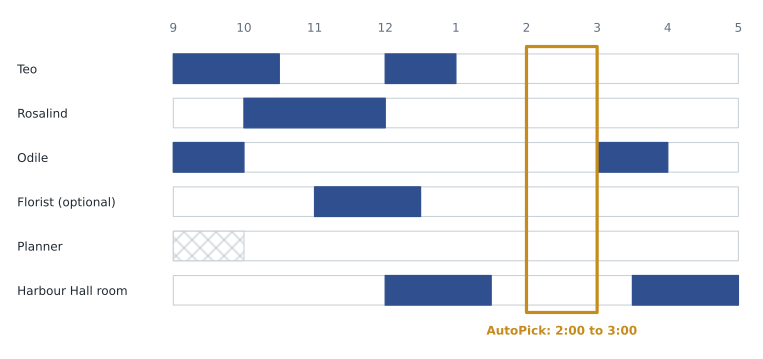
The Scheduling Assistant (on the Meeting tab, in the Show group) shows each attendee's free/busy time on a grid, one row per person, with the proposed meeting as a vertical band. Busy time appears as blue blocks, tentative as striped, out of office as purple and working elsewhere as dotted, the same Show As colors from lesson 7. Hatched areas mark time outside each person's working hours. Drag the band or change the start and end times to move the meeting.
AutoPick Next jumps to the next time when everyone selected is free; the menu beside it chooses whether to consider All People and Resources, All People and One Resource, Required People or Required People and One Resource. The Room Finder pane, where available, shows suggested times and rooms that are free, with a quality rating for each time based on how many attendees can make it. Add Rooms chooses a room from the organization's room lists.
Worked problem
Finding a time for the Morrison meeting
Teo needs a one-hour meeting next week for the couple, their planner, Rosalind, Odile, the florist and the Harbor Hall events room. The florist is optional. The planner works in Chicago. How should Teo find and send the best time?
Show solution
- Choose New Meeting, title it Morrison final planning, and choose Scheduling Assistant.
- Add the attendees. Set the florist as Optional with the icon beside her name, and add the Harbor Hall room with Add Rooms.
- Set the length to one hour and choose AutoPick Next with Required People and One Resource until a time works for every required person and the room.
- Return to Appointment view, check the time, add a Teams meeting for the planner, and choose Send.
Answer: Required and optional roles, a room as a resource and AutoPick together find a time that works without a round of emails.
Free/busy information only appears for people in your organization, people who have shared calendars with you or whose services publish availability. For external guests, such as the couple, the grid shows no information and you schedule around what they have told you. A scheduling poll, available in Microsoft 365 as Scheduling Poll (formerly called FindTime), sends a few options for external people to vote on.
Sending and tracking
When you choose Send, each attendee gets a meeting request and the meeting appears in your calendar. The request also places a tentative placeholder on recipients' calendars until they answer. As responses come in, the Tracking button on the meeting (in the organizer's copy) shows each attendee's response: Accepted, Tentative, Declined or None. Request Responses, on the Response Options menu, can be turned off for large informational meetings, and Allow New Time Proposals controls whether attendees can propose another time.
Responding to invitations
The objective “respond to invitations” is the attendee's side. A meeting request arrives in the Inbox with Accept, Tentative, Decline and Propose New Time buttons in the reading pane and on the Meeting tab when opened. Each of the first three offers Edit the Response before Sending, Send the Response Now or Do Not Send a Response. Accepting places the meeting in your calendar as Busy; Tentative places it as Tentative; Declining moves the request to Deleted Items and, if sent, tells the organizer.
Propose New Time opens the Scheduling Assistant so you can suggest another time, and sends the organizer a proposal they can accept, which updates the meeting for everyone. Proposals can be sent with Tentative and Propose New Time or Decline and Propose New Time.
| Response | Calendar effect | Organizer sees |
|---|---|---|
| Accept | Added as Busy (or the organizer's Show As) | Accepted |
| Tentative | Added as Tentative | Tentative |
| Decline | Removed; request goes to Deleted Items | Declined |
| Propose New Time | Your choice of Tentative or Decline | A proposal to accept or ignore |
| Do Not Send a Response | Calendar updated | No response, shown as None |
Odile now uses Edit the Response before Sending when she accepts on condition, for example “Accepted; I will need to leave at 3:45 for a setup.” The note travels with the response, so the organizer sees it in Tracking without a separate email.
Inviting more participants and updating meetings
The objective “update individual or recurring items” and “invite participants” are both about changing a meeting after it has been sent. Only the organizer can change a meeting for everyone. Open the meeting from your calendar, make the change (a new time, a new location, added or removed attendees, an added agenda), and choose Send Update. Outlook asks whether to send the update to all attendees or only added or deleted attendees when only the attendee list has changed, which avoids flooding everyone with a new request just because someone was added.
For recurring meetings, opening an occurrence asks whether to open Just this one or The entire series. Changing just one occurrence, such as moving December's venue managers call because of a holiday, creates an exception to the series. Changing the series changes every future occurrence; changing the series' recurrence pattern can remove exceptions, and Outlook warns when it will.
Attendees can forward a meeting to someone else with Forward on the meeting; the organizer receives a Meeting Forward Notification and the new person is added to the attendee list. Organizers can turn off forwarding for a meeting in Microsoft 365 with Response Options > Allow Forwarding.
Forwarding calendar items
The objective “forward calendar items” covers both meetings and appointments. Forward on a meeting sends the meeting request to another person, as above. On an appointment, Forward (Appointment tab, or Ctrl+F) sends it as an attachment that the recipient can drag into their own calendar, and Forward > Forward as iCalendar sends it as a standard .ics file that any calendar program can import. Teo used Forward as iCalendar to send the wedding schedule items to the couple, who use a different calendar app on their phones.
Calendar in Attach Item (lesson 4), or Home > Share > E-mail Calendar in the Calendar module, sends a range of your calendar, such as the next week, as an inline summary or attachment with the level of detail you choose. That is a different tool: it sends a snapshot, not individual items.
Canceling meetings
The objective “cancel meetings” uses Cancel Meeting on the Meeting tab, which only the organizer sees. Outlook opens a cancellation message to the attendees with “Canceled:” before the subject. Add a short explanation and choose Send Cancellation. The meeting is removed from your calendar and, when attendees open the cancellation, Remove from Calendar clears it from theirs. For a recurring meeting, canceling asks whether to cancel this occurrence, this and all following occurrences or the entire series.
Worked problem
Canceling one session
The weekly Wednesday Outlook session is a recurring meeting Teo organizes. Next Wednesday is the festival setup, so that session must be canceled; all others stay. What should he do?
Show solution
- In the calendar, open next Wednesday's session and choose Just this one.
- Choose Cancel Meeting > Delete Occurrence (or Cancel Occurrence), add “No session this week because of the festival setup” and choose Send Cancellation.
Answer: Opening just one occurrence and canceling it sends a cancellation for that date only and leaves the series intact.
Deleting a meeting you did not organize is a different action: it removes it from your calendar and, if you choose, sends a decline. Only the organizer can cancel a meeting for everyone.
Meeting notes and online meetings
In Microsoft 365, a meeting can carry shared meeting notes (in OneNote or Loop) and a Teams meeting link with its own options for the lobby, presenters and recording. These are part of Teams administration rather than MO-400, but they explain why many invitations now have a large block of Teams text at the bottom. When editing a Teams meeting, leave that block untouched; deleting it breaks the link for attendees.
Meeting etiquette
Teo closed with a short list for the office. Put the purpose and agenda in the invitation, not just a title. Book rooms as resources, not by writing the room name in Location, so the room's calendar shows it as taken. Use optional attendance for people who only need to know. Send updates only to added or removed attendees when that is the only change. And end meetings five minutes early so people are not late for the next one; Outlook can do this automatically with File > Options > Calendar > End appointments and meetings early.
The Morrison meeting was booked for a Tuesday at 2:00 PM Eastern time, 1:00 PM in Chicago, with every required person and the room free, in about two minutes.
Meeting requests and responses in the Inbox
As organizer, you see each response arrive in your Inbox as a small message, such as “Accepted: Morrison final planning”, with any comment the attendee added. These response messages can be deleted once read, because Outlook has already recorded the answer in the meeting's Tracking list; File > Options > Mail > Tracking has an option to delete responses that have no comments automatically after processing. A proposal for a new time arrives as a message with Accept Proposal and View All Proposals buttons, and accepting it opens the meeting with the new time so you can send the update.
As attendee, a meeting request in your Inbox shows the meeting's time, a small preview of your calendar around it and any conflict, such as “Conflicts with another appointment on your Calendar.” You can respond from the reading pane without opening the request. Updates from the organizer arrive as new requests with the changes highlighted and must be accepted again; cancellations arrive with a Remove from Calendar button. Responding promptly matters for organizers who are trying to book rooms and vendors, and in Maple & Pine's case for couples waiting to know whether a tasting date is confirmed.
Delegates and shared calendars
Rosalind asked whether Odile could manage her meetings while she was at shows. Classic Outlook supports this with delegate access (File > Info > Account Settings > Delegate Access), which lets a delegate receive meeting requests and respond on the manager's behalf, and with calendar sharing at the Can edit or Delegate level from lesson 7. Delegation is not in the MO-400 outline, but it explains why some invitations show “on behalf of” in the From line: they were sent by a delegate. In Microsoft 365, administrators can also set up shared mailboxes with their own calendars, such as an Events calendar the whole team can edit.
Common mistakes
MistakeTyping the room name into Location without inviting the room.
InsteadAdd the room as a resource with Add Rooms or Resources so it is booked.
MistakeEditing the entire series when only one date changes.
InsteadOpen just this one occurrence and change it, creating an exception.
MistakeSending an update to everyone when you only added one attendee.
InsteadChoose to send updates only to added or deleted attendees.
MistakeDeleting a meeting you organize instead of canceling it.
InsteadUse Cancel Meeting so attendees receive a cancellation.
Summary and key terms
- Meetings have required, optional and resource attendees; rooms are booked as resources.
- The Scheduling Assistant shows free/busy time, and AutoPick Next finds the next time everyone is free.
- Tracking shows attendees' responses; attendees can accept, decline, respond tentatively or propose a new time.
- Organizers update meetings with Send Update; recurring meetings can be changed for one occurrence or the series.
- Forward sends meetings or appointments to others, and Forward as iCalendar sends a standard .ics file.
- Cancel Meeting sends a cancellation; recurring meetings can be canceled for one occurrence, following occurrences or the series.
- Meeting request
- An invitation sent to attendees that they can accept, decline or answer tentatively.
- Scheduling Assistant
- A grid comparing attendees' and resources' free/busy time.
- AutoPick
- A Scheduling Assistant command that finds the next time everyone selected is free.
- Resource
- A room or equipment mailbox booked by inviting it to a meeting.
- Exception
- A changed occurrence of a recurring item that differs from the series.
- iCalendar
- A standard calendar file format (.ics) readable by most calendar programs.
Practice problems
Work each problem on paper first, then reveal the answer to check.
How do you make an attendee optional?
Show answer
Put them in Optional in the Select Attendees and Resources dialog, or use the attendee icon in the Scheduling Assistant.
What does Propose New Time send?
Show answer
A proposal the organizer can accept to move the meeting.
How do you cancel only one occurrence of a recurring meeting?
Show answer
Open just that occurrence, choose Cancel Meeting and send the cancellation.
How do you send an appointment to someone who uses a different calendar app?
Show answer
Forward > Forward as iCalendar.
Lesson quiz · 5 questions
Score 60% or more to complete this lesson.
Create a free account to save your progress, take quizzes and earn a certificate.