
MSBA-140 · Lesson 8 of 12 · 18 min
Microsoft 365 and Teams integration
▶ Video coming soon A video version of this lesson is on the way.
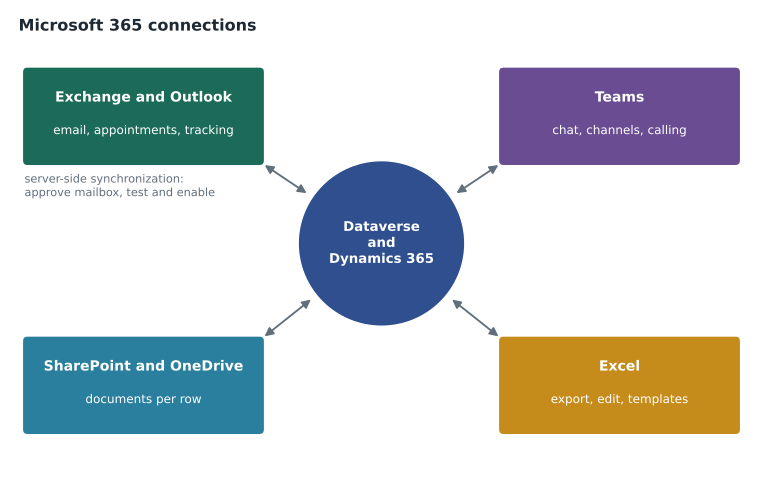
Kestrelbay's staff already lived in Outlook and Teams. Joaquim read customer email on his phone between marinas, the counter teams coordinated shifts in a Teams channel, and drawings of fuel docks and rigging plans sat in a shared drive nobody could search. "If people have to leave Outlook to use the CRM, they won't," Ravi warned. Mirela agreed, and made Microsoft 365 integration part of phase one rather than a later improvement. This lesson covers how Dynamics 365 customer engagement apps connect to Exchange and Outlook, Teams, SharePoint and OneDrive, and Excel.
Exchange Online and server-side synchronization
The foundation is server-side synchronization, which connects Dataverse to email servers. For Kestrelbay, the email server profile pointed at Exchange Online in the same Microsoft 365 tenant, which is the simplest case: authentication is handled by the tenant, and no passwords are stored. Each user and each queue in Dataverse has a mailbox record. An administrator approves each mailbox (or sets automatic approval), then runs Test and enable. Once a mailbox passes, synchronization starts for the items it is configured to handle.
Each mailbox has settings for incoming email, outgoing email and appointments, contacts and tasks. Incoming and outgoing email are usually set to server-side synchronization. Appointments, contacts and tasks can be synchronized too, so that a meeting booked in Dynamics 365 appears in Outlook and the reverse. Mirela set all three for sellers, and email only for counter agents, who did not need their calendars connected.
Tracking email in Outlook
With synchronization running, users bring email into Dynamics 365 by tracking it. The Dynamics 365 app for Outlook is an Outlook add-in that opens a pane beside a message or meeting. From it a user can track the email, set what it is regarding (an account, contact, opportunity, case or other activity-enabled row), see the sender's contact details and recent activities, and create a new contact or lead from an unknown sender. The add-in works in Outlook on the web, the desktop app and on mobile, and administrators deploy it to users from the Microsoft 365 admin center or the Dynamics 365 app setup page.
Users can also choose automatic tracking in their personal options, for example to track all email messages, only replies to tracked messages, or only email from known leads, contacts and accounts. Automatic tracking captures more history but also more noise, and it can bring personal or sensitive messages into the system. Kestrelbay chose replies to tracked messages plus manual tracking, so sellers stayed in control.
Worked problem
Tracking a customer thread
A fleet manager emails Joaquim asking for a quote on four outboard engines. Joaquim wants the thread on the existing opportunity, and every reply to be tracked without extra clicks. What should he do?
Show solution
- Open the email in Outlook and open the Dynamics 365 pane.
- Choose Track, then set regarding to the fleet's open opportunity for outboard engines.
- Check that his personal option for email tracking includes replies to tracked messages.
- Reply from Outlook as usual; replies in the thread are tracked to the same opportunity.
Answer: Track the first message regarding the opportunity and rely on reply tracking for the rest. The whole thread then appears on the opportunity and account timelines.
Teams integration
Dynamics 365 connects with Teams in several ways, and they are easy to confuse.
| Feature | What it does | Where users see it |
|---|---|---|
| Teams chat in Dynamics 365 | Start or link Teams chats about a row; see related chats on the form | A Teams chat pane inside Sales or Customer Service |
| Connecting a row to a Teams channel | Link an account or opportunity to a Teams channel, with the row shown as a tab | Teams, with the Dynamics 365 tab in the channel |
| Dynamics 365 app for Teams | Search, view and share Dynamics 365 rows inside Teams | Teams, as an app and as message extensions |
| Teams calling and meetings | Call customers through Teams from Dynamics 365, with call logging and, in some plans, transcripts and conversation intelligence | Phone numbers in Sales; the Teams dialer |
Teams chat in Sales and Customer Service lets a user open a chat about the current row without leaving the app. Chats can be connected to the row so that anyone who opens it later sees which chats relate to it. Mirela set it up so that the counter agent working a warranty case could chat with the warehouse lead about a part, and the chat stayed linked to the case.
Collaboration in Teams channels links a row to a Teams team and channel. The row appears as a tab in the channel, and the channel's files sit in SharePoint, linked back to the row. For Kestrelbay's big refit opportunities, which involved sellers, the workshop and an outside naval architect, a dedicated channel per deal kept every message and drawing in one place.
Teams calling lets sellers call a phone number from a Dynamics 365 form through Teams. The call is logged as a phone call activity automatically, and with the right licenses, conversation intelligence can provide a transcript, a summary and follow-up suggestions. The AB-210 exam includes setting up Teams calling; the specialist Sales courses cover it in detail.
SharePoint and OneDrive for documents
Dataverse can store files in note attachments and file columns, but large or shared documents belong in SharePoint. Document management integration creates a SharePoint document library location for a table, and a folder for each row, such as a folder for each account. Users open a Documents tab on the form and upload, open and co-author files there, with the security of SharePoint applied. Administrators turn on document management for each table and choose the SharePoint site. OneDrive integration lets users also keep private drafts linked to a row before sharing them.
Kestrelbay turned on document management for accounts, opportunities and cases. Rigging plans and survey photos moved from the old shared drive into folders on the right accounts, and Mirela pointed out that this also saved Dataverse file capacity, because the files lived in SharePoint storage instead.
Excel
Excel is still where many people think. Users can export to Excel from a view, either as a static worksheet or a dynamic one that refreshes from Dataverse. They can open in Excel Online from a view, edit rows directly and save the changes back, which respects security and business rules. Administrators can create Excel templates that format data for common needs, such as a quarterly pipeline sheet, and Word templates that generate documents from a row, such as a quote cover letter.
Ottilie's Monday pipeline review moved to an Excel template built from the Open opportunities view: the same columns every week, formatted the same way, refreshed with one click. "The first report in fifteen years that everyone agrees on," she said.
Turning integration on safely
Integration multiplies the paths by which data moves, so Mirela checked three things before switching each feature on. First, licenses and permissions: users need the right Microsoft 365 licenses as well as Dynamics 365 ones, and SharePoint and Teams permissions must match the business units in Dataverse. Second, privacy: automatic email tracking and Teams channels can draw in information that should not be in the CRM. Third, retention: when a case is closed and its folder is in SharePoint, Microsoft Purview retention policies on that site apply, and the Kestrelbay compliance lead needed to agree them.
What users noticed first
In the pilot, the integration features changed behavior faster than anything else. Sellers who had resisted logging calls started tracking emails from Outlook because it took one click. Counter agents stopped forwarding warranty questions to the warehouse and opened a Teams chat from the case instead. Ottilie stopped asking for status updates in meetings, because the Teams channel tab on each big deal already showed the opportunity and its latest activities. The lesson Mirela drew for the rest of the rollout was that integration is not decoration; it is what makes the system part of the working day.
Setting up the Outlook add-in
Deploying the Dynamics 365 app for Outlook takes a few steps. Server-side synchronization must be working for the user's mailbox. The user needs a security role that includes the Use Dynamics 365 App for Outlook privilege, which the predefined sales and service roles include. The administrator then deploys the add-in, either centrally from the Microsoft 365 admin center as an integrated app for chosen users or groups, or from the Dynamics 365 App for Outlook settings page in the environment, which lists eligible users and lets the administrator add the app for them. After deployment, the add-in appears in Outlook within a few hours. Mirela deployed it centrally to the Sales security group, so that new sellers received it automatically.
Outlook on mobile and the field
Field reps spent more time in Outlook on their phones than at a desk, so Mirela tested the Outlook add-in on mobile early. The add-in on mobile lets a rep track a message, set regarding and see the contact's card, which covered Joaquim's main need: tracking a customer's reply from the marina car park. For heavier work, such as updating an opportunity or logging a visit with photos, the Dynamics 365 Sales mobile app was better, and both apps used the same security and the same data.
Queues and shared mailboxes
Kestrelbay's old shared "orders" mailbox did not disappear; it became a queue. In Customer Service, a queue is a list of work items, and a queue can have its own mailbox record. Mirela connected the shared mailbox to a queue called Orders and service, enabled server-side synchronization for it, and set the queue to convert incoming email into cases using automatic record creation and update rules. Each rule decides which messages become cases, who the customer is and whether a reply to an existing case updates that case instead. Agents then picked work from the queue rather than reading a mailbox in turns, and every message became part of a case's history.
Teams and security
Teams and Dynamics 365 have separate permissions, and both must allow access. When a channel is linked to an opportunity, everyone in the Teams team can read the channel's messages and files, but only people with the right Dataverse role can open the opportunity itself. Mirela kept refit deal channels private and limited to the people on the deal, and the owners of those Teams teams were sales managers, so membership was reviewed when people moved on.
Word templates and document generation
Kestrelbay sent customers several standard documents: quote cover letters, warranty claim acknowledgments and annual service reminders for fleet customers. Word templates produce these from a row. A template is created from a table in Dynamics 365, opened in Word, where columns from the row and related rows are placed as content controls, and uploaded back. Users then choose Word templates on the command bar of a row to generate a document filled with that row's data. Mirela built three templates in phase one and stored the generated documents in the row's SharePoint folder.
For more complex documents, such as quotes with product lines, Dynamics 365 Sales has its own quote and document features, and partners offer document generation tools. Kestrelbay's rule was to start with Word templates and replace them only if a real need appeared.
Calendars and appointments
Synchronizing appointments matters for field reps. When server-side synchronization handles appointments, a visit booked in Dynamics 365 appears in the rep's Outlook calendar, and a meeting accepted in Outlook can be tracked to the right account. Joaquim's manager could see his visits in the team calendar without asking, and the account timeline showed every completed visit.
Common mistakes
MistakeEnabling users without approving and testing their mailboxes.
InsteadApprove each mailbox and run Test and enable; synchronization starts only when the test passes.
MistakeTurning on automatic tracking of all email for everyone.
InsteadChoose a tracking option that captures customer email without pulling in personal or sensitive messages.
MistakeStoring large drawings as note attachments.
InsteadUse SharePoint document management for large and shared documents.
MistakeConfusing Teams chat in Dynamics 365 with channel collaboration.
InsteadUse chat for quick conversations about a row and a channel for longer team collaboration with files.
Summary and key terms
- Server-side synchronization connects Exchange Online mailboxes to Dataverse after mailboxes are approved and tested.
- The Dynamics 365 app for Outlook lets users track email and meetings and set what they are regarding.
- Teams integration covers chat about rows, channel collaboration, the Dynamics 365 app for Teams and Teams calling.
- SharePoint document management stores files per row in document libraries; OneDrive supports private drafts.
- Excel export, Excel Online editing and Excel and Word templates bring data to familiar tools under the same security.
- Server-side synchronization
- The service that synchronizes email, appointments, contacts and tasks between Exchange and Dataverse.
- Mailbox record
- The Dataverse row for a user or queue mailbox, which must be approved and tested.
- Email tracking
- Bringing an email into Dataverse as an activity, linked to a regarding row.
- Dynamics 365 app for Outlook
- An Outlook add-in for tracking items and viewing customer details.
- Document management
- Integration that stores a row's files in a SharePoint document library folder.
- Excel template
- A saved Excel layout that formats data exported from a view.
Practice problems
Work each problem on paper first, then reveal the answer to check.
What two actions must an administrator take on a mailbox before synchronization starts?
Show answer
Approve the mailbox and run Test and enable.
When should Kestrelbay use a Teams channel rather than a chat for an opportunity?
Show answer
For a large deal with several people and shared files over a long period; chats suit quick conversations.
Why does SharePoint document management save Dataverse capacity?
Show answer
Files are stored in SharePoint rather than in Dataverse file storage.
Lesson quiz · 5 questions
Score 60% or more to complete this lesson.
Create a free account to save your progress, take quizzes and earn a certificate.