
MSBA-111 · Lesson 5 of 12 · 23 min
Saving and sharing prompts
▶ Video coming soon A video version of this lesson is on the way.
Celestine joined the fifth clinic with a request. The group benefits team had worked out an excellent prompt for turning a carrier's plan change letter into a plain-language notice for employers, and she had heard three people describe it in three slightly different ways. "If a prompt is that good," she said, "it should not live in one person's head." This lesson covers the features that turn a good prompt into a reusable asset: saving prompts for yourself, sharing them with colleagues, writing prompts as templates, and scheduling prompts that should run on a timetable.
Why save prompts
Lesson 2 showed that repeated follow-ups belong in the first prompt. Once a prompt reliably produces what you need, retyping it is wasted effort, and retyping from memory tends to lose the details that made it work. Saving the prompt keeps the exact wording. Sharing it spreads a good practice across a team. And because Exam AB-730 lists saving, sharing and scheduling prompts among the skills in its largest area, it is worth knowing the features well.
Saving a prompt in Copilot
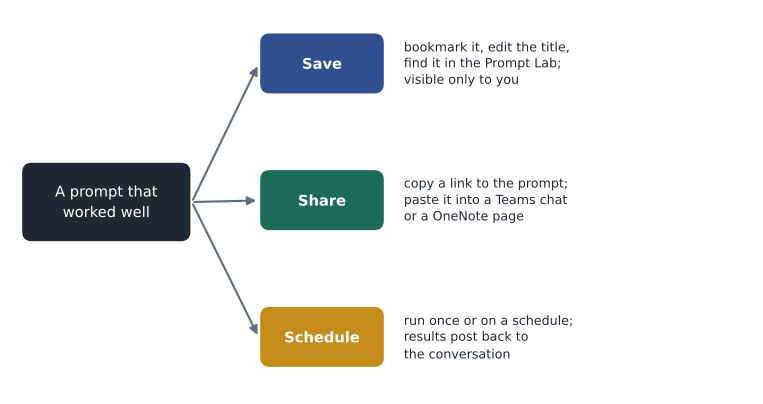
Microsoft 365 Copilot lets you save a prompt you have already run. According to Microsoft's support guidance, current in November 2026, you hover over a prompt that ran successfully, select the bookmark control and choose to save it, then edit the title so it is easy to find. Saved prompts appear in the Copilot Prompt Lab, on a tab for your saved prompts, where you can open one to view, edit or run it again. The Prompt Lab, which Microsoft earlier called the Copilot Prompt Gallery, also contains prompts curated by Microsoft that everyone in the organization can see, which are a good source of ideas. Your own saved prompts are visible only to you.
A good saved prompt has a clear title that says what it does and for whom, such as "Plan change letter to employer notice". It should also be general enough to reuse. A prompt that mentions one client's name and one carrier's letter will need editing every time; a prompt written as a template can be used as is. The next section shows how.
Writing prompts as templates
A prompt template is a prompt with placeholders for the parts that change. The group benefits prompt Celestine mentioned became this template: "Turn [carrier letter] into a plain-language notice for the HR contact at [employer]. Explain what changes, when it takes effect and what employees need to do, in three short paragraphs. Use a friendly, factual tone, avoid insurance jargon, and add a line asking the employer to contact their Quillfield advisor with questions." Each time it is used, the person replaces the bracketed text with a referenced file and a name. The fixed parts, which were refined over many attempts, stay identical.
Brackets are just a convention that people recognize; Copilot does not treat them specially, which is why the person must fill them in before running the prompt. Some teams use capital letters instead, such as CLIENT NAME, or add a short note at the start saying "replace the bracketed parts". The important thing is consistency, so that anyone picking up a shared template knows what to change.
Worked problem
Turning a one-off prompt into a template
Gus wrote: "Summarize the open claims for Ridgeline Cartage from the claims export I attached, as a table with claim number, date of loss and status, followed by two sentences in plain language." Make it reusable.
Show solution
- Find the parts that change: the client name and the attached export.
- Replace them with placeholders: [client] and [claims export].
- Keep everything that made the prompt work: the table columns, the plain-language summary and the length.
- Give it a clear title for saving: "Open claims table for a client meeting".
Answer: Summarize the open claims for [client] from [claims export], as a table with claim number, date of loss and status, followed by two sentences in plain language. Saved as "Open claims table for a client meeting".
Sharing prompts with colleagues
Copilot lets you share a prompt by copying a link to it. Microsoft's guidance describes hovering over a prompt that ran successfully, selecting the copy option to get a link, and pasting the link into any app, such as a Teams chat or a OneNote page. A colleague with a Microsoft 365 Copilot license can open the link and use the prompt. Earlier versions of the Prompt Gallery also offered ways to share prompts with a Teams team, and Microsoft adjusts these options often, so check the current Prompt Lab for what your tenant offers.
Sharing a prompt shares only the prompt text, not the files or data it was run against. If your prompt referenced a specific file, the colleague will see the reference but can only use it if they have permission to open that file. That is another reason templates work well for sharing: they invite each person to supply their own sources.
Quillfield decided to keep its best shared prompts in a single OneNote section called the prompt library, organized by team, with each entry giving the prompt link, the template text, a one-line description, the name of the person who owns it and the date it was last checked. Wendell asked for one more field, "approved for client-facing use: yes or no", after noticing that a popular prompt produced emails with a phrase the compliance team had asked advisors not to use. Ownership and review dates matter because prompts go stale: a product name changes, a policy wording is updated, or Copilot itself changes behavior.
| Field in the prompt library | Why it is there |
|---|---|
| Title and description | So people can find the right prompt quickly |
| Prompt link and template text | So it can be run as is or copied and adapted |
| Owner | Someone responsible for keeping it accurate |
| Last checked | Prompts go stale as products and policies change |
| Approved for client-facing use | Separates internal helpers from prompts that produce client text |
Scheduling prompts
Some prompts are worth running on a timetable without anyone remembering to do it: a Monday-morning summary of emails from key clients, a Friday list of action items from the week's meetings, a daily check for messages mentioning a renewal deadline. Microsoft 365 Copilot supports scheduled prompts for licensed users, where Copilot runs a prompt once or on a recurring schedule and posts the result to the conversation.
The feature was changing as this course was written. A Microsoft 365 message center post in November 2026 announced that scheduled prompts in Copilot were moving from an experience built on Power Platform to native Copilot scheduling. Under the new design, Copilot runs one-time or recurring tasks even when the user is not present and posts results to the related conversation, and task data stays within the Microsoft 365 compliance boundary. Users manage their schedules in the Microsoft 365 Copilot app under a Tasks view, on a Scheduled tab. Each user can have up to 10 active schedules and 50 in total, and a task that needs the user's approval pauses until the user responds. The post gave November 11, 2026 for early-access tenants, a worldwide rollout from November 30 to December 31, 2026, and the retirement of the older Power Platform-based scheduled prompts on December 31, 2026, with users asked to recreate any schedules that do not move across automatically. Rollout dates like these often shift, so check the current documentation before relying on them.
Worked problem
Staying under the schedule limit
Hamish sets up a weekday morning email summary, a Friday meetings recap, a monthly renewals list and three one-time reminders before his exam. Under the limits described in the November 2026 announcement, how many active schedules is that, and how many more could he add?
Show solution
- Recurring schedules: weekday summary, Friday recap and monthly list make 3.
- One-time reminders that have not yet run are also active: 3.
- Active schedules: 3 + 3 = 6. Limit: 10 active, so 4 more.
Answer: Six active schedules, leaving room for four more. Once the one-time reminders have run, they stop counting as active but still count toward the total of 50.
A scheduled prompt should be written with extra care, because nobody is watching when it runs. Name the sources precisely, state the expected format, and include an instruction about what to do when nothing relevant is found, such as "if there are no emails from these clients, say so in one line". Review the first few results, and remember that the output is still a draft for you to check, not an action Copilot has taken on your behalf.
Saved prompts and agents
A saved prompt is the simplest way to package a good practice. When a task needs more than one prompt, fixed instructions that apply to every conversation, or particular knowledge sources, an agent may be a better container. Yusra Kamaludin, Quillfield's citizen developer, explained the difference at the end of the session: a saved prompt is a recipe you run; an agent is a helper set up with its own instructions and sources that people can talk to. Lesson 8 covers using agents built by others, and the agent-building courses in this track show how agents are made.
What makes a prompt worth saving
Not every good prompt needs saving. The ones worth keeping share three traits: you or your team run them often, they took several rounds to get right, and the result matters enough that consistency helps. Quillfield's first shared library had about thirty prompts after a month, and the most used were not clever. They were the renewal changes table, the open claims summary, the plain-language plan change notice, the meeting follow-up email and a prompt that turned a long carrier bulletin into five points for advisors. Each saved a few minutes per use, many times a week, across dozens of people.
A saved prompt is also a way to encode policy. When Wendell asked that client emails never state premium figures before the advisor had confirmed them with the carrier, the fix was not a memo but a line in the shared follow-up email prompt: "Do not include premium amounts." Everyone who used the shared prompt followed the rule without having to remember it. That is the strongest argument for shared prompts in a regulated business: they make the careful way the easy way.
Keeping a prompt library healthy
A library of prompts needs maintenance like any shared resource. Prompts can break when Microsoft changes a feature, when a source file moves, or when the business changes a process. Quillfield scheduled a short review each quarter: owners re-ran their prompts, checked the outputs, updated wording and retired prompts nobody used. Usage was easy to estimate by asking teams which prompts they relied on. The review took less than an hour per team and kept the library trustworthy, which mattered more than its size.
Worked problem
Choosing what to keep
At the quarterly review the commercial lines library has 14 prompts. Four have not been used since they were added, two produce outputs that now cite an old product name, and the rest work well. What should the team do?
Show solution
- Retire the four unused prompts, or ask their owners whether they are still needed.
- Update the two with the old product name, re-run them and confirm the outputs.
- Record the review date on all the prompts that remain.
Answer: The library drops to ten prompts, all current and all used. A smaller library people trust is better than a larger one they have to second-guess.
Saved prompts and the exam
AB-730 questions about saving and sharing tend to test the differences between options. A saved prompt is private to you. A prompt link lets a colleague open the same prompt. A scheduled prompt runs on its own and posts results back to you. An agent is a configured assistant with its own instructions and knowledge. Scenario questions describe a need, such as "run the same summary every Monday", "let the team use the same proven prompt" or "give the team a helper that always uses the wordings library", and the right answer is the option that matches it most simply.
A note on prompt ownership
Prompts that a team relies on are a small piece of company knowledge, and they deserve the same care as a template letter or a procedure document. When an owner changes roles or leaves, someone else should take over their shared prompts, and the library entry should show the new owner. Quillfield added prompt ownership to its handover checklist for people changing jobs, next to passwords for shared mailboxes and ownership of Teams channels. It was a small step, and it meant the renewal changes table prompt, with its careful wording, would outlast any one person's time in the role.
Common mistakes
MistakeSaving a prompt full of one client's details and editing it every time.
InsteadSave a template with placeholders for the parts that change.
MistakeSharing a prompt and assuming colleagues can use the files it referenced.
InsteadA shared prompt shares only the text; each person needs access to their own sources.
MistakeKeeping shared prompts without an owner or review date.
InsteadGive each shared prompt an owner and check it regularly.
MistakeWriting a scheduled prompt as loosely as a one-off chat.
InsteadName sources, format and what to do when nothing is found, then review early results.
Summary and key terms
- Saved prompts keep the exact wording of prompts that work; your saved prompts are visible only to you.
- Saved and Microsoft-curated prompts are found in the Copilot Prompt Lab, formerly the Prompt Gallery.
- Prompt templates use placeholders for the parts that change, making prompts reusable and shareable.
- Sharing a prompt link shares the text, not the data it was run against.
- Scheduled prompts run once or on a recurring schedule; in late 2026 they were moving to native Copilot scheduling with a Tasks view.
- Saved prompt
- A prompt stored for reuse, visible only to the person who saved it.
- Copilot Prompt Lab
- The place where saved and Microsoft-curated prompts are kept, formerly the Copilot Prompt Gallery.
- Prompt template
- A prompt with placeholders for the parts that change between uses.
- Prompt link
- A link that lets a colleague open and use a prompt you shared.
- Scheduled prompt
- A prompt that Copilot runs automatically once or on a recurring schedule.
- Prompt library
- A team's organized collection of shared prompts with owners and review dates.
Practice problems
Work each problem on paper first, then reveal the answer to check.
Who can see the prompts you save for yourself?
Show answer
Only you.
What does a colleague receive when you share a prompt link?
Show answer
The prompt text; they still need their own access to any files it referenced.
Under the November 2026 announcement, how many active scheduled prompts can a user have?
Show answer
Up to 10 active, and 50 in total.
Lesson quiz · 5 questions
Score 60% or more to complete this lesson.
Create a free account to save your progress, take quizzes and earn a certificate.