
MSBA-103 · Lesson 9 of 12 · 21 min
Prompt galleries and saved prompts
▶ Video coming soon A video version of this lesson is on the way.
When the IT team had been using Copilot for a month, Teodor noticed something about his own habits. He typed the same five or six prompts over and over: summarize my unread mail from branch managers, list the open items from yesterday's meetings, draft a reply in Corvallin's plain style. Ama had a different set; Ines had another. "If we each discovered our best prompts by trial and error," Ines said at the ninth session, "forty pilot users will each discover theirs by trial and error too, unless we give them a head start." The session was about the tools Microsoft provides for collecting, sharing, publishing and scheduling prompts, and about the administrative side of each.
AB-900 lists "Manage prompts, including saving, sharing, scheduling, and deleting" as a task. This lesson covers the Prompt Gallery and Prompt Lab in Copilot Chat, personal and team prompts, organizational prompts that administrators publish, scheduled prompts and the change Microsoft announced for them in November 2026, and how prompts are stored and removed.
From Prompt Gallery app to Prompt Lab
Microsoft first offered prompts through a separate Copilot Prompt Gallery app. That app was retired: new installs stopped in June 2025, and access ended on July 15, 2025. Its functions moved inside Copilot Chat. In late 2026 the collection of prompts users browse is reached from Copilot Chat by selecting a prompt suggestion or the options below the message box, and Microsoft's documentation refers to it as the Prompt Lab, while some pages still call the catalog the Prompt Gallery. In Word, Excel and PowerPoint, Microsoft's prompts and a user's own prompts are available through the Copilot Chat pane.
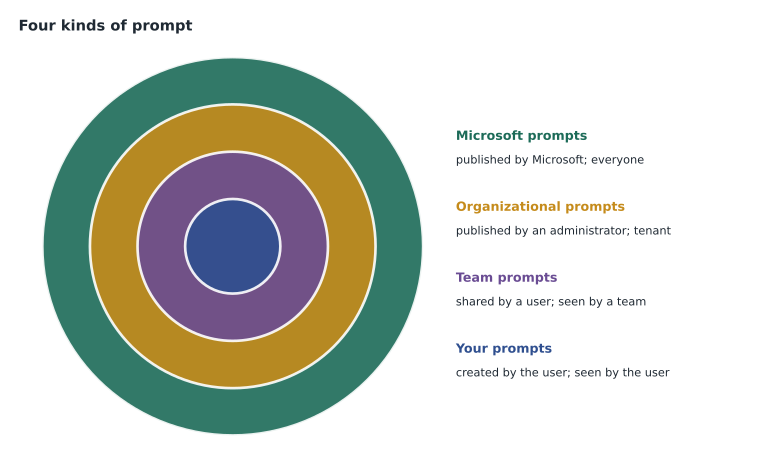
The catalog has three kinds of prompt, and the distinction is the heart of the exam objective.
| Kind | Who creates it | Who sees it | Where |
|---|---|---|---|
| Microsoft prompts (Suggested) | Microsoft | Everyone | Copilot Chat and the Copilot panes in apps |
| Your prompts | The user, by saving a prompt | The user only | Copilot Chat and the Copilot panes in apps |
| Team prompts | A user, by sharing a saved prompt with a team | Members of that team | Copilot Chat |
| Organizational prompts | An administrator | Users in the tenant | Copilot Chat, Microsoft Edge and Teams; also as type-ahead suggestions |
Saving and sharing prompts
Any user can save a prompt they want to reuse; it appears under their own prompts and follows them across Copilot Chat and the Copilot panes in the apps. A user can then share a saved prompt with a team, and it appears among that team's prompts for every member. Microsoft's documentation describes prompts being "saved and shared across teams," and its separate user articles cover the steps. Users also like prompts, which helps them find favorites again.
Users can delete their own saved prompts from their list. Microsoft's documentation does not describe a way for administrators to delete an individual user's saved prompts from a console. It does say that analytics and reporting can show a specific user's saved, liked and shared prompts and the prompts shared with a team, and it documents how to export the prompts that users saved, liked or shared, which matters for compliance requests.
Microsoft describes how these prompts are stored. Microsoft-authored prompts come from a public catalog; Microsoft even makes them viewable without signing in, though users must authenticate to try them. Prompts that users and groups create are stored in user and group collections in the Microsoft 365 Substrate data store, inside the tenant boundary, encrypted, sent over a secure pipeline and reachable only through Substrate APIs. For Corvallin, that answered Dr. Ostrander-Bey's first question about prompts: a coordinator's saved prompt stays inside Corvallin's tenant like the rest of its Microsoft 365 data.
Her second question was harder. "What if someone saves a prompt with a client's name in it, and shares it with the team?" The answer was partly technical and mostly guidance. Saved and shared prompts are content like any other; Corvallin's guidance would say that reusable prompts must never contain client names, health card numbers or other identifying details, only placeholders such as [client first name]. The data loss prevention policies from the governance plan would catch some mistakes in prompts sent to Copilot, but not every mistake in a saved prompt, which is one more reason to write the rule into training.
Worked problem
Turning a good prompt into a reusable one
Nadia's best prompt, which she wants to share with the intake team, is: "Write a warm reply to Mrs. Ferreira's email about changing her husband's Tuesday visit to Thursday, explaining that Thursday mornings are full but Thursday at 2 p.m. is available." How should she turn it into a team prompt?
Show solution
- Remove the identifying details: the client's name, the family member's name and the specific days.
- Replace them with placeholders the user fills in each time: [family member], [current visit], [requested change], [available alternative].
- Keep the parts that make it work: the tone ("warm"), the structure (acknowledge, explain, offer an alternative), and Corvallin's style (plain language, short paragraphs, the intake phone number at the end).
- Save it, test it once with real details typed into the placeholders, then share it with the intake team.
Answer: A reusable version reads: "Write a warm, plain-language reply to [family member]'s email about changing [current visit] to [requested change]. Explain that the requested time is not available and offer [available alternative]. Keep it to three short paragraphs and end with our intake phone number." Nothing in it identifies a client.
Organizational prompts
Organizational prompts are prompts an administrator creates and publishes for everyone in the tenant. Once published, they appear in Copilot Chat, Microsoft Edge and Microsoft Teams, and Copilot suggests them automatically as users type. They are managed in the Microsoft 365 admin center under Copilot > Prompts, by users with the AI Administrator or Search Editor role or an equivalent. Administrators can create, view, edit, delete, import, export and publish them.
| Limit or behavior | Value, as documented in November 2026 |
|---|---|
| Published prompts per tenant | Up to 1,000 |
| Pinned prompts | Up to 4, shown as suggested prompts on the Copilot Chat home page |
| Bulk import | UTF-8 CSV files of up to 5 MB and up to 100 prompts per import |
| Field lengths | Title 35 characters, display prompt 132, prompt 8,000, department 120, description 200 |
| Time to appear | Typically about 3 hours after a change |
| Languages | One prompt per language; no automatic translation |
| Analytics | Active users and submissions over the last 7, 14 or 28 days |
| Targeting | Supported apps, a free-form department field for filtering, and language; prompts are shared with users in the tenant |
Users meet organizational prompts in three ways: as suggested prompts on the Copilot Chat home page (the pinned ones), in the Prompt Lab, where they can search and filter by task type and department, and as autosuggest type-ahead suggestions while they type. Selecting one fills the message box without sending it, so the user can edit placeholders first.
For the pilot, Corvallin published twelve organizational prompts and pinned four. The pinned four reflected what the pilot most wanted to encourage: a meeting recap prompt that lists decisions and action items, an email reply prompt in Corvallin's plain-language style, a prompt for checking a draft letter against the plain-language guide, and a prompt that reminded users to ask Copilot for its sources. Because there is no automatic translation, Teodor also published Spanish versions of the four pinned prompts for the staff at the eastern branch who worked mainly in Spanish.
Title,Display prompt,Prompt,Department,Description,Supported apps,Language
"Meeting recap","Recap this meeting with decisions and actions","Summarize this meeting in plain language. List decisions made, then action items as a table with owner and due date. Do not include any client names; refer to clients as the client.","All","Standard recap for pilot users","Copilot Chat;Teams","en"
"Ask for sources","Show me your sources","For your previous answer, list each source you used with a link, and say which statements came from which source.","All","Encourages checking","Copilot Chat","en"
Scheduled prompts
A scheduled prompt runs automatically, once or on a recurring schedule, and delivers its result to the user, for example "every Monday at 8 a.m., summarize last week's messages from branch managers and list anything still waiting for my reply." Scheduled prompts are a Microsoft 365 Copilot license feature, not a Copilot Chat (Basic) one.
Until late 2026, scheduled prompts ran on Power Platform. Microsoft's documentation describes a special Microsoft 365 environment that Power Platform creates automatically the first time a licensed user schedules a prompt: one per tenant, in the region closest to the tenant's default region, locked down so users cannot create flows or connections in it, with a fixed data policy that allows only the Microsoft Copilot actions, Teams and Outlook connectors, and with storage excluded from the tenant's capacity calculations. An administrator can delete the environment, but it is recreated the next time a user schedules a prompt, and normal tenant data policies do not apply to it.
In November 2026 Microsoft announced, in message center post MC1550533, that scheduled prompts are moving to native Copilot scheduling, independent of Power Platform. Users manage their schedules under Tasks > Scheduled in the Microsoft 365 Copilot app; tasks that need approval pause until the user responds; and task data stays within the Microsoft 365 compliance boundary. The announced timeline was rollout to Frontier and preview customers from November 11, 2026, worldwide rollout from November 30 to December 31, 2026, and retirement of the Power Platform-based experience on December 31, 2026. The new experience allows up to 10 active schedules and 50 schedules in total per user. Microsoft asked administrators to tell users who rely on scheduled prompts, advise them to recreate any schedules that do not migrate before December 31, update help desk guidance, and review their Copilot controls.
Worked problem
Planning around the scheduling change
The IT team has seven scheduled prompts between them, created in October on the Power Platform-based experience. The pilot starts in May 2027. What should Teodor do now, and what should the pilot training say?
Show solution
- Before December 31, 2026, check whether each of the seven schedules has moved to Tasks > Scheduled; recreate any that have not.
- Leave the Microsoft 365 environment in the Power Platform admin center alone until the old experience retires; deleting it would only cause it to be recreated.
- Write pilot training for the new experience only: Tasks > Scheduled, the limits of 10 active and 50 total schedules per user, and approvals that pause a task.
- Update the help desk guide so Ama's team does not send users to the old menu.
Answer: Migrate or recreate the IT team's schedules this year, and train pilot users only on native scheduling, which will be the only experience by the time the pilot starts.
Deleting and governing prompts
Deleting prompts happens at each level. Users delete their own saved prompts from their list and manage, pause or delete their schedules under Tasks > Scheduled. Team prompts are shared content; the user who shared one can remove it. Administrators delete organizational prompts in Copilot > Prompts. For compliance, administrators can report on and export the prompts users have saved, liked or shared, and Copilot interactions themselves are covered by the audit and retention settings in Microsoft Purview that the governance course describes.
What makes a prompt worth sharing
Not every good prompt deserves to become a team or organizational prompt. The working group used four tests before promoting one. Is it reusable, meaning that it works for many situations once placeholders are filled in? Is it safe, meaning that it contains no identifying details and asks for nothing the use guide forbids? Is it specific about the output, such as length, structure, tone and audience, so that results are consistent? And is it tested, by at least two people on real work, with results they would be happy to send? A prompt that passed all four went to Teodor for the organizational list; one that passed the first three stayed a team prompt until someone else had tried it.
Corvallin's best prompts shared a structure that Microsoft's own prompt guidance also recommends: state the goal, give the context or sources, describe the expected output, and add any constraints. "Summarize this meeting" is a request; "Summarize this meeting for a nurse who missed it, in five bullet points, listing decisions and who owns each action, and do not include client names" is a prompt. The difference is the reason organizational prompts are worth publishing at all: most users never write the second kind on their own.
Common mistakes
MistakeTelling users to install the Copilot Prompt Gallery app.
InsteadThe app was retired in July 2025; prompts live in Copilot Chat's Prompt Lab and the apps' Copilot panes.
MistakeSharing prompts that contain client or employee details.
InsteadUse placeholders; reusable prompts should identify no one.
MistakeExpecting organizational prompts to be targeted to a single department's users.
InsteadThey are shared with users in the tenant; the department field is for filtering.
MistakeDeleting the Microsoft 365 environment to stop scheduled prompts.
InsteadIt is recreated on next use; scheduling is moving to native Copilot scheduling anyway.
Summary and key terms
- The Copilot Prompt Gallery app retired on July 15, 2025; Microsoft prompts, your prompts and team prompts now live in Copilot Chat and the apps' Copilot panes.
- Users save, like, share with teams and delete their own prompts; user and group prompts are stored in the Microsoft 365 Substrate inside the tenant boundary.
- Administrators publish organizational prompts in Copilot > Prompts (AI Administrator or Search Editor): up to 1,000 published and 4 pinned, imported by CSV, about 3 hours to appear.
- Scheduled prompts are a licensed feature moving from a Power Platform environment to native scheduling under Tasks > Scheduled, with the old experience retiring on December 31, 2026.
- Reusable prompts should use placeholders and never contain identifying details.
- Prompt Lab
- The area of Copilot Chat where users browse Microsoft, personal, team and organizational prompts.
- Saved prompt
- A prompt a user keeps for reuse, visible only to that user.
- Team prompt
- A saved prompt shared with a team so its members can use it.
- Organizational prompt
- A prompt an administrator publishes for users in the tenant, with optional pinning.
- Scheduled prompt
- A prompt that runs automatically once or on a recurring schedule and returns its result to the user.
- Substrate
- The Microsoft 365 data store where user and group prompt collections are kept within the tenant boundary.
Practice problems
Work each problem on paper first, then reveal the answer to check.
Which roles can publish organizational prompts?
Show answer
AI Administrator or Search Editor (or an equivalent role).
How many organizational prompts can be pinned?
Show answer
Up to 4.
Where do users manage scheduled prompts after the move to native scheduling?
Show answer
Under Tasks > Scheduled in the Microsoft 365 Copilot app.
Lesson quiz · 5 questions
Score 60% or more to complete this lesson.
Create a free account to save your progress, take quizzes and earn a certificate.