
MSBA-103 · Lesson 4 of 12 · 19 min
Assigning Copilot licenses and readiness checks
▶ Video coming soon A video version of this lesson is on the way.
With the licensing plan agreed, the next session turned practical. Who exactly would get the 40 pilot licenses, how would they be assigned, and what had to be true about each person's account, apps and data before a license would do them any good? Ines put it bluntly: "If we hand someone a license and Copilot cannot see their mailbox, or their Word is two years out of date, the pilot measures our mess, not Copilot." The session became a readiness check, and it produced the checklist that Corvallin would run again the week before the pilot began.
AB-900 lists "Assign Copilot licenses" as a task in the third domain and expects candidates to understand how license types assigned to users and groups affect access to features. This lesson covers the prerequisites for Microsoft 365 Copilot, the readiness report, the ways to assign licenses and the parts of a license that can be switched off for an individual.
What a user needs before Copilot works well
A Microsoft 365 Copilot license is an add-on. It needs a qualifying base license for the user, such as Microsoft 365 E3 or E5, Office 365 E3 or E5, or a Microsoft 365 Business Standard or Business Premium license, according to Microsoft's list of eligible plans at the time of purchase. Corvallin's office staff held Microsoft 365 E3, which qualified. Its home-care staff held Microsoft 365 F3, which would need to be checked against the current list before anyone suggested Copilot for frontline workers.
Beyond the base license, Copilot depends on the services and apps it works through. The readiness checklist the group built had five headings.
| Area | What to check | Why it matters |
|---|---|---|
| Identity | User is in Microsoft Entra ID, signs in with a work account, and is covered by the normal Conditional Access policies | Enterprise data protection applies only with a work account |
| Mailbox and files | User has an Exchange Online mailbox and a OneDrive account | Copilot grounds on mail, calendar and files; missing services mean weaker answers |
| Apps | Microsoft 365 Apps are on a supported update channel, such as Current Channel or Monthly Enterprise Channel; Teams and Outlook are current | In-app Copilot features arrive through app updates |
| Network | Firewalls and proxies allow the Microsoft 365 endpoints, including *.cloud.microsoft, and do not block copilot.cloud.microsoft | Blocked endpoints cause Copilot to fail or appear missing |
| Data | Oversharing reviewed for the sites the user can reach; sensitivity labels and DLP in place as planned | Copilot surfaces whatever the user can open |
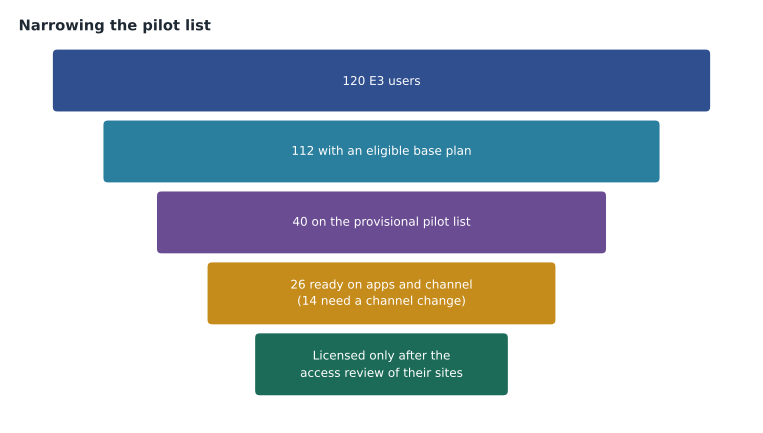
The data heading belonged to the companion governance course, and at Corvallin it was the longest task by far: Teodor's oversharing clean-up ran from November 2026 into the spring. For licensing purposes the rule was simple. A user did not get a license until the sites they could reach had been through the access review.
The readiness report
Microsoft provides a readiness report in the Microsoft 365 admin center, under Reports > Usage > Microsoft Copilot > Readiness. Microsoft describes it as showing license eligibility, app readiness and technical blockers: which users hold a base license that qualifies, whether they are on apps and update channels that support Copilot, and what might stop Copilot working for them. The AI Administrator role is the one Microsoft lists for this report. Teodor ran it in the last week of October.
The report found 112 of the 120 E3 users eligible on license grounds, and pointed out that the other eight were service and shared-purpose accounts that would never need Copilot. More usefully, it showed that 14 of the 40 people on the provisional pilot list were on an older update channel because the finance team had been held back during a payroll upgrade two years earlier and nobody had moved them back. Ama moved them to Monthly Enterprise Channel through Intune over the following week.
Choosing who gets a license
The Copilot settings page lists a setting called Recommendations for Microsoft Copilot licensing under data access, which governs whether the admin center may offer licensing suggestions. Whatever the admin center suggests, Corvallin chose its pilot users on purpose instead: a mix of roles that would test different kinds of work. The final list, approved by Ines and Dr. Ostrander-Bey, included 12 intake and care coordinators, 8 branch managers, 6 people from finance and payroll, 6 from HR and training, 4 from quality and clinical leadership, and 4 from the head office administration team. Each had a named reason, such as "writes a dozen family letters a week" or "prepares the monthly quality report."
The principle behind the list is worth stating because it recurs on the exam and in practice: pilot users should be chosen for the work they do and their willingness to give feedback, not for seniority. A pilot made only of executives measures how executives use Copilot, which is rarely how the organization will.
Assigning licenses
There are three common ways to assign Copilot licenses, and the choice affects how easy the pilot will be to grow, shrink and audit.
| Method | How | Best for |
|---|---|---|
| Directly to a user | Microsoft 365 admin center: Users > Active users > select user > Licenses and apps; or Billing > Licenses > select the product > Assign licenses | A handful of individuals or a quick test |
| Group-based licensing | Assign the license to a security group in the Microsoft 365 admin center or the Microsoft Entra admin center; members get it automatically | Pilots and rollouts that grow and shrink |
| PowerShell or Graph | Microsoft Graph PowerShell or the Graph API | Bulk changes, automation and reporting |
Group-based licensing was the obvious choice for Corvallin. Teodor created a security group, Copilot-Pilot, and assigned the Microsoft 365 Copilot license to the group. Adding a person to the group gives them the license; removing them takes it away. The membership list doubles as the pilot roster, the audit trail is the group's change history, and nobody has to remember to remove a license by hand when someone leaves the pilot. Group-based licensing requires Microsoft Entra ID P1 or higher, which Corvallin's E3 plan included.
# Assign Microsoft 365 Copilot to the Copilot-Pilot group (group-based licensing)
Connect-MgGraph -Scopes "Group.ReadWrite.All","Organization.Read.All"
$sku   = Get-MgSubscribedSku | Where-Object SkuPartNumber -like "*Copilot*"
$group = Get-MgGroup -Filter "displayName eq 'Copilot-Pilot'"
Set-MgGroupLicense -GroupId $group.Id -AddLicenses @(@{SkuId = $sku.SkuId}) -RemoveLicenses @()

# Check the result: count the group members
Get-MgGroupMember -GroupId $group.Id -All | Measure-Object
Group-based licensing has failure modes worth knowing. If there are not enough licenses for every member, some members end up in an error state and do not get the license; the group's license page shows these errors. If a member already has a conflicting assignment, or the base license is missing, the add-on cannot be applied. Teodor checked the group's licensing status after each batch of additions, which took a minute and avoided a classic pilot complaint, "I was told I had Copilot, but I don't."
Worked problem
Counting seats for the pilot
Corvallin buys 44 Microsoft 365 Copilot licenses: 4 already assigned directly to the IT team and 40 for the pilot. Teodor assigns the license to the Copilot-Pilot group, which has 42 members because two branch managers asked to join late. How many members will end up in a licensing error, and what are his options?
Show solution
- Licenses available for the group: 44 minus the 4 assigned to IT, leaving 40.
- Members needing a license: 42.
- Shortfall: 42 minus 40 is 2 members in an error state.
- Options: buy two more licenses, remove two people from the group, or move the IT team's licenses into the group if any IT member does not need one.
Answer: Two members would be left without the license. Teodor removed the two late additions from the group and put them on a waiting list for the second phase.
Service plans inside the license
A Copilot license, like every Microsoft 365 license, is a bundle of service plans, each of which turns on one capability. In the admin center, opening a user's license under Licenses and apps shows the apps and services included, each with a check box. Microsoft's documentation gives one Copilot example directly: an administrator can turn the Microsoft Copilot for SharePoint service plan on or off per user, and turning it off also disables Copilot in OneDrive and SharePoint page authoring for that user.
Switching off service plans one user at a time does not scale, and group-based licensing lets an administrator choose which service plans are enabled when assigning a license to a group. Corvallin did not switch any off for the pilot. The point of the pilot was to learn which parts people used. But Teodor noted where the controls were in case a specific feature had to be paused for everyone.
Licenses are not the only switch
Holding a license makes features available; settings decide whether they are switched on. Several settings sit between a licensed user and Copilot.
| Setting | Where | Effect |
|---|---|---|
| Pin Microsoft Copilot Chat | Copilot settings, user access | Whether Copilot Chat is pinned in the Microsoft 365 apps |
| Copilot app in Teams | Teams admin center, app permission and setup policies | Who can use Copilot in Teams and whether it is pinned |
| Web search for Microsoft Copilot and Copilot Chat | Copilot settings, data access | Whether Copilot can ground answers in web results |
| Block the Copilot app in Integrated Apps | Microsoft 365 admin center | Blocks Copilot in the Copilot app, Teams, Outlook and on the web for the chosen users, licensed or not |
| Copilot in Teams meetings | Teams meeting policies | Whether Copilot works during and after meetings |
The Integrated Apps block deserves care. Microsoft's documentation warns that blocking the Copilot app through Integrated Apps blocks licensed users too, and that turning off "Let users access Microsoft apps" does not turn off the Copilot app. An administrator who wants to restrict only unlicensed users should instead unpin Copilot Chat, avoid deploying the Copilot app to them, limit Copilot in Teams through Teams app policies and use Microsoft Edge policies for the browser sidebar. Corvallin had no intention of blocking Copilot Chat for unlicensed staff; enterprise data protection applied, and Ines preferred that people used a protected work tool rather than consumer AI sites.
Removing licenses and moving them between people
Licenses also have to come off. When a pilot user leaves Corvallin, the normal leaver process removes all their licenses, and removing them from the Copilot-Pilot group is part of that process. When a user stays at Corvallin but leaves the pilot, removing them from the group takes away the Copilot license and returns it to the pool for the next person on the waiting list; their mailbox, files and base license are untouched. What the user loses is Copilot itself: in-app Copilot, work-data grounding in chat, Researcher and Analyst, and agents that depend on the license. Their saved prompts and chat history are not something an administrator should promise to keep available in the same form, so the pilot guide told users that leaving the pilot means losing access to Copilot features from that day.
Moving a license from one person to another is just two group changes, but the order matters when licenses are exactly used up. If Teodor adds the new person before removing the old one, the new person lands in an error state until the old license is freed. Ama's runbook therefore said: remove first, wait for the group's license status to update, then add.
Readiness is repeated, not done once
The readiness report is not a one-time check. Update channels drift when devices are rebuilt, new hires join with defaults, and network changes can block endpoints. Corvallin scheduled the report for the Monday of each pilot month, alongside the usage report, and Ama added a check to the device rebuild procedure: confirm the Microsoft 365 Apps update channel before handing the laptop back. Two of the fourteen finance users had in fact drifted back to the old channel within a month of being moved, because their laptops had been rebuilt from an old image, which is exactly the kind of quiet change a repeated report catches and a one-time check misses.
A last readiness item is the user, not the device. The readiness report cannot tell an administrator whether someone knows how to write a good prompt or check an answer. Corvallin's gate was the one-hour training session and the signed use guide described in lesson 11, recorded in the HR training system, and Teodor added people to Copilot-Pilot only from the training completion list.
Common mistakes
MistakeAssigning a Copilot license to a user without a qualifying base license.
InsteadCheck the base license first; the add-on cannot be applied without it.
MistakeLicensing pilot users before their apps are on a supported update channel.
InsteadRun the readiness report and fix app channels first.
MistakeAssigning pilot licenses one user at a time.
InsteadUse group-based licensing so the group is the roster and the audit trail.
MistakeBlocking the Copilot app in Integrated Apps to stop unlicensed users.
InsteadThat also blocks licensed users; use pinning, deployment and Teams and Edge policies instead.
Summary and key terms
- Microsoft 365 Copilot needs a qualifying base license and works best with an Exchange Online mailbox, OneDrive, current Microsoft 365 Apps and open network endpoints.
- The readiness report under Reports > Usage > Microsoft Copilot > Readiness shows license eligibility, app readiness and technical blockers.
- Choose pilot users for the work they do and the feedback they can give, not for seniority.
- Group-based licensing makes a security group the pilot roster; watch for errors when licenses run short.
- Service plans and settings, such as the SharePoint service plan, web search, Teams app policies and meeting policies, shape what a licensed user experiences.
- Qualifying base license
- A Microsoft 365 or Office 365 plan that Microsoft lists as eligible for the Copilot add-on.
- Readiness report
- A Microsoft 365 admin center report showing which users are eligible and ready for Copilot.
- Group-based licensing
- Assigning a license to a security group so that all members receive it automatically.
- Service plan
- One capability within a license that can be enabled or disabled.
- Update channel
- The schedule on which Microsoft 365 Apps receive feature updates, such as Current Channel or Monthly Enterprise Channel.
- Integrated Apps
- The Microsoft 365 admin center area for deploying and blocking apps and agents across the organization.
Practice problems
Work each problem on paper first, then reveal the answer to check.
Name three things to check for a user before assigning a Copilot license.
Show answer
Any three: qualifying base license, Exchange Online mailbox, OneDrive, supported app update channel, network endpoints, data and oversharing review.
Where is the Copilot readiness report?
Show answer
Microsoft 365 admin center > Reports > Usage > Microsoft Copilot > Readiness.
Why is group-based licensing a good fit for a pilot?
Show answer
Adding or removing group members grants or removes the license, so the group is the roster and the audit trail.
Lesson quiz · 5 questions
Score 60% or more to complete this lesson.
Create a free account to save your progress, take quizzes and earn a certificate.