
MSAZ-130 · Lesson 9 of 12 · 18 min
Authentication methods, MFA and passwordless
▶ Video coming soon A video version of this lesson is on the way.
The service desk at Harrow & Finch handles about forty password resets a week, more after long weekends. On November 25, 2026, Ama Boateng sat with Ben Okafor, one of the service desk analysts, for a morning. Every reset followed the same pattern: a caller says who they are, Ben asks for an employee number and a manager's name, then sets a temporary password and reads it out over the phone. "Anyone who knows those two things could get a new password," Ama noted afterwards. "And the passwords people pick when they change it are things like the store number and the season." She brought both observations to Sunil Rao, who had asked her to draft the authentication plan for Project Skylight.
This lesson covers the authentication capabilities of Microsoft Entra ID in the SC-900 outline: the authentication methods it supports, multifactor authentication, passwordless sign-in, and password protection and management features, including self-service password reset. It ends with the plan Ama proposed.
Authentication methods in Microsoft Entra ID
Microsoft Entra ID supports many ways to prove identity. Some can be used as the primary method, the first step of sign-in; some only as a secondary method for MFA; and some can be used for self-service password reset (SSPR) or account recovery. Microsoft Learn's authentication methods page lists which methods can be used for which purpose, and the list changes as new methods arrive, so it is worth checking before designing a rollout.
| Method | Primary sign-in | MFA | SSPR | Notes |
|---|---|---|---|---|
| Password | Yes | No | No | Weakest alone; can be phished or leaked |
| Microsoft Authenticator (push notification) | No | Yes | Yes | Approve sign-ins on a phone, with number matching |
| Microsoft Authenticator (passwordless) | Yes | No | No | Phone sign-in without a password |
| Passkeys (FIDO2), including in Authenticator | Yes | Yes | No | Phishing-resistant |
| Windows Hello for Business | Yes | Limited | No | Phishing-resistant; tied to the device |
| Certificate-based authentication | Yes | Yes | No | Phishing-resistant; uses smart cards or device certificates |
| Software or hardware OATH tokens | No | Yes | Yes | Time-based codes |
| SMS | Yes (SMS sign-in) | Yes | Yes | Convenient but vulnerable to interception and phishing |
| Voice call | No | Yes | Yes | Vulnerable to phishing and social engineering |
| Temporary Access Pass | Yes | Yes | No | Time-limited passcode for onboarding or recovery |
Multifactor authentication in Microsoft Entra ID
Multifactor authentication requires a second form of verification after the first, using a factor from a different category, as described in lesson 5. In Microsoft Entra ID, MFA can be required in several ways. Security defaults, available in every tenant, require all users to register for MFA and prompt for it when Microsoft considers a sign-in risky, and always for administrators. Conditional Access policies, covered in lesson 10 and requiring a P1 license, let organizations decide exactly when MFA is required, for which users and applications, and with which methods. Older per-user MFA settings still exist, but Microsoft recommends Conditional Access instead.
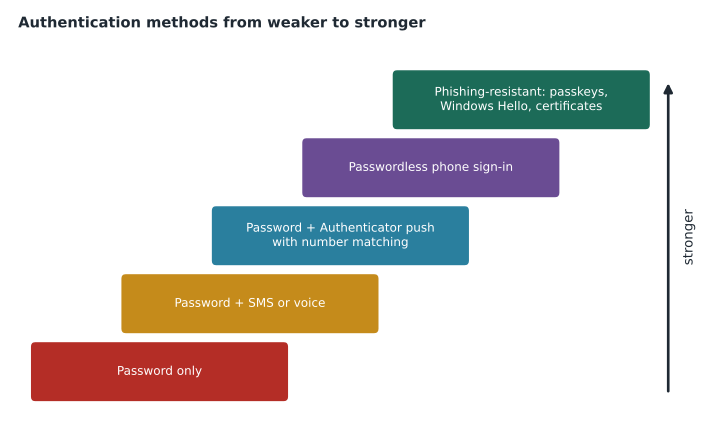
Not all second factors are equally strong. Attackers have adapted to MFA with techniques such as MFA fatigue, sending repeated push prompts in the hope that a tired user approves one, and adversary-in-the-middle phishing, a fake sign-in page that relays the user's password and one-time code to the real service in real time and steals the resulting session. To counter fatigue, Microsoft Authenticator uses number matching, where the user must type a number shown on the sign-in screen into the app, and shows extra context such as the app and location. To counter real-time phishing, the strongest defense is a phishing-resistant method.
Phishing-resistant and passwordless methods
A phishing-resistant method is one whose proof cannot be replayed by a fake website. Passkeys based on the FIDO2 standard are the leading example. When a user registers a passkey, the device creates a key pair for that specific website, keeping the private key on the device and giving the public key to the service. At sign-in, the device signs a challenge with the private key, unlocked by a fingerprint, face or PIN, and the browser includes the real website's address in what is signed. A fake site at a different address cannot obtain a valid signature, so even a user who is fooled by a convincing page cannot hand over working credentials. This builds directly on the digital signatures in lesson 3.
Microsoft lists the following phishing-resistant methods: Windows Hello for Business, which ties a key to a specific Windows device and is unlocked with a PIN or biometric; Platform Credential for macOS; passkeys, which can be stored on a FIDO2 security key, in Microsoft Authenticator or, as synced passkeys, in a password manager or platform account; and certificate-based authentication using smart cards or certificates. Microsoft recommends these methods because they give the strongest protection with a simple sign-in experience.
Many of these methods are also passwordless: the user never types a password. Passwordless sign-in removes the most stolen credential from the picture altogether. A user with Windows Hello for Business unlocks her laptop with her face and is signed in to Microsoft 365 automatically; a user with a passkey taps a security key or confirms on a phone. Passwords may still exist on the account for a while during a transition, but the goal is that people stop using them, and eventually that they are not needed.
Getting started and recovering access
Strong methods raise a practical question: how does a new employee, who has no registered methods yet, sign in for the first time, and how does someone who loses their phone get back in? A Temporary Access Pass (TAP) answers both. It is a time-limited passcode, issued by an administrator or the service desk after verifying the person, that satisfies strong authentication requirements so the user can sign in and register passwordless methods such as a passkey or Windows Hello. A TAP can be set to work once or for a short period, which is much safer than reading a permanent temporary password over the phone.
For people who still use passwords, self-service password reset (SSPR) lets users reset forgotten passwords themselves after proving their identity with methods they registered earlier, such as an authenticator app or a phone. It reduces service desk calls and removes the weak check Ama observed, where knowing an employee number and a manager's name was enough. For synchronized users, SSPR requires password writeback, described in lesson 8, so the new password works on premises too. Microsoft now manages MFA and SSPR method registration together through a combined registration experience and a single authentication methods policy.
Password protection
Even with MFA, weak passwords remain a risk wherever passwords are still used. Microsoft Entra Password Protection checks new and changed passwords against a global banned password list, which Microsoft maintains from passwords seen in attacks, and an optional custom banned password list of terms specific to the organization, such as its name, products and city. It does not compare only exact matches: it normalizes common substitutions, such as an at sign for an a or a zero for an o, and scores passwords so that a banned word with a few extra characters is still rejected. With agents installed on domain controllers, the same checks can apply to passwords changed in on-premises AD DS.
Microsoft Entra ID also uses smart lockout, which locks out attackers trying to guess passwords while trying not to lock out the real user, for example by distinguishing sign-in attempts from familiar locations. Together with password hash synchronization, it allows leaked credential detection in Microsoft Entra ID Protection, covered in lesson 12. Current guidance from security agencies and Microsoft has moved away from forcing regular password changes and complex composition rules, which tend to produce predictable passwords, toward longer passphrases, banned-password checks and MFA.
Ama tested the idea of a custom banned list with a short script. It is much simpler than Microsoft's real scoring, but it shows why normalization matters: the passwords people chose at the service desk were close variations of a few predictable words.
banned = {"harrow", "finch", "winnipeg", "desmoines", "stockline", "spring", "summer", "password"}
subs = str.maketrans({"@": "a", "4": "a", "0": "o", "1": "l", "3": "e", "5": "s", "!": ""})

def normalize(pw):
    return pw.lower().translate(subs)

def check(pw):
    n = normalize(pw)
    hits = [w for w in banned if w in n]
    remaining = n
    for w in hits:
        remaining = remaining.replace(w, "")
    strong_enough = len(remaining) >= 8 and len(pw) >= 12
    return ("rejected (contains " + ", ".join(sorted(hits)) + ")") if hits and not strong_enough else "accepted"

for pw in ["Spr1ng2026!", "H@rrow14", "Finch-store-14", "maple canoe lantern river", "St0ckLine!!"]:
print(f"{pw:28s} {check(pw)}")Spr1ng2026! accepted H@rrow14 rejected (contains harrow) Finch-store-14 accepted maple canoe lantern river accepted St0ckLine!! rejected (contains stockline)
What this code does
Checks passwords against a custom banned-word list the way Microsoft Entra password protection does. It first normalises each password, making it lowercase and turning common substitutions such as @ for a and 0 for o back into letters, then rejects any that contain a banned word. Simple tricks like H@rrow are caught, while unrelated passphrases are accepted.
The variations of the season, the company name and the system name were all rejected, while a long phrase of unrelated words was accepted. Ama added the store city names and the names of the company's own systems to the proposed custom banned list.
The authentication plan
Ama's draft plan for Skylight, approved by Sunil and Renata Kowal on November 30, had five steps. First, move every user from the older per-user and security defaults approach to Conditional Access with MFA, using Microsoft Authenticator with number matching for most staff, starting in January 2027. Second, give all administrators phishing-resistant methods, FIDO2 security keys plus Windows Hello for Business on their laptops, before anyone else. Third, replace the phone-based reset process with SSPR, password writeback and Temporary Access Passes for onboarding and lost phones. Fourth, turn on the custom banned password list. Fifth, plan passkeys in Microsoft Authenticator for head office staff later in 2027, with the long-term goal of passwordless sign-in for most of the company.
Store staff needed special thought. Many share tills and some do not have company phones. The plan kept MFA for store managers on their registered phones but, for associates, relied on managed store devices and Conditional Access location and device conditions rather than personal phones, with FIDO2 security keys as an option for those who wanted them. Grace Oduya agreed to pilot the approach in two stores in February 2027.
Rolling out new methods without disruption
Changing how a thousand people sign in needs communication as much as technology. Microsoft's guidance for MFA and passwordless rollouts recommends starting with a pilot group, giving users a registration window before enforcement, explaining clearly why the change is happening and providing a simple path for people who get stuck, such as a Temporary Access Pass from the service desk after identity checks. Ama planned short videos for store staff and a drop-in session at head office, and asked the service desk to track registration progress weekly so that reminders could go to stores that fell behind.
Worked problem
Ranking methods for a high-risk role
Dana Whitcombe's accounts payable team approves supplier payments, which made them a target in October. Sunil asked Ama to rank four options for the team from weakest to strongest: (a) password with SMS codes; (b) password only; (c) passkeys on FIDO2 security keys; (d) password with Authenticator push and number matching.
Show solution
- Password only is weakest: one stolen secret gives full access.
- SMS codes add a second factor but can be intercepted or relayed by a phishing site.
- Authenticator push with number matching resists MFA fatigue and gives context, but a real-time phishing site can still relay a session.
- Passkeys on security keys are phishing-resistant: a fake site cannot get a valid signature.
Answer: From weakest to strongest: b, a, d, c. The team was moved to the top of the passkey rollout.
Common mistakes
MistakeTreating all MFA methods as equally strong.
InsteadSMS and voice are weaker; phishing-resistant methods such as passkeys, Windows Hello and certificates are strongest.
MistakeReading temporary passwords to callers over the phone.
InsteadUse SSPR with registered methods and Temporary Access Passes after proper verification.
MistakeForcing frequent password changes with complex rules.
InsteadPrefer long passphrases, banned-password checks and MFA.
MistakeThinking passwordless means less secure.
InsteadPasswordless methods such as passkeys are usually stronger, because there is no password to steal or phish.
Summary and key terms
- Microsoft Entra ID supports many authentication methods, each usable for primary sign-in, MFA, SSPR or a combination.
- MFA can be required through security defaults or Conditional Access, and number matching helps against MFA fatigue.
- Phishing-resistant methods, such as passkeys based on FIDO2, Windows Hello for Business, Platform Credential for macOS and certificate-based authentication, defeat fake sign-in pages, and many are passwordless.
- Temporary Access Pass supports onboarding and recovery, SSPR lets users reset their own passwords, and Microsoft Entra Password Protection blocks weak passwords with global and custom banned lists, alongside smart lockout.
- Phishing-resistant authentication
- Methods whose proof is bound to the real site and cannot be replayed by a fake one.
- Passkey (FIDO2)
- A credential based on a key pair for a specific site, with the private key kept on a device and unlocked by a biometric or PIN.
- Windows Hello for Business
- Passwordless, phishing-resistant sign-in tied to a Windows device and unlocked with a PIN or biometric.
- Number matching
- An Authenticator feature that requires typing a number shown at sign-in, reducing accidental approvals.
- Temporary Access Pass
- A time-limited passcode that lets users sign in to register strong methods or recover access.
- Self-service password reset
- A feature that lets users reset their own passwords after verifying with registered methods.
- Microsoft Entra Password Protection
- Checks passwords against global and custom banned lists, with normalization and scoring.
Practice problems
Work each problem on paper first, then reveal the answer to check.
Why is a passkey phishing-resistant?
Show answer
Its signature is tied to the real website's address, so a fake site cannot obtain a valid one.
What does a Temporary Access Pass let a new employee do?
Show answer
Sign in for a limited time to register strong methods such as a passkey or Windows Hello.
Which Microsoft Entra feature blocks passwords containing the company name?
Show answer
Microsoft Entra Password Protection with a custom banned password list.
Lesson quiz · 5 questions
Score 60% or more to complete this lesson.
Create a free account to save your progress, take quizzes and earn a certificate.