
MSAZ-130 · Lesson 10 of 12 · 18 min
Conditional Access
▶ Video coming soon A video version of this lesson is on the way.
On December 2, 2026, Sunil Rao opened the Conditional Access page in the Microsoft Entra admin center for the first time with Ama Boateng beside him. Harrow & Finch had bought Microsoft Entra ID P1 licenses as part of its Microsoft 365 plan years earlier but had never used the feature; the tenant still relied on security defaults. "This is the policy engine from lesson 2," Sunil said. "Everything we decided about Zero Trust turns into rules here. And because a bad rule can lock out the whole company, we're going to be very careful about how we test them."
Microsoft Entra Conditional Access evaluates signals about each sign-in and applies the organization's policies to decide whether to allow access, require something more, or block it. It is one of the most important capabilities in the SC-900 Entra domain. This lesson explains how a policy is built, how policies combine, and how Harrow & Finch planned its first set.
If this, then that
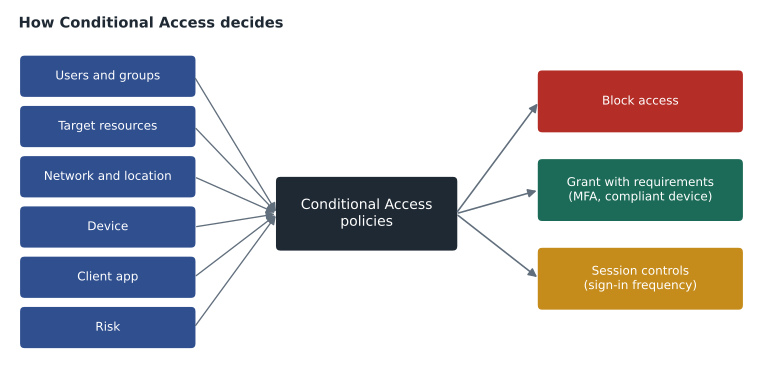
A Conditional Access policy is easiest to understand as an if-then statement. *If* a user who matches the assignments signs in to a matching application under matching conditions, *then* apply these access controls. For example: if any user signs in to any cloud app from outside the company's known locations, then require multifactor authentication. Or: if anyone signs in from a country where the company has no staff, then block access.
Conditional Access is evaluated after the first factor of authentication is completed. It is not a replacement for authentication; it is the decision step that follows, using what Microsoft Entra ID now knows about the user and the request. Policies are enforced for sign-ins to Microsoft Entra ID, which means they apply to every application that uses Entra ID for single sign-on: Microsoft 365, Azure management, SaaS apps and the company's own apps such as StockLine.
Assignments: who and what
The first part of a policy defines its scope. Users, groups and roles can be included or excluded: all users, specific groups, directory roles such as Global Administrator, guests and external users, or workload identities such as service principals, which need the Microsoft Entra Workload ID license. Target resources define what the policy protects: all cloud apps, specific applications such as Office 365 or the Microsoft Azure management portal, or user actions such as registering security information.
A key design rule is to exclude emergency access accounts, sometimes called break-glass accounts, from policies that could lock everyone out. These are a small number of highly protected cloud-only accounts kept for the situation where normal administrator sign-ins stop working, for example if a policy is misconfigured or an MFA service fails. They must be monitored closely, because any sign-in with them is unusual by design.
Conditions: under what circumstances
Conditions narrow when a policy applies, using signals about the sign-in. Network or locations use IP address ranges and countries; administrators define named locations, such as Harrow & Finch's head office and store internet addresses, and can mark them as trusted. Device platforms distinguish Windows, macOS, iOS, Android and Linux. Client apps distinguish browsers, modern mobile and desktop apps, and legacy authentication clients, older protocols that cannot perform MFA and are a common route for password-spraying attacks. Sign-in risk and user risk, calculated by Microsoft Entra ID Protection, are available with a P2 license and are described in lesson 12. A device filter can target devices by attributes, such as shared store tablets.
| Part | Examples | Harrow & Finch use |
|---|---|---|
| Users and roles | All users, a group, Global Administrator, guests | All users, excluding two emergency access accounts |
| Target resources | All cloud apps, Office 365, Azure management | All apps; StockLine and payroll for device rules |
| Network and locations | Named locations, countries, trusted IP ranges | Head office and store IP ranges as trusted |
| Device platforms | Windows, iOS, Android, macOS | Block unsupported platforms for payroll |
| Client apps | Browser, mobile and desktop apps, legacy authentication | Block legacy authentication everywhere |
| Risk (P2) | Sign-in risk, user risk | Planned once P2 is licensed for administrators |
Access controls: what happens
When a policy applies, its access controls decide the outcome. Block access denies the sign-in. Grant access allows it, optionally with requirements: require multifactor authentication; require an authentication strength, such as phishing-resistant MFA only; require the device to be marked as compliant by Microsoft Intune; require a Microsoft Entra hybrid joined device; require an approved client app or an app protection policy on mobile devices; require a password change when user risk is high; or require acceptance of terms of use. When several grant requirements are selected, the policy can require all of them or any one of them.
Session controls shape what happens after access is granted. Sign-in frequency sets how often users must sign in again, which is useful for unmanaged devices. Persistent browser session decides whether users stay signed in after closing the browser. App-enforced restrictions let services such as SharePoint Online limit what users can do from unmanaged devices, such as viewing but not downloading files. Conditional Access App Control, provided through Microsoft Defender for Cloud Apps, can monitor and control sessions in real time, for example blocking downloads of labeled files.
How policies combine
Organizations usually have many policies, and several can apply to the same sign-in. Microsoft Entra ID evaluates all policies that apply, not just the first one. If any applicable policy blocks access, the sign-in is blocked: block always wins. Otherwise, the user must satisfy the grant requirements of every applicable policy. There is no priority order to configure. If no policy applies, access is allowed based on authentication alone, which is why many organizations add a baseline policy for all users and all apps.
Ama wrote a simulation of that logic to check the team's understanding before they touched the real tenant. It evaluates a set of simplified policies against several sign-ins and collects every requirement that applies.
policies = [
    {"name": "Block legacy authentication", "users": "all", "when": lambda s: s["client"] == "legacy", "action": "block"},
    {"name": "MFA for all users", "users": "all", "when": lambda s: True, "action": {"mfa"}},
    {"name": "Admins need phishing-resistant MFA", "users": "admins",
     "when": lambda s: True, "action": {"phishing-resistant"}},
    {"name": "Payroll needs compliant device", "users": "all",
     "when": lambda s: s["app"] == "payroll", "action": {"compliant device"}},
    {"name": "Block countries with no staff", "users": "all",
     "when": lambda s: s["country"] not in ("CA", "US"), "action": "block"},
]
def evaluate(s):
    needs = set()
    for p in policies:
        if p["users"] == "admins" and not s["admin"]:
            continue
        if s["user"] == "breakglass":          # emergency access accounts are excluded
            continue
        if p["when"](s):
            if p["action"] == "block":
                return "BLOCK (" + p["name"] + ")"
            needs |= p["action"]
    return "allow after: " + (", ".join(sorted(needs)) if needs else "nothing extra")

signins = [
    {"user": "store14.manager", "admin": False, "app": "email", "client": "browser", "country": "CA"},
    {"user": "payroll.clerk", "admin": False, "app": "payroll", "client": "browser", "country": "US"},
    {"user": "theo.admin", "admin": True, "app": "azure portal", "client": "browser", "country": "CA"},
    {"user": "old.scanner", "admin": False, "app": "email", "client": "legacy", "country": "CA"},
    {"user": "store14.manager", "admin": False, "app": "email", "client": "browser", "country": "RO"},
]
for s in signins:
print(f"{s['user']:16s} {s['app']:13s} -> {evaluate(s)}")store14.manager email -> allow after: mfa payroll.clerk payroll -> allow after: compliant device, mfa theo.admin azure portal -> allow after: mfa, phishing-resistant old.scanner email -> BLOCK (Block legacy authentication) store14.manager email -> BLOCK (Block countries with no staff)
What this code does
Evaluates several sign-ins against a set of Conditional Access policies. Policies that block access take priority, while others add requirements such as MFA, phishing-resistant MFA or a compliant device, and all the matching requirements are combined. The output shows which sign-ins are blocked and what each allowed sign-in must satisfy.
The simulation showed the rules working together: the payroll clerk needs both MFA and a compliant device, the administrator needs both ordinary MFA and the phishing-resistant strength (which satisfies both), and the sign-in from a country with no staff is blocked regardless of anything else. The same pattern would have stopped the October attacker twice over.
Testing safely: report-only and What If
Because Conditional Access affects every sign-in, mistakes are costly. Microsoft provides two tools to reduce risk. Report-only mode lets a policy run without enforcing it: Microsoft Entra ID evaluates the policy for each sign-in and records what would have happened in the sign-in logs, without blocking or prompting anyone. Administrators can review the results, often with the Conditional Access insights workbook, and switch the policy on once they are confident. The What If tool lets an administrator describe a hypothetical sign-in, such as a particular user, app, location and device, and see which policies would apply and what the result would be.
Microsoft also provides policy templates for common scenarios, such as requiring MFA for administrators or blocking legacy authentication, and creates some Microsoft-managed policies in tenants automatically, starting in report-only mode, to help organizations adopt recommended protections. Administrators can review, adjust or turn off those policies.
Keeping policies manageable
Conditional Access configurations can grow messy. Microsoft recommends a clear naming convention, so each policy's purpose is obvious from its name, and a small set of baseline policies that apply broadly, with specific policies added for sensitive apps and roles. Ama proposed names such as CA01-AllUsers-AllApps-RequireMFA, so that anyone reading the list would know the scope and the control at a glance.
Worked problem
Planning Harrow & Finch's first policies
Sunil and Ama drafted five policies to start in report-only mode on December 7, 2026 and to switch on in stages from January 2027. Which access control does each use? (1) Require MFA for all users and all apps, excluding the emergency access accounts. (2) Block legacy authentication for everyone. (3) Require phishing-resistant MFA for anyone in an administrator role. (4) Require a compliant or hybrid joined device to open StockLine and payroll. (5) Block sign-ins from countries where the company has no staff, with a group for approved travel.
Show solution
- Policy 1 grants access with the requirement of MFA.
- Policy 2 blocks access when the client app condition is legacy authentication.
- Policy 3 grants access with an authentication strength requirement of phishing-resistant MFA.
- Policy 4 grants access with a requirement for a compliant device or a hybrid joined device, either one being acceptable.
- Policy 5 blocks access based on a location condition, with an exclusion group for approved travelers.
Answer: Grant with MFA; block; grant with authentication strength; grant with device requirements; block by location.
Theo Marchand raised a practical concern about policy 2. The head office had an old multifunction printer that sent scanned documents by email using legacy authentication. Report-only mode confirmed it: the printer was the only legacy sign-in in two weeks of logs. Rather than exclude it from the policy, the team scheduled the printer's replacement for January and moved scanning to a modern method in the meantime.
Conditional Access and the wider picture
Conditional Access connects many of the ideas in this course. It uses identities and groups from lesson 7, authentication methods and strengths from lesson 9, device states from Microsoft Intune, risk from ID Protection in lesson 12 and locations from the organization's network. It also connects to products covered in MSAZ-131, such as Microsoft Defender for Cloud Apps for session control. Microsoft Entra's network access products, Internet Access and Private Access, extend Conditional Access to network traffic, so that the same identity and device checks can govern access to private applications without a traditional VPN.
Renata Kowal summed up the December plan for the Skylight steering group: "For the first time, we'll be able to say exactly who can get into what, from where and on which devices, and we'll have the logs to prove it." Dana Whitcombe asked one question: would store staff notice? Ama's answer was that most would see an MFA prompt only occasionally, from outside store and office locations, while the attacker from October would never have got in.
Common mistakes
MistakeThinking policies are applied in priority order.
InsteadAll applicable policies are evaluated; any block wins, and all grant requirements must be met.
MistakeSwitching a new policy straight on for all users.
InsteadStart in report-only mode and use the What If tool before enforcing.
MistakeForgetting emergency access accounts.
InsteadExclude a few monitored break-glass accounts from policies that could lock everyone out.
MistakeBelieving Conditional Access replaces authentication.
InsteadIt is evaluated after the first factor and decides what else is required or whether to block.
Summary and key terms
- Microsoft Entra Conditional Access is the policy engine that applies if-then rules to sign-ins after first-factor authentication, and requires a P1 license.
- Assignments define users, groups, roles, workload identities and target resources; conditions use locations, device platforms, client apps such as legacy authentication, device filters and risk levels from ID Protection.
- Access controls block access or grant it with requirements such as MFA, an authentication strength or a compliant device, and session controls shape sign-in frequency and app restrictions.
- All applicable policies combine, block wins, and report-only mode and the What If tool support safe testing.
- Conditional Access
- The Microsoft Entra feature that evaluates sign-in signals against policies to allow, require more or block.
- Named location
- A defined IP address range or country used as a condition in policies.
- Legacy authentication
- Older sign-in protocols that cannot perform MFA and are often blocked.
- Grant control
- A requirement to allow access, such as MFA or a compliant device.
- Authentication strength
- A grant requirement that specifies which authentication methods are acceptable.
- Session control
- A setting that shapes the session after access is granted, such as sign-in frequency.
- Report-only mode
- Running a policy without enforcing it, recording what would have happened.
Practice problems
Work each problem on paper first, then reveal the answer to check.
Two policies apply to a sign-in. One requires MFA and the other blocks access. What happens?
Show answer
Access is blocked, because block always wins.
Which tool shows which policies would apply to a hypothetical sign-in?
Show answer
The What If tool.
Why are emergency access accounts excluded from some policies?
Show answer
So administrators can still sign in if a policy or service failure would otherwise lock everyone out.
Lesson quiz · 5 questions
Score 60% or more to complete this lesson.
Create a free account to save your progress, take quizzes and earn a certificate.