
JS-110 · Lesson 7 of 12 · 29 min
Forms and validation
▶ Video coming soon A video version of this lesson is on the way.
The volunteer sign-up form on the new Volunteer page replaced the old PDF form, but it is still a plain HTML form: a volunteer fills it in, presses Sign up and the form is sent. Lucy's complaint is about what happens when something is wrong. A missing phone number produces a small browser bubble that disappears when the volunteer scrolls; a volunteer who ticks the kitchen without having food-safety training is told nothing at all, and Lucy has to phone them later. She wants every problem explained in plain words, next to the field it belongs to, before the form is sent.
Forms are where a page asks people for information, and they are where most of the friction on the web happens. The session planned for Tuesday, February 2, 2027, covers how scripts read forms, the validation that HTML gives for free, the Constraint Validation API that lets JavaScript work with it, and how to report problems in a way that works for everybody, including people using screen readers.
<form id="signup" action="/volunteer/signup" method="post" novalidate>
  <label for="name">Full name</label>
  <input id="name" name="name" required minlength="2" autocomplete="name">

  <label for="email">Email</label>
  <input id="email" name="email" type="email" required autocomplete="email">

  <label for="phone">Phone (optional)</label>
  <input id="phone" name="phone" type="tel" autocomplete="tel">

  <fieldset>
    <legend>Areas you would like to help in</legend>
    <label><input type="checkbox" name="areas" value="kitchen"> Community kitchen</label>
    <label><input type="checkbox" name="areas" value="grocery"> Grocery program</label>
    <label><input type="checkbox" name="areas" value="garden"> Youth garden</label>
  </fieldset>

  <label><input type="checkbox" name="foodSafe" value="yes"> I have food-safety training</label>
  <label><input type="checkbox" name="age16" value="yes" required> I am 16 or older</label>

  <button type="submit">Sign up</button>
</form>
What this code does
Every field has a name, which is the key its value is sent under, and a label tied to it with for and id or by wrapping. The required, type, minlength and similar attributes describe the rules each field must follow. novalidate on the form turns off the browser's own pop-up messages, so that the script can show its own instead while still using the same rules.
Reading a form
There are two ways to get at a form's values from a script. The direct way is to find each control and read its value property, or checked for checkboxes and radio buttons. A form element also has an elements property that gives its controls by name, so form.elements.email is the email input. The direct way is fine for one or two fields and clumsy for twenty.
The better way for whole forms is FormData. new FormData(form) collects every named, enabled control in the form into a set of name and value pairs, exactly the pairs that would be sent if the form were submitted: text fields with their text, ticked checkboxes with their value and unticked checkboxes not at all. Its get method returns the first value for a name and getAll returns every value, which is what a group of checkboxes with the same name needs.
const form = document.querySelector('#signup');
form.addEventListener('submit', (event) => {
  event.preventDefault();
  const data = new FormData(form);
  console.log(data.get('name'));       // 'Amara Okafor'
  console.log(data.getAll('areas'));   // [ 'kitchen', 'garden' ]
  console.log(data.has('foodSafe'));   // false when the box is not ticked
});
What this code does
The submit listener stops the normal submission and builds a FormData object from the form. get returns the single value of a text field, while getAll returns every ticked value of the areas checkboxes. An unticked checkbox sends nothing at all, so has reports false for it.
FormData is not tied to the DOM: it is part of the standard environment and works in the runner, where it can be filled by hand with append. That makes it easy to see how it behaves, including one trap. Converting it to a plain object with Object.fromEntries keeps only the last value for each name, so the list of areas is lost.
const data = new FormData();
data.append('name', 'Amara Okafor');
data.append('email', 'amara@example.com');
data.append('areas', 'kitchen');
data.append('areas', 'garden');
data.append('age16', 'yes');

console.log(data.get('areas'), data.getAll('areas'));
console.log(Object.fromEntries(data));

const record = { ...Object.fromEntries(data), areas: data.getAll('areas'), foodSafe: data.has('foodSafe') };
console.log(record);kitchen [ "kitchen", "garden" ]
{ name: "Amara Okafor", email: "amara@example.com", areas: "garden", age16: "yes" }
{ name: "Amara Okafor", email: "amara@example.com", areas: [ "kitchen", "garden" ], age16: "yes", foodSafe: false }What this code does
append adds name and value pairs just as a form's ticked and filled controls would. get gives only the first area, and turning the whole FormData into an object with Object.fromEntries keeps only the last one. The final line builds a proper record by taking the plain fields from fromEntries and then replacing areas with getAll and turning the foodSafe box into true or false.
Validation that HTML gives for free
HTML can describe many rules without any script. required means the field must not be empty, or for a checkbox, must be ticked. type="email" and type="url" check the format of an address. minlength and maxlength limit the length of text, min, max and step limit numbers and dates, and pattern gives a regular expression that the whole value must match. The browser checks these rules whenever a form is submitted and, unless the form has novalidate, refuses to send it and shows a message beside the first problem.
| Attribute | Rule | Validity flag when broken |
|---|---|---|
| required | Must have a value, or be ticked | valueMissing |
| type="email", type="url" | Must look like an email address or a URL | typeMismatch |
| minlength, maxlength | Text length limits | tooShort, tooLong |
| min, max | Lowest and highest number or date | rangeUnderflow, rangeOverflow |
| step | Allowed increments, such as whole numbers | stepMismatch |
| pattern | The whole value must match a regular expression | patternMismatch |
| (text in a number field) | Must be a number | badInput |
| setCustomValidity(message) | A rule written in JavaScript | customError |
Built-in validation is a good start: it costs nothing, works without JavaScript and gives the browser enough information to help, for example by showing an email keyboard on a phone. Its weaknesses are the ones Lucy noticed. The messages are generic and worded by the browser, they appear one at a time, they vanish quickly and they cannot express rules that involve two fields, such as kitchen shifts needing food-safety training.
The Constraint Validation API
Every form control exposes the browser's validation results through the Constraint Validation API, so a script can use the same rules while taking over how problems are shown. Each control has a validity property, an object of true or false flags named in the table above, plus a valid flag that is true when nothing is wrong. checkValidity() returns true or false for a control or for a whole form. reportValidity() does the same and also shows the browser's messages. validationMessage holds the browser's text for the current problem.
const email = form.elements.email;
email.value = 'amara@';
email.validity.typeMismatch;   // true
email.validity.valid;          // false
email.checkValidity();         // false, and fires an 'invalid' event on the field
email.validationMessage;       // the browser's own wording, which varies by browser

const kitchen = form.querySelector('[name=areas][value=kitchen]');
const foodSafe = form.elements.foodSafe;
foodSafe.setCustomValidity(kitchen.checked && !foodSafe.checked
  ? 'Kitchen shifts need food-safety training.'
  : '');   // an empty string means valid
What this code does
The email field's validity object reports a type mismatch because amara@ is not a complete address, so the field is invalid. checkValidity returns false and fires an invalid event. setCustomValidity adds a rule that HTML cannot express on its own: if the kitchen is ticked and the training box is not, the training box is marked invalid with Lucy's wording, and setting an empty string clears the error again.
setCustomValidity has a catch that trips everyone once: an error set with it stays until it is cleared with an empty string. A script that sets a custom error must therefore recheck the rule every time the related fields change, typically in an input or change listener, and clear the error when the rule is satisfied.
CSS can use the same validity information. The :invalid and :valid pseudo-classes match fields that currently fail or pass their constraints, but they match from the moment the page loads, so an empty required field looks wrong before anyone has touched it. The newer :user-invalid and :user-valid pseudo-classes match only after the user has interacted with the field, and they have worked in all major browsers since November 2023. Sana's stylesheet uses :user-invalid to give a field a red border and an icon.
Writing the rules once
The rules for a valid sign-up belong to the Food Hub, not to the page. Theo's PHP back end, planned for the spring, will check the same rules on the server, and Lucy wants the same wording in both places. So Mira writes the rules as a pure function that takes a plain record, like the one built from FormData, and returns an object of messages keyed by field name. An empty object means the sign-up is valid.
const EMAIL = /^[^\s@]+@[^\s@]+\.[^\s@]+$/;

function validateSignup(r) {
  const errors = {};
  const name = (r.name ?? '').trim();
  if (!name) errors.name = 'Enter your full name.';
  else if (name.length < 2) errors.name = 'Your name must be at least 2 characters.';
  if (!r.email) errors.email = 'Enter your email address.';
  else if (!EMAIL.test(r.email)) errors.email = 'Enter an email address like name@example.com.';
  const digits = (r.phone ?? '').replace(/\D/g, '');
  if (r.phone && digits.length !== 10) errors.phone = 'Enter a 10-digit phone number, or leave it blank.';
  if (!r.areas.length) errors.areas = 'Choose at least one area.';
  if (r.areas.includes('kitchen') && !r.foodSafe) errors.foodSafe = 'Kitchen shifts need food-safety training.';
  if (!r.age16) errors.age16 = 'Volunteers must be 16 or older.';
  return errors;
}

const good = { name: 'Amara Okafor', email: 'amara@example.com', phone: '555 0142 123', areas: ['garden'], foodSafe: false, age16: true };
const bad = { name: ' A ', email: 'amara@', phone: '555-0142', areas: ['kitchen'], foodSafe: false, age16: false };
console.log(validateSignup(good));
for (const [field, msg] of Object.entries(validateSignup(bad))) console.log(field.padEnd(9), msg);{}
name Your name must be at least 2 characters.
email Enter an email address like name@example.com.
phone Enter a 10-digit phone number, or leave it blank.
foodSafe Kitchen shifts need food-safety training.
age16 Volunteers must be 16 or older.What this code does
Each rule checks one field, or two fields together, and records a message in plain words under the field's name. The phone number is checked by counting its digits after removing everything else, so spaces and dashes are allowed. The good record has no problems, so the result is an empty object, while the bad record produces five messages, one per broken rule.
The rules use the regular expression skills from JavaScript Programming II, and two decisions deserve comment. The email pattern is deliberately loose: it checks that there is something, an at sign, something, a dot and something, because the only real test of an email address is sending it a message. And the phone rule counts digits instead of demanding one format, because people write phone numbers in many ways and a form should accept all the sensible ones.
Showing errors accessibly
An error message only helps if the person filling in the form can find it. For sighted users, that means text next to the field, in a color that is not the only signal, since some people cannot tell red from green. For screen reader users, it means the message must be connected to the field in the accessibility tree, so that it is read out when the field gets focus. Two ARIA attributes, which Lesson 10 explains in general, do that job.
aria-invalid="true" marks a field as having a problem, and screen readers announce it as invalid. aria-describedby points from the field to the id of the element holding its message, so the message is read after the field's label. When the form is submitted with problems, the script should also move focus to the first invalid field, or to a summary of problems at the top of the form, so that keyboard and screen reader users start where the trouble is.
function showErrors(form, errors) {
  for (const el of form.querySelectorAll('[data-error-for]')) {
    const field = form.elements[el.dataset.errorFor];
    const message = errors[el.dataset.errorFor] ?? '';
    el.textContent = message;
    el.hidden = !message;
    const controls = field instanceof RadioNodeList ? [...field] : [field];
    for (const c of controls) c.toggleAttribute('aria-invalid', Boolean(message));
  }
  const first = Object.keys(errors)[0];
  if (first) {
    const f = form.elements[first];
    (f instanceof RadioNodeList ? f[0] : f).focus();
  }
}
What this code does
Each message element in the form names its field in a data-error-for attribute and is already linked to that field by aria-describedby in the HTML. The function fills in or clears each message with textContent, shows or hides it, and sets aria-invalid on the field's controls to match. A group of checkboxes with one name comes back from form.elements as a RadioNodeList, so the function handles every box in the group, and focus moves to the first field with a problem.
<label for="email">Email</label>
<input id="email" name="email" type="email" required aria-describedby="email-error">
<p id="email-error" class="field-error" data-error-for="email" hidden></p>
What this code does
The input points to its message paragraph through aria-describedby, so a screen reader reads the label, the field and then the message. The paragraph starts hidden and empty, and the script fills it in only when there is a problem. Hidden elements are left out of the description, so nothing extra is read while the field is valid.
When to validate
Timing matters as much as wording. Showing an error the instant a volunteer starts typing an email address, before they have reached the at sign, is unhelpful and rude. The pattern most usability research supports, and the one Lucy and Sana agree on, is: check a field when the user leaves it, check every field when the form is submitted, and once a field has shown an error, recheck it on every keystroke so that the error disappears as soon as it is fixed.
function shouldShow(field, state) {
  // state: { touched, submitted, hadError }
  if (state.submitted) return true;              // after a submit attempt, show everything
  if (state.hadError) return true;               // once wrong, update live until fixed
  return state.touched;                          // otherwise only after leaving the field
}

const cases = [
  ['typing for the first time', { touched: false, submitted: false, hadError: false }],
  ['left the field', { touched: true, submitted: false, hadError: false }],
  ['fixing an earlier error', { touched: false, submitted: false, hadError: true }],
  ['pressed Sign up', { touched: false, submitted: true, hadError: false }],
];
for (const [label, state] of cases) console.log(label.padEnd(26), shouldShow('email', state) ? 'show' : 'wait');typing for the first time wait left the field show fixing an earlier error show pressed Sign up show
What this code does
The function decides whether a field's message should be visible from three facts about how the user has interacted with it. Errors wait while someone is typing for the first time, appear once they leave the field or submit the form, and keep updating while an earlier error is being fixed. Keeping this decision in one function means the input, blur and submit listeners all behave consistently.
Worked problem
Working out validity flags
A field is written as <input name="crew" type="number" min="1" max="8" step="1" required>. Which validity flag is set for the values '', '0', '9', '2.5' and '4'?
Show solution
- '' (empty): the field is required, so valueMissing is true.
- '0': it is a number but below min="1", so rangeUnderflow is true.
- '9': above max="8", so rangeOverflow is true.
- '2.5': within range, but step="1" allows only whole numbers counted from min, so stepMismatch is true.
- '4': every constraint is met, so no flag is set and validity.valid is true.
Answer: valueMissing, rangeUnderflow, rangeOverflow, stepMismatch, and valid. A script can map each flag to a message in Lucy's own words.
Client-side checks are a courtesy
One rule overrides everything else in this lesson: checks in the browser are for the user's convenience, never for security. Anyone can switch off JavaScript, edit the page in the developer tools or send data straight to the server without using the form at all. Theo's server will check every rule again, with the same wording, before it stores anything, and it will treat the browser's checks as a helpful filter, not a guarantee. The pure validateSignup function makes that easier: its rules are written down once, in code that is easy to read and translate.
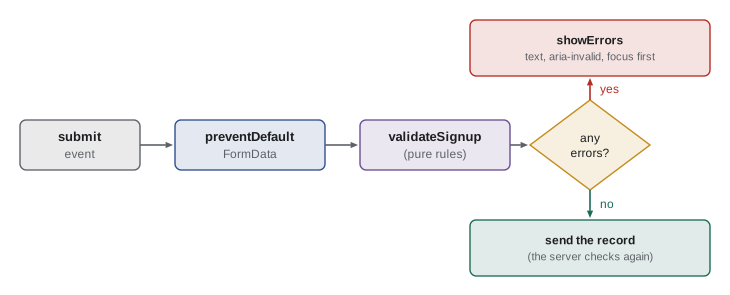
The submit listener that ties everything together is short, because each piece is a separate function.
form.addEventListener('submit', (event) => {
  event.preventDefault();
  const data = new FormData(form);
  const record = { ...Object.fromEntries(data), areas: data.getAll('areas'),
                   foodSafe: data.has('foodSafe'), age16: data.has('age16') };
  const errors = validateSignup(record);
  showErrors(form, errors);
  if (Object.keys(errors).length === 0) sendSignup(record);   // planned: Theo's back end
});
What this code does
The listener takes over submission, builds a record from the form with FormData and passes it to the same rules that the server will use. It always updates the messages, which also clears old ones when the form is now correct. Only a record with no errors is sent on, and until the back end exists, sendSignup will simply thank the volunteer.
Try it yourself
Shift crew validation
Write checkCrew(value) for a field that takes the number of volunteers a shift needs. It receives the field's text and returns a message, or 'ok'.
Rules, checked in this order: empty (after trimming) gives Enter a number.; not a number gives Use digits only.; not a whole number gives Use a whole number.; less than 1 or more than 8 gives Choose from 1 to 8..
function checkCrew(value) {
  // return a message or 'ok'
  return 'ok';
}

for (const v of ['', '  ', 'two', '2.5', '0', '9', '4', ' 8 ']) {
  console.log(JSON.stringify(v), checkCrew(v));
}
Try it yourself
From FormData to a record
Complete toRecord(data), which takes a FormData object from the sign-up form and returns a record with name and email as trimmed strings (empty if missing), areas as an array of every area value, and foodSafe and age16 as true or false depending on whether each box was ticked.
The starter prints the record as JSON.
function toRecord(data) {
  // build the record
  return {};
}

const data = new FormData();
data.append('name', '  Ben Kowalski ');
data.append('email', 'ben@example.com');
data.append('areas', 'grocery');
data.append('areas', 'kitchen');
data.append('foodSafe', 'yes');
console.log(JSON.stringify(toRecord(data)));
Common mistakes
MistakeObject.fromEntries(new FormData(form)) gives every value of a checkbox group.
InsteadIt keeps only the last value for each name. Use getAll for groups.
MistakeAn unticked checkbox sends the value no.
InsteadAn unticked checkbox sends nothing at all; check with has.
MistakesetCustomValidity('Too short') is cleared automatically when the user types.
InsteadA custom error stays until the script sets an empty string.
MistakeShowing errors in red is enough.
InsteadColor alone fails some users. Use text, aria-invalid and aria-describedby, and move focus to the first problem.
MistakeIf the browser checks the form, the server need not.
InsteadBrowser checks can be bypassed. The server must check every rule again.
Summary and key terms
- Forms are read with the value and checked properties of their controls, form.elements, or FormData, which collects the pairs a submission would send; get returns one value, getAll returns all of them and has tests for a ticked box.
- HTML attributes such as required, type, minlength, min, max, step and pattern describe constraints that the browser checks on submission.
- The Constraint Validation API exposes them through validity flags, checkValidity, reportValidity and validationMessage, and setCustomValidity adds rules written in JavaScript until it is cleared with an empty string. novalidate lets the script show its own messages while using the same constraints, and :user-invalid styles fields only after interaction.
- Rules are best written once as a pure function returning messages by field.
- Errors should appear next to their fields, be linked with aria-describedby and aria-invalid, and send focus to the first problem, at sensible times.
- Browser checks are a courtesy; the server must check again.
- FormData
- An object holding the name and value pairs that a form would submit.
- getAll
- A FormData method that returns every value submitted under one name.
- constraint
- A rule a form field must follow, such as required or a minimum length.
- Constraint Validation API
- The properties and methods that report and control form validation from JavaScript.
- validity
- A field property holding true or false flags for each kind of problem.
- checkValidity
- A method that returns whether a field or form meets all its constraints.
- reportValidity
- A method that checks validity and shows the browser's messages.
- setCustomValidity
- A method that marks a field invalid with a given message, or valid with an empty string.
- novalidate
- A form attribute that stops the browser showing its own validation messages on submit.
- :user-invalid
- A CSS pseudo-class matching invalid fields only after the user has interacted with them.
- aria-describedby
- An attribute linking an element to the ids of elements that describe it, such as an error message.
- aria-invalid
- An attribute telling assistive technology that a field's value has a problem.
Practice problems
Work each problem on paper first, then reveal the answer to check.
How do you get every ticked value of a checkbox group named areas?
Show answer
new FormData(form).getAll('areas').
What does novalidate change?
Show answer
The browser no longer blocks submission with its own messages, so the script can check the form and show its own.
Which validity flag is set when a required field is empty?
Show answer
valueMissing.
How is a field connected to its error message for screen readers?
Show answer
aria-describedby on the field holds the id of the message element; aria-invalid marks the field.
Why must the server check the same rules?
Show answer
Browser checks can be switched off or bypassed, so only the server's checks protect the data.
Lesson quiz · 5 questions
Score 60% or more to complete this lesson.
Create a free account to save your progress, take quizzes and earn a certificate.