
JS-110 · Lesson 1 of 12 · 31 min
The Document Object Model
▶ Video coming soon A video version of this lesson is on the way.
In the first week of January 2027, Mira Castellanos is due to finish riverside-data, the small module library that closed JavaScript Programming II. By then the Riverside Community Food Hub's new website, which Mira helped build in hand-written HTML and CSS, should have been live for a month: the launch is planned for Monday, December 7, 2026. The pages are fast, readable and accessible. They are also completely still. Nothing on them responds to a click except the links.
That is about to change. Rosa Delgado, who manages the Food Hub's community kitchen, wants the lunch counter's tip and order calculator, the one Mira tried out at the counter on Friday, November 13, to become a real page. Kitchen trainees will run it on a tablet at the counter: tap the items a customer orders, choose a tip for the youth garden, and see the total at once, with no typing of codes. Lucy Tran, the volunteer coordinator, has her own list: a shift list that can be filtered, a sign-up form that explains its mistakes in plain words, and a reminder that remembers whether a volunteer has already closed it.
Gareth Lindqvist, the senior developer at Brightwater Web Studio in Madison, Wisconsin, has planned a third block of Tuesday and Thursday sessions for it, starting on Tuesday, January 12, 2027, and ending with a capstone in the third week of February: the interactive menu and order page for the lunch counter. This course follows that plan. It assumes you have finished JavaScript Programming II, or can write functions, objects, classes and modules and work with arrays, JSON and errors at the same level, and that you know basic HTML and CSS.
"Everything you have written so far talked to the console," Gareth says. "From now on your code talks to the page. Before it can, you need to know what the page looks like from JavaScript's side, because it is not the HTML file you wrote." The first session is about that view of the page: the Document Object Model, usually called the DOM.
From HTML text to a tree of objects
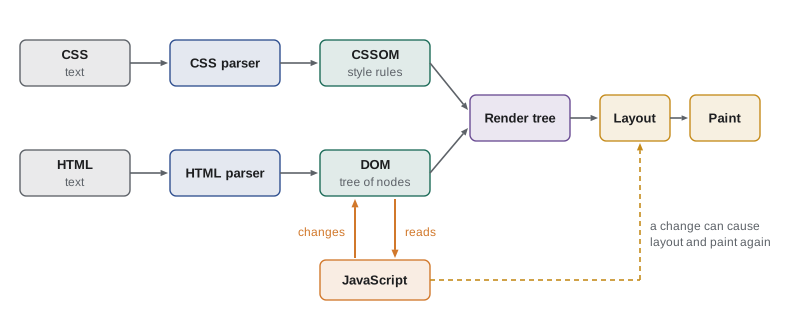
An HTML file is text. When a browser loads it, the browser's HTML parser reads that text from start to finish and builds a structure in memory that represents the page. That structure is the DOM: a tree of objects, one for each element, piece of text and comment in the document, connected to each other as parents, children and siblings. The browser draws the page on the screen from the DOM, not from the original text, and JavaScript reads and changes the page by reading and changing the DOM.
The word model matters. The DOM is a model of the document that programs can work with, defined by a public standard, the DOM Living Standard maintained by the WHATWG, so that the same code works in every browser. The HTML Living Standard adds the parts that are specific to HTML elements, such as the value of a form field or the src of an image. Together they describe the objects, their properties and their methods: the DOM API that the rest of this course uses.
Here is a cut-down version of the lunch counter section that Mira wrote for the Programs page. It is ordinary HTML of the kind you wrote in Web Development I.
<section id="lunch-counter">
  <h2>Lunch counter</h2>
  <p>Soup and sandwiches made by our kitchen trainees.</p>
  <ul class="menu">
    <li data-code="SOUP">Soup of the day</li>
    <li data-code="EGG">Egg sandwich</li>
  </ul>
</section>
What this code does
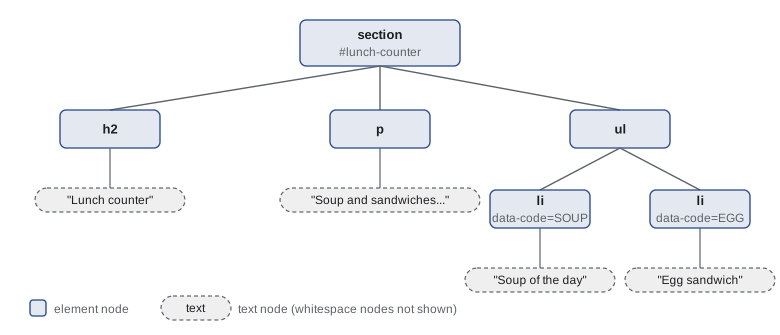
This is the source text the browser receives from the server. The parser turns each tag into an element object and each run of text into a text object, nested in the same way the tags are nested. The data-code attributes are custom data that scripts can read later.
From that text the parser builds a tree. The section element is the parent of three children: the h2, the p and the ul. The ul in turn is the parent of two li elements, and each li holds a text node with the name of a dish. The figure shows the tree, leaving out for now the whitespace between the tags, which we will come back to.
Nodes and their kinds
Every object in the tree is a node. Nodes come in several kinds, and each kind has a number, its nodeType, and a name. Four kinds cover almost everything you will meet. Element nodes represent tags such as section, p and li; they can have attributes and children. Text nodes hold the characters between tags; they never have children. Comment nodes hold HTML comments. At the very top sits the document node, which represents the whole page and is the parent of the html element.
| Kind of node | nodeType | nodeName | Example |
|---|---|---|---|
| Element | 1 | The tag name in capitals, such as LI | A list item |
| Text | 3 | #text | The words Soup of the day |
| Comment | 8 | #comment | A comment left in the HTML |
| Document | 9 | #document | The whole page |
| Document fragment | 11 | #document-fragment | A temporary container used when building content (Lesson 4) |
The words used for relationships are borrowed from a family tree, and they are the same words the API uses. A node's parent is the node directly above it; its children are the nodes directly below it; nodes with the same parent are siblings. Going further up gives ancestors, and further down gives descendants. The root of an HTML document's tree is the html element, which is the only child element of the document node, and it always has two children, head and body.
const menu = document.querySelector('.menu');
console.log(menu.nodeName);              // UL
console.log(menu.parentNode.id);          // lunch-counter
console.log(menu.children.length);        // 2
console.log(menu.firstElementChild.textContent); // Soup of the day
console.log(menu.previousElementSibling.nodeName); // P
What this code does
The first line finds the ul element on the page; Lesson 2 explains querySelector fully. Each later line moves through the tree from that element: up to its parent, down to its children, and sideways to the sibling before it. Run in the browser's console on the Programs page, the comments show what each line prints.
That listing has to run in a browser with the real page loaded, so it is shown here as a listing rather than a runnable example. The code runner on this site runs your JavaScript in a separate background thread called a Web Worker, which has no page and therefore no document. Throughout this course, code that needs a real page is shown as a listing with a description of what it does, and the logic behind it, which needs no page, is shown as runnable examples. That split turns out to be good design, as Lesson 11 explains.
A tree you can run
To get a feel for trees before touching a real page, Gareth has Mira build a small model of one with plain objects. Each node is an object with a type, and element nodes also have a tag, attributes and an array of children. This is a simplified version of what the browser builds, but the shape is the same, and the functions that walk it work the same way as the browser's own.
const tree = {
  type: 'element', tag: 'section', attrs: { id: 'lunch-counter' }, children: [
    { type: 'element', tag: 'h2', attrs: {}, children: [{ type: 'text', text: 'Lunch counter' }] },
    { type: 'element', tag: 'ul', attrs: { class: 'menu' }, children: [
      { type: 'element', tag: 'li', attrs: { 'data-code': 'SOUP' }, children: [{ type: 'text', text: 'Soup of the day' }] },
      { type: 'element', tag: 'li', attrs: { 'data-code': 'EGG' }, children: [{ type: 'text', text: 'Egg sandwich' }] },
    ] },
  ],
};

function show(node, depth = 0) {
  const pad = '  '.repeat(depth);
  if (node.type === 'text') {
    console.log(`${pad}"${node.text}"`);
    return;
  }
  console.log(`${pad}<${node.tag}>`);
  for (const child of node.children) show(child, depth + 1);
}

show(tree);<section>
<h2>
"Lunch counter"
<ul>
<li>
"Soup of the day"
<li>
"Egg sandwich"What this code does
The tree is a nested object: each element has an array of children, and text nodes hold only their text. The function show prints a node, indented by its depth, and then calls itself for each child, one level deeper. Calling a function from inside itself in this way is called recursion, and it is the natural way to visit every node of a tree.
The output is the tree drawn sideways, with indentation showing nesting. The function is recursive: to show an element, it shows each of its children, and each child shows its own children, until it reaches text nodes, which have none. Almost every operation on a tree, from counting nodes to finding one, has this shape, and the browser's own functions such as querySelector are written in the same way inside the engine.
const tree = {
  type: 'element', tag: 'ul', children: [
    { type: 'element', tag: 'li', children: [{ type: 'text', text: 'Soup of the day' }] },
    { type: 'element', tag: 'li', children: [{ type: 'text', text: 'Egg sandwich' }] },
    { type: 'element', tag: 'li', children: [{ type: 'text', text: 'Cookie' }] },
  ],
};

function countNodes(node) {
  if (node.type === 'text') return { elements: 0, texts: 1 };
  const total = { elements: 1, texts: 0 };
  for (const child of node.children) {
    const c = countNodes(child);
    total.elements += c.elements;
    total.texts += c.texts;
  }
  return total;
}

function textOf(node) {
  if (node.type === 'text') return node.text;
  return node.children.map(textOf).join(' | ');
}

console.log(countNodes(tree));
console.log(textOf(tree));{ elements: 4, texts: 3 }
Soup of the day | Egg sandwich | CookieWhat this code does
countNodes returns an object with two counts and adds up the counts returned by each child, so the totals grow as the recursion climbs back up the tree. textOf collects the text of every text node below a node. The browser's textContent property does a similar job, although it joins the pieces with nothing between them rather than with a separator.
Whitespace is part of the tree
One detail of real DOM trees surprises almost everyone. The spaces, tabs and line breaks between tags in the HTML file are text too, and the parser keeps them. In the lunch counter HTML, there is a line break and four spaces between the opening ul tag and the first li. That whitespace becomes a text node, so the ul in the real DOM has five child nodes, not two: whitespace, li, whitespace, li, whitespace.
The DOM gives two sets of properties for that reason. childNodes, firstChild, nextSibling and their relatives include every kind of node, whitespace text included. children, firstElementChild, nextElementSibling and their relatives skip everything except elements. In day-to-day code you nearly always want the element versions, and Lesson 2 shows that most code finds elements with selectors rather than by walking the tree at all.
| All nodes | Element nodes only | What you get |
|---|---|---|
| childNodes | children | The node's children |
| firstChild / lastChild | firstElementChild / lastElementChild | The first or last child |
| nextSibling / previousSibling | nextElementSibling / previousElementSibling | The neighboring sibling |
| parentNode | parentElement | The parent (they differ only at the document) |
Worked problem
Counting child nodes with whitespace
The browser parses <ul>, a line break and four spaces, <li>Soup</li>, a line break and four spaces, <li>Egg</li>, a line break and two spaces, then </ul>. How many childNodes and how many children does the ul have?
Show solution
- List the pieces between the opening and closing ul tags in order: whitespace, li, whitespace, li, whitespace.
- Each run of whitespace becomes one text node, so there are 3 text nodes.
- Each li tag becomes one element node, so there are 2 element nodes.
- childNodes counts every node: 3 + 2 = 5. children counts only elements: 2.
Answer: childNodes.length is 5 and children.length is 2. If the HTML were written on one line with no spaces between the tags, both would be 2.
The parser fixes your HTML
The DOM is not always a faithful copy of the source. HTML parsers follow detailed error-handling rules in the HTML standard, so every browser repairs broken markup in the same way instead of refusing to show the page. If a paragraph is never closed, the parser closes it when the next block element starts. If a table row is written without a tbody, the parser adds one. If an element is closed in the wrong order, the parser untangles it. The result is that the tree you see in the browser's developer tools can contain elements that are not in your file.
<table id="today">
  <tr><td>Soup of the day</td><td>5.50</td></tr>
</table>
<p>Prices include tax
<p>Tips go to the youth garden
What this code does
The source has no tbody element and two paragraphs that are never closed. The parser adds a tbody around the row and closes the first paragraph where the second one starts. Code that looks for a tbody will find one even though the file does not contain it.
This repair is a reason to write valid HTML in the first place, as Web Development I insisted, and a reason to inspect the real tree rather than the source when a script cannot find what it expects. Every major browser has developer tools, opened with F12 or by right-clicking and choosing Inspect, and their Elements or Inspector panel shows the live DOM. The View Source command, by contrast, shows the original text the server sent. When the two disagree, the panel is what JavaScript sees.
The DOM is live
The DOM is not a snapshot taken when the page loads. It is the page, as it is right now. When a script adds an element, the browser updates the screen; when a user types into a field, the field's value property changes at once. This two-way connection is what makes interactive pages possible, and it also means that the DOM is shared state: any script on the page can change it, and every change is immediately visible to every other script.
Changing the DOM is not free. After a change, the browser may need to work out the sizes and positions of elements again, which is called layout or reflow, and then draw the affected parts of the screen, which is called paint. For a handful of changes this takes no time worth measuring. For thousands of separate changes in a loop it can make a page sluggish. Lesson 4 shows how to batch changes, and Lesson 9 shows how to time visual changes with the browser's drawing cycle.
Where scripts run and when
A script can only work with elements that exist, and elements exist only after the parser has reached them. A classic script tag in the head runs before the body has been parsed, so a querySelector for a menu in the body finds nothing. There are three standard ways to make sure the page is ready. The oldest is to put the script tag at the end of the body. The modern way is to add the defer attribute, which tells the browser to download the script in parallel but run it only after the whole document has been parsed. Module scripts, written as type="module", are deferred automatically.
<head>
  <meta charset="utf-8">
  <title>Lunch counter</title>
  <link rel="stylesheet" href="/css/site.css">
  <script src="/js/counter.js" defer></script>
  <!-- or, for an ES module: -->
  <!-- <script type="module" src="/js/counter.js"></script> -->
</head>
What this code does
The defer attribute lets the browser fetch the script while it keeps parsing the page, then runs it once the document is complete. A module script behaves the same way without needing the attribute. Either way, the script can safely look for any element in the body.
When a script needs to wait for the document explicitly, for example because it was loaded without defer, it can listen for the DOMContentLoaded event, which fires once the HTML has been parsed and deferred scripts have run, without waiting for images. The load event fires later, when images and stylesheets have finished too. Lesson 5 covers events in detail; for now it is enough to know that the Food Hub's scripts will be module scripts, so the document is always ready when they start.
window, document and the global object
In a browser, two objects are always available. window represents the browser tab: its size, its address, its history, its timers and its storage. It is also the global object of the page, so global functions such as setTimeout and alert are really window.setTimeout and window.alert. document represents the page loaded in the tab and is the entry point to the DOM tree; it is itself a property of window. When code says document.title, it reads the text of the page's title element, and setting it changes the title shown on the browser tab.
| Object | Represents | Examples of what it holds |
|---|---|---|
| window | The browser tab and the global scope | innerWidth, location, history, localStorage, setTimeout |
| document | The page loaded in the tab | title, body, querySelector, createElement |
| An element | One tag on the page | id, className, textContent, children, addEventListener |
| A text node | Characters between tags | data, textContent, parentNode |
Not every JavaScript environment has these objects. Node.js has no window and no document, because it is not a browser; neither does a Web Worker, which is why the examples in this course that need a page are listings. The JavaScript language, everything from JavaScript Programming I and II, is the same everywhere. The DOM and window are extras that the browser provides, and code that keeps the two apart can be tested anywhere.
const where = typeof document === 'undefined' ? 'no page here' : 'running in a page';
console.log('Environment:', where);
console.log('Timers available:', typeof setTimeout === 'function' ? 'yes' : 'no');
console.log('JSON available:', typeof JSON.parse === 'function' ? 'yes' : 'no');Environment: no page here Timers available: yes JSON available: yes
What this code does
typeof is safe to use on a name that might not exist, so it is the standard way to check whether an environment provides something. In this site's code runner there is no page, so document is undefined. Timers and JSON belong to the language and its standard environment, so they are available in workers, in Node.js and in pages alike.
Keeping the model in mind
Gareth ends the session with three habits. First, picture the tree: before writing code that changes a page, sketch or inspect the part of the DOM it touches. Second, check the real DOM in the developer tools whenever a script cannot find something, because the parser may have changed the structure. Third, keep calculations away from the DOM. The price of an order, the rules for a valid sign-up and the list of shifts to show are ordinary data, and the DOM is only where the results are displayed.
Try it yourself
Count the list items
Complete countTag(node, tag) so that it returns how many element nodes in the tree have the given tag, including the node itself.
Text nodes have type: 'text' and no children. The starter calls the function for li and for ul.
const tree = { type: 'element', tag: 'section', children: [
  { type: 'element', tag: 'ul', children: [
    { type: 'element', tag: 'li', children: [{ type: 'text', text: 'Soup' }] },
    { type: 'element', tag: 'li', children: [{ type: 'text', text: 'Egg sandwich' }] },
  ] },
  { type: 'element', tag: 'ul', children: [
    { type: 'element', tag: 'li', children: [{ type: 'text', text: 'Tea' }] },
  ] },
] };

function countTag(node, tag) {
  // return the number of elements with this tag
  return 0;
}

console.log('li:', countTag(tree, 'li'));
console.log('ul:', countTag(tree, 'ul'));
Try it yourself
The path to a node
Write pathTo(node, text). It should return an array of the tags from the root down to the element that directly contains a text node with exactly that text, or null if no text node matches.
For the tree in the starter, pathTo(tree, 'Tea') should give [ "section", "ul", "li" ].
const tree = { type: 'element', tag: 'section', children: [
  { type: 'element', tag: 'h2', children: [{ type: 'text', text: 'Menu' }] },
  { type: 'element', tag: 'ul', children: [
    { type: 'element', tag: 'li', children: [{ type: 'text', text: 'Soup' }] },
    { type: 'element', tag: 'li', children: [{ type: 'text', text: 'Tea' }] },
  ] },
] };

function pathTo(node, text) {
  // return an array of tags, or null
  return null;
}

console.log(pathTo(tree, 'Tea'));
console.log(pathTo(tree, 'Menu'));
console.log(pathTo(tree, 'Pie'));
Common mistakes
MistakeThe DOM is the HTML file.
InsteadThe DOM is a tree of objects built from the file by the parser. It can differ from the source, and it changes while the page is open.
MistakeA ul with two li elements has two childNodes.
InsteadWhitespace between tags becomes text nodes, so childNodes usually has more entries. Use children for elements only.
MistakeA script in the head can find elements in the body straight away.
InsteadA classic script runs before the body is parsed. Use defer, a module script or DOMContentLoaded.
MistakeView Source shows what JavaScript sees.
InsteadView Source shows the original text. The Elements or Inspector panel shows the live DOM, including the parser's repairs and every change scripts have made.
Mistakedocument exists wherever JavaScript runs.
Insteaddocument and window are provided by browsers. Node.js and Web Workers do not have them.
Summary and key terms
- The Document Object Model is the tree of objects that a browser builds from an HTML document and keeps in sync with the screen.
- Every object in the tree is a node; the main kinds are element, text, comment and document nodes.
- Nodes are related as parents, children, siblings, ancestors and descendants.
- Whitespace between tags becomes text nodes, so the element-only properties such as children and nextElementSibling are usually the ones to use.
- The parser repairs invalid HTML, so the DOM can contain elements that the source does not.
- The DOM is live: changes appear on the screen and may cause layout and paint.
- Scripts should run after parsing, using defer, a module script or the DOMContentLoaded event. window is the tab and the global object, and document is the entry point to the tree; neither exists in Node.js or Web Workers.
- Document Object Model (DOM)
- The tree of objects a browser builds from a document, and the API for reading and changing it.
- node
- Any object in the DOM tree, such as an element, a piece of text or a comment.
- element node
- A node that represents an HTML tag and can have attributes and children.
- text node
- A node that holds the characters between tags; it has no children.
- parent and child
- A node directly above another in the tree, and a node directly below it.
- sibling
- A node with the same parent as another node.
- recursion
- A function calling itself to handle a smaller part of the same problem, such as each child of a tree.
- parser
- The part of the browser that reads HTML text and builds the DOM.
- layout (reflow)
- Working out the size and position of elements after the DOM or styles change.
- defer
- A script attribute that runs the script after the document has been parsed.
- DOMContentLoaded
- The event fired when the HTML has been fully parsed.
- window
- The object representing the browser tab; the global object of a page.
Practice problems
Work each problem on paper first, then reveal the answer to check.
Name the four most common kinds of DOM node.
Show answer
Element, text, comment and document nodes.
Why might the DOM contain a tbody that the HTML file does not?
Show answer
The parser adds one when a table row is written directly inside a table.
Which property gives only the element children of a node?
Show answer
children (childNodes includes text and comment nodes too).
What does the defer attribute do?
Show answer
It downloads the script while parsing continues and runs it after the document has been parsed.
Why does this course show page code as listings?
Show answer
The code runner is a Web Worker, which has no page or document; the logic is shown as runnable examples instead.
Lesson quiz · 5 questions
Score 60% or more to complete this lesson.
Create a free account to save your progress, take quizzes and earn a certificate.