
GCP-210 · Lesson 7 of 12 · 19 min
Directory synchronization and Google Cloud Directory Sync
▶ Video coming soon A video version of this lesson is on the way.
Every Birchline employee already has an account in Active Directory, the on-premises directory that runs sign-in for Windows computers, the Exchange mailboxes and a dozen internal apps. The HR system creates and disables those accounts through a nightly feed, and the help desk updates names, titles and managers there. "We are not going to type 1,100 people into Google," Sofia says at the start of the seventh session, "and we are not going to maintain two directories by hand. Active Directory stays the source of truth, and Google follows it." This lesson is about how Google follows.
Why synchronize
When an organization already has a directory, the cleanest way to manage Google accounts is to synchronize them from it. Synchronization reads users and groups from the source directory and creates, updates, suspends or deletes matching objects in Google so that the two stay consistent. New hires appear in Google when HR creates them in Active Directory; promotions update titles and managers; leavers are suspended when their Active Directory account is disabled. Nobody types the same change twice, and nobody forgets the second system.
Synchronization at Google is one-way: from the source directory into Google. Google's tools do not write changes back into Active Directory. That is a design choice, not a limitation to work around: it keeps one clear source of truth. If a field must be changed, it is changed at the source.
Google's two synchronization tools
Google offers two first-party tools for this job, and the exam expects you to know when each fits.
Google Cloud Directory Sync (GCDS) is a free application that an organization downloads and runs on its own server, usually a Windows or Linux server on the network that can reach the directory. It connects to an LDAP directory, most often Active Directory, reads users, groups, organizational units and attributes according to rules the administrator writes, and calls Google's APIs to make the Google directory match. GCDS has a configuration manager for building and testing the rules, runs on a schedule set by the organization (for example, with Windows Task Scheduler) and writes detailed logs. It has been available for many years and is widely used.
Directory Sync is Google's newer, cloud-based option, configured in the Admin console under Directory. Google's help pages describe it as running in the cloud, so there is no sync client to install. It supports Active Directory and Microsoft Entra ID as sources. For Active Directory, Google still needs a network path to the directory server, which Google documents as a connection through a VPC access connector in a Google Cloud project; for Entra ID, no network setup is needed. On November 12, 2026, Google's help page described Directory Sync as in public beta, which matters for production planning.
| Google Cloud Directory Sync (GCDS) | Directory Sync | |
|---|---|---|
| Where it runs | On a server the organization manages | In Google's cloud, configured in the Admin console |
| Sources | LDAP directories, including Active Directory and other LDAP servers | Active Directory and Microsoft Entra ID |
| Network | The server must reach the directory and Google's APIs | For Active Directory, a network path from Google Cloud to the directory (VPC access connector); none for Entra ID |
| Direction | One-way into Google | One-way into Google |
| Objects | Users, groups, OUs, attributes, shared contacts, calendar resources (by configuration) | Users and groups |
| Status (November 2026) | Generally available for many years | Described by Google as public beta |
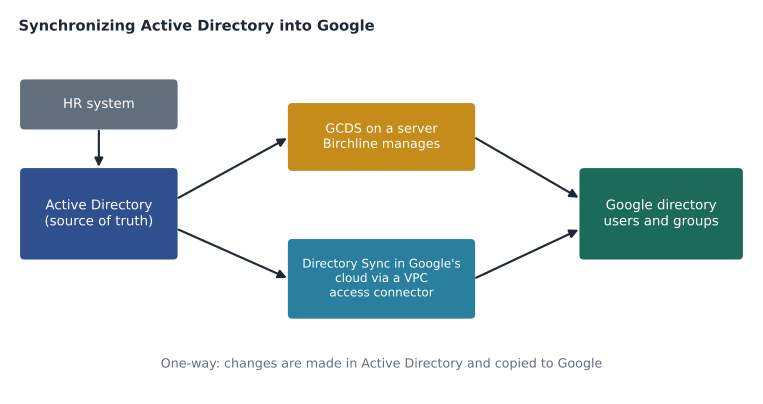
Birchline's choice is pragmatic. Directory Sync would avoid running another server, and Birchline already has network connectivity between its data room and Google Cloud from the infrastructure migration. But a tool in public beta is a risk for the system that creates and suspends 1,100 accounts. Sofia decides to use GCDS for the pilot and the main migration, on a small member server in the data room, and to evaluate Directory Sync in the Pilot OU next year. Google documents a migration path from GCDS to Directory Sync, so the choice is not permanent.
What gets synchronized: the rules
Synchronization is only as good as its rules. In GCDS, rules are written as LDAP queries and search rules that say which objects to read, plus mappings that say which directory attribute fills which Google field. Directory Sync uses a similar idea through its own settings. Owen and Sofia write Birchline's rules in plain language first.
| Google object or field | Comes from in Active Directory | Rule |
|---|---|---|
| Users to sync | User objects in the Staff OU tree | Only enabled and disabled employees; exclude service accounts and test accounts |
| Primary email | mail attribute | Must be at birchline.example (UPNs already match) |
| First and last name | givenName and sn | Copied as is |
| Organizational unit | The department and location attributes | Mapped to the Google OU tree from lesson 4 |
| Manager, title, department | manager, title, department | Copied for the directory and org chart |
| Employee ID | employeeID | Copied to a Google field used by HR reports |
| Suspension | userAccountControl (disabled flag) | Disabled in Active Directory means suspended in Google |
| Groups | Groups in the Distribution and Security OUs | Only groups whose names start with the new prefixes |
| Deletion | Users removed from scope | Suspend rather than delete; deletion is done by IT after data transfer |
Two rules deserve attention. The OU mapping is where lesson 4's design pays off: because the Google OU tree is built on settings, not the organization chart, a few rules can place everyone. Store staff go to /Stores unless their title is store manager; warehouse staff go to /Warehouses unless they are in the warehouse office. Second, Sofia sets GCDS to suspend rather than delete users that disappear from the source, because an accidental change to the LDAP query could otherwise delete hundreds of accounts in one run. Deletion after data transfer stays a deliberate step by IT.
Exclusion rules protect Google-only objects
Some Google objects should never be touched by synchronization: the super admin accounts in /Admin accounts, the Google Cloud service accounts, test users and any group created directly in Google. If GCDS is set to delete or suspend Google objects that are not found in the source, it would treat these as leavers. Exclusion rules tell the tool to ignore specified Google users, groups or OUs. Birchline excludes /Admin accounts, /Service accounts and every group with the gcp- or cfg- prefix, because those are managed in Google.
Simulate before you sync
The most important habit with any synchronization tool is to simulate first. GCDS has a simulation mode that compares the source and Google and reports what it would change without changing anything; Directory Sync offers a simulated sync too. Owen runs a simulation for the IT department and reads every line of the report. To understand the logic, he also writes it as a small model.
# Compare an Active Directory export with the Google directory, as a sync simulation would.
ad = {  # email: (enabled, org unit derived from department)
    "sofia.marchetti@birchline.example": (True, "/Pilot"),
    "owen.mitchell@birchline.example": (True, "/Pilot"),
    "amara.diallo@birchline.example": (True, "/Pilot"),
    "jordan.k.lee@birchline.example": (True, "/Pilot"),
    "marco.russo@birchline.example": (False, "/Pilot"),
}
google = {  # email: (suspended, org unit)
    "sofia.marchetti@birchline.example": (False, "/Pilot"),
    "owen.mitchell@birchline.example": (False, "/Head office/IT"),
    "amara.diallo@birchline.example": (False, "/Pilot"),
    "marco.russo@birchline.example": (False, "/Pilot"),
    "test.pilot01@birchline.example": (False, "/Pilot"),
    "sa-owen@birchline.example": (False, "/Admin accounts"),
}
excluded_ous = {"/Admin accounts", "/Service accounts"}
excluded_prefixes = ("test.", "sa-")

actions = []
for email, (enabled, ou) in ad.items():
    if email not in google:
        actions.append(("create", email, ou))
        continue
    suspended, g_ou = google[email]
    if not enabled and not suspended:
        actions.append(("suspend", email, ""))
    if g_ou != ou:
        actions.append(("move", email, g_ou + " -> " + ou))
for email, (suspended, g_ou) in google.items():
    if email in ad or g_ou in excluded_ous or email.startswith(excluded_prefixes):
        continue
    actions.append(("suspend (not in source)", email, ""))
for action in actions:
    print(f"{action[0]:24} {action[1]:36} {action[2]}")
print(len(actions), "changes; nothing applied")move owen.mitchell@birchline.example /Head office/IT -> /Pilot create jordan.k.lee@birchline.example /Pilot suspend marco.russo@birchline.example 3 changes; nothing applied
What this code does
The model holds two small lists: what Active Directory says about each person (enabled or not, and which unit they belong in) and what the Google directory currently holds. It walks through the Active Directory list and records an action whenever Google differs: create a missing account, suspend someone disabled at the source, or move someone to the right unit. It then checks for Google accounts that are not in Active Directory, skipping the excluded admin units and prefixes. The output is a list of planned changes, like a simulation report, with nothing applied.
The simulation report has three changes, and each one is a decision. Jordan Lee is new and will be created. Marco Russo is disabled in Active Directory (he left on Friday), so he will be suspended, which matches the offboarding plan from lesson 3. Owen's own account will be moved from /Head office/IT to /Pilot, because Active Directory's department mapping puts the pilot group there for now. The test account and Owen's super admin account are left alone because of the exclusion rules. Had Owen forgotten those rules, the report would have shown both being suspended, which is exactly why simulation comes first.
Passwords and synchronization
GCDS and Directory Sync synchronize directory objects, not passwords as such. If Google is the identity provider (users type their password into Google's sign-in page), Google needs to know each user's password. Google provides Google Password Sync (GSPS), an application installed on the Active Directory domain controllers that captures password changes as users make them and sends them securely to Google. With GCDS plus Password Sync, a user's Windows password and Google password stay the same. If instead a third-party identity provider handles sign-in through single sign-on (lesson 8), passwords stay with that provider and Password Sync is not needed. Birchline's pilot uses Google as the identity provider, so Password Sync goes onto the two domain controllers.
Other provisioning sources
Active Directory is not the only possible source. If an organization manages identities in Microsoft Entra ID, it can use Directory Sync, or Entra ID's own automatic provisioning to Google, which creates and updates Google accounts from Entra. Okta and other identity providers offer similar provisioning connectors. Some organizations provision from an HR system directly, using the Directory API or an identity provider in between. The exam focuses on matching the situation to the tool: an on-premises LDAP directory points to GCDS or Directory Sync; a cloud identity provider points to Directory Sync (for Entra ID) or that provider's provisioning; one-off additions point to the console or CSV.
Running synchronization in production
Once rules are tested, synchronization runs on a schedule. Birchline will run GCDS every hour during business hours, which matches the HR feed's timing. Every run writes a log, and Owen sets up an alert if a run fails or if a run would change more than 25 users, a safety threshold that stops a broken query from causing mass changes. GCDS can be configured to stop when a threshold is exceeded, and Sofia insists on it.
Changes made directly in Google to synchronized fields will be overwritten on the next run, so the help desk is told to change names, titles, managers and OUs in Active Directory only. Fields that are not synchronized, such as a user's Gmail settings or their licenses, are managed in Google as usual.
Common mistakes
MistakeRunning a new sync configuration without a simulation.
InsteadSimulate, read every proposed change and fix rules before the first real run.
MistakeForgetting exclusion rules for Google-only accounts and groups.
InsteadExclude super admin accounts, service accounts and Google-managed groups from deletion and suspension.
MistakeLetting synchronization delete users that drop out of scope.
InsteadSuspend instead, and delete deliberately after data transfer.
MistakeEditing synchronized fields in the Google console.
InsteadChange them in the source directory; the next run overwrites Google.
Worked problem
Choosing a provisioning approach
Three organizations ask Owen for advice. (1) A 90-person firm has an on-premises Active Directory and no cloud identity provider, and wants accounts created automatically. (2) A company manages all identities in Microsoft Entra ID and wants Google accounts to follow Entra. (3) A small charity with 12 staff and no directory wants accounts set up once. What should each use?
Show solution
- The firm with on-premises Active Directory can use GCDS on a server that reaches the directory, or Directory Sync with a network path from Google Cloud; GCDS is the established option, Directory Sync removes the server.
- The Entra ID company can use Directory Sync with Entra ID as the source, or Entra ID's own provisioning to Google; neither needs network connectivity to an on-premises server.
- The charity has nothing to synchronize from; creating 12 users in the console or by CSV upload is simplest.
- In each case, decide the source of truth first and make all changes there.
Answer: GCDS or Directory Sync for on-premises Active Directory, Directory Sync or Entra provisioning for Entra ID, and manual or CSV creation for the charity.
Summary and key terms
- Synchronization keeps Google accounts consistent with an existing directory and is one-way into Google.
- Google Cloud Directory Sync runs on an organization's server and reads LDAP directories such as Active Directory by rules.
- Directory Sync runs in Google's cloud, supports Active Directory and Microsoft Entra ID, and was in public beta in November 2026.
- Write rules for scope, attribute mappings, OU placement, suspension and groups.
- Use exclusion rules for Google-only objects.
- Always simulate before syncing.
- Suspend rather than delete users that leave scope.
- Google Password Sync keeps Active Directory and Google passwords the same when Google is the identity provider.
- Third-party identity providers and HR systems can also provision accounts.
- Use safety thresholds and make changes at the source.
- Synchronization
- Automatically making the Google directory match a source directory.
- Google Cloud Directory Sync (GCDS)
- Google's downloadable tool that synchronizes users and groups from an LDAP directory into Google.
- Directory Sync
- Google's cloud-based synchronization from Active Directory or Microsoft Entra ID, configured in the Admin console.
- Source of truth
- The authoritative system whose data the others follow.
- Exclusion rule
- A rule telling synchronization to ignore specified Google objects.
- Simulation
- A run that reports proposed changes without applying them.
- Google Password Sync
- A tool on domain controllers that sends Active Directory password changes to Google.
- Safety threshold
- A limit that stops a sync run that would change too many objects.
Practice problems
Work each problem on paper first, then reveal the answer to check.
Why does Birchline set synchronization to suspend rather than delete?
Show answer
A mistaken query could otherwise delete many accounts and their data in one run; suspension is reversible.
What would happen to the super admin accounts without exclusion rules?
Show answer
They are not in Active Directory, so synchronization would treat them as leavers and suspend or delete them.
When is Google Password Sync needed?
Show answer
When Google is the identity provider and users should keep the same password as in Active Directory.
Lesson quiz · 5 questions
Score 60% or more to complete this lesson.
Create a free account to save your progress, take quizzes and earn a certificate.